As you know, when you right-click on an item in Windows Explorer, the shell context menu is displayed. You can implement the shell context menu in your own applications with a minimum amount of effort. This has implications beyond just displaying the context menu for a file, though. Through the shell context menu you can:
Display the context menu and have the shell carry out the appropriate action for the item clicked.
Silently cut or copy files to the clipboard.
Allow the user to delete a file (with confirmation) without showing the context menu.
Add your own menu items to the shell context menu.
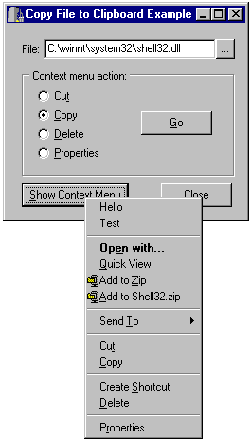
This article will explain how to accomplish these tasks. (Adding items to the context menu is explained in the article, “Adding items to the shell context menu.”) Figure A shows the example program for this article displaying the shell context menu for Windows’ SHELL32.DLL. Note that two additional items appear at the top of the shell context menu.
Figure A
You can display the shell context menu in your applications and even add your own menu items.
The key to these tasks is the IContextMenu interface. The code presented in this article assumes that you are working with a single file in the file system. The concepts presented, however, can be adapted to allow access to the shell context menu for folders or other shell items. This article builds on past articles regarding the shell namespace, but it is not necessary for you to have read those articles to understand the concepts presented here. You must include SHELLAPI.H in order to use the objects explained in this article.
Note to C++Builder 5 Users: You must define NO_WIN32_LEAN_AND_MEAN if you include SHELLAPI.H. You will normally do this in your main form’s unit before the include for VCL.H (see Listing A).
The IContextMenu interface (and the IContextMenu2 extension to this interface) represents the shell’s context menu. IContextMenu is a fairly simple interface as it only contains two methods of interest. Those methods are:
QueryContextMenu()
InvokeCommand()
The QueryContextMenu() method obtains the shell context menu for a particular item in the shell namespace. In order to obtain the context menu for a particular shell item you must have an IShellFolder interface for the item’s parent folder, and a pidl (pointer to an item ID list) for the item itself. I will explain how to get these items in the next section.
The InvokeCommand() method invokes a particular shell context menu command. If the Copy item on the shell context menu is clicked, for example, the item will be copied to the clipboard. The copied item can then be pasted in Explorer or any other application that supports pasting of shell items.
One other method, GetCommandString(), allows you to get the language-independent verb that corresponds to a particular shell menu item. It is not typically necessary to use GetCommandString(), though, so I will not explain that method in this article.
Obtaining the IContextMenu interface for a particular shell item requires that you first obtain an IShellFolder interface for the item’s parent. Once you have the IShellFolder for the parent object you must obtain a pidl for the item itself. I have explained pidls in previous articles, but the short version is that a pidl is a binary object that represents an item in the shell namespace, whether that item be a file, a folder, an item in the Control Panel, and so on.
Let’s say that you have a path to a file. The first step is to separate the file and its path into separate parts:
String FName = “c:\\Data\\Stuff.dat”;
String FilePath =
  ExtractFilePath(FName);
String FileName =
  ExtractFileName(FName);
Now you can get the IShellFolder for the folder in which the file is located. This code may be somewhat intimidating, so I’ll break it into separate parts. (I have removed error-checking code to simplify the code shown. Naturally you should perform error checking at the various steps to ensure that the pointers you get from the shell are valid before attempting to use them.) First you must obtain a pointer to the Desktop’s IShellFolder interface. The Desktop is the root of the shell namespace, and everything begins with the Desktop:
LPSHELLFOLDER DesktopFolder;
SHGetDesktopFolder(&DesktopFolder);
Now that you have a pointer to the Desktop you can use it to obtain a pidl for the path that contains the file:
wchar_t Path[MAX_PATH];
LPITEMIDLIST ParentPidl;
DWORD Eaten;
StringToWideChar(
  FilePath, Path, MAX_PATH);
DesktopFolder->ParseDisplayName(Handle,
  0, Path, &Eaten, &ParentPidl, 0);
At this point the ParentPidl variable contains a pidl for the folder. Next you get the IShellFolder that represents the folder that contains the file, using the pidl obtained in the previous step:
LPSHELLFOLDER ParentFolder;
DesktopFolder->BindToObject(
  ParentPidl, 0, IID_IShellFolder,
  (void**)&ParentFolder);
Now you have an IShellFolder for the folder that contains the file, but there are a few steps yet to go. The next step is to obtain a pidl for the file itself. This is done using the file name and the parent folder’s IShellFolder:
LPITEMIDLIST Pidl;
StringToWideChar(
  FileName, Path, MAX_PATH);
ParentFolder->ParseDisplayName(
  Handle, 0, Path, &Eaten, &Pidl, 0);
Finally, you get to the important part: obtaining an IContextMenu interface for the file. This is done by calling the GetUIObjectOf() method of IShellFolder. You pass the pidl for the file and a pointer that will receive the IContextMenu interface:
LPCONTEXTMENU CM;
ParentFolder->GetUIObjectOf(
  Handle, 1, (LPCITEMIDLIST*)&Pidl,
  IID_IContextMenu, 0, (void**)&CM);
If the call to GetUIObjectOf() succeeds, the CM variable will contain a pointer to the IContextMenu for the file.
The above steps may seem complex, but you can simply use this code in any of your applications that need access to the shell’s context menu. As I have said, the code presented here assumes you are obtaining the context menu for a file in the file system. However, you can obtain the context menu for any item in the shell namespace provided that you have an IShellFolder for the item’s parent, and a pidl representing the item.
I will explain the different things you can do with the IContextMenu interface shortly. Before I do, though, I need to explain a critical element of using the shell context menu.
On some operating systems it is necessary to call OleInitialize() to ensure that the context menu actions will work properly. My tests indicate that calling OleInitialize() is not always necessary on Windows 98, but is necessary on Windows 95, Windows NT, and Windows 2000. You don’t need to be concerned about which of the operating systems have this requirement as calling OleInitialize() is safe in any case.
In writing this article I noticed something interesting (and frustrating, too, I might add). In my test application I called OleInitialize() just prior to the code shown in the previous section. The Cut and Copy commands for the context menu simply were not working. I examined my IShellFolder(), my pidls, and everything else I could think of but to no avail. Windows didn’t report any error, but the clipboard operations just did not work. Having tried everything else I could think of, I finally moved the call to OleInitialize() to the form’s OnCreate event handler. For whatever reason, this worked, and the Cut and Copy menu items began working. I can’t explain why, but I thought you should be aware of the problems I encountered with OleInitialize().
Every call to OleInitialize() must have a matching call to OleUninitialize(). Typically, you will place this call in your form’s OnDestroy event handler, or in the form’s destructor.
You may simply want to copy a file (or any shell item) to the clipboard so that your users can then paste that file in Explorer or any other application that supports pasting of shell items. IContextMenu can do this silently, without ever displaying the context menu. I will discuss the steps required to copy a file to the clipboard, but you will later see that this same technique will allow you to do other things with the file (displaying the Properties dialog for the file, for example).
The first step in this process is to declare an instance of the CMINVOKECOMMANDINFO structure and set a few of that structure’s members:
CMINVOKECOMMANDINFO CI;
ZeroMemory(&CI, sizeof(CI));
CI.cbSize = sizeof(CMINVOKECOMMANDINFO);
CI.hwnd = Handle;
Next comes the important part. Each item on the shell context menu has an associated verb. This verb is language-independent. The verb used to copy a file to the clipboard, for example, is “open”. You set the verb by assigning a value to the lpVerb member of the structure:
CI.lpVerb = “copy”;At this point the structure is set up and you are ready to invoke the command. This is done with the InvokeCommand() method:
CM->InvokeCommand(&CI);If InvokeCommand() is successful, the return value will be 0. In this example the file will be copied to the clipboard and can be pasted in Explorer.
As I said earlier, you can do more than just copy a file using the context menu. Table A shows a list of verbs used with IContextMenu, and their associated menu text. Note that not all shell context menu items have an associated verb. Note also that the items listed in Table A do not appear for all shell items and, in some cases, do not appear on some operating systems. I will explain this in more detail in a later section.
Table A: Common verbs used with IContextMenu.
|
Verb |
Menu
Item Text |
|
openas |
Open |
|
cut |
Cut |
|
copy |
Copy |
|
paste |
Paste |
|
link |
Create Shortcut |
|
delete |
Delete |
|
properties |
Properties |
|
Explore |
Explore |
|
find |
Find |
|
COMPRESS |
Compress |
|
UNCOMPRESS |
Uncompress |
Using these verbs you can invoke the commands associated with a particular verb. The most common use will be to delete, open, cut, copy, or paste files, and to show the Properties dialog for a file.
In some cases you may want to display the context menu for a shell item in order to allow the user to carry out an action. Once you have the IContextMenu interface for a file, you can easily show the shell context menu. The following sections explain how to obtain the menu, how to display it, and how to take action when a menu item is clicked.
The first step in this process is to call QueryContextMenu() to associate the shell’s context menu with a menu handle:
HMENU hMenu = CreatePopupMenu();
DWORD Flags = CMF_EXPLORE;
CM->QueryContextMenu(
  hMenu, 0, 1, 0x7FFF, Flags);
First, I create a popup menu by calling the CreatePopupMenu() function. Next I set the flags I want for the context menu. I will explain the flags in just a bit. You may have noticed that one line in the previous code snippet is commented out. I will get to that shortly.
Next I call QueryContextMenu() to get the context menu. I pass the menu handle of the popup menu in the first parameter. In this case I am creating a new empty popup menu. I could, however, pass the handle for an already-existing menu. In that case, Windows will merge the shell context menu with the items in the already-existing menu. This would allow you to add items to the shell context menu (see the next article for details). I will explain that in a later section. I pass 0 for the second parameter and 0x7FF for the third parameter. These two parameters indicate the range of allowed menu ID values for the menu items. In most cases you can just pass the values shown here and not give it another thought.
The final parameter is used to specify the flags that should be used. In this case I am only using the CMF_EXPLORE flag. This flag tells Windows to return the same context menu that Explorer shows. For a complete list of the flags available, see IContextMenu in the Win32 API help.
If QueryContextMenu() is successful, the menu represented by the hMenu variable will contain the shell context menu.
Showing the context menu is trivial. Here is the code:
TPoint pt;
GetCursorPos(&pt);
int Cmd = TrackPopupMenu(hMenu,
  TPM_LEFTALIGN | TPM_LEFTBUTTON |
  TPM_RIGHTBUTTON | TPM_RETURNCMD,
  pt.x, pt.y, 0, Handle, 0);
First I get the location of the cursor by calling the GetCursorPos() function. Next I call TrackPopupMenu() to display the menu. I won’t go over every parameter to TrackPopupMenu(), but you can see the Win32 API help for further explanation.
TrackPopupMenu() is a synchronous call. That is, it will not return until the popup menu has been dismissed. The Win32 API help for TrackPopupMenu() says that it returns a BOOL, and that the return value will be 0 if the call fails, or a non-zero value if the call succeeds. What the help does not say, though, is that the return value is the command ID of the menu item that was clicked. You can use the return value of TrackPopupMenu() to invoke a shell command. Here is the code:
if (Cmd) {
  CI.lpVerb = MAKEINTRESOURCE(Cmd - 1);
  CI.lpParameters = "";
  CI.lpDirectory = "";
  CI.nShow = SW_SHOWNORMAL;
  CM->InvokeCommand(&CI);
}
The key lines are the line that set the lpVerb member of the CMINVOKECOMMANDINFO structure and the line that calls InvokeCommand(). When you call InvokeCommand() the selected command is executed.
If you are copying or cutting a file to the clipboard, you can switch to Explorer to confirm that the item was copied to the clipboard. If you select the Properties item on the menu you will see the Properties dialog displayed, and so on.
The shell’s context menu is a powerful tool. You may want to show the context menu to your users (such as when displaying shell items in a list view or tree view) or you may simply want to use the context menu to carry out some other action. Either way, the context menu is available to you and relatively easy to use. The code for the main form of this article’s example program is shown in Listing A. In addition to the techniques explained in this article, the example shows how to add items to the context menu.
Listing A: MAINU.CPP.
#define NO_WIN32_LEAN_AND_MEAN
#include <vcl.h>
#pragma hdrstop

#include <shellapi.h>
#include <shlobj.h>

#include "MainU.h"

#pragma package(smart_init)
#pragma resource "*.dfm"
TForm1 *Form1;

__fastcall TForm1::TForm1(TComponent* Owner)
        : TForm(Owner)
{
}

void __fastcall TForm1::FormCreate(TObject *Sender)
{
  // Initialize OLE. This is required to get
  // the cut and copy actions to work.
  if (OleInitialize(0) != S_OK) {
    ShowMessage("Unable to initialize OLE.");
    return;
  }
  FileNameEdit->Text = Application->ExeName;
}

void __fastcall
TForm1::FormDestroy(TObject *Sender)
{
  // Unitialize OLE
  OleUninitialize();
}

void __fastcall
TForm1::GoBtnClick(TObject *Sender)
{
  // Get an IShellFolder for the desktop.
  LPSHELLFOLDER DesktopFolder;
  SHGetDesktopFolder(&DesktopFolder);
  if (!DesktopFolder) {
    ShowMessage(
      "Failed to get Desktop folder.");
    return;
  }

  // Separate the file from the folder.
  String FilePath = ExtractFilePath(
    FileNameEdit->Text);
  String FileName = ExtractFileName(
    FileNameEdit->Text);

  // Get a pidl for the folder the file
  // is located in.
  wchar_t Path[MAX_PATH];
  LPITEMIDLIST ParentPidl;
  DWORD Eaten;
  StringToWideChar(FilePath, Path, MAX_PATH);
  DWORD Result =
    DesktopFolder->ParseDisplayName(
      Handle, 0, Path, &Eaten, &ParentPidl, 0);
  if (Result != NOERROR) {
    ShowMessage("Invalid file name.");
    return;
  }

  // Get an IShellFolder for the folder
  // the file is located in.
  LPSHELLFOLDER ParentFolder;
  Result = DesktopFolder->BindToObject(ParentPidl,
    0, IID_IShellFolder, (void**)&ParentFolder);
  if (!ParentFolder) {
    ShowMessage("Invalid file name.");
    return;
  }

  // Get a pidl for the file itself.
  LPITEMIDLIST Pidl;
  StringToWideChar(
    FileName, Path, MAX_PATH);
  ParentFolder->ParseDisplayName(
    Handle, 0, Path, &Eaten, &Pidl, 0);

  // Get the IContextMenu for the file.
  LPCONTEXTMENU CM;
  ParentFolder->GetUIObjectOf(
    Handle, 1, (LPCITEMIDLIST*)&Pidl,
    IID_IContextMenu, 0, (void**)&CM);

  if (!CM) {
    ShowMessage(
      "Unable to get context menu interface.");
    return;
  }

  // Set up a CMINVOKECOMMANDINFO structure.
  CMINVOKECOMMANDINFO CI;
  ZeroMemory(&CI, sizeof(CI));
  CI.cbSize = sizeof(CMINVOKECOMMANDINFO);
  CI.hwnd = Handle;

  if (Sender == GoBtn) {
    // Verbs that can be used are cut, paste,
    // properties, delete, and so on.
    String Action;
    if (CutRb->Checked)
      Action = "cut";
    else if (CopyRb->Checked)
      Action = "copy";
    else if (DeleteRb->Checked)
      Action = "delete";
    else if (PropertiesRb->Checked)
      Action = "properties";

    CI.lpVerb = Action.c_str();
    Result = CM->InvokeCommand(&CI);
    if (Result)
      ShowMessage(
        "Error copying file to clipboard.");

    // Clean up.
    CM->Release();
    ParentFolder->Release();
    DesktopFolder->Release();
  } else {
    HMENU hMenu = CreatePopupMenu();
    DWORD Flags = CMF_EXPLORE;
    // Optionally the shell will show the extended
    // context menu on some operating systems when
    // the shift key is held down at the time the
    // context menu is invoked. The following is
    // commented out but you can uncommnent this
    // line to show the extended context menu.
    // Flags |= 0x00000080;
    CM->QueryContextMenu(
      hMenu, 0, 1, 0x7FFF, Flags);

    // Merge the form's popup menu with the shell
    // menu.
    MENUITEMINFO mi;
    char buff[80];
    // Work backwards, adding each item to the
    // top of the shell context menu.
    for (int i=PopupMenu1->Items->Count-1;
           i>-1;i--) {
      ZeroMemory(&mi, sizeof(mi));
      mi.dwTypeData = buff;
      mi.cch = sizeof(buff);
      mi.cbSize = 44;
      mi.fMask = MIIM_TYPE | MIIM_ID | MIIM_DATA;
      // Get the menu item.
      DWORD result = GetMenuItemInfo(
        PopupMenu1->Handle, i, true, &mi);
        if (result) {
          // Modify its ID by adding 100 to the
          // Command property. This ensures that
          // there are no conflicts between the
          // shell command IDs and the popup items.
          mi.wID = PopupMenu1->Items->
            Items[i]->Command + 100;
          // Add the item to the shell menu.
          InsertMenuItem(hMenu, 0, true, &mi);
        }
    }
    // Show the menu.
    TPoint pt;
    GetCursorPos(&pt);
    int Cmd = TrackPopupMenu(hMenu,
      TPM_LEFTALIGN | TPM_LEFTBUTTON |
      TPM_RIGHTBUTTON | TPM_RETURNCMD,
      pt.x, pt.y, 0, Handle, 0);
    // Handle the command. If the return value
    // from TrackPopupMenu is less than 100 then
    // a shell item was clicked.
    if (Cmd < 100 && Cmd != 0) {
      CI.lpVerb = MAKEINTRESOURCE(Cmd - 1);
      CI.lpParameters = "";
      CI.lpDirectory = "";
      CI.nShow = SW_SHOWNORMAL;
      CM->InvokeCommand(&CI);
    }
    // If Cmd is > 100 then it's one of our
    // inserted menu items.
    else
      // Find the menu item.
      for (int i=0;
           i<PopupMenu1->Items->Count;i++) {
        TMenuItem* menu =
          PopupMenu1->Items->Items[i];
        // Call its OnClick handler.
        if (menu->Command == Cmd - 100)
          menu->OnClick(this);
      }
    // Release the memory allocated for the menu.
    DestroyMenu(hMenu);
  }
}

void __fastcall
TForm1::Button2Click(TObject *Sender)
{
  if (OpenDialog->Execute())
    FileNameEdit->Text = OpenDialog->FileName;
}

void __fastcall
TForm1::CloseBtnClick(TObject *Sender)
{
  Close();
}

// The OnClick handlers for the poup menu.
void __fastcall
TForm1::Hello1Click(TObject *Sender)
{
  ShowMessage("Hello!");
}

void __fastcall
TForm1::Test1Click(TObject *Sender)
{
  ShowMessage("This is a test.");
}