Active Server Objects
by Bob Swart
One of the new features of C++Builder 5 is support for Active Server Pages, or more specifically, Active Server Objects that can be used inside Active Server Pages. In this article I will show you just how far this support goes, and what’s missing (or what could be desired in future versions of C++Builder).
Active Server Pages
Active Server Pages (ASP) is a Microsoft solution to provide a server-side scripting language (compared with JavaScript on the client side). An Active Server Page is just a simple HTML Web page with an .asp extension and ASP scripting statements between <% and %> tags. Numerous books and articles are available on the ASP scripting language, which has little to do with C++Builder. The only overlap between the two is that fact that the ASP scripting languages can create and access Active Server Objects; COM objects that you can create using C++Builder 5.
Active Server Objects
To facilitate the use of Active Server Objects, C++Builder 5 includes an Active Server Object Wizard. Before employing the wizard, you must first create a new ActiveX Library project (using File|New, and selecting the ActiveX Library from the ActiveX tab). Make sure to save your project, for example as BCB5DJ.BPR, before you call the Active Server Object Wizard.
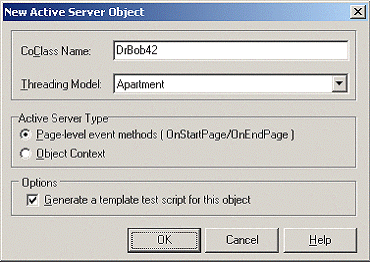
Once you’ve saved your new empty ActiveX Library, you can start the Active Server Object Wizard from the same ActiveX tab of the Object Repository. A combo box will prompt you to provide specific information, as shown in Figure A.
Figure A
The Active Server Object Wizard is where you set the object’s properties.
The “CoClass Name” field is used to specify the internal name of the new Active Server Object that this dialog will create for you. I’ve named it DrBob42 here, but you can use anything you like. The Active Server Type option gives you two choices: The default “Page-level event methods” type, or the “Object Context” type. The option you choose depends on the version of ASP that your Web server supports. Internet Information Server (IIS) 5 supports ASP 3.0, which can work with both options. However, IIS 4 supports ASP 2.0, which only supports the page-level event methods. To avoid any compatibility issues, I’ll just stick with the default choice of page-level event methods. Note that the dialog already mentions the OnStartPage and OnEndPage events; those are indeed what we’ll be using to work with our Active Server Object.
The final option, marked by default as well, helps to generate an example .asp file with a two-line script that shows you how to create your object and call a certain method from it. This ASP file will have the name of your project (provided through the wizard) with an .asp extension. This is why I recommended that you save your project before you started this dialog.
When you click OK, the skeleton for your Active Server Object is created (along with the sample .asp file if you left that option marked). The first thing you’ll see now is the Type Library Editor. The Active Server Object is still “empty” and you must now define the ways the Active Server Object can interact with the outside world. Specifically, you must define how the Active Server Object is used by ASP scripting statements. If you expand the IDrBob42 interface in the Type Library Editor, you’ll notice the two methods that are already available: OnStartPage and OnEndPage.
At this point we’ll create a single method in the Type Library that will do all the work for us. In this case, I have called the method JustDoIt(). The Type Library Editor should now display three methods as shown in Figure B.
Figure B
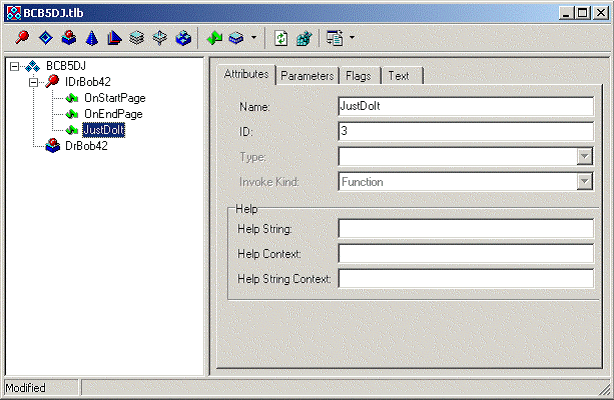
The Type Library Editor shows the newly-added JustDoIt() method.
Click the Refresh button on the Type Library Editor to update your C++ source code, and then close the Type Library Editor. This is a good time to save your entire project again using File|Save All. You can accept the default filenames C++Builder suggests. One of the files you just saved contains the implementation of the Active Server Object. In my case, it’s called DRBOB42IMPL.CPP. This file contains the implementation of the OnStartPage and OnEndPage methods, as well as the implementation of the JustDoIt() method that we now need to implement. Before we can (or know how to) do that, you first need to know a little bit more about the available Active Server “support” objects that are available to you. The two objects I will explain here are Request and Response.
The Response object
The Response object is contained within the Active Server Object. We can use Response and its properties/methods to produce dynamic output. A straightforward way is to call the Response->Write() method that takes a Variant as argument. Using Response, the JustDoIt() method can be implemented like this:
STDMETHODIMP TDrBob42Impl::JustDoIt()
{
  return Response->Write(Variant(
    "Hello, C++Builder "
    "Developer's Journal!"));
}
After you compile the project, you need to register the Active Server Object. This is done by choosing Run|Register ActiveX Server from the C++Builder main menu. (You can unregister the object using Run|Unregister ActiveX Server.) After choosing this menu item you will receive notification that the ActiveX Server has been successfully registered.
In order to test this example, you need to take a look at the DRBOB42.ASP file that creates the BCB5DJ.DrBob42 Active Server Object and contains an example to call a method. In our case, the method is JustDoIt(), of course, so the modified DRBOB42.ASP looks as follows:
<HTML>
<BODY>
<TITLE> Testing C++Builder ASP </TITLE>
<CENTER>
<H3> You should see the results of your
  C++Builder Active Server method below
</H3>
</CENTER>
<HR>
<% Set CBuilderASPObj = Server.CreateObject("BCB5DJ.DrBob42")
   CBuilderASPObj.JustDoIt
%>
<HR>
</BODY>
</HTML>
After you’ve made this modification, there’s one important step you have to take: The DRBOB42.ASP file must be placed in a (virtual) directory of your Web server that has scripting rights assigned to it. This means that when you request the document from within a browser, the Web server itself will provide the page to you, executing the ASP scripting code along the way. An Active Server Page will not be “executed” if you load it as a local file inside your browser; the Web server must be involved.
On my machine, the CGI-BIN directory has scripting rights, so I can copy DRBOB42.ASP to that directory and request http://localhost/cgi-bin/DrBob42.asp inside my browser. Doing so results in the Web page shown in Figure C.
Figure C
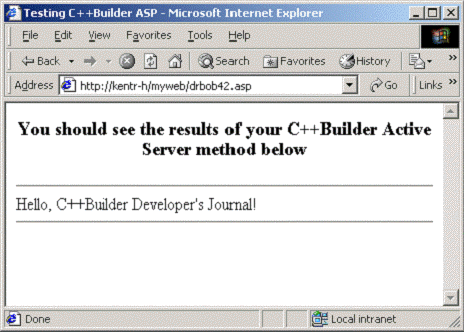
The ASP object serves up this Web page.
At this time, you’ve completed a full cycle of coding, compiling and using the resulting Active Server Object in a Web browser. Of course, in real-life you’ll want to return something more entertaining than just the simple “hello” message. Before you go back to the coding editor, however, you should know that once loaded, an ASP 2.0 object is really hard to unload. And with the ASP object loaded (or more specifically, with the BCB5DJ.DLL loaded), you cannot recompile your project again because the BCB5DJ.DLL is in use and hence locked. In order to unload the BCB5DJ.DLL, you have to shut down the IIS Admin Service, and then restart it again (and the World Wide Web Service as well). To make things easier, I always use a batch file that unloads all Active Server Objects and reloads the Web server again.
Note, by the way, that you will not have this problem when using ASP 3.0 or when wrapping the Active Server Object into a Microsoft Transaction Server (MTS) object. However I’m not using MTS, so I can only show you the “hard way” here.
The Request object
Once you’ve unloaded BCB5DJ.DLL, it’s time to return to C++Builder and start working with another important Active Server supporting object: Request. While Response can be used to send output back to the client, Request is used to obtain input information from the client. There are three main properties of the Request object: Form (the fields sent using the POST() method), QueryString (the fields sent using the GET() method) and Cookies.
Unfortunately, using these properties is not straightforward, as you first have to extract these items before you can use them. For example, to get the form from the Request object, and obtain the value of the Choice form field, you’d have to write the following code:
STDMETHODIMP TDrBob42Impl::JustDoIt()
{
  HRESULT hr = E_FAIL;
  try
  {
    Response->Write(Variant(
      "Your choice is: "));
    Variant Choice;
    IRequestDictionary* Form;
    Request->get_Form(&Form);
    Form->get_Item(
      Variant("Choice"),Choice);
    hr = Response->Write(Choice);
  }
  catch(Exception &e)
  {
    return Error(e.Message.c_str(), IID_IDrBob42);
  }
  return hr;
}
You have access to QueryFields (using the get_QueryFields() method) and Cookies (via the get_Cookies() method) in the same way. Once you know how, it works just fine. Note that we now also use a try/catch block to make sure no exception is raised (and not caught by the Active Server Object).
When deploying the above solution, you need some way to actually put data inside the Choice form variable. We can do this using a “calling” HTML file in which we define the correct action (our Active Server Page), the POST() method, and an input field named Choice. I’ve written the following HTML Web page for that purpose. It is placed in the same directory as the Active Server Page:
<HTML>
<BODY>
<H1>WebBroker HTML Form</H1>
<HR>
<FORM ACTION="DrBob42.asp" METHOD=POST>
<P>
Choice: <INPUT TYPE=text NAME=Choice>
<P>
<INPUT TYPE=SUBMIT VALUE=Submit>
</FORM>
</BODY>
</HTML>
When you load the above Web page, you can fill in some choice (any text will do) and click on the Submit button. When you do, you should see a page similar to the one shown in Figure D. The value of Choice is obtained from the form variables.
Figure D
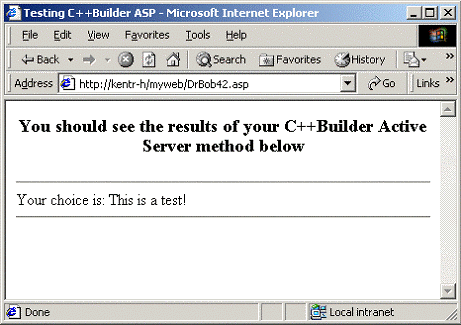
The results of the ASP object using the Request object
Of course, the Request and Response objects have more useful properties and methods, but this article has shown the most useful in order to get you started.
Further reading
For more information on writing Active Server Object in C++Builder 5, especially combining Active Server Objects with the WebBroker (HTML producing) Technology, I recommend the C++Builder 5 Developer’s Guide, by SAMS Publishing (ISBN 0672319721). I’ve written chapters in this book on ActiveX (ActiveForms, Active Server Pages), WebBroker, InternetExpress and MIDAS 3.