Advanced string grid techniques
by Damon Chandler
Last month, I focused mainly on visual aspects of the TStringGrid class, and the month before, on functionality. This month, I’ll discuss some techniques for enhancing a string grid’s accessibility—I’ll show you how to copy a group of cells to and from the clipboard, and how to support drag and drop operations from other applications.
Clipboard transfers
If you’ve never transferred data to or from the clipboard, don’t worry—the TClipboard class significantly simplifies things. In fact, since we’re only transferring text, the process is entirely straightforward, even without help from the VCL. As it turns out, the most cumbersome part of copying a group of cells to the clipboard is actually copying the text of each cell into a buffer, and then formatting the buffer into a form that other grid-based applications, such as Microsoft Excel, can accept.
When you select a group of cells in Excel, then copy the selection to the clipboard, the clipboard will contain a text buffer, where a tab character delimits each column, and the end of each row is denoted by a carriage return/linefeed combination. For example, if you copy cells A1:C3 (where the text of each cell denotes its location), the clipboard will contain the following (minus the white space):
 A1 \t A2 \t A3 \r\n
 B1 \t B2 \t B3 \r\n
 C1 \t C2 \t C3 \r\n
When you paste text from the clipboard to Excel, the text buffer must have this format to align properly into each cell. This means that before your application copies text to the clipboard, you must ensure that the text is arranged in the above format. Likewise, when you copy text from Excel to the clipboard, and then paste this text into your application, you’ll receive a buffer that’s formatted as above, which you’ll need to parse into each cell. Let’s tackle the former case first.
Copying cells to the clipboard
Before you can copy cells to the clipboard, you need to extract the text from each cell, and then arrange the collected text in the aforementioned format. The following application-defined function, CellToText(), demonstrates this process:
AnsiString __fastcall CellsToText(
  TStringGrid& AGrid,
  const TGridRect& ACells)
{
  //
  // compute the total size of the
  // buffer required to hold the text
  // of each cell plus the tab and
  // CR/LF delimiters
  //
  int text_len = 0;
  for (int row = ACells.Top;
       row <= ACells.Bottom;
       ++row)
  {
    for (int col = ACells.Left;
         col <= ACells.Right;
         ++col)
    {
      text_len +=
        AGrid.Cells[col][row].Length();
      if (col < ACells.Right)
        ++text_len;
    }
    if (row < ACells.Bottom)
      text_len += 2;
  }

  //
  // fill the AnsiString with the
  // text of each cell in a tab-
  // and CR/LF-delimited format
  //
  AnsiString text;
  text.SetLength(text_len);
  text = "";
  for (int row = ACells.Top;
       row <= ACells.Bottom;
       ++row)
  {
    for (int col = ACells.Left;
         col <= ACells.Right;
         ++col)
    {
      text += AGrid.Cells[col][row];
      if (col < ACells.Right)
        text += '\t';
    }
    if (row < ACells.Bottom)
      text += "\r\n";
  }
  return text;
}
To actually copy the text to the clipboard, you simply use the AsText property of TClipboard like so:
void __fastcall CopyCellsToClipboard(
  TStringGrid& AGrid,
  const TGridRect& ACells)
{
  // grab the formatted text
  AnsiString text(
    CellsToText(AGrid, ACells)
    );
  // copy the text to the clipboard
  Clipboard()->AsText = text;
}
The ACells parameter of both of these functions simply defines which cells to copy. Most likely, you’ll want to copy the selected cells, in which case, the string grid’s Selection property can be used as in the following code:
// OnKeyDown event handler
void __fastcall TForm1::
  StringGrid1KeyDown(TObject *Sender,
  WORD &Key, TShiftState Shift)
{
  if (Key == 'C' &&
      Shift.Contains(ssCtrl))
  {
    CopyCellsToClipboard(
      *StringGrid1,
      StringGrid1->Selection
      );
  }
}
Pasting cells from the clipboard
To retrieve text from the clipboard, you read the AsText property of TClipboard instead of writing to it. For example:
void __fastcall PasteCellsFromClipboard(
  TStringGrid& AGrid,
  const TGridCoord& AFirstCell)
{
  // extract the text
  AnsiString text(Clipboard()->AsText);
  if (!text.IsEmpty())
  {
    // prevent grid updates
    AGrid.Rows[0]->BeginUpdate();
    try
    {
      // fill the cells with the text
      TextToCells(
        AGrid, AFirstCell, text
        );
    }
    catch (...)
    {
       // restore grid updates
       AGrid.Rows[0]->EndUpdate();
       throw;
    }
    // restore grid updates
    AGrid.Rows[0]->EndUpdate();
  }
}
Note the use of the TextToCells() function in the above code. This application-defined function simply parses the text buffer, copying the appropriate portion into the appropriate cell:
void __fastcall TextToCells(
  TStringGrid& AGrid,
  const TGridCoord& AFirstCell,
  const AnsiString AText)
{
  TGridCoord cell = AFirstCell;

  // if the text has no tab-delimiters,
  // copy it as a whole string
  if (!AText.Pos('\t'))
  {
    AGrid.Cells[cell.X][cell.Y] = AText;
    return;
  }

  //
  // parse the text by scanning its
  // contents, character by character,
  // looking for tab and CR delimiters
  //
  int word_start = 1;
  const int text_len = AText.Length();
  for (int index = 1;
       index < text_len;
       ++index)
  {
    char current_char = AText[index];
    // if it's a new column
    if (current_char == '\t')
    {
      AGrid.Cells[cell.X++][cell.Y] =
         AText.SubString(
            word_start,
            index - word_start
            );
      // skip the tab character
      word_start = index + 1;
    }
    // if it's a new row
    else if (current_char == '\r')
    {
      AGrid.Cells[cell.X][cell.Y++] =
         AText.SubString(
            word_start,
            index - word_start
            );
      cell.X = AFirstCell.X;
      // skip the CR/LF characters
      word_start = index + 2;
    }
  }
}
Both the TextToCells() and the PasteCellsFromClipboard() functions accept an AFirstCell parameter, which is used to specify the top-left corner of the paste destination. For this parameter, you’ll likely want to pass the TopLeft coordinate of the TStringGrid::Selection property:
// OnKeyDown event handler
void __fastcall TForm1::
  StringGrid1KeyDown(TObject *Sender,
  WORD &Key, TShiftState Shift)
{
  if (Key == 'V' &&
      Shift.Contains(ssCtrl))
  {
    PasteCellsFromClipboard(
      *StringGrid1,
      StringGrid1->Selection.TopLeft
      );
  }
}
Drag and drop from other applications
Perhaps one of the most convenient means of entering data into Excel is by simply using the mouse. For example, you can select a word in WordPad or Internet Explorer and simply drag the text into a specific cell. (This feature is especially useful during the morning hours, when most of us have one hand occupied by a coffee cup). Unfortunately, while the TClipboard class can be used to simplify the process of clipboard transfers, it has no drag and drop counterpart. Moreover, the VCL drag and drop framework won’t work with other applications.
For inter-application drag-drop transfers, Excel and most other applications use OLE. Indeed, to enhance your string grid to accept text that’s dragged from another application, you too will need to use OLE. But, don’t let this paradigm intimidate you. Remember, we’re only working with text here.
An IDropTarget descendant class
Accepting an OLE drag/drop transfer is accomplished via the IDropTarget interface. The Windows shell uses this interface to communicate with the window that’s to receive the text (i.e., the “drop target”). To this end, let’s create the simplest possible IDropTarget descendant class, TSGDropTarget. Here’s the class declaration:
#include <ole2.h>
static const int
  WM_OLEDRAGOVER = WM_USER + 101;
static const int
  WM_OLEDRAGDROP = WM_USER + 102;

class TSGDropTarget : public IDropTarget
{
private:
  unsigned long num_refs_;
  TWinControl* TargetWnd_;
  TPoint PMouse_;
  bool format_ok_;

protected:
  // IUnknown member functions
  STDMETHOD(QueryInterface)(REFIID riid,
    void** ppvObj);
  STDMETHOD_(ULONG, AddRef)();
  STDMETHOD_(ULONG, Release)();

  // IDropTarget member functions
  STDMETHOD(DragEnter)(
    LPDATAOBJECT pDataObj,
    DWORD grfKeyState, POINTL pt,
    LPDWORD pdwEffect);
  STDMETHOD(DragOver)(DWORD grfKeyState,
    POINTL pt, LPDWORD pdwEffect);
  STDMETHOD(Drop)(LPDATAOBJECT pDataObj,
    DWORD grfKeyState, POINTL pt,
    LPDWORD pdwEffect);
  STDMETHOD(DragLeave)()
    { return E_NOTIMPL; };

public:
  TSGDropTarget(
    TWinControl* ATargetWnd_);
  ~TSGDropTarget();
};
The WM_OLEDRAGOVER and WM_OLEDRAGDROP messages serve as a means of communication between the TSGDropTarget class and the rest of the application. Specifically, these messages are sent to the TWinControl descendant that’s indicated by the TargetWnd_ member; this member is initialized via the constructor.
Note that we’ve haven’t declared any new methods. The QueryInterface(), AddRef(), and Release() methods are standard to all IUnknown descendants. The DragEnter(), DragOver(), Drop(), and DragLeave() methods come from the IDropTarget class. As you’ll soon see, these latter functions are not unlike the TControl’s OnDragOver and OnDragDrop events.
The DragEnter() method
The DragEnter() method is called when the user initially drags an object within the bounds of a window that has been previously registered as a drop target (which we’ll do later with our string grid). It’s the job of DragEnter() to decide whether a drop operation can be supported:
STDMETHODIMP TSGDropTarget::DragEnter(
  LPDATAOBJECT pDataObj,
  DWORD grfKeyState, POINTL pt,
  LPDWORD pdwEffect)
{
  FORMATETC fmtetc;
  fmtetc.cfFormat = CF_TEXT;
  fmtetc.ptd = NULL;
  fmtetc.dwAspect = DVASPECT_CONTENT;
  fmtetc.lindex = -1;
  fmtetc.tymed = TYMED_HGLOBAL;

  // does the source provide CF_TEXT?
  HRESULT hRes =
    pDataObj->QueryGetData(&fmtetc);
  if (SUCCEEDED(hRes))
  {
    format_ok_ = true;
    *pdwEffect = DROPEFFECT_COPY;
  }
  else
  {
    format_ok_ = false;
    *pdwEffect = DROPEFFECT_NONE;
  }
  return NOERROR;
}
How do we know whether to accept the drop? Well, since we’re only supporting text, we simply fill a FORMATETC structure, specifying CF_TEXT as the format (i.e., CR/LF-delimited text), and TYMED_HGLOBAL as the storage medium (i.e., global memory). Next, we pass this information to the IDataObject’s QueryGetData() method, via the supplied pDataObj pointer, to determine whether the underlying data is indeed text. Finally, we communicate our decision back to the source via the pdwEffect parameter, in response to which, the source will (usually) change the mouse cursor. This is similar to the Accept parameter presented by the OnDragOver event of TControl.
The DragOver() method
As its name implies, the DragOver() method is repeatedly called while the user drags an object over the drop target. We’ll implement this method to simply send the WM_OLEDRAGOVER message, along with the mouse cursor location (PMouse_), to the target window:
STDMETHODIMP TSGDropTarget::DragOver(
  DWORD grfKeyState, POINTL pt,
  LPDWORD pdwEffect)
{
  if (format_ok_)
  {
    // store the mouse cursor point
    PMouse_ = Point(pt.x, pt.y);
    // indicate the copy effect
    *pdwEffect = DROPEFFECT_COPY;

    //
    // notify the target window of
    // the drag over event
    //
    LPARAM lParam =
      reinterpret_cast<LPARAM>(
        &PMouse_
        );
    TargetWnd_->Perform(
      WM_OLEDRAGOVER, NULL, lParam
      );
  }
  // otherwise, indicate no effect
  else *pdwEffect = DROPEFFECT_NONE;
  return NOERROR;
}
The Drop() method
The Drop() method is called when the user drops the drag object within the bounds of the drop target. We’ll implement this method to send the WM_OLEDRAGDROP message to the target window:
STDMETHODIMP TSGDropTarget::Drop(
  LPDATAOBJECT pDataObj,
  DWORD grfKeyState, POINTL pt,
  LPDWORD pdwEffect)
{
  if (format_ok_)
  {
    // initialize a FORMATETC structure
    FORMATETC fmtetc;
    fmtetc.cfFormat = CF_TEXT;
    fmtetc.ptd = NULL;
    fmtetc.dwAspect = DVASPECT_CONTENT;
    fmtetc.lindex = -1;
    fmtetc.tymed = TYMED_HGLOBAL;

    //
    // user has dropped on us--get
    // the text from drag source
    //
    STGMEDIUM smed;
    HRESULT hResult =
      pDataObj->GetData(&fmtetc, &smed);
    if (SUCCEEDED(hResult))
    {
      //
      // notify the target window
      // of the drop event
      //
      LPARAM lParam =
        reinterpret_cast<WPARAM>(
          smed.hGlobal
          );
      TargetWnd_->Perform(
        WM_OLEDRAGDROP, NULL, lParam
        );

      // free the associated memory
      ReleaseStgMedium(&smed);
    }
    else return hResult;
  }
  return NOERROR;
}
Since we’ve already verified the format of the data in the DragEnter() method, here we use the GetData() method to actually get the text. Specifically, this function will use the information contained in a FORMATETC structure and appropriately fill a STGMEDIUM structure. Since, we’ve specified CF_TEXT and TYMED_HGLOBAL, the hGlobal data member of STGMEDUIM will indicate a handle to a global memory object that contains the text. We pass this handle along with the WM_OLEDEGDROP message to the target window, then use the ReleaseStgMedium() function to free the global memory (remember, Perform() won’t return until the target window has replied to the message).
Using the TSGDropTarget class
Now that we’ve created the TSGDropTarget class, let’s put it to good use. First, in our form’s header file, we declare an IDropTarget member pointer and map the WM_OLEDRAGOVER and WM_OLEDRAGDROP messages:
class TForm1 : public TForm
{
//...
private:
  IDropTarget* pDropTarget_;
  MESSAGE void __fastcall WMOleDragDrop(
    TMessage& AMsg);
  MESSAGE void __fastcall WMOleDragOver(
    TMessage& AMsg);

public:
BEGIN_MESSAGE_MAP
  MESSAGE_HANDLER(WM_OLEDRAGDROP,
    TMessage, WMOleDragDrop)
  MESSAGE_HANDLER(WM_OLEDRAGOVER,
    TMessage, WMOleDragOver)
END_MESSAGE_MAP(TForm)
//...
};
Next, in our form’s constructor, we create an instance of the TSGDropTarget class, passing a pointer to our form (this) as the ATargetWnd_ parameter (remember, we want the WM_OLE* messages sent to our form, not the string grid). We also lock the IDropTarget object in memory, and then register the string grid as a drop target:
__fastcall TForm1::TForm1(
  TComponent* Owner) : TForm(Owner)
{
  OleInitialize(NULL);

  pDropTarget_ =
     reinterpret_cast<IDropTarget*>(
        new TSGDropTarget(this)
        );
  CoLockObjectExternal(
   pDropTarget_, true, true
   );
  RegisterDragDrop(
   StringGrid1->Handle, pDropTarget_
   );
}
Likewise, in our form’s destructor, we reverse these operations: we un-register the string grid as a drop target, unlock the IDropTarget pointer, and then free the IDropTarget instance:
__fastcall TForm1::~TForm1()
{
  RevokeDragDrop(StringGrid1->Handle);
  CoLockObjectExternal(
   pDropTarget_, false, true
   );
  pDropTarget_->Release();

  OleUninitialize();
}
Our next task is to implement the message handlers. For the WM_OLEDRAGOVER message, we extract the coordinates of the mouse cursor, and then determine which cell lies at these coordinates, if any, via the MouseToCell() method of TStringGrid. This way, we can provide visual feedback by tracking the mouse cursor with the focused cell via the Col and Row properties:
void __fastcall TForm1::WMOleDragOver(
  TMessage& AMsg)
{
  TPoint* pPMouse =
    reinterpret_cast<TPoint*>(
      AMsg.LParam
      );
  *pPMouse =
    StringGrid1->ScreenToClient(
      *pPMouse
      );

  int col, row;
  StringGrid1->MouseToCell(
    pPMouse->x, pPMouse->y, col, row
    );
  if (col >= StringGrid1->FixedCols &&
      row >= StringGrid1->FixedRows)
  {
    StringGrid1->Col = col;
    StringGrid1->Row = row;
  }
}
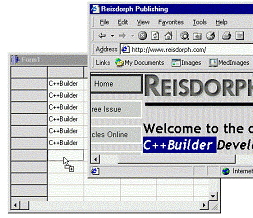
Finally, to handle the WM_OLEDRAGDROP message, we simply extract the handle to the global memory object from the LParam data member, grab a pointer to the text via the GlobalLock() function, and then copy this text to the target cell. The result is depicted in Figure A. Here’s the code:
void __fastcall TForm1::WMOleDragDrop(
  TMessage& AMsg)
{
  HGLOBAL hData =
    reinterpret_cast<HGLOBAL>(
      AMsg.LParam
      );
  char* pText =
    reinterpret_cast<char*>(
      GlobalLock(hData)
      );
  try
  {
    AnsiString text(pText);
    GlobalUnlock(hData); hData = NULL;

    const int col = StringGrid1->Col;
    const int row = StringGrid1->Row;
    StringGrid1->Cells[col][row] = text;
  }
  catch (...)
  {
    if (hData) GlobalUnlock(hData);
    throw;
  }
}
Figure A
Copying text from Internet Explorer to a string grid via OLE-based drag and drop.
Conclusion
Enhancing a string grid’s user-friendliness is more an art than a science. You actually need to work with the control yourself before guessing what the end-user may or may not want. Here, I’ve demonstrated the basics—how to support clipboard transfers and one-way drag and drop. Indeed the topic of dragging text to other applications is enough to fill another article in itself.
I encourage you to download the source code to this article (available from www.bridgespublishing.com) and examine the specifics of the TSGDropTarget class. And, if you have any further questions on string grids, feel free to drop me a line. My e-mail address is: dmc27@ee.cornell.edu.