by Damon Chandler
By and large, I’m impressed with the Windows API. It offers a set of well documented, albeit sometimes intimidating, functions that can be used to performed most everything that we see in Windows itself. What I don’t like is the fact that we’re often presented with a limited set of features. The list view control is a prime example. Even back in Windows 95 we were able to specify a background image for the desktop (which is also a list view). Only recently has this feature been added to standard list views.
There are actually a few ways to add a background image to a list view. The technique I’ll discuss in this article involves the LVM_SETBKIMAGE message. Note that this message requires that at least version 4.71 (IE 4.0+) of the common control DLL be installed on the target. If this is not the case, then next best approach is to use the Custom Draw service, which requires Comctl32.dll version 4.70+ (IE 3.0+) of the. A third approach is to render the image manually in response to the WM_ERASEBKGND message.
Setting the background image
Use of the LVM_SETBKIMAGE message is the ideal approach to display a background image in a list view because it offers support for a variety of image formats. However, because this support is tied to COM (the Component Object Model), you must first initialize the COM DLLs. Let’s see how this is done.
Initializing the COM libraries
To initialize the COM DLLs, you use the CoInitialize() function. For 32-bit applications, this function’s single parameter must be NULL. You can call this function from within your form’s constructor, like so:
__fastcall
  TForm1::TForm1(TComponent* Owner)
  : TForm(Owner)
{
  if (FAILED(CoInitialize(NULL)))
  {
    throw EWin32Error(
      "Failed to initialize "
      "the COM libraries!"
      );
  }
}
The CoInitialize() function returns a value of type HRESULT, which the FAILED() macro tests for negativity. Later, I’ll show you how to un-initialize the COM libraries, but for now, let’s look at the LVM_SETBKIMAGE message.
The LVM_SETBKIMAGE message
As its name suggests, the LVM_SETBKIMAGE message is used to set a list view’s background image. This image does not have to be a bitmap—it can alternatively be an icon, a metafile, an enhanced metafile, a JPEG, or even a GIF. You indicate the particulars of this image via the lParam parameter, which is specified as the address of a LVBKIMAGE structure. The wParam parameter is ignored.
The LVBKIMAGE structure is designed to hold information about a list view’s background image. It’s defined, with the rest of the common-controls-related structures, in commctrl.h:
typedef struct tagLVBKIMAGE
{
  ULONG ulFlags;
  HBITMAP hbm;
  LPSTR pszImage;
  UINT cchImageMax;
  int xOffsetPercent;
  int yOffsetPercent;
} LVBKIMAGE, FAR *LPLVBKIMAGE;
The ulFlags data member is used to specify whether you’re adding (LVBKIF_SOURCE_URL) or removing (LVBKIF_SOURCE_NONE) a background image, and whether this image is to be displayed in a normal (LVBKIF_STYLE_NORMAL) or a tiled (LVBKIF_STYLE_TILE) fashion. The hbm data member is currently ignored, but guessing from its name, eventually this data member will allow the specification of a handle to a bitmap object. Until that time, you have to use the pszImage data member, which you can assign the absolute path to an existing image file (use the TGraphic::SaveToFile() method if you need to create a file from an existing object), or a URL to an image file. The cchImageMax data member is ignored unless the LVBKIMAGE structure is used with the LVM_GETBKIMAGE message (which is designed to retrieve information about a list view’s background image). Finally, the xOffsetPercent and yOffsetPercent data members are used to specify the position of the background image—in percentage of the list view’s client area—when the image is not tiled.
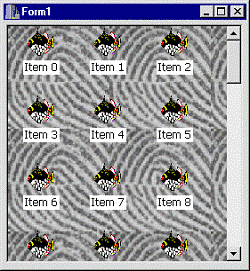
Once you’ve initialized an LVBKIMAGE structure, you’re ready to send the list view the LVM_SETBKIMAGE message. You can do this by means of the SendMessage() function or the TControl::Perform() method. For example, to display a background JPEG image in a tiled fashion, as depicted in Figure A, you’d use the SendMessage() function, like so:
LVBKIMAGE lvbki = {0};
lvbki.ulFlags =
  LVBKIF_SOURCE_URL |
  LVBKIF_STYLE_TILE;
lvbki.pszImage = TEXT("C:\\FBI.JPG\0");

const bool success = SendMessage(
  ListView1->Handle, LVM_SETBKIMAGE, 0,
  reinterpret_cast<LPARAM>(&lvbki)
  );
if (!success)
{
  throw EWin32Error(
    "LVM_SETBKIMAGE failed!"
    );
}
Figure A: A list view with a tiled background image
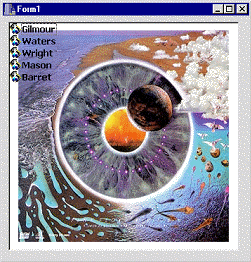
If you use the TControl::Perform() method, the technique is similar, except you need to ensure that the underlying list view has indeed been created. You can do this by using the TWinControl::HandleNeeded() method. For example, to display a background image that’s centered in the list view’s client area, where the image itself is located remotely, you’d use the Perform() method, like so:
LVBKIMAGE lvbki = {0};
lvbki.ulFlags =
  LVBKIF_SOURCE_URL |
  LVBKIF_STYLE_NORMAL;
lvbki.pszImage = TEXT(
  "http://www.pinkfloyd.com/"
  "pics/pulse.jpg\0"
  );
lvbki.xOffsetPercent = 50; // 50%
lvbki.yOffsetPercent = 50; // 50%

ListView1->HandleNeeded();
const bool success =
  ListView1->Perform(
    LVM_SETBKIMAGE, 0,
    reinterpret_cast<LPARAM>(&lvbki)
    );
if (!success)
{
  throw EWin32Error(
    "LVM_SETBKIMAGE failed!"
    );
}
ListView1->Perform(
  LVM_SETTEXTBKCOLOR, 0, CLR_NONE
  );
Note the use the LVM_SETTEXTBKCOLOR message in this code snippet. Here, the message is sent with the LParam argument set to CLR_NONE (WParam is ignored) so that the text of each item is drawn with a transparent background, as depicted in Figure B. In general, you can use this message to specify the background color of the list items.
Figure B: A list view with a centered background image
Closing the COM libraries
Every successful call to the CoInitialize() function should have a corresponding call to the CoUninitialize() function, which simply serves to close the COM libraries. You can call this function from within your form’s destructor, but you must ensure that the list view’s background image is removed beforehand. You can do this by using the LVM_SETBKIMAGE again, this time using the LVBKIF_SOURCE_NONE identifier, like so:
__fastcall TForm1::~TForm1()
{
  LVBKIMAGE lvbki =
    {LVBKIF_SOURCE_NONE};
  ListView1->Perform(
    LVM_SETBKIMAGE, NULL,
    reinterpret_cast<LPARAM>(&lvbki)
    );
  CoUninitialize();
}
An alternative approach is to simply destroy the list view:
__fastcall TForm1::~TForm1()
{
  delete ListView1;
  CoUninitialize();
}
Fixing the TListView class
As it turns out, the LVM_SETBKIMAGE message won’t work with a TListView object. The message will work when sent to a standard list view control, and it will even indicate success when sent to a TListView object. The problem is, in the latter case, no background image is displayed. To understand why, we need to examine how the background image is rendered and what the TListView class does to prevent this image from appearing
How the background image is displayed
When you send the LVM_SETBKIMAGE message to a list view, you’re instructing the control to display an image in its background. An ideal time to draw this image is in response to the WM_ERASEBKGND message, and this is exactly what the list view does. The support for all the various file formats is provided by the IPicture COM interface, which the list view uses—this explains the need for the initialization of the COM libraries. Things become more challenging, however, when we mix in the VCL.
What the TCustomListView class does wrong
There are actually two problems working against us here, one of which is caused by the TCustomListView class and the other by the TWinControl class. For any window, there are two ways to adjust the color of its background. The most common approach is to specify the handle to a colored brush object to the WNDCLASS::hbrBackground data member; in which case the window’s default window procedure will use this brush to paint the background in response to the WM_ERASEBKGND message. The second approach is to handle the WM_ERASEBKGND message directly, in response to which the background is usually painted manually via the FillRect() function. The TWinControl class takes this second approach, using the FillRect() function, along with the TWinControl::Brush property, to paint the control’s background. In this way, you can change the background color by simply changing the Color property of the control’s TBrush object. Moreover, since the TWinControl class paints the background manually, it traps the WM_ERASEBKGND message since there’s no need for the default window procedure to receive it. Indeed, this makes sense since the background has already been painted.
Well, there’s a problem here. If the underlying list view paints its background image in response to the WM_ERASEBKGND message but the TWinControl class traps this message, then it’s not surprising that a TListView object doesn’t display the background image. But, this isn’t the actual problem. As it turns out, the TCustomListView class traps the WM_ERASEBKGND message before the TWinControl class ever sees it. The logic here follows from the fact that standard list views provide a custom means of setting the background color; namely, via the LVM_SETBKCOLOR message. For this reason, the TCustomListView class traps the WM_ERASEBKGND message and redefines the TControl::SetColor method to use the LVM_SETBKCOLOR message. Again, since the WM_ERASEBKGND message is trapped, no background image is displayed.
The solution
If you haven’t already guessed, the solution is to intercept the WM_ERASEBKGND message before the TCustomListView class gets a chance to trap it. In this way, you can manually pass the message on to the default window procedure, in response to which, the underlying list view will indeed render the background image. For example:
class TMyListView : public TListView
{
protected:
  virtual void __fastcall
    WndProc(TMessage& AMsg)
    {
      if (AMsg.Msg == WM_ERASEBKGND)
      {
        DefaultHandler(&AMsg);
      }
      else TListView::WndProc(AMsg);
    }
public:
  __fastcall TMyListView(
    TComponent* AOwner
    ) : TListView(AOwner) {}
};
Conclusion
Of all the common controls, list views are, without a doubt, the most versatile variety. In fact, because list views are so ubiquitous in Windows itself, we’ll likely see several more advances in the near future. In this article, I’ve demonstrated the use of the LVM_SETBKIMAGE message, which, with a bit of tweaking, works quite well with the TListView class. The source for the TFixedListView class, a TListView descendant class with the aforementioned WM_ERASEBKGND-related modifications already in place, is available for download at www.bridgespublishing.com.