Creating a flat combo box
by Damon Chandler
You’ve seen them in Microsoft Word, you’ve seen them in Excel, and you’ve probably even seen them in some VCL applications. No, I don’t mean illegal operations; I’m talking about flat combo boxes.
What is it with these new styles anyway? In Windows 3.1, most everything was flat—combo boxes, buttons, even scrollbars. In Windows 95, everyone was amazed by the new three-dimensional look of things. Presently, most controls seem to be a hybrid of these paradigms—flat at first, but three dimensional when touched by the mouse cursor. What’s next, controls that morph into the shape of Bill Gates?
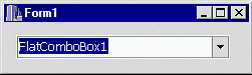
As it turns out, creating a flat combo box such as the one depicted in Figure A is relatively simple. In fact, the entire implementation boils down to one helper function and a slight modification of a standard combo box’s window procedure. In this article, I’ll guide you through the process of creating such a control.
Figure A: A flat combo box
The TFlatComboBox class
The key to making a flat combo box lies in redefining the way a standard combo box draws itself to the screen. The approach we’ll take is this: if the mouse cursor is within the bounds of the combo box, we’ll simply let the combo box draw itself normally. If the mouse cursor is beyond the bounds of the combo box, in which case the combo box should appear flat, we’ll call additional code to draw the combo box in a flat fashion.
For this approach to succeed, we’ll need notification of a few things. First, we’ll need to know when the combo box draws itself to the screen. In addition, we’ll need to know when the mouse cursor enters and leaves the bounds of the combo box. And, although it’s probably not apparent at this point, we’ll need to know when the combo box is clicked and when its drop-down list is closed.
When you read the word “notification”, you should immediately think of messages. As it turns out, combo boxes perform their entire drawing routine in response to the WM_PAINT message. Moreover, the VCL CM_MOUSEENTER and CM_MOUSELEAVE messages can be used to determine when the mouse cursor enters and leaves the bounds of the combo box, respectively. To get at these message, there are a few options, including performing an instance subclass on an existing TComboBox object, or by augmenting the virtual Dispatch() method (directly or via the message-mapping macros), or by augmenting the virtual WndProc() method. Since we’re going to handle multiple messages, let’s take the latter approach. To do this, we’ll need to create a new TComboBox descendant class, TFlatComboBox.
Defining a new window procedure
Let’s start with the declaration of the TFlatComboBox class, which is listed below. We’ll discuss each of its members along the way so don’t worry if they don’t’ make sense at this point. Also, note that the call to the PACKAGE macro is not needed in C++Builder version 1.
#include <StdCtrls.hpp>
#include <memory>

class PACKAGE TFlatComboBox :
  public TComboBox
{
private:
  bool pushed_;
  bool mouse_in_control_;

protected:
  virtual void __fastcall
    WndProc(TMessage& AMsg);
  virtual void __fastcall
    FlattenComboBox(TCanvas& CBCanvas);

public:
  __fastcall TFlatComboBox(
    TComponent* AOwner
    );
};
Now, our goal is to provide an implementation for the WndProc() method. This is our “tap”, so to speak, into the combo box’s message stream. Let’s tackle the simplest part first, determining when the mouse cursor enters and leaves the bounds of the combo box.
Handling the CM_MOUSEENTER and CM_MOUSELEAVE messages
The CM_MOUSEENTER message is sent to a VCL control (i.e., a TControl descendant) when the mouse cursor enters the control’s client area. Likewise, the CM_MOUSELEAVE message is sent to a VCL control when the mouse cursor goes exits the control’s client area. We can handle these messages from within our definition of the WndProc() method to determine whether the combo box should be painted in a normal or a flat fashion. For example:
void __fastcall
  TFlatComboBox::WndProc(TMessage& AMsg)
{
  // only handle mouse- and action-
  // related messages at run-time
  if (!ComponentState.Contains(
    csDesigning))
  {
    switch (AMsg.Msg)
    {
      // when the mouse cursor
      // enters the combo box
      case CM_MOUSEENTER:
      {
        mouse_in_control_ = true;
        if (!DroppedDown) Invalidate();
        break;
      }
      // when the mouse cursor
      // leaves the combo box
      case CM_MOUSELEAVE:
      {
        mouse_in_control_ = false;
        if (!DroppedDown) Invalidate();
        break;
      }
    }
  }
  // pass the messages on to the
  // default window procedure
  TComboBox::WndProc(AMsg);
}
Notice that in response to the CM_MOUSEENTER and CM_MOUSELEAVE messages, we appropriately set a flag, mouse_in_control_, and then invoke a repaint via the Invalidate() method. In this way, when it’s time to draw the combo box, we can test the mouse_in_control_ member to determine whether the combo box should be drawn as flat or normal. Let’s see how this is done.
Handling the WM_PAINT message
As I pointed out earlier, a combo box performs all of its drawing in response to the WM_PAINT message. This means that we don’t have to worry about other commonly used painting-related messages such as WM_ERASEBKGND or WM_NCPAINT. In other words, inside our WndProc() method, we only need to handle the WM_PAINT message, which we can do like so:
void __fastcall
  TFlatComboBox::WndProc(TMessage& AMsg)
{
  // only handle mouse- and action-
  // related messages at run-time
  if (!ComponentState.Contains(
    csDesigning))
  {
    switch (AMsg.Msg)
    {
      // other code from before...
    }
  }
  // pass the messages on to the
  // default window procedure
  TComboBox::WndProc(AMsg);

  // after the combo box
  // has drawn itself and if
  // it should be made flat...
  if (AMsg.Msg == WM_PAINT &&
      !mouse_in_control_)
  {
    // render the flat combo box
    std::auto_ptr<TControlCanvas>
      CBCanvas(new TControlCanvas());
    CBCanvas->Control = this;
    FlattenComboBox(*CBCanvas);
  }
}
Notice that we handle the WM_PAINT message only after calling the WndProc() method of the parent class. In this way, we’re effectively passing the WM_PAINT message to the default window procedure first, in response to which, the combo box will render itself as usual. After the combo box has rendered itself, we test the mouse_in_control_ flag to see if we need to call additional drawing code to make the combo box appear flat. This task is accomplished by using a TControlCanvas object and via the application-defined FlattenComboBox method (which we’ll implement shortly). If you’ve never used the TControlCanvas class before, consider the following lines of code:
std::auto_ptr<TControlCanvas>
  CBCanvas(new TControlCanvas());
CBCanvas->Control = this;
// ...
The lines in the preceding example are equivalent to the following TCanvas based approach:
std::auto_ptr<TCanvas>
  CBCanvas(new TCanvas());
CBCanvas->Handle = GetDC(Handle);
// ...
ReleaseDC(Handle, CBCanvas->Handle);
CBCanvas->Handle = NULL;
Finishing the WndProc() definition
Before we delve into coding the FlattenComboBox method, there are a few more messages that we need to handle. Namely, when we later draw the combo box’s scroll (drop-down) button, we’ll need to know if this button should be rendered in a depressed (pushed) or normal fashion. To this end, we can use the MouseDown and MouseUp methods, but since we’ve already implemented much of the WndProc() method, we might as well handle the WM_LBUTTONDOWN and WM_LBUTTONUP messages directly. Remember, we’ll want to repaint the scroll button in accordance with the status of the drop-down list. For notification of when the scroll button is in the non-depressed state, we can exploit the CBN_CLOSEUP notification message. Here’s the code:
void __fastcall
  TFlatComboBox::WndProc(TMessage& AMsg)
{
  // only handle mouse- and action-
  // related messages at run-time
  if (!ComponentState.Contains(
    csDesigning))
  {
    switch (AMsg.Msg)
    {
      // when the left mouse
      // button is pressed
      case WM_LBUTTONDOWN:
      {
        pushed_ = true;
        break;
      }
      // when the left mouse
      // button is released
      case WM_LBUTTONUP:
      {
        pushed_ = false;
        if (!DroppedDown) Invalidate();
        break;
      }
      // on receipt of a reflected
      // WM_COMMAND message
      case CN_COMMAND:
      {
        // when the combo box's
        // drop-down list is closed
        if (AMsg.WParamHi == CBN_CLOSEUP)
        {
          pushed_ = false;
          Invalidate();
        }
        break;
      }
    }
  }
  // other code from before...
}
If you haven’t already guessed, the pushed_ member simply serves as a flag indicating if the scroll button is depressed. We’ll test this flag from within the FlattenComboBox() method before drawing the scroll button. Let’s now implement this method.
The FlattenComboBox() method
The FlattenComboBox() method is the meat and potatoes of the TFlatComboBox class. The role of this function is simple: alter the appearance of the combo box so that it appears as if it’s flat. And, as it turns out, the implementation of this function is simple as well. Here’s the code:
void __fastcall
  TFlatComboBox::FlattenComboBox(
    TCanvas& CBCanvas
    )
{
  RECT RBox =
    static_cast<RECT>(ClientRect);

  // use NULL_BRUSH so as not to
  // disturb edit control portion
  CBCanvas.Brush->Style = bsClear;

  // draw the new flat border
  CBCanvas.Pen->Width = 1;
  CBCanvas.Pen->Color = Color;
  CBCanvas.Rectangle(
    RBox.left, RBox.top,
    RBox.right, RBox.bottom
    );
  InflateRect(&RBox, -1, -1);
  CBCanvas.Pen->Width = 1;
  CBCanvas.Pen->Color = clBtnShadow;
  CBCanvas.Rectangle(
    RBox.left, RBox.top,
    RBox.right, RBox.bottom
    );

  // get the width of the scroll button
  int button_width =
     GetSystemMetrics(SM_CXVSCROLL);
  RECT RButton = {
    RBox.right - button_width - 1,
    RBox.top, RBox.right, RBox.bottom
    };

  // determine the style in
  // which to draw the button
  UINT style = DFCS_SCROLLCOMBOBOX;
  if (!Enabled) style |= DFCS_INACTIVE;
  if (pushed_) style |= DFCS_PUSHED;
  else style |= DFCS_FLAT;

  // draw the new scroll button
  DrawFrameControl(
    CBCanvas.Handle, &RButton,
    DFC_SCROLL, style
    );
}
Notice that we made two calls to the TCanvas::Rectangle() method to draw the new “flat” border. If you’re not too worried about custom colors, you can replace these calls with a single call to the DrawEdge() API function. We delegate the hard part—drawing the scroll button—to the DrawFrameControl() API function. If you want to customize the appearance of this button, you can use the Frame3D() VCL function (declared in EXTCTRLS.HPP), or you could draw the scroll button manually using one or more methods from the TCanvas class.
Conclusion
Will a flat combo box enhance the functionality of your application? Well, no. What it might do, however, is enhance the aesthetic quality of your application’s user interface. This aspect is something that can’t be taken too lightly these days. Plus, the implementation is clean-cut, and you can even download the source code for the TFlatComboBox component from www.bridgespublishing.com. I encourage you to try a similar approach with other controls, especially those that the DrawFrameControl() function can draw for you (e.g., buttons, check boxes, and radio buttons).