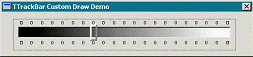
A custom-drawn TTrackBar object.
Custom drawing the trackbar control
by Damon Chandler
Without a doubt, the appearance of a stock trackbar control leaves much to be desired. In this article, I’ll show you how to use the Custom Draw service to tailor the appearance of a trackbar control. Figure A depicts the trackbar that we’ll create.
Figure A
A custom-drawn TTrackBar object.
An overview of the Custom Draw service
The Custom Draw service was first introduced with version 4.70 of Comctl32.dll as a simplified and modular way to customize the appearance of a common control. Back before the Custom Draw service was available, if you wanted to change the font or the color of, say, a tree-view control (on a per-item basis), you’d pretty much have to draw all of the items yourself. Fortunately, this hassle is no longer necessary. By using the Custom Draw service, you can tap into your control’s drawing routine; this way, you can change the appearance of a certain element without the need to draw the entire control.
The Custom Draw service is available for header controls, list views, rebars, toolbars, tree-views, tooltips, and trackbars. In fact, if you have Borland C++Builder 4.0 and later, many of the common control-related components provide Custom Draw-specific events (e.g., OnCustomDrawItem). Unfortunately, the TTrackBar class isn’t one of these.
Custom Draw for trackbars
I just mentioned that the Custom Draw service allows you to tap into a control’s drawing routine. How exactly is this done? Well, like most everything in Windows, the Custom Draw service is presented via a series of messages; namely the NM_CUSTOMDRAW notification message. This notification is sent to the parent of the common control in the form of a WM_NOTIFY message. The first step, then, is to handle the WM_NOTIFY message. If your trackbar is parented directly to your main form, you can handle this message like so:
// in header...
class TForm1 : public TForm
{
__published:
  TTrackBar *TrackBar;
private:
  MESSAGE void __fastcall WMNotify(TMessage& Msg);
public:
  __fastcall TForm1(TComponent* Owner);

  BEGIN_MESSAGE_MAP
  MESSAGE_HANDLER(
                 WM_NOTIFY, TMessage, WMNotify)
  END_MESSAGE_MAP(TForm)
};

// in source...
void __fastcall TForm1::WMNotify(TMessage& Msg)
{
  // grab a pointer to NMHDR struct
  LPNMHDR pnmh = reinterpret_cast
                 <LPNMHDR>(Msg.LParam);

  // if the notification message is
  // NM_CUSTOMDRAW and from our trackbar
  if (pnmh->code == NM_CUSTOMDRAW && pnmh->hwndFrom==TrackBar->Handle)
  {
    //
    // proceed with drawing...
    //
    return;
  }

  // pass on all other messages
  TForm::Dispatch(&Msg);
}
Within the block marked "proceed with drawing", the first thing you need to do is grab a pointer to a special structure called NMCUSTOMDRAW. The data members of this structure will provide you with vital information such as an identifier of the drawing stage (dwDrawStage); a handle to the device context to draw to (hdc); an identifier of the element (i.e., channel, thumb track, or tick marks) that’s to be drawn (dwItemSpec); and the bounding rectangle of this element (rc). There are a few more data members, but these are the main ones.
The NMCUSTOMDRAW::dwDrawStage data member specifies the current drawing stage. This data member will be set to one of the following identifiers: CDDS_PREPAINT, CDDS_ITEMPREPAINT, CDDS_POSTPAINT, CDDS_PREERASE, CDDS_POSTERASE, CDDS_ITEM, CDDS_ITEMPOSTPAINT, CDDS_ITEMPREERASE, CDDS_ITEMPOSTERASE, CDDS_SUBITEM. The first two identifiers are our main interest.
When the dwDrawStage data member specifies CDDS_PREPAINT, this is your cue that the trackbar is about to draw itself. How you respond to this cue (i.e., what you set Msg.Result to) will govern whether or not you’ll receive further Custom Draw-related notifications. In most cases, you’ll want to reply with CDRF_NOTIFYITEMDRAW, which tells the trackbar that it should notify you before it draws each of its elements (channel, thumb track, or tick marks). This elemental notification is sent with the dwDrawStage data member set to CDDS_ITEMPREPAINT.
So, within the WMNotify member function, here’s what we have so far:
// other code from before...
if (pnmh->code == NM_CUSTOMDRAW && pnmh->hwndFrom == TrackBar->Handle)
{
  // grab a pointer to NMCUSTOMDRAW
  LPNMCUSTOMDRAW pDraw = reinterpret_cast<LPNMCUSTOMDRAW> (Msg.LParam);

  // test the drawing stage...
  switch (pDraw->dwDrawStage)
  {
  // before anything is drawn...
  case CDDS_PREPAINT:
    {
      //
      // tell the trackbar to notify us
      // before it draws its elements
      //
      Msg.Result = CDRF_NOTIFYITEMDRAW;
      return;
    }

    // before an element is drawn...
  case CDDS_ITEMPREPAINT:
    {
      //
      // draw each element...
      //
      return;
    }
  }
}

// other code from before...
When the dwDrawStage data member is set to CDDS_ITEMPREPAINT, this indicates that the trackbar is about to draw each of its elements. In this case, you need to do one of two things. One choice is to draw the element manually and then respond by setting Msg.Result to CDRF_SKIPDEFAULT, which instructs the trackbar to skip its default drawing for that element. The other choice is that you not draw anything and simply respond with CDRF_DODEFAULT, which tells the trackbar to draw the element as it normally would. You can see here how the modular design of the Custom Draw service simplifies things a great deal: you can selectively choose which elements you want to draw, punting the work to the trackbar control if you don’t need to customize a certain aspect.
Again, the CDDS_ITEMPREPAINT is your cue that an element is about to be drawn. How do you determine which element this cue refers to? This is where the NMCUSTOMDRAW::dwItemSpec data member comes into play. This data member will be set to one of the following: TBCD_CHANNEL (for the channel), TBCD_THUMB (for the thumb track), or TBCD_TICS (for the tick marks).
Drawing the channel
When the NMCUSTOMDRAW::dwDrawStage data member indicates CDDS_ITEMPREPAINT and the dwItemSpec data member indicates TBCD_CHANNEL, it’s time to draw the channel. Remember, if you don’t need to customize the channel, you can always respond with CDRF_DODEFAULT to let the trackbar handle this task. Here’s a simple example of drawing a background image to the channel:
// before an element is drawn...
case CDDS_ITEMPREPAINT:
{
  // if we're drawing the channel
  if (pDraw->dwItemSpec==TBCD_CHANNEL)
  {
    // #include <memory> for auto_ptr
    std::auto_ptr<TCanvas>
    tbCanvas(new TCanvas());
    TRect rect = pDraw->rc;

    // render the background image
    tbCanvas->Handle = pDraw->hdc;
    tbCanvas->StretchDraw(rect,
    Image1->Picture->Graphic);
    tbCanvas->Handle = NULL;

    // draw the channel's edge
    DrawEdge(pDraw->hdc, &pDraw->rc,
    EDGE_SUNKEN, BF_RECT);

   // tell the trackbar we
   // drew the channel manually
   Msg.Result = CDRF_SKIPDEFAULT;
   return;
  }
}
Drawing the thumb track
When the NMCUSTOMDRAW::dwDrawStage data member indicates CDDS_ITEMPREPAINT and the dwItemSpec data member indicates TBCD_THUMB, it’s time to draw the thumb track (or punt with CDRF_DODEFAULT). Here we’ll use the Frame3D() VCL function:
// before an element is drawn...
case CDDS_ITEMPREPAINT:
{
  // channel code from before...

  // if we're drawing the thumb
  if (pDraw->dwItemSpec == TBCD_THUMB)
  {
  // #include <memory> for auto_ptr
  std::auto_ptr<TCanvas>
  tbCanvas(new TCanvas());
  TRect rect = pDraw->rc;

  // render the background image
  tbCanvas->Handle = pDraw->hdc;
  Frame3D(tbCanvas.get(),
  rect, clWhite, clGray, 3);
  tbCanvas->Handle = NULL;

  // tell the trackbar we
  // drew the thumb manually
  Msg.Result = CDRF_SKIPDEFAULT;
  return;
}
Drawing the tick marks
When the NMCUSTOMDRAW::dwDrawStage data member indicates CDDS_ITEMPREPAINT and the dwItemSpec data member indicates TBCD_TICS, it’s time to draw the tick marks (or punt). Here’s we’ll use a series of ellipses and rectangles. (Note that this code works only for horizontal trackbars; you’ll have to swap the horizontal and vertical coordinates for vertical trackbars.):
// if we're drawing the ticks
if (pDraw->dwItemSpec == TBCD_TICS)
{
  // determine the thumb dimensions
  RECT RThumb = {0};
  SNDMSG(TrackBar->Handle,
         TBM_GETTHUMBRECT, 0,
         reinterpret_cast<LPARAM>(&RThumb));

  // determine the number of ticks
  const int num_ticks =
  SNDMSG(TrackBar->Handle,
         TBM_GETNUMTICS, 0, 0) - 2;

  // draw the middle ticks
  for (int iTick = 0; iTick < num_ticks;
      ++iTick)
  {
    const int x_pos =
    SNDMSG(TrackBar->Handle,
           TBM_GETTICPOS, iTick, 0);

    Ellipse(pDraw->hdc,
            x_pos - 2, RThumb.top - 6,
            x_pos + 2, RThumb.top);
    Ellipse(pDraw->hdc,
            x_pos - 2, RThumb.bottom,
            x_pos + 2, RThumb.bottom + 6);
  }

  // draw the first and last ticks
  RECT RChanl = {0};
  SNDMSG(TrackBar->Handle,
         TBM_GETCHANNELRECT, 0,
         reinterpret_cast<LPARAM>(&RChanl));
  InflateRect(&RChanl, -4, 0);
  Rectangle(pDraw->hdc,
            RChanl.left, RThumb.top - 6,
            RChanl.left + 4, RThumb.top);
  Rectangle(pDraw->hdc,
            RChanl.left, RThumb.bottom,
            RChanl.left + 4, RThumb.bottom + 6);
  Rectangle(pDraw->hdc,
            RChanl.right - 4, RThumb.top - 6,
            RChanl.right, RThumb.top);
  Rectangle(pDraw->hdc,
            RChanl.right - 4, RThumb.bottom,
            RChanl.right, RThumb.bottom + 6);

  // tell the trackbar we
  // drew the ticks manually
  Msg.Result = CDRF_SKIPDEFAULT;
  return;
}
Handling the CN_NOTIFY message
Earlier, I mentioned that a control always sends the WM_NOTIFY message to its parent window. This actually poses a bit of a problem because our WMNotify member function will work only if the TTrackBar object is placed directly on Form1. If you place your trackbar on a TPanel object, for example, the trackbar’s parent is now the panel. This means that all of your trackbar’s WM_NOTIFY messages won’t be sent to your form, but instead to the panel.
You could work around this problem by subclassing the panel, and then handling the WM_NOTIFY message from within the subclass procedure. A better approach, however, is to create a TTrackBar descendant class and handle the CN_NOTIFY VCL message. This message is a reflected version of the WM_NOTIFY message that’s sent back to the trackbar itself. (See the sample project at www.residorph.com for an example of handling this message.)
Conclusion
Perhaps the TTrackBar class in the next version of C++Builder will have built-in support for the Custom Draw service. For now, we have to resort to handling the notification messages manually. I’ve shown you how to do this with the trackbar control; now go out and try this with the other common controls that you need to customize. (For more information on the Custom Draw service, see: http://msdn.microsoft.com/library/psdk/shellcc/commctls/CustDraw/CustDraw.htm.)