So, you really like the way the “Outlook bar” looks and works in Microsoft products; products like, well, Outlook. You’d like to use an Outlook bar in your program, but you’ve noticed that Borland didn’t include one with the VCL. You only wanted to use the Outlook bar in a small utility program, so you really don’t want to spend the big bucks for a third-party component. How do you satisfy your hunger?
Well, you can cook up a form that contains a reasonable facsimile of an Outlook bar and you can do this using ingredients from standard VCL kitchen. It won’t have all of the functionality of the real McCoy, but it will still taste great. In this article, I’ll give you the recipe.
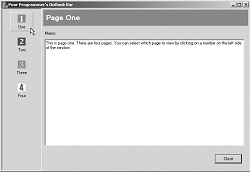
You can find a sample application on the Bridges Publishing Web site. Figure A shows what the Outlook bar on the sample application looks like.
Figure A: Sample application with Outlook bar
The Outlook bar consists of TSpeedButton components placed on a TScrollBox component. Next to the TScrollBox is a TPageControl component that contains one page for each TSpeedButton in the TScrollBox. The title of the active page is displayed in a TPanel component above the TPageControl.
Start by creating a new application in the C++Builder IDE. Drop a TScrollBox component onto the blank form. The TScrollBox component is on the Additional tab of the IDE’s Component Palette. Set the Align property of the TScrollBox to alLeft and the Width property to 112.
Now drop a TPanel onto the form, to the right of the TScrollBox. Set the TPanel’s Align property to alClient, the BevelOuter property to bvNone and BorderWidth to 4. Also clear the text out of the Caption property. I'll refer to this TPanel as the Background Panel.
Next drop another TPanel onto the Background Panel. Set Align to alTop, Alignment to taLeftJustify, BevelOuter to bvNone, Color to clBtnShadow, and BorderWidth to 8. You will also need to change some of the sub-properties of the TPanel’s Font property. In particular set Color to clCaptionText, Height to -19 and Style to fsBold. I will refer to this TPanel as the Caption Panel.
At this point you will add multiple pages to the form. This is accomplished by dropping a TPageControl onto the Background Panel beneath the Caption Panel. Set the Align property to alClient and set Style to tsFlatButtons.
Now add four pages to the TPageControl. Add a page by right-clicking on the TPageControl and selecting New Page from the menu. A new TTabSheet is added.
Set the Caption property of the TTabSheet to “Page One” and the TabVisible property to false. Create three more TTabSheets and set their TabVisble properties to false as well. Set their Caption properties to “Page Two”, “Page Three” and “Page Four”.
Finally, drop four TSpeedButton components on to the TScrollBox on the left side of the form. Place them vertically in the TScrollBox and center them horizontally in the TScrollBox. Refer to Figure A if this isn’t clear.
You can change some of the properties of the TSpeedButtons in the TScrollBox by selecting all four of them (click on each while holding the shift key down). Set the Flat property to true, Height to 54, Layout to blGlyphTop and Width to 64.
While all four of the TSpeedButtons are still selected, select the OnClick event in the Object Inspector and type in “OBClick” as the name of the event and hit the enter key. The IDE will generate the skeleton for the OBClick() function. Complete the code for this function so that it looks like this:
void __fastcall TForm1::OBClick(
  TObject *Sender)
{
  TComponent *component =
    dynamic_cast<TComponent *>(Sender);
  if (component == 0) return;
  SetPage(component->Tag);
}
The OBClick() function casts the Sender parameter to a TComponent pointer and checks to make sure the cast worked. If the cast failed OBClick() returns. If the cast succeeds, OBClick() calls the SetPage() function passing the Tag value of the TComponent as the page parameter. Here is the code for the SetPage() function:
void __fastcall TForm1::SetPage(
  int page)
{
  if (page < 0 || page >
      PageControl1->PageCount - 1)
    return;
  PageControl1->ActivePageIndex = page;
  Panel2->Caption =
    PageControl1->ActivePage->Caption;
}
This function first checks the value of page to be sure it’s valid then activates the page by setting the ActivePageIndex property of PageControl1 to page. Finally, SetPage() changes the page name displayed in the Caption Panel to the Caption of the active page.
At this point you are nearly finished building your Outlook bar. Select only the top TSpeedButton and change its Caption property to “One”. Add a 24 x 24 pixel bitmap to the Glyph property. The Tag property is 0, so you can leave that unchanged. Moving down, individually select each of the other three TSpeedButtons. Set the Caption properties to “Two”, “Three”, and “Four” respectively, and add some hand-made bitmaps to the Glyph property. Set the respective Tag properties to 1, 2, and 3.
In case you haven’t figured it out, the Tag property of each TSpeedButton is equal to the zero-based index of the TTabSheet pages in the TPageControl.
There’s one last thing to do. To make sure everything is synchronized when the program starts, add one line of code to the constructor of the TForm:
__fastcall TForm1::TForm1(
  TComponent* Owner) : TForm(Owner)
{
  SetPage(0);
}
It’s done, and by my count, you wrote only seven lines of code. Delicious and low cal!