The list view common control has been around since Windows 95. It was created as a successor to the list box control, and offers numerous enhancements. Among these is the ability to display data in resizable columns, sort the items, and display icons. The VCL TListView class provides a powerful, easy to use interface for list view controls. However, it still takes a fair amount of code to make a list view control do really useful things. If you have many different list view controls in your application, writing code to display data in them turns into a large and repetitive task.
In this article, I will introduce the ListViewManager class, which takes care of most of the dirty work in implementing a useful list view control. Listing A shows this class. ListViewManager is a template class that provides a high-level interface to the list view control. Specifically, it does the following:
·Add items to the listview and display their data in columns
·Sort the data by column when a column header is clicked
·Display the icon for an item.
In order to use the ListViewManager class, you must first create an “item data” class. This class contains the data to be displayed as an item in the list view control. It can be implemented any way you like, as long as it contains two functions: GetColumnString(), which returns the data for a particular column, and GetImageIndex(), which returns the item’s image index.
As an example, here is an item data class called Contact which holds names and addresses:
class Contact
{
  protected:
  AnsiString sName;
  AnsiString sContact;
  AnsiString sAddress;
  AnsiString sState;
  AnsiString sZip;

  public:

  // Constructor
  Contact(AnsiString name,
    AnsiString contact, AnsiString address,
    AnsiString state, AnsiString zip);

  AnsiString GetColumnString(int iColumn);
  int GetImageIndex();
};
#define ICON_PERSON 0
#define ICON_CONTACT 1
Contact::Contact(AnsiString name,
AnsiString contact, AnsiString address,
AnsiString state, AnsiString zip)
{
sName = name;
sContact = contact;
sAddress = address;
sState = state;
sZip = zip;
}
// This function is called to get the
// string data to be displayed in the
// listview columns.
AnsiString Contact::GetColumnString(
int iColumn)
{
switch (iColumn) {
case 0: return sName;
case 1: return sContact;
case 2: return sAddress;
case 3: return sState;
case 4: return sZip;
}
return "";
}
// This function called to get the icon
int Contact::GetImageIndex()
{
if (sContact.Length() > 0) {
return ICON_CONTACT;
}
return ICON_PERSON;
}Notice that in this class there is no code having anything to do with the list view control—it is only concerned with storing the data and returning information about it.
Now that the item data class is defined, all it takes to start adding items to the list view control is the following code:
ListViewManager<Contact> *mgr =
  new ListViewManager<Contact>(
    lvContacts);
mgr->AddObject(new Contact("Jack Brown",
  "", "123 Main St", "CA", "91505"));
mgr->AddObject(new Contact(
  "Muscle Motors","Bob Falfa",
  "246 Road Way", "CA", "94536"));
mgr->AddObject(new Contact("Ruth Greene",
  "", "314 East Marengo", "CA", "91101"));
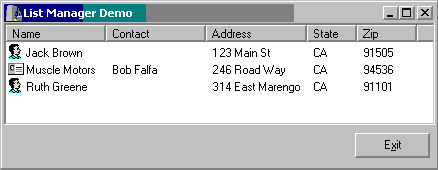
Figure A shows a list view using the vsReport view style.
Figure A: A list view in vsReport style
The data is displayed in its appropriate column, the icons are shown, and the data will re-sort when the header for a column is clicked. The following sections explain how this is done.
First I will explain how to display data in columns using only the TListView properties. To display data in the first column, the Caption property is used. To set data in additional columns, the SubItems property is used. SubItems is a TStrings object. For example, the second column displays the
SubItems->Strings[0] property of each item, and so on.
The ListViewManager class abstracts all of this and treats everything as just columns of strings. The item data class only needs to return the string values for each column, via the GetColumnString() function. In order for the data to show up in the “correct” columns, the listview must be created (or set programmatically, at run time) with the correct number of columns and with the proper headings.
In order to display icons in a TListView, it must be associated with a TImageList object. Setting the ListView control’s SmallImages property to the name of the ImageList makes this association. The icon shown for each TListItem in the list view control depends on its ImageIndex property.
The ListViewMananger class calls the GetImageIndex() function of the item data class to get its image index. This means that the item data class must have knowledge of the bitmaps used in the ImageList object. This is a somewhat unavoidable problem, and the solution in this example is to define the constants ICON_PERSON and ICON_CONTACT to represent the image indexes.
To implement sorting, the ListViewManager class uses the AnsiString method’s AnsiCompareIC() function to order the items based on a specified column. When the ListViewManager is created, it assigns its own event handlers to the list view’s OnColumnClick and OnCompare events. In case the form has it’s own handlers attached to these events, the ListViewManager class stores the previous handler assigned to these events and calls them after performing its own handlers.
The ListViewManager class also acts as a container for the item data objects that it holds. When the ListView is deleted, all of the item data objects are also deleted. This is done via the list view control’s OnDeletion event.
By using the ListViewManager class, you can save time implementing the display and sorting logic for list view controls. The item data class is only responsible for holding application data and returning information about it. In addition, the item data class can be used with other common controls as well (such as TtreeView) by writing a “manager” class for that type of control.
Listing A: The ListViewManager template class
template <class T> class ListViewManager :
  public TComponent
{
  protected:
  TLVDeletedEvent     OldOnDelete;
  TLVCompareEvent     OldOnCompare;
  TLVColumnClickEvent OldOnColumnClick;
  int iCurrentSort;

  public:

  TListView* lvList;

  __fastcall ListViewManager(TListView* pList);

  TListItem* AddObject(T* pObj);
  void RefreshObject(T* pObj);
  void RefreshItem(TListItem* item);

  void __fastcall OnListViewDeletion(
    TObject *Sender, TListItem *Item);

  void __fastcall OnListViewColumnClick(
    TObject *Sender, TListColumn *Column);

  void __fastcall OnListViewCompare(
    TObject *Sender, TListItem *Item1,
    TListItem *Item2, int Data, int &Compare);
};

template <class T>
  __fastcall ListViewManager<T>::ListViewManager(
  TListView* pList) : TComponent(pList)
{
  lvList = pList;
  iCurrentSort = -1;

  // Save previous event handlers defined in DFM
  OldOnDelete = lvList->OnDeletion;
  OldOnCompare = lvList->OnCompare;
  OldOnColumnClick = lvList->OnColumnClick;

  // Assign new event handlers
  lvList->OnDeletion    = OnListViewDeletion;
  lvList->OnCompare     = OnListViewCompare;
  lvList->OnColumnClick = OnListViewColumnClick;
}

// This function updates the column text
// of the specified object
template<class T>
  void ListViewManager<T>::RefreshObject(T* pObj)
{
  TListItem* pItem = FindObject(pObj);
  if (pItem) {
    RefreshItem(pItem);
  }
}

// Function RefreshItem() updates the columns of
// text and the icon for an object in the listview
template<class T>
void ListViewManager<T>::RefreshItem(
  TListItem* item)
{
  if (item) {
    T* pObject = (T*)(item->Data);
    if (pObject) {
      item->SubItems->Clear();
      for (int i=0;i<lvList->Columns->Count;i++) {
        if (i == 0) {
          item->Caption =
            pObject->GetColumnString(i);
        }
        else {
          item->SubItems->Add(
            pObject->GetColumnString(i));
        }
      }
      item->ImageIndex = pObject->GetImageIndex();
    }
  }
}

// AddItem() adds an object to the list view and automatically sets the text of all the columns.
template <class T>
TListItem* ListViewManager<T>::AddObject(
  T* pObject)
{
  TListItem* item = lvList->Items->Add();
  item->Data = (TObject*)pObject;
  RefreshItem(item);
  return item;
}

// This event ensures that the objects will get
// deleted when the listview is deleted.
template <class T>
void __fastcall
  ListViewManager<T>::OnListViewDeletion(
    TObject *Sender, TListItem *Item)
{
  T* pObject = (T*)(Item->Data);
  if (pObject) {
    delete pObject;
    Item->Data = NULL;
  }
}

// This event handles automatic sorting.
template <class T>
void __fastcall ListViewManager<T>::OnListViewColumnClick(
  TObject *Sender, TListColumn *Column)
{
  int iColumn = 0;
  for (int i=0;i<lvList->Columns->Count;i++) {
    if (lvList->Columns->Items[i] == Column) {
      iColumn = i;
      break;
    }
  }

  lvList->CustomSort(NULL, iColumn);

  if (iCurrentSort == iColumn) {
    iCurrentSort = -1;
  }
  else {
    iCurrentSort = iColumn;
  }

  if (OldOnColumnClick) {
    OldOnColumnClick(Sender, Column);
  }
}

// This event sorts columns via string comparison.
template <class T>
void __fastcall ListViewManager<T>::
  OnListViewCompare(
    TObject *Sender, TListItem *Item1,
    TListItem *Item2, int Data, int &Compare)
{
  String sValue1;
  String sValue2;
  if (Data == 0) {
    sValue1 = Item1->Caption;
    sValue2 = Item2->Caption;
  }
  else {
    sValue1 = Item1->SubItems->Strings[Data - 1];
    sValue2 = Item2->SubItems->Strings[Data - 1];
  }

  Compare = sValue1.AnsiCompareIC(sValue2);

  if (iCurrentSort == Data) {
    Compare = -Compare;
  }
}