In this article, I’ll show you how to make any TWinControl descendant re-sizeable and movable at run time.
We all know that standard top-level forms can be moved and resized at run time. Specifically, a TForm object whose BorderStyle property is bsDialog, bsSingle, bsToolWindow, bsSizeable, or bsSizeToolWin can be moved at run time; and a TForm object whose BorderStyle property is bsSizeable or bsSizeToolWin can also be resized at run time.
How exactly does the BorderStyle property work? Well, it turns out that this property does little more than adjust the window styles that are passed to the CreateWindowEx() API function. You can see this by examining the following excerpt from the TCustomForm::CreateParams() method:
void __fastcall TCustomForm::
  CreateParams(TCreateParams& Params)
{
  TScrollingWinControl::
    CreateParams(Params);

  // ...
  switch (BorderStyle)
  {
    case bsNone:
    {
      Params.Style |= WS_POPUP;
      break;
    }
    case bsSingle:
    case bsToolWindow:
    {
      Params.Style |=
        WS_CAPTION | WS_BORDER;
      break;
    }
    case bsSizeable:
    case bsSizeToolWin:
    {
      Params.Style |=
        WS_CAPTION | WS_THICKFRAME;
      break;
    }
    case bsDialog:
    {
      Params.Style |=
        WS_CAPTION | WS_POPUP;
      Params.ExStyle |=
        WS_EX_DLGMODALFRAME |
        WS_EX_WINDOWEDGE;
     }
  }
  // ...
}
Recall that the primary role of the CreateParams() method is to initialize a TCreateParams-type variable whose data members will subsequently be passed to the CreateWindowEx() API function. Accordingly, there are two main things that you should notice from this condensed definition of the TCustomForm::CreateParams() method. First, observe that the WS_CAPTION window style is specified for all BorderStyle enumerators that allow the form to be moved—i.e., bsDialog, bsSingle, bsToolWindow, bsSizeable, and bsSizeToolWin. This makes sense because the standard way to move a form is to click on its caption. Second, notice that the WS_SIZEBOX window style is specified for the enumerators that allow the form to be resized (bsSizeable and bsSizeToolWin). This latter style creates a window with the familiar sizing border.
In short, when you adjust the BorderStyle property, you’re indirectly specifying whether the WS_CAPTION style (for moving) and/or the WS_SIZEBOX style (for resizing) are used. When these styles are specified, Windows provides built-in support for run time moving and resizing. Next I’ll explain how to use this functionality in a more general sense.
Unfortunately, not every TWinControl descendant class provides a BorderStyle property. But now that you know exactly what happens when this property is manipulated, you really don’t need the BorderStyle property; instead, you can directly manipulate the window styles by using a combination of the GetWindowLong() and SetWindowLong() API functions. Here are the declarations for these functions:
LONG GetWindowLong(
 HWND hWnd, int nIndex);
LONG SetWindowLong(
 HWND hWnd, int nIndex, LONG dwNewLong);
Both of these functions require a handle to a window as the first parameter (hWnd) and an identifier as the second parameter (nIndex). To retrieve or specify a particular window style, you pass GWL_STYLE constant (-16) as the nIndex parameter. The new style will be returned by each function. To change the window’s current style, you use the SetWindowLong() function, specifying the new styles as the dwNewLong parameter. In this case the function will return the previous styles. (Note that users of newer versions of C++Builder might wish to use the GetWindowLongPtr() and SetWindowLongPtr() functions instead.) Let’s look at an example.
Toggling the WS_SIZEBOX style
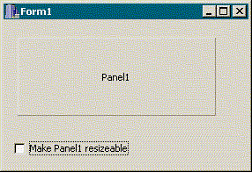
Figure A depicts a form (Form1) that contains two child controls: a TPanel and a TCheckBox component.
Figure A: A form with a panel and a check box.
As you can probably guess from its caption, we’ll use the check box’s OnClick event handler to toggle the resizeability of the panel. Remember, to make the panel re-sizeable, you add the WS_SIZEBOX style by using the GetWindowLong() and SetWindowLong() functions. Similarly, to make the panel not sizeable, you use these functions to remove the WS_SIZEBOX style. Here’s the code:
#include <cassert>
void __fastcall TForm1::
  CheckBox1Click(TObject *Sender)
{
  // grab a handle to the panel
  const HWND hPanel = Panel1->Handle;

  // get the current styles
  const LONG current_style =
    GetWindowLong(hPanel, GWL_STYLE);
  assert(current_style);

  if (CheckBox1->Checked)
  {
    // add the WS_SIZEBOX style
    const BOOL ok = SetWindowLong(
      hPanel, GWL_STYLE,
      current_style | WS_SIZEBOX
      );
    assert(ok);
  }
  else
  {
    // remove the WS_SIZEBOX style
    const BOOL ok = SetWindowLong(
      hPanel, GWL_STYLE,
      current_style & ~WS_SIZEBOX
      );
    assert(ok);
  }

  // have the panel redraw its border
  const bool ok = SetWindowPos(
    hPanel, 0, 0, 0, 0, 0,
    SWP_FRAMECHANGED | SWP_NOMOVE |
    SWP_NOSIZE | SWP_NOZORDER
    );
  assert(ok);
}
Note the use of the SetWindowPos() API function in this code snippet. This call is needed to instruct the panel to redraw its border (to reflect the new style). Figure B depicts the results of this code when the check box is checked.
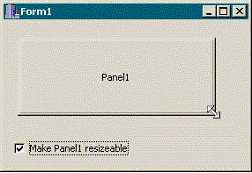
Figure B: A panel that has been made re-sizeable by adding the WS_SIZEBOX style.
As we all know, the standard way to move a window is to click its caption and then drag it. And as I mentioned earlier, the WS_CAPTION style determines whether or not a form has a caption. For a child control—such as our panel—however, it might look weird to display a caption just so the control can be moved at run time. As it turns out, the WS_CAPTION style isn’t really needed for run time moveability.
During a window’s lifetime, the window communicates with Windows via a series of messages. One of these messages, WM_NCLBUTTONDOWN, is sent (by Windows) to a window to instruct it that the user has pressed the left mouse button while the cursor was located within the window’s non-client area. When this non-client area is the window’s caption, the standard default window procedure handles the WM_NCLBUTTONDOWN message by initiating and managing a move operation.
How is the WM_NCLBUTTONDOWN message useful for moving child controls? Well, it turns out that the standard default window procedure will initiate and manage the window’s move operation regardless of whether or not the window has a caption. All you need to do is fool the window into thinking that the user has clicked its (non-existent) caption. To do this, you use the SendMessage() API function—specifying WM_NCLBUTTONDOWN as the Msg parameter and HTCAPTION as the wParam parameter—from within the window’s OnMouseDown event handler, like so:
void __fastcall TForm1::Panel1MouseDown(
  TObject *Sender, TMouseButton Button,
  TShiftState Shift, int X, int Y)
{
  // release current mouse capture
  ReleaseCapture();

  // fake a caption hit
  SendMessage(Panel1->Handle,
    WM_NCLBUTTONDOWN, HTCAPTION, 0);
}
Using the WM_NCLBUTTONDOWN message and the WS_SIZEBOX style for run time moveability and resizeabilty has one main advantage: the code is extremely simple. Namely, you don’t have to worry about managing the sizing cursors and/or clipping the cursor to the bounds of the parent window; and you don’t have to worry about adjusting the size or the position of the window after the resize or move operation. These nitty-gritty details are handled by Windows (specifically, the standard default window procedure). Moreover, because Windows is handling the moving and resizing, the current system display settings determines whether or not the window’s contents are shown during the move/resize operation.
Of course, simplicity does have its limitations. Namely, by adding the WS_SIZEBOX style, the child window will always display the resizing border (as in Figure B); this might not be practical for some situations or you might simply dislike the look. In addition, you don’t have much control over the moving/sizing operation. If you want to display the window’s current position and dimensions in a tooltip, for example, it’ll take a bit more work.
Because Windows does most of the moving/resizing work, it might seem like a major chore to determine when a move/resize operation is occurring and then control the operation. Remember though, these are the same move and resize operations that occur when the user moves and resizes a regular form. To get notification of (and control over) these operations for a regular form, you’d handle the WM_MOVING and WM_SIZING messages. Well, the same approach can be used for all TWinControl descendants. In this case, you simply handle the WM_MOVING and WM_SIZING messages that are sent to the child window. The following sections illustrate this through an example.
Listing A contains the declaration of a TScrollBox descendant class (TScrollBoxEx), which I’ll use to demonstrate two things:
1.How to incorporate the moving and resizing functionality into a class.
2.How to handle the WM_MOVING and WM_SIZING messages.
The TScrollBoxEx class has two private members: MoveResize_ and OldCursor_. The MoveResize_ member is a Boolean that’s used with the MoveResize property to allow you to easily toggle the WS_SIZEBOX style. Assigning a value to the MoveResize property invokes the DoSetMoveResize() method, which is defined as follows:
void __fastcall TScrollBoxEx::
  DoSetMoveResize(bool value)
{
  if (MoveResize_ != value)
  {
    MoveResize_ = value;
    const HWND hWndThis = Handle;

    // get the current styles
    const LONG current_style =
      GetWindowLong(hWndThis, GWL_STYLE);
    assert(current_style);

    if (MoveResize_)
    {
      // change the cursor to crSizeAll
      OldCursor_ = Cursor;
      Cursor = crSizeAll;

      // add the WS_SIZEBOX style
      const BOOL ok = SetWindowLong(
        hWndThis, GWL_STYLE,
        current_style | WS_SIZEBOX
        );
      assert(ok);
    }
    else
    {
      // restore the cursor
      Cursor = OldCursor_;

      // remove the WS_SIZEBOX style
      const BOOL ok = SetWindowLong(
        hWndThis, GWL_STYLE,
        current_style & ~WS_SIZEBOX
        );
      assert(ok);
    }

    // have the panel redraw its border
    const bool ok = SetWindowPos(
      hWndThis, 0, 0, 0, 0, 0,
      SWP_FRAMECHANGED | SWP_NOMOVE |
      SWP_NOSIZE | SWP_NOZORDER
      );
    assert(ok == true);
  }
}
Notice that this code is nearly identical to the previous definition of the TForm1::CheckBox1Click() method. Here I’ve simply added code to change the cursor to crSizeAll when MoveResize_ is true, and to restore the cursor (by using the OldCursor_ member) when MoveResize_ is false. There’s no code for the sizing-related cursors because, remember, Windows handles this part automatically. Figure C depicts a TScrollBoxEx object whose MoveResize property is set to true.
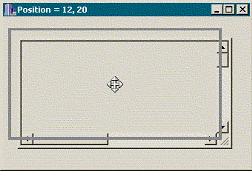
Figure C: A movable and re-sizeable TScrollBox descendant class.
Notice that Listing A contains two other protected methods: CreateParams() and MouseDown(). The CreateParams() method is used to restore the WS_SIZEBOX style in the event that the scroll box’s underlying window is recreated. Here’s the code for that function:
void __fastcall TScrollBoxEx::
  CreateParams(TCreateParams& Params)
{
  TScrollBox::CreateParams(Params);
  if (MoveResize_)
  {
    Params.Style |= WS_SIZEBOX;
  }
}
The MouseDown() method is used to invoke the move operation. Remember, to do this, you simply send the scroll box the WM_NCLBUTTONDOWN message, like so:
void __fastcall TScrollBoxEx::MouseDown(
  TMouseButton Button,
  TShiftState Shift, int X, int Y)
{
  TScrollBox::MouseDown(
    Button, Shift, X, Y);

  if (MoveResize_)
  {
    // release current mouse capture
    ReleaseCapture();

    // fake a caption hit
    SendMessage(Handle,
      WM_NCLBUTTONDOWN, HTCAPTION, 0);
  }
}WM_SIZING and WM_MOVING messagesNow let’s look at the WMSizing and WMMoving methods. As you can see from Listing A, these methods are called when the scroll box receives the WM_SIZING and WM_MOVING messages, respectively. The lParam value that accompanies these messages specifies a pointer to a RECT structure that describes the current position and dimensions (in screen coordinates) of the drag rectangle or of the window itself when the display properties are set to "Show window contents while dragging." You can use this rectangle to control the move/resize operation. In addition, for the WM_SIZING message, the wParam value specifies which edge or corner of the window is being dragged; this value will be one of the following: WMSZ_BOTTOM, WMSZ_LEFT, WMSZ_RIGHT, WMSZ_TOP, WMSZ_TOPLEFT, WMSZ_TOPRIGHT, WMSZ_BOTTOMLEFT, WMSZ_BOTTOMRIGHT.
For example, the following definition of the WMSizing() method demonstrates how to limit the maximum re-sizeable width:
void __fastcall TScrollBoxEx::WMSizing(
  TMessage& Msg)
{
  // grab a pointer to the drag rect
  RECT* pRect =
    reinterpret_cast<RECT*>(Msg.LParam);

  // limit the width to 400
  if (pRect->right - pRect->left > 400)
  {
    switch (Msg.WParam)
    {
      case WMSZ_LEFT:
      case WMSZ_TOPLEFT:
      case WMSZ_BOTTOMLEFT:
      {
        pRect->left = pRect->right-400;
        break;
      }
      case WMSZ_RIGHT:
      case WMSZ_TOPRIGHT:
      case WMSZ_BOTTOMRIGHT:
      {
        pRect->right = pRect->left+400;
        break;
      }
    }
  }

  // pass the message on
  TScrollBox::Dispatch(&Msg);
}
Similarly, the following definition of the WMMoving() method demonstrates how to display the current position of the drag rectangle (as depicted in Figure C):
void __fastcall TScrollBoxEx::WMMoving(
  TMessage& Msg)
{
  // grab a pointer to the drag rect
  const RECT* pRect =
    reinterpret_cast<const RECT*>(
      Msg.LParam);

  // translate to client coordinates
  const TPoint pos =
    Parent->ScreenToClient(
      Point(pRect->left, pRect->top));

  // display the current position
  Application->MainForm->Caption =
    "Position = " + IntToStr(pos.x) +
    ", " + IntToStr(pos.y);

  // pass the message on
  TScrollBox::Dispatch(&Msg);
}
Note: If you want to know when a move or resize operation has begun or ended, you can use the WM_ENTERSIZEMOVE or WM_EXITSIZEMOVE message, respectively.
As depicted in Figures B and C, when you use the WS_SIZEBOX style, the window displays a sizing border. However, some users might prefer the more common sizing grips, such as those depicted in Figure D.
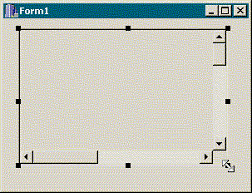
Figure D: A movable and re-sizeable TScrollBox descendant class with sizing grips.
Each sizing grip in Figure D is actually just a black TPanel object; there are eight of these for the scroll box. Listing B contains a modified declaration of the TScrollBoxEx class that uses a vector to hold these eight panels (Panels_).
The first task is to create and initialize the panels, like so:
__fastcall TScrollBoxEx::TScrollBoxEx(
  TComponent* Owner) :
  TScrollBox(Owner), MoveResize_(false),
  OldCursor_(crDefault)
{
  for (int indx = 0; indx < 8; ++indx)
  {
    TPanel* Panel = new TPanel(this);
    Panel->Visible = false;
    Panel->BevelOuter = bvNone;
    Panel->Color = clBlack;
    Panel->OnMouseDown=PanelsMouseDown;
    Panel->Tag = indx;

    switch (indx)
    {
      case 0:
      case 4:
      {
        Panel->Cursor = crSizeNWSE;
        break;
      }
      case 1:
      case 5:
      {
        Panel->Cursor = crSizeNS;
        break;
      }
      case 2:
      case 6:
      {
        Panel->Cursor = crSizeNESW;
        break;
      }
      case 3:
      case 7:
      {
        Panel->Cursor = crSizeWE;
        break;
      }
    }
    Panels_.push_back(Panel);
  }
}
Note that as opposed to the case in which we used the WM_SIZEBOX style, this time I had to manually assign the correct sizing cursor to each panel. Also notice that all eight panels share the same OnMouseDown event handler (PanelsMouseDown). This event handler will later be used to invoke the resizing. Before I get to that code, however, let’s first see how to position and display the panels; this is the job of the DoShowGrips() method:
void __fastcall
TScrollBoxEx::DoShowGrips(bool show)
{
  if (show)
  {
    const int grip_size = 6;
    const int half_grip_size =
      0.5 + 0.5 * grip_size;

    const TRect BR = BoundsRect;
    Panels_[0]->SetBounds(
      BR.Left - half_grip_size,
      BR.Top - half_grip_size,
      grip_size, grip_size
      );
    Panels_[1]->SetBounds(
      BR.Left +
        0.5 * Width - half_grip_size,
      BR.Top - half_grip_size,
      grip_size, grip_size
      );
    Panels_[2]->SetBounds(
      BR.Right - half_grip_size,
      BR.Top - half_grip_size,
      grip_size, grip_size
      );
    Panels_[3]->SetBounds(
      BR.Right - half_grip_size,
      BR.Top +
        0.5 * Height - half_grip_size,
      grip_size, grip_size
      );
    Panels_[4]->SetBounds(
      BR.Right - half_grip_size,
      BR.Bottom - half_grip_size,
      grip_size, grip_size
      );
    Panels_[5]->SetBounds(
      BR.Left +
        0.5 * Width - half_grip_size,
      BR.Bottom - half_grip_size,
      grip_size, grip_size
      );
    Panels_[6]->SetBounds(
      BR.Left - half_grip_size,
      BR.Bottom - half_grip_size,
      grip_size, grip_size
      );
    Panels_[7]->SetBounds(
      BR.Left - half_grip_size,
      BR.Top +
        0.5 * Height - half_grip_size,
      grip_size, grip_size
      );

    for (int indx = 0; indx < 8; ++indx)
    {
      Panels_[indx]->Parent = Parent;
      Panels_[indx]->Visible = true;
      Panels_[indx]->BringToFront();
    }
  }
  else
  {
    for (int indx = 0; indx < 8; ++indx)
    {
      Panels_[indx]->Visible = false;
    }
  }
}
The DoShowGrips() method will either show or hide the panels, depending on the value of the show parameter. Because these panels should be displayed when the MoveResize property is set to true, we can call this method from within the DoSetMoveResize() method, which is now defined like so:
void __fastcall TScrollBoxEx::
  DoSetMoveResize(bool value)
{
  if (MoveResize_ != value)
  {
    MoveResize_ = value;
    if (MoveResize_)
    {
      // change the cursor to crSizeAll
      OldCursor_ = Cursor;
      Cursor = crSizeAll;
    }
    else
    {
      // restore the cursor
      Cursor = OldCursor_;
    }
    // display the resizing grips
    DoShowGrips(value);
  }
}
Note that I removed the previous calls to GetWindowLong() and SetWindowLong() because the WM_SIZEBOX style is no longer needed.
We’ll also want to hide the panels when the user begins a move/resize operation; and we’ll want to reshow (and reposition) the panels after the move/resize operation is complete. As I mentioned earlier, you can use the WM_ENTERSIZEMOVE and WM_EXITSIZEMOVE messages for notification of these two events:
void __fastcall TScrollBoxEx::
  WMEnterSizeMove(TMessage& Msg)
{
  // hide the panels
  DoShowGrips(false);

  // pass the message on
  TScrollBox::Dispatch(&Msg);
}

void __fastcall TScrollBoxEx::
  WMExitSizeMove(TMessage& Msg)
{
  // reshow and reposition the panels
  DoShowGrips(true);

  // pass the message on
  TScrollBox::Dispatch(&Msg);
}Because the WM_SIZEBOX style isn’t used, you might be thinking that you’ll have to implement the sizing-related code manually. As it turns out, you still can punt most of the work to Windows. The key is to use the WM_NCLBUTTONDOWN message just as we did earlier to initiate a move operation. This time, instead of sending the message with HTCAPTION as the wParam value, you set wParam to one of the following: HTLEFT, HTTOP, HTRIGHT, HTBOTTOM, HTTOPLEFT, HTTOPRIGHT, HTBOTTOMLEFT, HTBOTTOMRIGHT. The WM_NCLBUTTONDOWN message should be sent when any of the panels are clicked—i.e., from within the PanelsMouseDown() method:
void __fastcall
TScrollBoxEx::PanelsMouseDown(
  TObject *Sender, TMouseButton Button,
  TShiftState Shift, int X, int Y)
{
  TComponent& Panel =
    static_cast<TComponent&>(*Sender);

  int code = HTNOWHERE;
  switch (Panel.Tag)
  {
    case 0: code = HTTOPLEFT; break;
    case 1: code = HTTOP; break;
    case 2: code = HTTOPRIGHT; break;
    case 3: code = HTRIGHT; break;
    case 4: code = HTBOTTOMRIGHT; break;
    case 5: code = HTBOTTOM; break;
    case 6: code = HTBOTTOMLEFT; break;
    case 7: code = HTLEFT; break;
  }

  // release current mouse capture
  ReleaseCapture();

  // fake a sizing border hit
  SendMessage(
    Handle, WM_NCLBUTTONDOWN, code, 0);
}
That’s it for the resizing code. As promised, Windows handles most of the work.
I’ve demonstrated how you can add run time moving and resizing functionality to any TWinControl descendant. You might be wondering if a similar technique also be used for TGraphicControl descendants. Unfortunately, it cannot. Remember, a TGraphicControl doesn’t have an underlying window, so you can’t use the SendMessage() function. What you can do, though, is place the TGraphicControl on a TWinControl, and then make the TWinControl moveable and sizeable. For example, Figure E depicts a moveable and re-sizeable TImage object; in this case, the TImage is simply placed on a TScrollBoxEx. You can download the source code that accompanies this article from www.bridgespublishing.com.
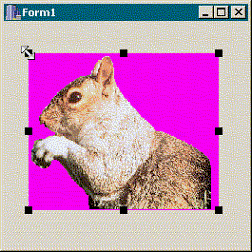
Figure E: A movable and re-sizeable TImage.
Listing A: The declaration of the TScrollBoxEx class
#include <cassert>
class TScrollBoxEx : public TScrollBox
{
public:
  __fastcall TScrollBoxEx(TComponent* Owner) :
    TScrollBox(Owner), MoveResize_(false),
    OldCursor_(crDefault) {}

  __property bool MoveResize =
    {read = MoveResize_, write = DoSetMoveResize};

protected:
  // inherited methods
  virtual void __fastcall CreateParams(
    TCreateParams& Params);
  DYNAMIC void __fastcall MouseDown(
    TMouseButton Button,
    TShiftState Shift, int X, int Y);

  // introduced method
  virtual void __fastcall DoSetMoveResize(
    bool value);

private:
  bool MoveResize_;
  TCursor OldCursor_;

  MESSAGE void __fastcall WMSizing(TMessage& Msg);
  MESSAGE void __fastcall WMMoving(TMessage& Msg);

public:
BEGIN_MESSAGE_MAP
  MESSAGE_HANDLER(WM_SIZING, TMessage, WMSizing)
  MESSAGE_HANDLER(WM_MOVING, TMessage, WMMoving)
END_MESSAGE_MAP(TScrollBox)
};
Listing B: The declaration of the TScrollBoxEx class with the eight panels
#include <vector>
class TScrollBoxEx : public TScrollBox
{
typedef std::vector<TPanel*> TPanels;
public:
  __fastcall TScrollBoxEx(TComponent* Owner);

  __property bool MoveResize =
    {read = MoveResize_, write = DoSetMoveResize};

protected:
  // inherited method
  DYNAMIC void __fastcall MouseDown(
    TMouseButton Button,
    TShiftState Shift, int X, int Y);

  // introduced method
  virtual void __fastcall DoSetMoveResize(
    bool value);
  virtual void __fastcall DoShowGrips(bool show);

private:
  bool MoveResize_;
  TCursor OldCursor_;
  TPanels Panels_;

  void __fastcall PanelsMouseDown(
    TObject *Sender, TMouseButton Button,
    TShiftState Shift, int X, int Y);

  MESSAGE void __fastcall WMSizing(TMessage& Msg);
  MESSAGE void __fastcall WMMoving(TMessage& Msg);
  MESSAGE void __fastcall WMEnterSizeMove(
    TMessage& Msg);
  MESSAGE void __fastcall WMExitSizeMove(
    TMessage& Msg);

public:
BEGIN_MESSAGE_MAP
  MESSAGE_HANDLER(WM_SIZING, TMessage, WMSizing)
  MESSAGE_HANDLER(WM_MOVING, TMessage, WMMoving)
  MESSAGE_HANDLER(WM_ENTERSIZEMOVE,
    TMessage, WMEnterSizeMove)
  MESSAGE_HANDLER(WM_EXITSIZEMOVE,
    TMessage, WMExitSizeMove)
END_MESSAGE_MAP(TScrollBox)
};