Scrolling marquees. You may either love them or hate them. But how do you create one? In this article, I’ll show you how I created a scrolling marquee component which I named TMarquee. I’ll discuss creating components in general, drawing text in Windows and a little bit about the graphics technique of double buffering.
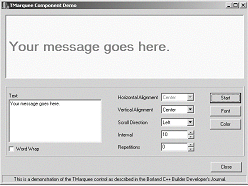
Figure A shows a sample application that I’ve written to experiment with all the important properties of TMarquee. Using this application, you can instantly see the effect of changing a property in the component.
Figure A
Demo application using a TMarquee component.
Some programmers seem to believe that creating components in C++Builder is difficult. They’re wrong. Creating a component is easy. The TMarquee component in this article consists of about 380 lines of code. Less than 20 of those lines were necessary to turn the class TMarquee into the component TMarquee. And guess what? C++Builder wrote all of those lines of code for me when I used the Component Wizard in the IDE!
Figure B shows the Component Wizard that is displayed when you select Component | New Component… from the C++Builder main menu.
Figure B
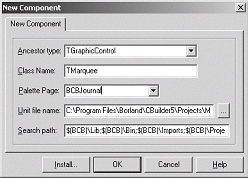
The C++Builder New Component wizard.
Using the wizard, you enter the name of your component, the name of the palette page where your component should be placed, and the Ancestor Type for your component.
The ancestor type is the name of the component from which you will derive your component. In C++ terms, the ancestor type is your component’s parent class.
Selecting the correct ancestor type is very important. You can save yourself a lot of work by picking an ancestor type that implements most of the properties, methods and events that your component needs.
I selected the TGraphicControl as the ancestor type for TMarquee. TGraphicControl provides a Canvas property that I can use to paint the marquee’s background and text and it provides a virtual Paint method that I can override to respond to WM_PAINT messages.
You also want to be careful that you don’t select an ancestor type that provides more functionality than you need. I could have derived TMarquee from TCustomControl. TCustomControl provides everything that TGraphicControl does. But, it is also a windowed control. This means that TCustomControl has a Window handle and can receive input focus. TMarquee doesn’t need input focus and creating a window to display text on screen is wasteful of Windows’ resources.
For a component’s property to appear in the Object Inspector of the IDE, it must be declared as a __published member of the component’s class. The __published keyword is a Borland specific extension to the C++ language. It is similar to the C++ keyword public. Class members that are __published are, in fact, public members that will also appear in the Object Inspector.
If you look at the header file for TGraphicControl, you’ll notice that some of the properties I use in TMarquee, such as Visible and OnClick, are declared as either protected or public. I re-declared the properties as __published in the header file for TMarquee so that they would appear in the Object Inspector. Here is a snippet from the header file showing how this is done:
class PACKAGE TMarquee :
  public TGraphicControl
{
  __published:

    __property Visible;
    __property OnClick;
public:
};
Now lets take a look at the design of TMarquee and how that design is implemented. I wanted a scrolling marquee—a component that scrolled text across the screen.
I wanted the text to move in any of four directions: left, right, up and down. I wanted to set the speed at which the text moved. And, of course, I wanted to be able to specify the appearance of the text (typeface, size, color, etc).
I also wanted to specify the background color behind the text. Finally, for all those users who hate scrolling marquees, I wanted to be able to limit the number of times the text scrolled by their irritated eyes.
I created several properties to control the scrolling text. Table A lists these properties. The best way to determine exactly how these properties work is to study the source code and then play with the demo application.
Here is the really cool part about this component: it works during design time! While designing a form in the IDE, drop a TMarquee component onto the form and set the Active property to true. The text will actually start scrolling right there in the IDE.
Table A: Properties specific to TMarquee
| Property | Description |
Active |
Set Active to true to start the text scrolling. Setting it to false will stop the
scrolling. |
Alignment |
The horizontal alignment of the text within the marquee. This property is only used when the text is scrolling vertically. |
Color |
The background color of the marquee. |
Direction |
The direction the text will scroll within the marquee. |
Font |
The font properties of the marquee text. |
Interval |
The interval in milliseconds between each move of the text. |
Layout |
The vertical alignment of the text within the marquee. The property is only used when the text is scrolling horizontally. |
Lines |
This is the text displayed in the marquee. Internally, TMarquee stores its text in a TStringList. |
Repetitions |
How may times the text should scroll across the marquee before stopping. Setting this property to 0 will cause the text to scroll
forever. |
WordWrap |
If the text is too wide to fit inside the marquee, the text will be wrapped when this property is true. |
Most of the code is simple and straightforward. There are three methods that I do want to discuss, Paint(), Move(), and MeasureText().
The Paint() method contains the code to actually draw the marquee on the screen. It is inherited from TGraphicControl and is called whenever TMarquee receives a WM_PAINT message from Windows.
Paint() uses a graphics technique called double buffering. The marquee is first constructed or drawn off screen, in memory, and then is moved to the screen all at once. This prevents a lot of unwanted flashing that would appear if each part of the marquee were drawn to the screen individually. Here is code for the Paint() method:
void __fastcall TMarquee::Paint(void)
{
  work->Width = Width;
  work->Height = Height;

  UINT format = wordWrap ?
    DT_WORDBREAK : 0;

  TRect r(0, 0, Width, 0);
  if (direction == mqLeft
    || direction == mqRight)
  {
    r.Left = xpos;

    r.Top = 0;
    if (layout == tlCenter)
      r.Top =
        (Height - textHeight) / 2;
    else if (layout == tlBottom)
      r.Top = Height - textHeight;

    r.Right = r.Left + textWidth;
  }
  else
  {
    r.Left = 0;
    if (alignment == taCenter)
      format |= DT_CENTER;
    else if (alignment==taRightJustify)
      format |= DT_RIGHT;

    r.Top = ypos;

    r.Right = Width;
  }

  r.Bottom = r.Top + textHeight;

  TRect s(0, 0,
    work->Width, work->Height);
  work->Canvas->FillRect(s);

  DrawText(work->Canvas->Handle,
    lines->Text.c_str(), -1, &r,format);

  Canvas->CopyRect(s, work->Canvas, s);
}
I use a TBitmap object, named work, to hold the off-screen image of the marquee. I draw the background of the marquee first, by calling the FillRect() method of the TBitmap’s Canvas. Then I draw the text in the correct location within the marquee using the Windows API function, DrawText(). I then copy this completed image of the marquee to the screen by calling the CopyRect() method of the marquee’s Canvas.
The location of the text within the marquee is calculated by the Move() method. This method is called by a TTimer component at the interval set in the Interval property of TMarquee. The Move() method moves the text one pixel at a time. Here is that code:
void __fastcall TMarquee::Move()
{
  switch(direction)
  {
    case mqLeft:
      if (xpos < -textWidth)
      {
        xpos = Width;
        if (repetitions > 0)
          repCount++;
      }
      else
        xpos--;
      break;

  case mqRight:
    if (xpos > Width)
    {
      xpos = -textWidth;
      if (repetitions > 0)
        repCount++;
    }
    else
      xpos++;
    break;

  case mqUp:
    if (ypos < -textHeight)
    {
      ypos = Height;
      if (repetitions > 0)
        repCount++;
    }
    else
      ypos--;
    break;

  case mqDown:
    if (ypos > Height)
    {
      ypos = -textHeight;
      if (repetitions > 0)
        repCount++;
    }
    else
      ypos++;
    break;
  }

  if (repetitions > 0
    && repCount == repetitions)
      Active = false;
  else if (Visible)
    Paint();
}
The size of the text within the marquee is calculated by the MeasureText() method. This method uses the Windows API function DrawText() when the WordWrap property is true. Look up this function in the Windows API online help to see how this works. In particular, look at the flag DT_CALCRECT. The MeasureText() method is as follows:
void __fastcall TMarquee::MeasureText()
{
  int lineHeight =
    work->Canvas->TextHeight("Wj");

  TRect r(0, 0, Width, 0);
  if (wordWrap)
  {
    textHeight =
      DrawText(work->Canvas->Handle,
        lines->Text.c_str(), -1, &r,
        DT_CALCRECT | DT_WORDBREAK);
    textHeight -= lineHeight;
    textWidth = r.Right;
  }
  else
  {
    textWidth = textHeight = 0;
    for (int i= 0;i<lines->Count;i++)
    {
      String s = lines->Strings[i];
      textWidth = max(textWidth,
      work->Canvas->TextWidth(s));
    }
    textHeight =
      lineHeight * lines->Count;
  }
}That’s really all there is to it. As I mentioned at the beginning of this article, some users won’t like scrolling marquees. They find them too distracting. TMarquee was designed to look and act just like a TLabel control when the Active property is false. So, when using TMarquee in your programs, you might want to give the user the option of turning off the scrolling. Once the scrolling is stopped, you can center the text in the marquee by calling the Center() method.