I have always liked Borland’s IDE, ever since I started using Borland C++ back in the early 90’s. At the time, it had as many features as some other full-blown third party code editors. With the introduction of Delphi and C++ Builder, the IDE has grown in complexity, with added features such as auto complete and Code Insight.
I recently stumbled upon one IDE feature that I really like—the To Do List (which Borland randomly calls "To Do List" or "To-Do List"). Each project maintains its own To Do List. To view it, select View|To-Do List from the menu. A window pops up which is similar to the "Tasks" list in Microsoft Outlook. This window allows you to add new items to the list. But what really makes the To Do list powerful it its ability to pull comments out of the source files in the project.
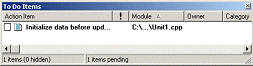
Any project file containing the word TODO: in a comment will have that comment listed in its To Do list. For example, the following code is reflected in Figure A:
// TODO: Initialize data before updatingFigure A
The To Do Items window lists all of the to do items.
You can right-click on any To Do item in the window, and a dialog box will appear showing its properties as shown in Figure B:
Figure B
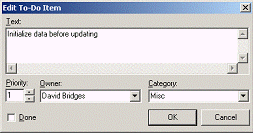
Edit To-Do Item dialog box
From here, you can assign the item to someone, categorize it, and set the priority. It then updates this information directly into your source code comment. After entering the information shown in the dialog box, the source code comment will look like this (the line is broken here for formatting reasons):
// TODO 1 -cMisc -oDavid Bridges:
  Initialize data before updating
Double-clicking on an item in the window will take you directly to the source code comment.
I work on many development projects, and some have very long To Do lists. My team uses additional software to handle big projects, some of which contain hundreds of detailed items. But for code-related notes, you can’t beat the To Do List window—especially when it’s late at night, you’re racing to get out of the office, and you want to jot down a note to get you started again next time.