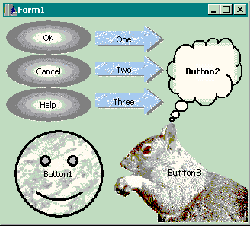
In the previous articles of this series, I showed you how to create a button component that supports a color specification and a custom bitmap face. This month, I’ll conclude the series by demonstrating how to use a GDI region object to create a button that conforms to the shape of an image. Figure A shows some examples.
Figure A
Some custom-shaped buttons.
A region is a special GDI object that’s designed to clip the output of a rendering operation. For example, when a window is in the background but only partially obscured, that window still has to paint its visible portions. To this end, the window will still receive the WM_PAINT message, but any rendering that it performs to its device context is clipped to the visible portions. Windows uses a region to perform this clipping.
In fact, regions are used to clip more than just drawings; they’re also used to define the shape of a window (I’ll show you how this is done later). In this way, regions can be used to clip both rendered output and mouse-related input.
There are two main types of regions: simple regions and complex regions. A simple region is a region with a rectangular shape. This rectangle (or square) can be of virtually any size, even as small as a single pixel. A complex region is a non-rectangular region that’s composed of two or more simple regions.
Windows provides many functions for creating simple and complex regions. For example, to create a simple region, you’d use the CreateRectRgn() or CreateRectRgnIndirect() functions. Alternatively, to create an elliptic (complex) region, you’d use CreateEllipticRgn() or CreateEllipticRgnIndirect(). Unfortunately, these functions are a bit restrictive because you can create only a limited number of shapes. Although you can use the CreatePolygonRgn() function to create any polygonal region, this approach requires that you specify the all of the polygon’s vertices. Fortunately, Windows provides the CombineRgn() function, which can be used to combine two (simple or complex) regions into a third. With this function, you can build a region of any shape by successively combining smaller (and simpler) regions.
As I mentioned earlier, a region can be as small as a single pixel. This is actually an important requirement because it allows you to create a complex region from multiple pixel-sized regions. These regions can be created based on the pixels of a bitmap. For example, suppose you want to create a region that’s shaped like the image in Figure B. Assuming that this bitmap is held in a TImage object called Image1, here’s the code that you’d use:
Graphics::TBitmap& Bitmap =
  *Image1->Picture->Bitmap;
Bitmap.PixelFormat = pf24bit;
const SIZE SImage =
  {Bitmap.Width, Bitmap.Height};

HRGN hTotalRgn = NULL;

// scan the pixels of the bitmap...
for (int y = 0; y < SImage.cy; ++y)
{
  const RGBTRIPLE* pRow =
    static_cast<RGBTRIPLE*>(
      Bitmap.ScanLine[y]);
  for (int x = 0; x < SImage.cx; ++x)
  {
    // if the pixel is black...
    if (pRow[x].rgbtRed == 0 &&
        pRow[x].rgbtGreen == 0 &&
        pRow[x].rgbtBlue == 0)
    {
      // create a pixel-sized region
      const HRGN hPixelRgn =
        CreateRectRgn(x, y, x+1, y+1);

      if (hTotalRgn)
      {
        // combine the regions
        CombineRgn(
          hTotalRgn, hTotalRgn,
          hPixelRgn, RGN_OR);
        // free the pixel-sized region
        DeleteObject(hPixelRgn);
      }
      else hTotalRgn = hPixelRgn;
    }
  }
}
// use the region...
// later...
DeleteObject(hTotalRgn);This code constructs an image-based region one pixel at a time. Specifically, it scans the bitmap (in Image1), looking for black-colored pixels. Each time a black-colored pixel is encountered, the CreateRectRgn() function creates a pixel-sized region (hPixelRgn). This region is then combined with the composite region (hTotalRgn) by using the CombineRgn() function.
Figure B
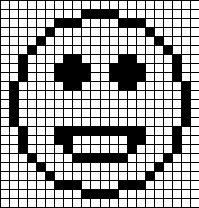
A simple black and white image whose pixels can be used to define the shape of a region.
As you can see from this code, the CreateRectRgn() function takes four parameters that, together, specify the corners of the rectangle. Upon success, this function returns a handle to the rectangular region (of type HRGN). The CombineRgn() function also takes four parameters. The second and third parameters specify the handles to the two regions that you want to combine. This composite region is copied to the (pre-existing) region whose handle is specified as the function’s first parameter. The fourth parameter specifies how the two regions should be combined (e.g., RGN_OR = union; RGN_AND = intersection; RGN_XOR = non-overlapping union).
I’ve just shown you how to create an image-shaped region by using the CreateRectRgn() and CombineRgn() functions. Unfortunately, depending on the number of pixels that you use to define the region, this approach can be unbearably slow. Combining two regions is a cheap operation, but the multiple calls to the CreateRectRgn() function impose a severe bottleneck.
Fortunately, there’s a way to create a complex region via one function call; specifically, a call to the ExtCreateRegion() function. Here how this function is declared:
HRGN ExtCreateRegion(
  CONST XFORM* lpXform,
  DWORD nCount,
  CONST RGNDATA* lpRgnData);
The lpRgnData parameter specifies a pointer to a RGNDATA structure (discussed next) that conveys information about the rectangles that will define the region. Accordingly, the nCount parameter specifies the number of bytes in this RGNDATA structure. The lpXform data member can be used to specify a coordinate transformation (e.g., a scaling). In our case, we’ll pass NULL as this parameter to indicate no transformation.
The RGNDATA structure is defined as follows:
typedef struct _RGNDATA {
  RGNDATAHEADER rdh;
  char          Buffer[1];
} RGNDATA, *PRGNDATA;
The Buffer parameter is a placeholder for a variable-length array of rectangles that define the region. The rdh data member is of type RGNDATAHEADER and is defined like so:
typedef struct _RGNDATAHEADER {
  DWORD dwSize;
  DWORD iType;
  DWORD nCount;
  DWORD nRgnSize;
  RECT  rcBound;
} RGNDATAHEADER, *PRGNDATAHEADER;
The dwSize parameter specifies the number of bytes that the structure uses—i.e., sizeof(RGNDATAHEADER). The iType parameter specifies the shape of the primitives that are contained in the RGNDATA::Buffer member. Because current versions of Windows support only rectangles, the iType parameter must be set to RDH_RECTANGLES. Accordingly, the nCount data member specifies how many rectangles make up the region. The nRgnSize and rcBound data members are ignored by the ExtCreateRgn() function, so you can simply set both of these to zero.
Now that we’ve gone over the specifics of the ExtCreateRgn() function’s parameters, let’s see how the function is actually used. The first step is to initialize the rectangles that’ll be used to define the shape of the region. Unfortunately, this is somewhat of a cumbersome procedure because, on NT-based systems, the rectangles that define the region cannot share a vertical boundary—i.e., you can’t have two horizontally adjacent rectangles (see Figure C). In order to accommodate this restriction, you must initialize your array of rectangles such that all horizontally adjacent rectangles are encompassed by one larger “parent” rectangle. This scheme is illustrated in Figure C, which shows a magnified section of the bitmap in Figure B along with the incorrect and correct way to define the rectangles.
Figure C
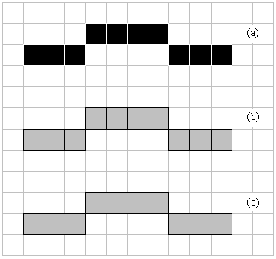
Defining the rectangles from the pixels of a bitmap: (a) two scan lines of a bitmap (10 total pixels); (b) the incorrect way to define the rectangles (this results in 10 rectangles); (c) the correct way to define the rectangles (this results in three rectangles).
Of course, before you can allocate memory for the rectangles, you’ll need to know how many rectangles are required. The following function demonstrates how to count these rectangles by scanning the pixels (pPixels) of a 24-bpp bitmap for those whose color is not equal (within tolerance) to transparent_color. These are assumed to be opaque—i.e., the pixel defines part of the region. Here’s the code:
#include <math.h>
unsigned int CountNumRects(
 const unsigned char* pPixels,
 const SIZE& img_size,
 COLORREF transparent_color,
 unsigned char tolerance)
{
  // NOTE: the pPixels buffer is assumed
  // to be aligned to a 32-bit boundary
  //
  // compute the width in bytes
  const unsigned int bytes_per_line =
     (((img_size.cx * 24) + 31)
      & ~31) >> 3;

  // scan the pixels to count the
  // number of required rectangles...
  unsigned int num_rects = 0;
  for (int y = 0; y < img_size.cy; ++y)
  {
    const RGBTRIPLE* pScanLine =
     reinterpret_cast<const RGBTRIPLE*>(
        pPixels + (y * bytes_per_line));

    bool start_new_rect = true;
    for (int x = 0; x < img_size.cx;++x)
    {
      const int dR =
        pScanLine[x].rgbtRed -
        GetRValue(transparent_color);
      const int dG =
        pScanLine[x].rgbtGreen -
        GetGValue(transparent_color);
      const int dB =
        pScanLine[x].rgbtBlue -
        GetBValue(transparent_color);

      const bool opaque =
        sqrt(dR*dR + dG*dG + dB*dB)
          > tolerance;

      // if we're on an opaque pixel
      if (opaque)
      {
        if (start_new_rect)
        {
          ++num_rects;
          start_new_rect = false;
        }
      }
      // we're on a transparent pixel
      else start_new_rect = true;
    }
  }

  // return the number of RECTs required
  return num_rects;
}
Now that you have a method for counting the number of rectangles that the region requires, the next step is to allocate and initialize an array of RECT structures. The following function demonstrates how this is done:
PRECT InitRects(
  unsigned int num_rects,
  const unsigned char* pPixels,
  const SIZE& img_size,
  COLORREF transparent_color,
  unsigned char tolerance)
{
  // make room for the RECTs
  PRECT pRects = new RECT[num_rects];
  PRECT pCurrentRect = pRects - 1;

  // compute the width in bytes
  const unsigned int bytes_per_line =
    (((img_size.cx * 24) + 31)
     & ~31) >> 3;

  // scan the image...
  for (int y = 0; y < img_size.cy; ++y)
  {
    const RGBTRIPLE* pScanLine =
     reinterpret_cast<const RGBTRIPLE*>(
        pPixels + (img_size.cy - y - 1)
        * bytes_per_line);

    bool start_new_rect = true;
    for (int x = 0; x < img_size.cx;++x)
    {
      const int dR =
        pScanLine[x].rgbtRed -
        GetRValue(transparent_color);
      const int dG =
        pScanLine[x].rgbtGreen -
        GetGValue(transparent_color);
      const int dB =
        pScanLine[x].rgbtBlue -
        GetBValue(transparent_color);

      const bool opaque =
        sqrt(dR*dR + dG*dG + dB*dB)
        > tolerance;

      // if we're on an opaque pixel
      if (opaque)
      {
        if (start_new_rect)
        {
          start_new_rect = false;
          // grab a pointer to the next
          // rectangle in the array and
          // initialize it
          ++pCurrentRect;
          pCurrentRect->left = x;
          pCurrentRect->top = y;
          pCurrentRect->right = x + 1;
          pCurrentRect->bottom = y + 1;
        }
        else
        {
          // increase the width
          // of the current RECT
          ++(pCurrentRect->right);
        }
      }
      // we're on a transparent pixel
      else start_new_rect = true;
    }
  }
  // return a pointer to the RECTs
  return pRects;
}
Once the array of RECTs is allocated and initialized, the final step is to allocate a RGNDATA structure, initialize its header, copy a chunk of rectangles from the array of RECTs to the RGNDATA::Buffer data member, and then pass the initialized RGNDATA structure to the ExtCreateRgn() function. It’s important that you copy only a limited number of rectangles to the RGNDATA::Buffer data member because the ExtCreateRgn() function is a bit flaky on Windows 9x. Specifically, the function will fail if you pass it too many rectangles (e.g., more than a few thousand). The following function demonstrates how to use the CountNumRects() and InitRects() utility functions, and how to use the ExtCreateRgn() function in an iterative fashion—i.e., passing the function a maximum batch-size of 1000 RECTs. Each batch-sized region is combined with the composite result by using the CombineRgn() function. Here’s the code:
#include <cassert>
#include <stdexcept>
HRGN RegionFromDIBSection(
  HBITMAP hDIBSection,
  COLORREF transparent_color,
  unsigned char tolerance)
{
  // total region
  HRGN hTotalRgn = NULL;

  // get info about the DIB section
  BITMAP bmp;
  const size_t size = GetObject(
     hDIBSection, sizeof(BITMAP), &bmp);

  // verify the format of the DIB section
  assert(size == sizeof(BITMAP));
  assert(bmp.bmBitsPixel == 24);
  assert(bmp.bmBits != NULL);

  // ensure the orientation (assume
  // a bottom-up DIB section)
  bmp.bmHeight = abs(bmp.bmHeight);

  // grab a byte-pointer to the pixels
  const unsigned char* pPixels =
    static_cast<unsigned char*>
      (bmp.bmBits);

  // store the image dimensions
  const SIZE img_size = {
    bmp.bmWidth, bmp.bmHeight};

  // count the number of rectangles
  unsigned int num_rects =
    CountNumRects(
      pPixels, img_size,
      transparent_color, tolerance);

  // allocate and initialize the RECTs
  PRECT pRects = InitRects(
    num_rects, pPixels, img_size,
    transparent_color, tolerance);
  try
  {
    // now that the buffer of rectangles
    // is initialized, let's create the
    // region in batches of 1000 RECTs

    // allocate memory for the batch
    const int rects_per_batch =
      min(1000U, num_rects);
    const std::size_t buffer_size =
       sizeof(RGNDATAHEADER) +
       rects_per_batch * sizeof(RECT);
    unsigned char* pBuffer =
      new unsigned char[buffer_size];
    try
    {
      memset(pBuffer, 0, buffer_size);

      // intialize a RGNDATA structure
      LPRGNDATA pRgnData =
        reinterpret_cast<LPRGNDATA>
          (pBuffer);
      pRgnData->rdh.dwSize =
        sizeof(RGNDATAHEADER);
      pRgnData->rdh.iType =
        RDH_RECTANGLES;

      int iRect = 0;
      while (num_rects > 0)
      {
        pRgnData->rdh.nCount = min(
          static_cast<unsigned int>
            (rects_per_batch),
            num_rects);
        num_rects -=
          pRgnData->rdh.nCount;

        // copy the memory from pRects
        // to the RGNDATA's buffer
        // (i.e., fill the batch)
        memcpy(
          pRgnData->Buffer,
          reinterpret_cast<PBYTE>
            (pRects + iRect),
          pRgnData->rdh.nCount *
          sizeof(RECT));
        iRect += pRgnData->rdh.nCount;

        // create/combine the region(s)
        const HRGN hBatchRgn =
          ExtCreateRegion(
            NULL, buffer_size, pRgnData);
        if (!hBatchRgn)
        {
          throw std::runtime_error(
            "!hBatchRgn");
        }
        if (hTotalRgn)
        {
          CombineRgn(
            hTotalRgn, hTotalRgn,
            hBatchRgn, RGN_OR);
          DeleteObject(hBatchRgn);
        }
        else hTotalRgn = hBatchRgn;
      }
    }
    catch (...)
    {
       // clean up
       delete [] pBuffer;
       throw;
    }
    // clean up
    delete [] pBuffer;
  }
  catch (...)
  {
     // clean up
     delete [] pRects;
     throw;
  }
  // clean up
  delete [] pRects;

  // return the total region
  return hTotalRgn;
}
Although this code is a bit cryptic, the RegionFromDIBSection() function is nearly instantaneous, even for moderately sized images. This is a significant speed improvement over the previous approach that used CreateRectRgn(). In fact, the size of the image isn’t much of an issue for buttons, because you’ll rarely need such a large button. Because most application use several dozen buttons however, the speed factor is crucial.
You might be wondering why I used a raw DIB section bitmap instead of using a TBitmap object. I did this for portability with all versions of C++Builder, but primarily because of C++Builder version 1. C++Builder version 1 supports only device-dependent bitmaps (DDBs), which provide no direct pixel access.
You now have the framework for creating an image-shaped region; and, believe me, this is the most cumbersome part of the process. In the sections that follow, I’ll briefly discuss how to integrate this code with the TBitmapButton class, and I’ll show you how to make the button take the shape of the region.
Listing A contains the declaration of the TBitmapButton class, which I’ve modified from last month’s version to support an image-based region. Specifically, I’ve added three properties: AutoShape, which is a Boolean that determines whether or not the button conforms to the shape of the bitmap (held in the first position of Faces_); TransColor, which implicitly defines the pixels of the bitmap that you don’t want included the region; and TransTolerance, which specifies how close (in Cartesian space) each color must be to TransColor in order to be considered transparent. Accordingly, each of these properties has a write-access (i.e., “setter”) method that updates not only the associated property, but the region as well. Here’s how these methods are defined:
void __fastcall TBitmapButton::
  SetAutoShape(bool Value)
{
  if (AutoShape_ != Value)
  {
    if (Faces_->Empty)
    {
      AutoShape_ = false;
    }
    else
    {
      AutoShape_ = Value;
    }
    DoShapeButton();
    DoRedrawButton();
  }
}

void __fastcall TBitmapButton::
  SetTransColor(TColor Value)
{
  if (TransColor_ != Value)
  {
    TransColor_ = Value;
    DoShapeButton();
    DoRedrawButton();
  }
}

void __fastcall TBitmapButton::
  SetTransTolerance(short Value)
{
  if (TransTolerance_ != Value)
  {
    TransTolerance_ = Value;
    DoShapeButton();
    DoRedrawButton();
  }
}
As I just mentioned, each of these methods updates its corresponding property, then updates the region (if necessary) by using the DoShapeButton() method, and then updates the display by using the DoRedrawButton() method. I’ll discuss the DoShapeButton() method next; the DoRedrawButton() method simply punts its work to the RedrawWindow() API function.
There’s one final (and very important) detail that needs to be addressed. Specifically, I’ve shown you how to create an image-based region, but I have yet to discuss how to make the button take the shape of this region. This task is fairly effortless—you simply call the SetWindowRgn() function. The TBitmapButton class calls this function from within its DoShapeButton() method, which is defined as follows:
void __fastcall TBitmapButton::
  DoShapeButton()
{
  if (AutoShape_ && !Faces_->Empty)
  {
    // size the button to the first face
    SetBounds(
      Left, Top,
      Faces_->Width / NumFaces_,
      Faces_->Height);
  }
  else
  {
    // restore the original shape
    SetWindowRgn(Handle, NULL, false);
    return;
  }

  // don't shape at design time
  if (ComponentState.
        Contains(csDesigning))
  {
    return;
  }

  // create a 24-bpp DIB section
  HBITMAP hDIBSection =
    DoCreateDIBSection();
  if (!hDIBSection)
  {
    throw EInvalidGraphicOperation(
      "Failed to create DIB section.");
  }

  // create a region from the bitmap
  const HRGN hRgn =
    RegionFromDIBSection(
      hDIBSection,
      ColorToRGB(TransColor_),
      TransTolerance_);
  if (!hRgn)
  {
    throw EInvalidGraphicOperation(
      "Failed to create region.");
  }
  try
  {
    // destroy the DIB section
    DeleteObject(hDIBSection);
    hDIBSection = NULL;

    // shape the button to the region
    if (!SetWindowRgn(
          Handle, hRgn, false))
    {
      // report the error
      throw EInvalidGraphicOperation(
        "Failed to set window region.");
    }
  }
  catch (...)
  {
    // clean up on error
    if (hDIBSection)
    {
      DeleteObject(hDIBSection);
    }
    DeleteObject(hRgn);
    throw;
  }
}
You can see from this code that the SetWindowRgn() function takes three parameters: a handle to the window whose shape you want to define, a handle to the region that specifies this shape, and a Boolean that indicates whether or not the window should be redrawn. Notice that I destroy the region (via a call to the DeleteObject() GDI function) only if the SetWindowRgn() function fails. This is an important step because the window takes ownership of the region if the SetWindowRgn() is successful—i.e., if it returns non-zero. Also notice that you can pass NULL as the SetWindowRgn() function’s second parameter to restore the window’s original shape.
Finally, notice that the DoShapeButton() method calls a method named DoCreateDIBSection(). I created this latter method to retrieve a handle to a DIB section by using either a TBitmap object (for C++Builder versions 3 and greater) or the CreateDIBSection() GDI function (for C++Builder version 1). Although I won’t present this method here, the source code that accompanies this article contains its implementation.
In this series of articles, we examined several approaches to creating a customized button. Here, I’ve demonstrated how to define the button’s shape by using a bitmap and a region. You can download the source code for the TBitmapButton class—along with a sample application—at www.bridgespublishing.com.
Listing A: Declaration of the modified TBitmapButton class
class PACKAGE TBitmapButton : public TColorButton
{
public:
  __fastcall TBitmapButton(TComponent* Owner);
  __fastcall ~TBitmapButton();

__published:
  __property Graphics::TBitmap* Faces =
    {read = Faces_, write = SetFaces};
  __property int NumFaces =
    {read = NumFaces_, write = SetNumFaces};
  __property bool NoFocusRect =
    {read = NoFocusRect_, write = SetNoFocusRect};
  __property bool AutoShape =
    {read = AutoShape_, write = SetAutoShape};
  __property TColor TransColor =
    {read = TransColor_, write = SetTransColor,
     default = clFuchsia};
  __property short TransTolerance =
    {read = TransTolerance_,
     write = SetTransTolerance};

protected:
  DYNAMIC HPALETTE __fastcall GetPalette();
  virtual void __fastcall DoDrawButtonFace(
    const TOwnerDrawState& state);
  virtual void __fastcall DoDrawButtonText(
    const TOwnerDrawState& state);
  virtual void __fastcall DoShapeButton();
  virtual HBITMAP __fastcall DoCreateDIBSection();
  virtual void __fastcall DoRedrawButton();

private:
  Graphics::TBitmap* Faces_;
  int NumFaces_;
  bool NoFocusRect_;
  bool AutoShape_;
  TColor TransColor_;
  short TransTolerance_;

  void __fastcall SetFaces(
    Graphics::TBitmap* Value);
  void __fastcall SetNumFaces(int Value);
  void __fastcall SetNoFocusRect(bool Value);
  void __fastcall SetAutoShape(bool Value);
  void __fastcall SetTransColor(TColor Value);
  void __fastcall SetTransTolerance(short Value);
};