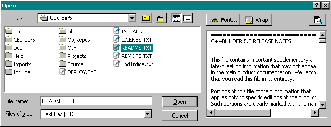
In this two-part series, I’ll show you how to customize the standard Open dialog box. In this first installment, I’ll demonstrate how to create an extended TOpenDialog class that allows you to place any TWinControl descendant to the right of the Open dialog’s standard controls. Figure A depicts an example.
Figure A
A customized Open dialog box that allows users to preview text files.
The TOpenDialog is one of the easiest VCL components to work with. You simply drop one on your form at design time, set a few of its properties, call its Execute() method (to display the dialog), and then query its FileName (or Files) property to determine which file (or files) to open:
void __fastcall TForm1::
  OpenButtonClick(TObject *Sender)
{
  if (OpenDialog1->Execute())
  {
    // open the file
    // OpenDialog1->FileName...
  }
}
In fact, even if the TOpenDialog class wasn’t available, the standard API approach is almost as simple. You first initialize an OPENFILENAME structure, set a few of its data members, pass its address to the GetOpenFileName() function (to display the dialog), and then read the OPENFILENAME::lpstrFile data member to determine which file (or files) to open:
void __fastcall TForm1::
  OpenButtonClick(TObject *Sender)
{
  TCHAR filename[MAX_PATH];
  memset(&filename, 0, MAX_PATH);

  OPENFILENAME ofn = {
    OPENFILENAME_SIZE_VERSION_400 };
  ofn.hwndOwner = Handle;
  ofn.nMaxFile = MAX_PATH;
  ofn.lpstrFile = filename;
  ofn.Flags = OFN_EXPLORER;

  // display the open dialog box
  if (GetOpenFileName(&ofn))
  {
    // open the file "filename"...
  }
}
The TOpenDialog class performs these steps for you from within its DoExecute() method.
Either of these approaches will work if you don’t need to customize the Open dialog; if you do, the process is a bit more complicated. There are two standard ways to perform this customization:
·Use a custom resource script.
·Use a hook procedure.
The resource-based approach is a bit of a pain not only because C++Builder doesn’t come with a useful resource editor, but also primarily because there’s no simple way to use VCL controls within the resource script. By using a hook procedure, on the other hand, you can place any TWinControl descendant directly on the dialog. In fact, the TOpenDialog class (in C++Builder versions 3 and higher) uses a hook procedure to support many of its events (e.g., OnShow). I’ll explain how this works in the next section.
Installing a hook procedure for the Open dialog involves three main steps:
·Define the hook procedure.
·Assign a pointer to the hook procedure to the OPENFILENAME::lpfnHook data member.
·Add the OFN_ENABLEHOOK bit to the OPENFILENAME::Flags data member.
Here’s an example of steps 2 and 3:
void __fastcall TForm1::
  OpenButtonClick(TObject *Sender)
{
  TCHAR filename[MAX_PATH];
  memset(&filename, 0, MAX_PATH);

  OPENFILENAME ofn = {
    OPENFILENAME_SIZE_VERSION_400 };
  ofn.hwndOwner = Handle;
  ofn.nMaxFile = MAX_PATH;
  ofn.lpstrFile = filename;
  ofn.lpfnHook = HookProc;
  ofn.Flags =
    OFN_EXPLORER | OFN_ENABLEHOOK;

  // display the open dialog box
  if (GetOpenFileName(&ofn))
  {
    // open the file "filename"...
  }
}
And, here’s how the hook procedure (HookProc) is defined:
#include <cassert>
UINT __stdcall HookProc(
   HWND hChildDlg, UINT msg,
   WPARAM wParam, LPARAM lParam)
{
  if (msg != WM_NOTIFY) return 0;

  OFNOTIFY* pNotify =
    reinterpret_cast<OFNOTIFY*>(lParam);
  assert(pNotify != NULL);

  switch (pNotify->hdr.code)
  {
    case CDN_INITDONE:
      // dialog has been initialized
      // and is about to be displayed
      break;
    case CDN_SELCHANGE:
      // user has selected a new file
      break;
    case CDN_FOLDERCHANGE:
      // user had selected a new folder
      break;
    // etc...
  }
  return 0;
}
By using this code, the dialog box will call the hook procedure whenever certain events take place within the dialog’s controls. These notifications are sent in the form of a WM_NOTIFY message, whose accompanying lParam value specifies a pointer to an OFNOTIFY structure. The OFNOTIFY::hdr data member is an NMHDR structure whose code data member specifies the type of notification. For example, when the code data member specifies CDN_INITDONE, the dialog box has finished initializing its controls and it is about to be shown; this is when the TOpenDialog class fires its OnShow event handler. Similarly, when the code data member specifies CDN_SELCHANGE, the user has selected a new file in the Explorer-style list view control; this is when the TOpenDialog class fires its OnSelectionChange event handler. Other notifications include:
·CDN_FILEOK (compare with OnCanClose)
·CDN_FOLDERCHANGE (compare with OnFolderChange)
·CDN_TYPECHANGE (compare with OnTypeChange)
·CDN_INCLUDEITEM (compare with OnIncludeItem)
Notice that the first parameter to the hook procedure is not a handle to the dialog itself. Rather, it’s a handle to a child dialog. This child dialog is designed to serve as a container for additional controls (If you use a resource script, you can set the initial size of the child dialog). As I’ll discuss in the sections that follow however, you don’t have to use this child dialog; instead, you can place controls directly on the Open dialog box.
Listing A contains the declaration of a TOpenDialog descendant class called TOpenDialogEx. This class has three private members: ChildWin_, OldDlgWP_, and NewDlgWP_, which are initialized in the class constructor like so:
__fastcall TOpenDialogEx::
  TOpenDialogEx(TComponent* Owner)
  : TOpenDialog(Owner), ChildWin_(NULL),
  OldDlgWP_(NULL), NewDlgWP_(NULL)
{
}
The OldDlgWP_ and NewDlgWP_ members are used to subclass the Open dialog box (I’ll discuss how and why this is done later). The ChildWin_ data member is used with the ChildWin property, the latter of which is used to specify the TWinControl-type object that’s to be placed on the Open dialog box.
Recall that an Open dialog box contains a child dialog that’s designed to hold additional controls. As I mentioned previously, you can use a resource script to define the size of this child dialog. In this case the Open dialog box will automatically resize itself to accommodate the child dialog’s new size. In our case, we’re not using a resource script, so the child dialog’s width is set to zero. This much is fine because we’re not going to use the child dialog anyway. We will, however, need to increase the width of the Open dialog box to make room for our own TWinControl-type child window (ChildWin).
How do we change the Open dialog’s width? Well, unfortunately, because the Open dialog box isn’t a VCL window, adjusting its width is not as simple as setting a Width property. Instead, we’ll have to use the MoveWindow() or SetWindowPos() API functions. I prefer the latter because it allows you to change a window’s size without specifying its position. We’ll call the SetWindowPos() function after the dialog has initialized its controls—i.e., in response to the CDN_INITDONE notification, or in VCL terms, from within an augmented DoShow() method:
void __fastcall TOpenDialogEx::DoShow()
{
  if (ChildWin_ &&
    !Options.Contains(ofOldStyleDialog))
  {
    RECT RDlg;
    const HWND hDlg = GetParent(Handle);
    if (GetWindowRect(hDlg, &RDlg))
    {
      // resize the dialog box
      SetWindowPos(
        hDlg, NULL, 0, 0,
        RDlg.right - RDlg.left +
        ChildWin_->Width + 6,
        RDlg.bottom - RDlg.top,
        SWP_NOMOVE | SWP_NOZORDER);

      // place and show the child window
      DoShowChildWin();

      // subclass the dialog
      DoSubclassDialog(true);
    }
  }
  TOpenDialog::DoShow();
}
You might be wondering why this code uses the GetParent() API function (along with the TOpenDialog::Handle property) to retrieve a handle to the Open dialog box. Well, as it turns out, the Handle property returns a handle to the child dialog (which in our case has a width of zero), not a handle to the Open dialog. Thus, in order to grab a handle to the Open dialog box (hDlg), we need to pass the value that’s returned by the Handle property to the GetParent() function. This handle (hDlg) is then used with the GetWindowRect() and SetWindowPos() functions to query and change the Open dialog’s width.
After the Open dialog’s width has been adjusted, the next task is to place ChildWin on the Open dialog. This is the job of the DoShowChildWin() method, which is defined as follows:
void __fastcall TOpenDialogEx::
  DoShowChildWin()
{
  RECT RDlg;
  const HWND hDlg = GetParent(Handle);
  if (GetClientRect(hDlg, &RDlg))
  {
    // parent the child to the dialog
    ChildWin_->ParentWindow = hDlg;

    // position/size the child window
    ChildWin_->Top = 3;
    ChildWin_->Left = RDlg.right -
      ChildWin_->Width - 6;
    ChildWin_->Height = RDlg.bottom - 10;

    // show the child window
    ChildWin_->Visible = true;

    // bring the child window to the top
    ChildWin_->BringToFront();
  }
}
As before, we first use the GetParent() function to retrieve a handle to the Open dialog box because we want to place ChildWin on the Open dialog, not on the zero-width child dialog. Actually placing ChildWin on the Open dialog is trivial—we simply use the ParentWindow property.
At this point, we have code to adjust the Open dialog box’s width and code to place the child window (ChildWin) on the dialog box. So far, so good. But if you’re using a version of Windows that allows the user to resize the Open dialog box, ChildWin won’t automatically conform to the Open dialog’s new size.
Although we can easily resize ChildWin manually by changing its Width and Height properties, we’ll still need to know when to adjust these properties. Ideally, we want to resize ChildWin immediately after the Open dialog box has been resized. Unfortunately, there is no notification—such as CDN_RESIZED or OnResized—that tells us when the user has resized the dialog box. So, in order to determine when to resize ChildWin, we’ll need to subclass the Open dialog box and respond to the WM_SIZE message within the subclass procedure. This is where the OldDlgWP_ and NewDlgWP_ members and the DoSubclassDialog() and DialogWndProc() methods come into play.
Notice from the previous definition of the DoShow() method that after the Open dialog’s width is adjusted (via the SetWindowPos() function) and after ChildWin has been placed on the dialog (via the DoShowChildWin() function), a call is made to the DoSubclassDialog() method. This method, which places an instance subclass on the Open dialog box, is defined like so:
void __fastcall TOpenDialogEx::
  DoSubclassDialog(bool subclass)
{
  if (OldDlgWP_)
  {
    // restore the old window procedure
    SetWindowLong(
      GetParent(Handle), GWL_WNDPROC,
      reinterpret_cast<LONG>(OldDlgWP_)
      );
    OldDlgWP_ = NULL;
  }
  if (NewDlgWP_)
  {
    // free the function map
    FreeObjectInstance(NewDlgWP_);
    NewDlgWP_ = NULL;
  }

  if (!subclass) return;

  // allocate the function map
  NewDlgWP_ = reinterpret_cast<FARPROC>(
    MakeObjectInstance(DialogWndProc));

  // perform the instance subclass
  const LONG res = SetWindowLong(
    GetParent(Handle), GWL_WNDPROC,
    reinterpret_cast<LONG>(NewDlgWP_));
  OldDlgWP_ =
    reinterpret_cast<FARPROC>(res);
}
This function uses the SetWindowLong() API function to replace or restore the dialog’s window procedure, depending on the value of the subclass parameter. (The call to the MakeObjectInstance() VCL function is needed because our subclass procedure, DialogWndProc(), is a non-static class member function as opposed to a standard callback function.)
After the Open dialog box is subclassed, the WM_SIZE message will be sent to our subclass procedure (DialogWndProc()) immediately after the dialog has been resized. At this point, we can adjust the size of the ChildWin:
void __fastcall TOpenDialogEx::
  DialogWndProc(TMessage& Msg)
{
  // call the default window procedure
  Msg.Result = CallWindowProc(
    OldDlgWP_, GetParent(Handle),
    Msg.Msg, Msg.WParam, Msg.LParam
    );

  switch (Msg.Msg)
  {
    case WM_SIZE:
    {
      RECT RDlg;
      const HWND hDlg =
        GetParent(Handle);
      if (::GetClientRect(hDlg, &RDlg))
      {
        // resize the child window
        ChildWin_->Height =
          RDlg.bottom - 10;
      }
      break;
    }
    case WM_DESTROY:
    {
      // remove the subclass
      DoSubclassDialog(false);
      break;
    }
  }
}
Again, we subclass the Open dialog box so that we can resize the child window (ChildWin) whenever the dialog box is resized. Figure B depicts a TOpenDialogEx-type dialog whose child window is simply a black TPanel object. Notice that the panel is resized along with the dialog.
Figure B
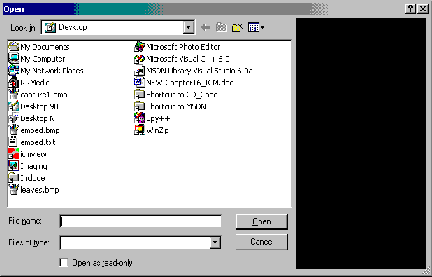
A TOpenDialogEx-type dialog on Windows 2000; the child window is a black TPanel object that’s resized whenever the user resizes the dialog.
Recall that we use the ChildWin object’s ParentWindow property (from within the DoShowChildWin() method) to place the child window on the Open dialog box. Accordingly, before the dialog box is closed, we’ll need to remove and hide the child window. We can do this by augmenting the DoClose() method as follows:
void __fastcall TMyOpenDialog::DoClose()
{
   if (ChildWin_)
   {
      // clean up
      ChildWin_->Hide();
      ChildWin_->ParentWindow = NULL;
   }
   TOpenDialog::DoClose();
}
And, in case you’re wondering, here’s the definition of the SetChildWin() method, which is called whenever the ChildWin property is set:
void __fastcall TOpenDialogEx::
  SetChildWin(TWinControl* Value)
{
  if (ChildWin_ != Value)
  {
    ChildWin_ = Value;
    ChildWin_->Parent = NULL;
  }
}
Notice that, in addition to updating the ChildWin_ member, the DoSetChildWin() method sets the child window’s Parent property to NULL. This is an important step because the ParentWindow assignment would have no effect if the ChildWin’s Parent property weren’t NULL.
That’s it for the TOpenDialogEx class. As you can see, its implementation is relatively short, primarily because the class doesn’t handle any of the child window’s functionality; that part is up to you.
Let’s work through an example of using the TOpenDialogEx class; specifically, let’s create the text-file-preview Open dialog box that’s shown in Figure A.
As depicted in Figure C, the main form of this example (Form1) consists only of a single button and a TOpenDialogEx object (OpenDialogEx1). Form2 is what we’ll use as the Open dialog’s child window.
Figure C
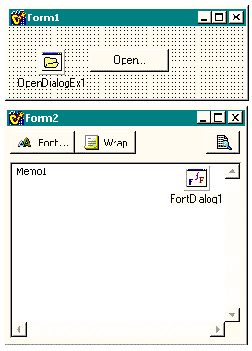
Design-time forms: Form1 is the application’s main form; Form2 is to be used as the child window of OpenDialogEx1.
As provided in Listing B, the TForm2 class consists of a TMemo control (Memo1), a couple of TPanel objects, a few TSpeedButtons, and a TFontDialog object. Together, these VCL controls will provide the text-file-preview functionality of the Open dialog box.
The TForm2 class also contains a public method called SelectionChange(), which serves to show (and load) or hide Memo1, depending on whether the selected file is supported. Here’s how the method is defined:
void __fastcall TForm2::
  SelectionChange(AnsiString filename)
{
  const bool file_ok =
    !(FileGetAttr(filename) &
      faDirectory) &&
     (ExtractFileExt(filename).
      AnsiCompareIC(".TXT") == 0);

  Memo1->Visible = file_ok;
  if (file_ok)
  {
    Memo1->Lines->LoadFromFile(filename);
  }
}
Now, all that’s left is to code the OnClick event handlers of the various TSpeedButtons:
void __fastcall TForm2::
  PreviewButtonClick(TObject *Sender)
{
  ShellExecute(Handle, "open",
    Form1->OpenDialogEx1->
      FileName.c_str(),
    NULL, "", SW_SHOWNORMAL);
}

void __fastcall TForm2::
  WordWrapButtonClick(TObject *Sender)
{
  if (WordWrapButton->Down)
  {
    Memo1->WordWrap = true;
    Memo1->ScrollBars = ssVertical;
  }
  else
  {
    Memo1->WordWrap = false;
    Memo1->ScrollBars = ssBoth;
  }
}

void __fastcall TForm2::
  FontButtonClick(TObject *Sender)
{
  if (FontDialog1->Execute())
  {
    Memo1->Font = FontDialog1->Font;
  }
}
The implementation of the TForm1 class is even simpler. Here’s the code for OnClick event handler of Form1’s button:
void __fastcall TForm1::
  OpenButtonClick(TObject*)
{
  OpenDialogEx1->ChildWin = Form2;
  OpenDialogEx1->Execute();
}
And, here’s the handler that’s assigned to OpenDialogEx1’s OnSelectionChange() event:
void __fastcall TForm1::
  OpenDialogEx1SelectionChange(TObject*)
{
  Form2->SelectionChange(
    OpenDialogEx1->FileName);
}I’ve shown you how to create a TOpenDialog descendant class and one example of how to use it. Although the example was rather dry, the main point that I wanted to make was that you can use the VCL to design and implement the Open dialog’s extended functionality. This modular approach is not only significantly easier than the resource-based method (which requires that you hand-code all of the extra controls), it obviates the hassle of creating a new TOpenDialog descendant class for every new file type that you want to support. And, if you do need to reuse a previously customized dialog in another project, you can simply add the child window (TForm2 in the previous example) to the Object Repository. (Note that the TOpenDialogEx class will not work in C++Builder version 1.)
Next month, I’ll show you how to place additional controls on other parts of the dialog, and how to customize some of the dialog’s standard controls.
Listing A: Declaration of the TOpenDialogEx class
class PACKAGE TOpenDialogEx : public TOpenDialog
{
public:
  // default constructor
  __fastcall TOpenDialogEx(TComponent* Owner);

  // introduced property
  __property TWinControl* ChildWin =
    {read = ChildWin_, write = SetChildWin};

protected:
  // inherited member functions
  DYNAMIC void __fastcall DoShow();
  DYNAMIC void __fastcall DoClose();

  // introduced member functions
  virtual void __fastcall DoShowChildWin();
  virtual void __fastcall
    DoSubclassDialog(bool subclass);
  virtual void __fastcall
    DialogWndProc(TMessage& Msg);

private:
  TWinControl* ChildWin_;
  void __fastcall SetChildWin(TWinControl* Value);

  FARPROC OldDlgWP_;
  FARPROC NewDlgWP_;
};
Listing B: Declaration of the TForm2 class
class TForm2 : public TForm
{
__published:
  TMemo *Memo1;
  TPanel *Panel1;
  TPanel *Panel2;
  TSpeedButton *PreviewButton;
  TSpeedButton *WordWrapButton;
  TSpeedButton *FontButton;
  TFontDialog *FontDialog1;
void __fastcall FontButtonClick(
TObject *Sender);
void __fastcall WordWrapButtonClick(
TObject *Sender);
public:
__fastcall TForm2(TComponent* Owner);
void __fastcall SelectionChange(
AnsiString filename);
};