Last month, I showed you how to place a TWinControl-type child window to the right side of an Open dialog’s standard controls. This month, I’ll demonstrate how to use an in-memory dialog box template to move the standard controls. This way you can place multiple TWinControl-type child windows anywhere within the dialog.
Recall from last month’s article that an Open dialog box contains a child dialog designed to host additional, user-defined controls. This child dialog has a default width of zero, which was preferable last time because we didn’t use it (i.e., we placed the additional controls directly on the Open dialog box itself, not on its child dialog). That technique was fine for adding controls below or to the right of the Open dialog’s standard controls, but it won’t work if you need to place additional controls above or to the left of the standard controls. Why? Well, last month, when we placed our TWinControl-type window to the right of the Open dialog’s standard controls, we didn’t have to worry about the location of these standard controls—they weren’t in the way. Before you can place additional controls above or to the left of the standard controls however, you’ll need to move the standard controls to make room for the new controls.
There are two ways to move the Open dialog’s standard controls:
·Use a dialog box template.
·Grab a handle to each control, and then use the MoveWindow() or SetWindowPos() API function.
As it turns out, the second approach doesn’t work very well, particularly because the Open dialog’s list view control (i.e., the view that displays the files and folders) is re-created each time the user makes a folder change.
As I mentioned last time, you can use a resource template to specify the size of the Open dialog’s child dialog. The Open dialog will expand its own height by whatever value you specify as the child dialog’s height. For example, here’s a resource script that will expand the Open dialog’s height by 100 vertical dialog units:
OPENDLGTEMPLATE DIALOG 0, 0, 80, 100
STYLE WS_CHILD | WS_CLIPSIBLINGS |
      DS_CONTROL
BEGIN
END
Here, I’ve specified 100 as the child dialog’s height, which implicitly instructs the Open dialog to increase its own height by 100 vertical dialog units. In contrast, although I’ve specified 80 as the child dialog’s width, the Open dialog box won’t adjust its own width by this (or any) amount. This (somewhat odd) behavior is by design; namely, the Open dialog adjusts only its height because, by default, all additional user-defined controls are to be placed below the Open dialog’s standard controls.
Note that, because this resource script defines the template for the child dialog (not the Open dialog), I’ve specified the WS_CHILD and DS_CONTROL styles. In addition, I’ve specified the WS_CLIPSIBLINGS style, which ensures that the child dialog won’t occlude the Open dialog’s standard controls.
To use this resource template, you simply save it to an RC file (e.g., MYOPENDIALOG.RC), add the file to your project, and then assign the child dialog’s identifier (OPENDLGTEMPLATE in this example) to the TOpenDialog::Template property (in a descendant class), like so:
bool __fastcall TMyOpenDialog::Execute()
{
  Template = "OPENDLGTEMPLATE";
  return TOpenDialog::Execute();
}
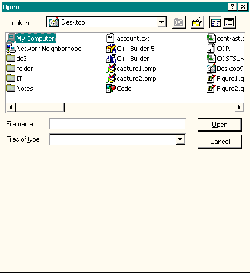
Figure A depicts the resulting Open dialog box when this template is used.
Figure A
By using a dialog box template to define the Open dialog’s child dialog, you can indirectly specify the height (but not the width) of the Open dialog box.
Again, by using a resource template to specify the styles and the height of the child dialog, you can implicitly define the height of the Open dialog box. In order to adjust the width of the Open dialog box—and also move its standard controls—you’ll need to place a special child window on the Open dialog’s child dialog; specifically, you need to add a static control with the identifier stc32 (defined as 1119 in DGLS.H). For example:
#include <dlgs.h>
OPENDLGTEMPLATE DIALOG 0, 0, 80, 100
STYLE WS_CHILD | WS_CLIPSIBLINGS |
      DS_CONTROL
BEGIN
  LTEXT "", stc32, 52, 48, 0, 0,
    NOT WS_VISIBLE | NOT WS_GROUP
END
The LTEXT statement creates a static control whose text is aligned to the left. Here, this static control is given an identifier of stc32, a horizontal position of 52, a vertical position of 48, and a width and height of zero. As depicted in Figure B, the Open dialog will interpret the horizontal and vertical position of this special static control as the desired location of the standard controls. The “stc32” static control is still created, but it’s not positioned at the location specified in the template (52, 48 here). Rather, the “stc32” static control is automatically positioned at the lower-right corner of the Open dialog’s standard controls. You can see this in Figure C, which depicts the resulting Open dialog box when the following resource script is used:
#include <dlgs.h>
OPENDLGTEMPLATE DIALOG 0, 0, 80, 100
STYLE WS_CHILD | WS_CLIPSIBLINGS |
      DS_CONTROL
BEGIN
  LTEXT "STC32", stc32, 52, 48, 0, 0
END
Notice from Figures B and C that creating the “stc32” static control not only allows you to specify the location of the Open dialog’s standard controls, it also instructs the Open dialog to increase its own width by the specified width of the child dialog (80 horizontal dialog units in these examples).
Keep in mind that the coordinates of the “stc32” static control are relative to the client area of the Open dialog’s child dialog, and that they are specified in dialog units (not pixels). To convert from pixels to dialog units, you can use the GetDialogBaseUnits() API function like so:
short Pix2DlgUnitsX(short x)
{
  return (x * 4.0) /
    LOWORD(GetDialogBaseUnits());
}

short Pix2DlgUnitsY(short y)
{
  return (y * 8.0) /
    HIWORD(GetDialogBaseUnits());
}
Figure B
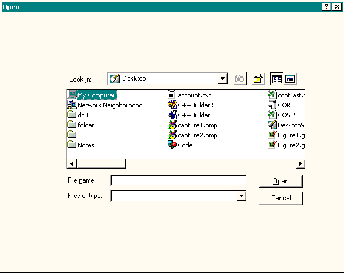
By placing a static control with the identifier stc32 on the Open dialog’s child dialog, you can specify the location of the Open dialog’s standard controls.
Figure C
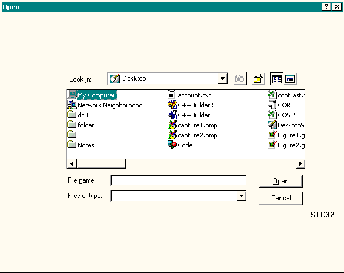
The “stc32” static control isn’t positioned at the coordinates specified in the resource script; instead, it’s placed at the bottom-left corner of the standard controls.
I’ve just shown you how to use a resource script to define the template that’s used for the Open dialog’s child dialog. Although creating the script isn’t too hard, defining the correct size of the child dialog, and the correct location of the “stc32” static control, can require a bit of trial and error. Remember, the whole point of resizing the Open dialog box and moving its standard controls is to make room for the TWinControl-type VCL controls that will be added to the Open dialog. If you later change the size of one or more of these VCL controls, you’ll have to edit the resource script to adjust the location of the static control and the size of the child dialog—more trial and error. As I’ll discuss next, however, there’s a way around this hassle.
Instead of using a resource script to define the template that’s used to create the Open dialog’s child dialog, there is an alternative technique: you can use a template that’s stored in global memory. The following function demonstrates how this is done; it creates an in-memory dialog box template with the dimensions specified by the dlg_w and dlg_h parameters and with an “stc32” static control at the location specified by the stc_x and stc_y parameters. Here’s the code:
HGLOBAL CreateChildDlgTemplate(
   short dlg_w, short dlg_h,
   short stc_x, short stc_y,
   DWORD styles = 0,
   DWORD ex_styles = 0)
{
  // create a global memory object
  const HGLOBAL hTemplate =
    GlobalAlloc(GMEM_ZEROINIT, 384);

  // grab a pointer to the memory
  DLGTEMPLATE* pTemplate =
    static_cast<DLGTEMPLATE*>
      (GlobalLock(hTemplate));
  if (!pTemplate) return 0;

  // initialize the child dialog
  pTemplate->style =
    styles | WS_CHILD |
    WS_CLIPSIBLINGS | DS_CONTROL;
  pTemplate->dwExtendedStyle = ex_styles;
  pTemplate->cdit = 1; // 1 child control
  pTemplate->cx = Pix2DlgUnitsX(dlg_w);
  pTemplate->cy = Pix2DlgUnitsY(dlg_h);

  // grab a pointer to the data for
  // the dialog's menu, class, and
  // title properties
  WORD* pData = reinterpret_cast<WORD*>
    (pTemplate + 1);

  // set no menu, use default class,
  // and no title
  pData += 3;

  // grab a pointer to the data for
  // the "stc32" control properties
  DLGITEMTEMPLATE* pItem =
    reinterpret_cast<DLGITEMTEMPLATE*>
      (pData);
  pItem->style = WS_CHILD | SS_LEFT;
  pItem->id = stc32;
  pItem->x = Pix2DlgUnitsX(stc_x);
  pItem->y = Pix2DlgUnitsY(stc_y);

  // grab a ponter to the data for the
  // static's class and title properties
  pData =
    reinterpret_cast<WORD*>(pItem + 1);
  // set the STATIC class and no title
  pData[0] = 0xFFFF;
  pData[1] = 0x0082;
  pData += 3;

  // clean up
  GlobalUnlock(hTemplate);

  // return a handle to the memory
  return hTemplate;
}
This code first uses the GlobalAlloc() API function to create a global memory object of 384 bytes (large enough to hold our template data). It then grabs a pointer to the underlying memory (by using the GlobalLock() function) and fills it with the data of the template; these data include the following:
1.A DLGTEMPLATE structure that specifies the attributes of the dialog.
2.A variable-length array of identifiers for the dialog’s menu, class, and title.
3.One or more DLGITEMTEMPLATE structures that specify the attributes of the dialog’s child controls; each DLGITEMTEMPLATE data is followed by a variable-length array of identifiers for the child control’s class, title, and creation data.
This is a just brief overview of the layout of an in-memory template. You can read a full description in the section titled “Templates in Memory” in the Platform SDK help files or on MSDN online. (Pay particular attention to the DWORD-alignment requirements of the data structures.)
The dlg_w, dlg_h, stc_x, and stc_y parameters are specified in pixels. The CreateChildDlgTemplate() function uses the previously defined Pix2DlgUnitsX() and Pix2DlgUnitsY() functions to convert these coordinates to dialog units. The styles and ex_styles parameters allow you to specify additional styles and extended styles, respectively, for the dialog.
If successful, the CreateChildDlgTemplate() function will return a handle to the global memory object that holds the template. How do you instruct the Open dialog box to use this in-memory template? Well, the standard approach is to set the OFN_ENABLETEMPLATEHANDLE flag in the OPENFILENAME::Flags data member, and then assign the handle to the in-memory template’s global memory object to the OPENFILENAME::hInstance data member. For example:
void __fastcall TForm1::
  OpenButtonClick(TObject *Sender)
{
  TCHAR filename[MAX_PATH];
  memset(&filename, 0, MAX_PATH);

  // create the in-memory template
  const HGLOBAL hTemplate =
    CreateChildDlgTemplate(
      160, 200, 104, 96);

  OPENFILENAME ofn = {
    OPENFILENAME_SIZE_VERSION_400};
  ofn.hwndOwner = Handle;
  ofn.nMaxFile = MAX_PATH;
  ofn.lpstrFile = filename;

  // assign the handle to the in-memory
  // template to the hInstance member
  ofn.hInstance = hTemplate;

  // add the OFN_ENABLETEMPLATEHANDLE
  // flag to the Flags member
  ofn.Flags =
    OFN_EXPLORER |
    OFN_ENABLETEMPLATEHANDLE;

  // display the open dialog box.
  if (GetOpenFileName(&ofn))
  {
    // ...
  }

  // clean up
  GlobalFree(hTemplate);
}
Although the TOpenDialog class provides the Template property (which adds the OFN_ENABLETEMPLATE flag to the OPENFILENAME::Flags data member, and which sets the specified resource identifier to the OPENFILENAME::lpTemplateName data member), there is no TOpenDialog::TemplateHandle property that would make things easy here. Fortunately, the TOpenDialog class does grant access to its internal OPENFILENAME structure, which you can modify in a fashion similar to that shown in this code snippet. Later, I’ll show you how to perform this modification.
By using the CreateChildDlgTemplate() function, you don’t have to worry about creating a resource script; and, you don’t have to hand code the dimensions of the dialog and/or the location of the “stc32” static control. Instead (as I’ll demonstrate shortly), you can compute these values at run time (by querying the size(s) of the VCL control(s) that you’re going to add to the Open dialog) and then simply pass them to the CreateChildDlgTemplate() function.
TOpenDialogEx classLast month, we created a TOpenDialog descendant class (TOpenDialogEx) that allowed you place a TWinControl-type VCL window to the right of the Open dialog’s standard controls. Now that we know how to move these standard controls, let’s extend this class to accept four TWinControl-type child windows. As you can see from Listing A, I’ve named these four child windows ChildWinLeft, ChildWinTop, ChildWinRight, and ChildWinBottom; Figure D depicts their layout within the Open dialog box.
Pointers to the four child windows are stored in the ChildWinLeft_, ChildWinTop_, ChildWinRight_, and ChildWinBottom_ members. These members are initialized in the class constructor, like so:
__fastcall TOpenDialogEx::
  TOpenDialogEx(TComponent* Owner)
  : TOpenDialog(Owner),
    ChildWinLeft_(NULL),
    ChildWinTop_(NULL),
    ChildWinRight_(NULL),
    ChildWinBottom_(NULL),
    OldDlgWP_(NULL), NewDlgWP_(NULL)
{
}
Recall from last month that the OldDlgWP_ and NewDlgWP_ members are used to subclass the Open dialog box to support resizing. I’ll return to this issue shortly.
Figure D
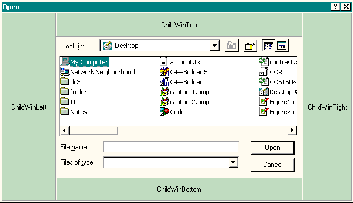
The layout of the TOpenDialogEx::ChildWinLeft, ChildWinTop, ChildWinRight, and ChildWinBottom windows.
Last time, we adjusted the width of the Open dialog manually by using the SetWindowPos() API function. This time, we’ll use an in-memory template to adjust the size of the Open dialog and move its standard controls. It’s the job of the TOpenDialogEx::DoCreateTemplate() method to create the in-memory template. Here’s how the method is defined:
HGLOBAL __fastcall TOpenDialogEx::
  DoCreateTemplate()
{
  // compute the desired location of the
  // "stc32" static control and the size
  // of the child dialog
  const short stc_x = ChildWinLeft_ ?
    ChildWinLeft_->Width : 0;
  const short stc_y = ChildWinTop_ ?
    ChildWinTop_->Height : 0;
  const short dlg_w =
    stc_x + (ChildWinRight_ ?
    ChildWinRight_->Width : 0);
  const short dlg_h =
    stc_y + (ChildWinBottom_ ?
    ChildWinBottom_->Height : 0);

  // create the child dialog template
  return CreateChildDlgTemplate(
    dlg_w, dlg_h, stc_x, stc_y);
}
The DoCreateTemplate() method determines which child windows are specified, and then computes the appropriate dimensions of the Open dialog’s child dialog and the appropriate location of the “stc32” static control. These values are then passed to the previously defined CreateChildDlgTemplate() function, which returns a handle to the global memory object that holds the child dialog’s template.
In order to instruct the TOpenDialog class to use our in-memory template, we’ll need to augment the TOpenDialog::DoTaskModal() method. It’s from within this method that we’re granted access to the internal OPENFILENAME structure. Here’s the code:
BOOL __fastcall
TOpenDialogEx::TaskModalDialog(
  void* DialogFunc, void* DialogData)
{
  // punt, if there's a resource template
  // specified or if there are no child
  // windows to add
  if (Template || !HasChild())
  {
    // show the dialog
    return TOpenDialog::TaskModalDialog(
      DialogFunc, DialogData);
  }

  // create an in-memory template
  const HGLOBAL hTemplate =
    DoCreateTemplate();
  try
  {
    // grab a pointer to the OPENFILENAME
    TOpenFilename* pofn =
      static_cast<TOpenFilename*>
        (DialogData);

    // remove the resource template flag
    pofn->Flags &=
      ~OFN_ENABLETEMPLATE;
    // add the in-memory template flag
    pofn->Flags |=
      OFN_ENABLETEMPLATEHANDLE;
    // set the in-memory template handle
    pofn->hInstance = hTemplate;

    // show the dialog
    const BOOL ok =
      TOpenDialog::TaskModalDialog(
        DialogFunc, DialogData);

    // clean up
    GlobalFree(hTemplate);
    return ok;
  }
  catch (...)
  {
    // clean up
    GlobalFree(hTemplate);
    throw;
  }
}After the Open dialog is resized, it’s time to add the child windows (ChildWinLeft, ChildWinTop, ChildWinRight, and ChildWinBottom). Whereas last time, we placed the child window (ChildWin) directly on the Open dialog, this time we need to place the child windows on the Open dialog’s child dialog. Again, this step is straightforward—you just use the ParentWindow property like so:
void __fastcall TOpenDialogEx::
  DoShowChildWins()
{
  RECT RDlg;
  const HWND hChildDlg = Handle;
  if (GetClientRect(hChildDlg, &RDlg))
  {
    if (ChildWinLeft_)
    {
      // parent the child to the dialog
      ChildWinLeft_->
        ParentWindow = hChildDlg;

      // position/size the child window
      ChildWinLeft_->Left = 0;
      ChildWinLeft_->Top = 0;
      ChildWinLeft_->Height =
        RDlg.bottom;

      // show the child window
      ChildWinLeft_->Visible = true;
    }
    if (ChildWinTop_)
    {
      // parent the child to the dialog
      ChildWinTop_->
        ParentWindow = hChildDlg;

      // position/size the child window
      ChildWinTop_->Left =
        ChildWinLeft_ ?
        ChildWinLeft_->Width : 0;
      ChildWinTop_->Top = 0;
      ChildWinTop_->Width =
        RDlg.right -
        ChildWinTop_->Left -
        (ChildWinRight_ ?
         ChildWinRight_->Width : 0);

      // show the child window
      ChildWinTop_->Visible = true;
    }
    if (ChildWinRight_)
    {
      // parent the child to the dialog
      ChildWinRight_->
        ParentWindow = hChildDlg;

      // position/size the child window
      ChildWinRight_->Left =
        RDlg.right -
        ChildWinRight_->Width;
      ChildWinRight_->Top = 0;
      ChildWinRight_->Height =
        RDlg.bottom;

      // show the child window
      ChildWinRight_->Visible = true;
    }
    if (ChildWinBottom_)
    {
      // parent the child to the dialog
      ChildWinBottom_->
        ParentWindow = hChildDlg;

      // position/size the child window
      ChildWinBottom_->Left =
         ChildWinLeft_ ?
         ChildWinLeft_->Width : 0;
      ChildWinBottom_->Top =
        RDlg.bottom -
        ChildWinBottom_->Height;
      ChildWinBottom_->Width =
        RDlg.right -
        ChildWinBottom_->Left -
        (ChildWinRight_ ?
         ChildWinRight_->Width : 0);

      // show the child window
      ChildWinBottom_->Visible = true;
    }
  }
}
Recall that the DoShowChildWins() method (which was named DoShowChildWin() last month) is called from within the TOpenDialogEx::DoShow() method (i.e., after the dialog has initialized its standard controls). Here’s how the DoShow() method is defined:
void __fastcall TOpenDialogEx::DoShow()
{
  if (
    HasChild() &&
    !Options.Contains(ofOldStyleDialog))
  {
    // show the child windows
    DoShowChildWins();

    // subclass the dialog
    DoSubclassDialog(true);
  }
  TOpenDialog::DoShow();
}
Before the Open dialog closes, we need to remove the child windows, like so:
void __fastcall TOpenDialogEx::DoClose()
{
   if (ChildWinLeft_)
   {
      // clean up
      ChildWinLeft_->Hide();
      ChildWinLeft_->ParentWindow = 0;
   }
   if (ChildWinTop_)
   {
      // clean up
      ChildWinTop_->Hide();
      ChildWinTop_->ParentWindow = 0;
   }
   if (ChildWinRight_)
   {
      // clean up
      ChildWinRight_->Hide();
      ChildWinRight_->ParentWindow = 0;
   }
   if (ChildWinBottom_)
   {
      // clean up
      ChildWinBottom_->Hide();
      ChildWinBottom_->ParentWindow = 0;
   }
   TOpenDialog::DoClose();
}Recall from last month that we subclassed the Open dialog in order to resize the child windows whenever the user resizes the Open dialog box. Now that we have four child windows instead of one, the subclass procedure needs to be modified to resize all four child windows. I won’t repeat the code that does the actual subclassing, but here’s the modified subclass procedure:
void __fastcall TOpenDialogEx::
  DialogWndProc(TMessage& Msg)
{
  // call the default window procedure
  const HWND hDlg = GetParent(Handle);
  Msg.Result = CallWindowProc(
    OldDlgWP_, hDlg,
    Msg.Msg, Msg.WParam, Msg.LParam);

  switch (Msg.Msg)
  {
    case WM_SIZE:
    {
      RECT RDlg;
      if (::GetClientRect(hDlg, &RDlg))
      {
        // resize the child windows
        if (ChildWinLeft_)
        {
          ChildWinLeft_->Height =
            RDlg.bottom;
        }
        if (ChildWinRight_)
        {
          ChildWinRight_->Height =
            RDlg.bottom;
        }
        if (ChildWinTop_)
        {
          ChildWinTop_->Width =
            RDlg.right -
            ChildWinTop_->Left -
            (ChildWinRight_ ?
             ChildWinRight_->Width : 0);
        }
        if (ChildWinBottom_)
        {
          ChildWinBottom_->Width =
            RDlg.right -
            ChildWinBottom_->Left -
            (ChildWinRight_ ?
             ChildWinRight_->Width : 0);
        }
      }
      break;
    }
    case WM_DESTROY:
    {
      // remove the subclass
      DoSubclassDialog(false);
      break;
    }
  }
}How do you use the new TOpenDialogEx class? Because I provided an example in last month’s article, and because the interface to the class hasn’t changed much, I’ll let the sample code (which is available at www.bridgespublishing.com) do the talking here. If you have further questions on the customizing common dialogs, please fell free to e-mail me at dmc27@cornell.edu.
Listing A: Declaration of the modified TOpenDialogEx class
#include <dlgs.h>
class PACKAGE TOpenDialogEx : public TOpenDialog
{
public:
  // default constructor
  __fastcall TOpenDialogEx(TComponent* Owner);

  // introduced properties
  __property TWinControl* ChildWinLeft =
    {read = ChildWinLeft_,
     write = SetChildWinLeft};
  __property TWinControl* ChildWinTop =
    {read = ChildWinTop_,
     write = SetChildWinTop};
  __property TWinControl* ChildWinRight =
    {read = ChildWinRight_,
     write = SetChildWinRight};
  __property TWinControl* ChildWinBottom =
    {read = ChildWinBottom_,
     write = SetChildWinBottom};

protected:
  // inherited member functions
  DYNAMIC void __fastcall DoShow();
  DYNAMIC void __fastcall DoClose();
  virtual BOOL __fastcall TaskModalDialog
    (void* DialogFunc, void* DialogData);

  // introduced member functions
  virtual void __fastcall DoShowChildWins();
  virtual void __fastcall DoSubclassDialog
    (bool subclass);
  virtual void __fastcall DialogWndProc
    (TMessage& Msg);
  virtual HGLOBAL __fastcall DoCreateTemplate();

private:
  FARPROC OldDlgWP_;
  FARPROC NewDlgWP_;

  TWinControl* ChildWinLeft_;
  TWinControl* ChildWinTop_;
  TWinControl* ChildWinRight_;
  TWinControl* ChildWinBottom_;

  bool __fastcall HasChild()
    {
      return (
        ChildWinLeft_ || ChildWinTop_ ||
        ChildWinRight_ || ChildWinBottom_
        );
    }
  void __fastcall SetChildWinLeft
    (TWinControl* Value)
    {
      if (ChildWinLeft_ != Value)
      {
        ChildWinLeft_ = Value;
        ChildWinLeft_->Parent = NULL;
      }
    }
  void __fastcall SetChildWinTop
    (TWinControl* Value)
    {
      if (ChildWinTop_ != Value)
      {
        ChildWinTop_ = Value;
        ChildWinTop_->Parent = NULL;
      }
    }
  void __fastcall SetChildWinRight
    (TWinControl* Value)
    {
      if (ChildWinRight_ != Value)
      {
        ChildWinRight_ = Value;
        ChildWinRight_->Parent = NULL;
      }
    }
  void __fastcall SetChildWinBottom
    (TWinControl* Value)
    {
      if (ChildWinBottom_ != Value)
      {
        ChildWinBottom_ = Value;
        ChildWinBottom_->Parent = NULL;
      }
    }
};