Lets say you’re going write a text editor— an improved Notepad. You start up the C++Builder IDE and create a new application. Then you drop a TMemo, TMainMenu, TToolBar, TActionList and a TStatusBar onto the form. You also add a TImageList to hold the bitmaps you’ll use for the TActionList and the TToolBar.
Now, you need to add TAction components to the TActionList. You’ll need methods to open and save files, methods such as copy and paste for editing the text, and some methods for accessing online help for your editor.
Since C++Builder really is a visual development environment. You create each of the TAction components with the visual Action List Editor. You start by creating an action named FileOpenAction. You give it a Caption and everything else a good file open action would need. Next you double-click on the action name in the Action List Editor. This generates the skeleton code for the action’s OnExecute event:
void __fastcall
TFileModule::FileOpenActionExecute(
  TObject *Sender)
{

}
//--------------------------------------
You add the necessary code the FileOpenActionExecute() method.
You assign this action to a menu item by selecting the action’s name from the drop-down list displayed when you click on the menu item’s Action property. You also assign the action to a tool bar button.
It’s surprising how quickly you can create a better Notepad using the VCL and C++Builder’s other visual development features. So, you’re quickly finished and you save your work, renaming the Unit1.cpp file to Main.cpp.
This is when you realize that all the code for your editor is in one file—Main.cpp—and that file is 2,000 lines long. The extremely easy and quick visual development has left you with a mess.
What you wanted, and what good programming practice requires, is a project with several smaller source files.
Okay, so what do you do? You could create source files for file methods, editing methods, and help methods. But, when you cut the code for these methods from Main.cpp and paste it into the other files, the IDE will become very angry with you; telling you that it can’t find the implementation of the method.
Or, you could start over. You could write all the code for each method yourself, foregoing all the help the IDE gave you in the first place. But, why make your job harder than it needs to be?
So, what do you do? You use TDataModule components.
When Borland created the TDataModule component they created a very useful component; but they gave it a very misleading name. The “Data” part of the name makes you think this component is to be used for databases. And, in fact, TDataModule is a great place for placing database components such as TTable and TQuery. However, Borland’s online help says that TDataModule “centralizes the handling of non-visual components in an application.”
This definition says nothing about databases. It does however refer to non-visual components. Guess what? TActionList and TImageList are non-visual components.
Let’s rewrite the editor using TDataModule components. There’s a demo program on the Bridges Publishing Web site at www.bridgespublishing.com.
Let’s start by creating a new application as you did above, but instead of dropping a TActionList and a TImageList onto the form, let’s create a TDataModule for each of our programs functions: file methods, editing methods and help methods. Let’s name these modules FileModule, EditModule, and HelpModule.
Now, let’s drop a TActionList and a TImageList onto each of the modules. In the FileModule, we’ll add TAction components to the TActionList for file operations just like you did above. We’ll complete the other two modules by adding TAction components for editing and help.
Now we need to connect our modules to the form. This is really easy.
First, we need to include the header files for our three modules in the source file for the form, the file we named Main.cpp. We can do this by running the Include Unit Header Wizard. Click on the File menu of the IDE and select Include Unit Hdr… from the menu to run this wizard.
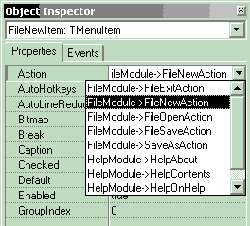
Now that the form is aware of the other modules, we can assign TAction components to the menu and tool bar just like you did above. The IDE is smart enough to realize that there are TAction components available in the three modules. Figure A shows the drop-down list for the FileNewItem menu item. Notice how the IDE show the items belonging to the FileModule and the HelpModule.
Figure A
TAction items in drop-down list.
By using separate modules, the organization of the source is much cleaner and will be much easier to maintain. There is one small problem that you will have to deal with though.
Some of the methods assigned to the OnExecute event of the TAction components may need to refer to the form. For example, the EditCutAction needs to be able to access the TMemo component on the form.
If we include the header file for the form in the source for our modules, we will create a circular reference. And, although it might work in this instance, we don’t want to do this.
So, lets add a property to the EditModule called Memo. This property will contain a pointer to the TMemo component on our form. Listing A contains the definition for TEditModule and the Memo property definition.
In the constructor for TEditModule, lets assign null to Memo just to be safe:
__fastcall TEditModule::TEditModule(
  TComponent* Owner): TDataModule(Owner)
{
  Memo = 0;
}
Then in the constructor for our form, lets assign the TMemo component to the edit module’s Memo property:
__fastcall TMainForm::TMainForm(
  TComponent* Owner) : TForm(Owner)
{
  // More stuff…

  EditModule->Memo = Memo;
}
There’s one more thing we have to do. When we created this new application, the IDE correctly assumed that the form, the only form, was our main form. So, the IDE wrote code to create this form before any others. This would be okay, except that the IDE also assumed we wanted to create the form before any data modules. So, in the function above, the edit module has not yet been created and EditModule does not point to a valid object.
We can easily fix this. Select the Options… item in the Project menu. Then select the Forms tab in the Project Options dialog and drag our form to the bottom of the list. Figure B shows the dialog after we’ve moved the form.
Figure B
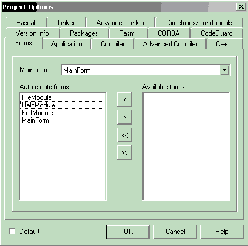
Project Options dialog with form creation last
Now everything should work like we want. Here is the EditCutExecute() method we assigned to the OnExecute event of the EditCutAction component:
void __fastcall
TEditModule::EditCutExecute(
  TObject *Sender)
{
  if (Memo) Memo->CutToClipboard():
}Separating our code into modules makes the project a lot easier to manage and maintain, but there is an even bigger bonus. Data modules can be saved to the Object Repository!
This means that once we create the EditModule we can save it to the Repository and then reuse it in every application we create that needs to edit a TMemo component. This is a huge timesaver. We can also save the FileModule and HelpModule to the Object Repository.
The TDataModule component of the VCL has more uses than its name implies. It great for organized database components; but, as we’ve seen in this article, it can also be used to separate code into more meaningful and manageable modules.
Listing A: Definition of TEditModule.
class TEditModule : public TDataModule
{
  __published:
    TActionList *EditActionList;
    TEditCopy *EditCopy;
    TEditCut *EditCut;
    TEditDelete *EditDelete;
    TEditPaste *EditPaste;
    TEditSelectAll *EditSelectAll;
    TEditUndo *EditUndo;

    void __fastcall EditCopyExecute(
      TObject *Sender);
    void __fastcall EditCutExecute(
      TObject *Sender);
    void __fastcall EditDeleteExecute(
      TObject *Sender);
    void __fastcall EditPasteExecute(
      TObject *Sender);
    void __fastcall EditSelectAllExecute(
      TObject *Sender);
    void __fastcall EditUndoExecute(
      TObject *Sender);

  public:
    __fastcall TEditModule(TComponent* Owner);

    __property TMemo *Memo =
      {read = memo, write = memo};

  private:
    TMemo *memo;
};