Displaying an image on the screen is a no-brainer; you simply drop a TImage component on your form, and then load the desired image. Displaying an image on the screen in its true colors however, is an entirely different story, and perhaps an altogether impossible task. An “optimal” rendition lies somewhere between these two extremes. In this article, I’ll show you how to use Microsoft’s Image Color Management (ICM) 2.0 technology to color-match a bitmap for optimal display on a monitor. ICM 2.0 is available in Windows 98, Me, 2000, and XP.
Colors can be specified using an arbitrarily large number of bits. But because color is a perceived phenomenon, there’s a psychophysical limit as to just how many bits are really needed. Despite this limitation of our visual system, producing accurate colors on a computer monitor has proved a difficult task.
The problem with RGB monitors is that there’s no standard definition of red, green, and blue. One monitor might represent blue using light in the 470-nm range, whereas another monitor might use light in the 460-nm range. It’s inconsistencies like this (and lack of calibration) that lead to the vast majority of color variations between monitors. A color management system (CMS) is designed to compensate for these types of variations. And, indeed, most operating systems provide an integrated color management system: Macs use a CMS called ColorSync; Solaris machines use a CMS called Kodak Color Management System (KCMS); Windows machines use a CMS called Image Color Management (ICM).
In its early days, ICM was called Image Color Matching. Microsoft later changed this to Image Color Management, perhaps to emphasize ICM’s role as an all-inclusive color management solution. (The latest version of ICM, version 2.0, was introduced in Windows 98). Regardless of its name, most of ICM’s value lies in its ability to color-match an image. (I’ll focus exclusively on color matching in this article.)
What exactly does it mean to color-match an image? Well, in a nutshell, it means to adjust the colors of an image so that when the image is displayed on an end-user’s monitor, it looks the same (color-wise) as it did on the designer’s monitor. Obviously, the success of this task is limited by the capabilities of end-user’s display—a full-color image on a grayscale monitor will never look the same as if it were displayed on a color monitor. Still, within the limits of the display device, ICM does a pretty good job of matching the colors.
In order to color-match an image, ICM needs to know three things: (1) the color characteristics of the target device (i.e., the device on which the image will be displayed); (2) the color characteristics of the source device (i.e., the device on which the image was created or the device with which the image was captured); and (3) a rendering intent (more on this term shortly).
The color characteristics of the display device are specified via an International Color Consortium (ICC) device profile, which is often supplied as an .ICM file with a monitor’s driver. The color characteristics of the source device are often embedded within the image’s file; otherwise, the image is assumed to have been created or captured on a Standard RGB device (sRGB). See www.srgb.com for more information.
The rendering intent simply tells ICM what it should do about those colors that fall outside the color gamut of the target device (i.e., those colors that the target device can’t reproduce). You can choose one of four rendering intents: perceptual, absolute colorimetric, relative colorimetric, or saturation. ICM will adjust its gamut-mapping algorithm, based on which rendering intent you choose. For natural images, the perceptual rendering intent produces the best-looking results. The others were designed for proofing (relative and absolute colorimetric) and conveying textual or graphical information (saturation).
As it turns out, using ICM to display a color-matched bitmap is fairly simple. Here’s a list of the steps that are required:
1.Create a color profile object.
2.Initialize a LOGCOLORSPACE structure.
3.Create a color transform object.
4.Color-match, then display the bitmap.
5.Clean up.
Recall that ICM needs to know three main things in order to color-match a bitmap: the color characteristics of the target device, the color characteristics of the source device, and the rendering intent. The color characteristics of the target device are specified by using a color profile object (Step 1). The color characteristics of the source device (and the rendering intent) are specified by using a LOGCOLORSPACE structure (Step 2). These two ingredients are used in Step 3 to create a color transform object, which, in turn, is used in Step 4 to color-match the bitmap. After the bitmap is color-matched, you simply display it as you would normally (e.g., via TCanvas::Draw()).
A color profile object is simply a block of memory that holds the target device’s ICC profile; ICM uses this profile to determine the color characteristics of the device on which the bitmap will be displayed. To create a color profile object, you use the OpenColorProfile() function, which is declared as follows:
HPROFILE OpenColorProfile(
  IN PPROFILE pProfile,
  IN DWORD dwDesiredAccess,
  IN DWORD dwShareMode,
  IN DWORD dwCreationMode
);
The pProfile parameter specifies a pointer to a PROFILE structure, which I’ll discuss next. The other three parameters specify how the device profile file should be accessed. These are equivalent to dwDesiredAccess, dwShareMode, and dwCreationDistribution parameters of the CreateFile() API function (see http://msdn.microsoft.com/library/en-us/fileio/filesio_7wmd.asp).
As I just mentioned, the first parameter to the OpenColorProfile() function is a pointer to a PROFILE structure. This structure describes the location of the target profile (on disk or in memory). Here’s how it’s defined:
typedef struct tagPROFILE {
  DWORD dwType;
  PVOID pProfileData;
  DWORD cbDataSize;
} PROFILE;
The dwType data member indicates whether the profile data is located on disk (PROFILE_FILENAME) or in memory (PROFILE_MEMBUFFER). When dwType is set to PROFILE_FILENAME, the pProfileData data member specifies the name of the profile’s file. When dwType is set to PROFILE_MEMBUFFER, the pProfileData data member specifies a pointer to the memory buffer that contains the profile data. Accordingly, the cbDataSize parameter specifies the length (in bytes) of either the file-name or the memory buffer.
The following snippet demonstrates how to create a color profile object for the primary monitor’s current device profile:
// First, get the file-name of the
// monitor's default profile:
//
const HDC hScreenDC = GetDC(0);
DWORD num_chars = MAX_PATH;
TCHAR monitor_profilename[MAX_PATH];
const bool got_profile =
  GetICMProfile(
    hScreenDC, &num_chars,
    monitor_profilename);
ReleaseDC(0, hScreenDC);
if (!got_profile)
{
  throw EWin32Error("no profile");
}

// Next, initialize a PROFILE structure:
//
PROFILE monitor_profile;
monitor_profile.dwType =
  PROFILE_FILENAME;
monitor_profile.pProfileData =
  static_cast<void*>
    (monitor_profilename);
monitor_profile.cbDataSize =
  // "+ 1" for the NULL-termination
  (lstrlen(monitor_profilename) + 1) *
  sizeof(TCHAR);

// Then, create the color profile object:
//
const HPROFILE hMonitorProfile =
  OpenColorProfile(
    &monitor_profile, PROFILE_READ,
    FILE_SHARE_READ, OPEN_EXISTING);
if (hMonitorProfile == 0)
{
  throw EWin32Error(
    "OpenColorProfile() failed");
}
Notice that this code uses the GetICMProfile() function. This function simply retrieves the fully qualified file-name of the monitor’s device profile (specified in Windows via the “Color Management” property page in the “Display Properties” dialog).
The OpenColorProfile() function will return either a handle to the color profile object or zero (if the function fails). Once you have a handle to the color profile object, you need to verify that the profile is valid. You do this by using the IsColorProfileValid() function, like so:
// Validate the contents of the profile
BOOL is_monitor_valid = FALSE;
IsColorProfileValid(
  hMonitorProfile, &is_monitor_valid);
if (!is_monitor_valid)
{
  throw EWin32Error("bad profile");
}After the color profile object is created, the next step is to declare and initialize a LOGCOLORSPACE-type variable. This structure is used to specify the desired rendering intent and the color characteristics of the device on which the image was created (or with which the image was captured). Here’s how the LOGCOLORSPACE structure is defined:
typedef struct tagLOGCOLORSPACE {
  DWORD lcsSignature;
  DWORD lcsVersion;
  DWORD lcsSize;
  LCSCSTYPE lcsCSType;
  LCSGAMUTMATCH lcsIntent;
  CIEXYZTRIPLE lcsEndpoints;
  DWORD lcsGammaRed;
  DWORD lcsGammaGreen;
  DWORD lcsGammaBlue;
  CHAR lcsFilename[MAX_PATH];
} LOGCOLORSPACE, *LPLOGCOLORSPACE;
The first three data members specify the structure’s signature, version, and size—set them to LCS_SIGNATURE, 0x400, and sizeof(LOGCOLORSPACE), respectively. The lcsCSType data member specifies the source color space—set it to LCS_sRGB (in this article, we’ll assume that the source image was created in the sRGB color space). The lcsIntent data member specifies rendering intent—set this data member to LCS_GM_IMAGES (to specify the perceptual rendering intent). The remaining data member can all be zeroed-out. Here’s an example:
// Initialize a LOGCOLORSPACE structure
// for the source image using the sRGB
// color space and the perceptual
// rendering intent (usually this
// information will be stored in the
// image file, but that's beyond the
// scope of this article; ICM info is
// common in PNG files but seldom used
// with bitmaps; sRGB is the best guess):
//
LOGCOLORSPACE lcs = {
  LCS_SIGNATURE, 0x400,
  sizeof(LOGCOLORSPACE)
  };
// sRGB color space
lcs.lcsCSType = LCS_sRGB;
// perceptual rendering intent
lcs.lcsIntent = LCS_GM_IMAGES;The next step is to create a color transform object by using the color profile object (from Step 1) and the LOGCOLORSPACE structure (from Step 2). The CreateColorTransform() function creates the color transform object:
HTRANSFORM CreateColorTransform(
  LPLOGCOLORSPACE pLogColorSpace,
  HPROFILE hDestProfile,
  HPROFILE hTargetProfile,
  DWORD dwFlags
);
The pLogColorSpace parameter specifies a pointer to the source device’s corresponding LOGCOLORSPACE structure (which was initialized in Step 2). The hDestProfile parameter specifies a handle to the target device’s corresponding color profile object (created in Step 1). The hTargetProfile parameter is used only for proofing (e.g., viewing the printer’s output on the monitor)—set this parameter to NULL. The dwFlags parameter specifies the accuracy of the gamut-mapping algorithm—pass NORMAL_MODE+ENABLE_GAMUT_CHECKING as this parameter. Here’s an example:
// Create a color transform object:
//
const HTRANSFORM hColorTransform =
  CreateColorTransform(&lcs,
    hMonitorProfile, NULL, NORMAL_MODE +
    ENABLE_GAMUT_CHECKING);
if (hColorTransform == 0)
{
  throw EWin32Error(
    "CreateColorTransform() failed");
}
If it’s successful, the CreateColorTransform() function will return a handle to the newly created color transform object; otherwise, the function returns zero.
Now that the color transform object is created, it’s time to do the actual color matching; this step is performed by using the TranslateBitmapBits() function:
BOOL WINAPI TranslateBitmapBits(
  HTRANSFORM hColorTransform,
  PVOID pSrcBits,
  BMFORMAT bmInput,
  DWORD dwWidth,
  DWORD dwHeight,
  DWORD dwInputStride,
  PVOID pDestBits,
  BMFORMAT bmOutput,
  DWORD dwOutputStride,
  PBMCALLBACKFN pfnCallback,
  ULONG ulCallbackData
);
The first parameter is easy enough; it specifies a handle to a color transform object (which was created in Step 3).
The pSrcBits and pDestBits parameters specify, respectively, pointers to the source (“to be color-matched”) and destination (color-matched) pixel arrays. In most cases, you’ll set both of these parameters to the same value (e.g., the address of the first scan line of your bitmap). This instructs the TranslateBitmapBits() function to perform in-place color matching.
The bmInput and bmOuput parameters specify the format of the pixels (e.g., color-channel ordering and color-depth). You specify BM_x555RGB if your source image is a 16-bit bitmap, BM_RGBTRIPLETS if your source image is a 24-bit bitmap, or BM_xRGBQUADS if your source image is a 32-bit bitmap. (If you’re color-matching an 8-bit bitmap, you also specify BM_xRGBQUADS, but instead of color-matching the bitmap’s pixels, you color-match its color table.)
The dwWidth and dwHeight parameters specify the horizontal and vertical dimensions of the bitmap. In addition, because the scan lines of Windows bitmaps are usually aligned on 32-bit boundaries, the dwInputStride and dwOutputStride parameters specify the number of bytes per scan line in the source and destination pixel arrays.
The pfnCallback and ulCallbackData parameters can be used to specify a progress-indicating callback function. You can set both of these parameters to zero.
Here’s an example of color-matching a bitmap that’s contained in a TImage object (Image1):
// Color-match the bitmap...
//
// (1) grab a reference to the TBitmap
Graphics::TBitmap& Bitmap =
  *Image1->Picture->Bitmap;
Bitmap.PixelFormat = pf24bit;

// (2) grab a pointer to the pixels
// (specified in bmp.bmBits)
BITMAP bmp;
GetObject(Bitmap.Handle,
  sizeof(BITMAP), &bmp);

// (3) color-match the bitmap
const bool match_ok =
  TranslateBitmapBits(
    hColorTransform,
    bmp.bmBits, BM_RGBTRIPLETS,
    bmp.bmWidth, bmp.bmHeight, NULL,
    bmp.bmBits, BM_RGBTRIPLETS, NULL,
    NULL, NULL);
if (match_ok)
{
  Image1->Refresh();
}
At this point, within the capabilities of monitor, the bitmap will be displayed in its “true” colors. All that’s left to do now is destroy the color profile and color transform objects.
To destroy the color transform object (from Step 3), you use the DeleteColorTransform() function; this function takes a single parameter—a handle to the color transform object:
// destroy the color transform object
DeleteColorTransform(hColorTransform);
The color profile object of Step 1 is destroyed in a similar fashion by using the CloseColorProfile() function:
// destroy the color profile object
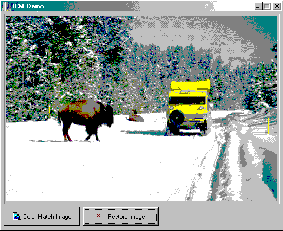
CloseColorProfile(hMonitorProfile);Let’s work through an example of adding basic ICM support to a VCL application. Specifically, let’s create the application depicted in Figure A. The declaration of the TForm1 class for this example is provided in Listing A.
Figure A
A bare bones ICM-aware VCL application.
Before you can use the various ICM functions, you need to include the header file ICM.H; you need to link with the static library MSCMS.LIB; and you need to make a few constant redefinitions. Thus, here’s the code that goes at the top of the source file:
#include <vcl.h>
#pragma hdrstop

#if defined(__BORLANDC__)
  #undef LCS_SIGNATURE
  #undef LCS_sRGB
  #define LCS_SIGNATURE 'COSP'
  #define LCS_sRGB      'BGRs'
#endif

#include <icm.h>
#pragma link "mscms.lib"
And, here’s the code that goes in the class constructor:
__fastcall TForm1::TForm1(
  TComponent* Owner): TForm(Owner),
  OrigBitmap_(new Graphics::TBitmap())
{
  OrigBitmap_->Assign(
    Image1->Picture->Bitmap);
}
OrigBitmap_ holds a copy of the original, un-color-matched bitmap; it’s used when RestoreButton is clicked:
void __fastcall TForm1::
  RestoreButtonClick(TObject *Sender)
{
  Image1->Picture->Bitmap->Assign(
    OrigBitmap_.get());
  ShowMessage("Bitmap restored.");
}
The meat of the application is the ColorMatchButtonClick() method, which demonstrates the five core steps that I presented earlier:
void __fastcall TForm1::
  ColorMatchButtonClick(TObject *Sender)
{
  // get the file-name of the
  // monitor's default profile
  TCHAR monitor_profilename[MAX_PATH];
  const HDC hScreenDC = GetDC(NULL);
  DWORD num_chars = MAX_PATH;
  const bool got_profile =
    GetICMProfile(
      hScreenDC, &num_chars,
      monitor_profilename);
  ReleaseDC(NULL, hScreenDC);
  if (!got_profile)
  {
    throw EWin32Error("no profile");
  }

  // initialize a PROFILE structure
  PROFILE monitor_profile;
  monitor_profile.dwType =
    PROFILE_FILENAME;
  monitor_profile.pProfileData =
    static_cast<void*>
      (monitor_profilename);
  monitor_profile.cbDataSize =
    (lstrlen(monitor_profilename) + 1) *
    sizeof(TCHAR);

  // create the color profile object
  HPROFILE hMonitorProfile =
    OpenColorProfile(
      &monitor_profile, PROFILE_READ,
      FILE_SHARE_READ, OPEN_EXISTING);
  if (hMonitorProfile == 0)
  {
    throw EWin32Error(
      "OpenColorProfile() failed");
  }
  try
  {
    // validate the profile's contents
    BOOL is_monitor_valid = FALSE;
    IsColorProfileValid(hMonitorProfile,
      &is_monitor_valid);
    if (!is_monitor_valid)
    {
      throw EWin32Error("bad profile");
    }

    // initialize a LOGCOLORSPACE struct
    LOGCOLORSPACE lcs = {
      LCS_SIGNATURE, 0x400,
      sizeof(LOGCOLORSPACE)
      };
    // sRGB color space
    lcs.lcsCSType = LCS_sRGB;
    // perceptual rendering intent
    lcs.lcsIntent = LCS_GM_IMAGES;

    // create a color transform object
    const HTRANSFORM hColorTransform =
      CreateColorTransform(
       &lcs, hMonitorProfile, NULL,
       NORMAL_MODE+ENABLE_GAMUT_CHECKING
       );
    if (hColorTransform == 0)
    {
      throw EWin32Error(
        "CreateColorTransform failed");
    }
    try
    {
      // color-match the bitmap...

      // grab a reference to
      // the TBitmap object
      Graphics::TBitmap& Bitmap =
        *Image1->Picture->Bitmap;
      Bitmap.PixelFormat = pf24bit;

      // grab a pointer to the pixels
      BITMAP bmp;
      GetObject(Bitmap.Handle,
        sizeof(BITMAP), &bmp);

      // color-match the bitmap's pixels
      const bool match_ok =
        TranslateBitmapBits(
          hColorTransform,
          bmp.bmBits, BM_RGBTRIPLETS,
          bmp.bmWidth, bmp.bmHeight,
          NULL, bmp.bmBits,
          BM_RGBTRIPLETS, NULL, NULL, 0
          );
      if (match_ok)
      {
        // repaint
        Image1->Refresh();
        ShowMessage(
          "Bitmap color-matched.");
      }
      else
      {
        throw EWin32Error(
          "TranslateBitmapBits failed");
      }
    }
    catch (...)
    {
      // destroy the color
      // transform object
      DeleteColorTransform(
        hColorTransform);
      throw;
    }
  }
  catch (...)
  {
     // destroy the color profile object
     CloseColorProfile(hMonitorProfile);
     throw;
  }
  // destroy the color profile object
  CloseColorProfile(hMonitorProfile);
}
That’s all there is to displaying a color-matched bitmap. Although this example is relatively bare bones, my aim was to emphasize the simplicity of adding ICM support to a VCL application. Indeed, Steps 1, 2, and 3 (from the previous list) are key to any ICM application. (Note that this example won’t work with C++Builder version 1.0 because it assumes a DIB-section-type TBitmap object; if you’re using C++Builder 1.0, see the Platform SDK help files for the GetDIBits() and SetDIBits() functions.)
In this article, I’ve presented a somewhat practical introduction to ICM 2.0. For more information on ICM, sRGB, and general color management, see ISBN 1576108767 and http://www.microsoft.com/hwdev/color. The source code for the example presented in this article can be downloaded at www.bridgespublishing.com.
Listing A: Declaration of the TForm1 class for a simple ICM-aware image viewer
#include <memory>
class TForm1 : public TForm
{
__published:
  TImage *Image1;
  TBitBtn *ColorMatchButton;
  TBitBtn *RestoreButton;
  void __fastcall
    ColorMatchButtonClick(TObject *Sender);
  void __fastcall
    RestoreButtonClick(TObject *Sender);
private:
   std::auto_ptr<Graphics::TBitmap> OrigBitmap_;
public:
   __fastcall TForm1(TComponent* Owner);
};