
There’s a useful feature in the C++Builder IDE that you might not be aware of—menu templates. Menu templates are pre-designed menus that are included with C++Builder. With menu templates and a couple of mouse clicks, you can insert an entire menu structure into your application. You can use the templates as is, customize them, or even create your own templates.
To use the menu template features of the IDE, just bring up the Menu Designer and right-click on the designer form. (You can bring up the Menu Designer by double-clicking on a TMainMenu or TPopupMenu component.)
The context menu displayed when you right-click on the designer form contains menu items for saving a menu as a template, inserting a menu from a template and deleting templates. Figure A shows the context menu.
Figure A
The Menu Designer context menu.
If you select Insert From Template… in the menu an Insert Template dialog, similar to the one in Figure B will appear.
Figure B
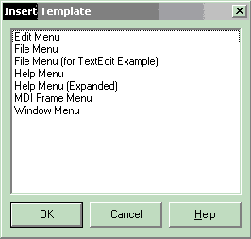
The Insert Template dialog.
The best way to learn how the templates work is to experiment with them. Create a new application and drop a TMainMenu component on the form and start inserting menu templates to see what happens.
Also, clear all the items from the main menu, design a menu of your own, and save it as a template. If you have a certain menu design that you use regularly, saving that design as a template can save a lot of time in future projects.
You’ll still need to write the code that executes when a menu item is clicked, but you don’t have to design standard menus every time you create a new application.