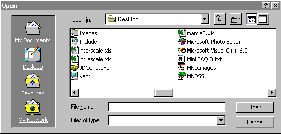
Recently, I demonstrated a method for adding VCL controls to an Open dialog box. In this article, I’ll show you how to change the dialog’s currently displayed folder. Together, these techniques allow you to leverage the standard Open dialog’s existing navigation capabilities (see Figure A).
Figure A
An Open dialog box that provides a custom navigation bar.
The Windows API provides no straightforward way of specifying the directory that’s displayed in an Open dialog’s explorer-pane list-view control. You might recall however, that if you type a path (either relative or absolute) into the dialog’s “File name” edit control and then click Open, the dialog will navigate to the specified folder. You can perform this procedure programmatically via the following seven steps:
1.Grab a handle to the Open dialog.
2.Grab a handle to the “File name” edit control.
3.Retrieve a copy of the “File name” edit control’s current text.
4.Change the “File name” edit control’s text to the desired path.
5.Grab a handle to the “Open” button.
6.Send the BM_CLICK message to the “Open” button to incite a click.
7.Restore the “File name” edit control’s text.
The first step is simple—just pass the value of the TOpenDialog::Handle property to the GetParent() API function:
const HWND hOpenDlg =
  GetParent(OpenDialog->Handle);
Once you have a handle to the Open dialog, you can grab a handle to the “File name” edit control (Step 2), by using the GetDlgItem() API function like so:
const HWND hFileEdit =
  GetDlgItem(hOpenDlg, edt1);
At this point, you need to make a copy of the “File name” edit control’s current text (Step 3); you do this by using the GetWindowText() API function:
TCHAR old_text[MAX_PATH];
GetWindowText(
  hFileEdit, old_text, MAX_PATH);
Now it’s time to change the “File name” edit control’s text to desired path (Step 4); this is done via the SetWindowText() API function:
SetWindowText(
  hFileEdit, new_path_string);
To perform Steps 5 and 6 (i.e., to click the “Open” button), you use a combination of the GetDlgItem() API function (specifying IDOK as the second parameter) and the SendMessage() API function:
const HWND hOKButton =
  GetDlgItem(hOpenDlg, IDOK);
SNDMSG(hOKButton, BM_CLICK, 0, 0);
The last step is to restore the contents of the “File name” edit control; again, use the SetWindowText() API function:
SetWindowText(hFileEdit, old_text);Although these seven steps are fairly painless to implement, there are a couple of problems: First, the observant user might notice the (albeit quick) change in the “File name” edit control’s text. Second, if there’s an item selected in the dialog’s explorer-pane list-view control, clicking Open will dismiss the dialog, regardless the text that’s specified in the “File name” edit control.
To work around the first problem, you can send the WM_SETREDRAW message (with a false wParam value) to the “File name” edit control just before you set its new text. This will prevent the edit control from redrawing itself after the new text is specified. To work around the second problem, you can use the LVM_SETITEMSTATE message to deselect all items in the explorer-pane list-view control before clicking Open.
The following function demonstrates how to implement all of the aforementioned steps and the two workarounds:
void NavigateToFolder(
  TOpenDialog& OpenDialog,
  AnsiString folder_name,
  int folder_csidl = 0)
{
  if (folder_csidl != 0)
  {
    // retrieve the path of the
    // specified special folder
    TCHAR specialfolder_name[MAX_PATH];
    SHGetSpecialFolderPath(
      OpenDialog.Handle,
      specialfolder_name,
      folder_csidl, false);
    folder_name = specialfolder_name;
  }

  if (folder_name.Length() != 0)
  {
    // grab a handle to the Open dialog
    const HWND hOpenDlg =
      GetParent(OpenDialog.Handle);

    // grab handle to the explorer-pane
    // list view's parent window
    const HWND hShellView =
      FindWindowEx(hOpenDlg, 0,
      "SHELLDLL_DefView", "");

    // grab a handle to the
    // explorer-pane list view
    const HWND hListView = FindWindowEx(
       hShellView, 0, WC_LISTVIEW, "");
    if (hListView)
    {
      // deselect all items
      LV_ITEM lvi = {LVIF_STATE};
      lvi.stateMask = LVIS_SELECTED;
      // NOTE: because lvi.state = 0,
      // this code will deselect
      SNDMSG(
        hListView, LVM_SETITEMSTATE,
        -1, // all items
        reinterpret_cast<LPARAM>(&lvi));

      // grab a handle to the
      // "File name" edit control
      const HWND hFileEdit =
        GetDlgItem(hOpenDlg, edt1);

      // retrieve a copy of the "File
      // name" edit's current text
      TCHAR old_text[MAX_PATH];
      GetWindowText(
        hFileEdit, old_text, MAX_PATH);

      // change the "File name" edit's
      // text to the desired path
      SNDMSG(hFileEdit,
        WM_SETREDRAW, false, 0);
      SetWindowText(
        hFileEdit, folder_name.c_str());
      SNDMSG(hFileEdit,
        WM_SETREDRAW, true, 0);

      // click the "Open" button to
      // change to the target folder
      const HWND hOKButton =
        GetDlgItem(hOpenDlg, IDOK);
      SNDMSG(hOKButton, BM_CLICK, 0, 0);

      // restore the "File name"
      // edit's text
      SetWindowText(hFileEdit, old_text);
    }
  }
}There’s one limitation of this approach that needs mentioning—namely, you can’t set the Open dialog’s current directory to a virtual folder such as “My Computer”; users will have to navigate to these types of folders manually.
I’ve put together a sample project that demonstrates how to use the NavigateToFolder() function. This project—available at www.bridgespublishing.com—uses the TOpenDialogEx class (presented in last month’s issue) and the NavigateToFolder() function to provide an interface similar to that depicted in Figure A.