The VCL makes displaying a bitmap trivial—you simply drop a TImage control on your form and then load it with the desired bitmap. If you need to zoom in on the bitmap, set the TImage::Stretch property to true and then resize the TImage accordingly. If the bitmap is too large to display all at once, place the TImage within a TScrollBox. Unfortunately, this combination of controls (a TImage and a TScrollBox) is one of the least optimal ways to display an image with zooming and scrolling capabilities.
In this article, I’ll present an efficient technique for displaying a bitmap in a zoomed fashion, and I’ll show you how to scroll the bitmap.
As you all know, you can’t just draw something to your form and expect it to stay there. Rather, because the screen is a shared surface, you have to redraw your form’s contents whenever needed (e.g., when your form is minimized and then restored). Windows sends a special message, called WM_PAINT, to inform a window that some part of its client area needs to be drawn. Here’s how a typical WM_PAINT message is handled:
void __fastcall
  TForm1::WndProc(TMessage& Msg)
{
  if (Msg.Msg == WM_PAINT)
  {
    PAINTSTRUCT ps;
    const HWND hwd = WindowHandle;
    const HDC hDC = BeginPaint(hwd,&ps);
    // draw to hDC...
    EndPaint(hwd, &ps);
  }
  else TForm::WndProc(Msg);
}
The first step is to use the BeginPaint() function to retrieve a handle to the form’s device context (DC). Once you have a handle to your form’s DC, you can direct your drawing code to this DC. Finally, you inform Windows that you’re done drawing—and that you no longer need the DC—by using the EndPaint() function.
Notice that the BeginPaint() function takes two parameters: a handle to the window of the DC in which you’re interested, and a pointer to a PAINTSTRUCT structure. The BeginPaint() function will fill the PAINTSTRUCT::rcPaint data member (of type RECT) with the coordinates of the tightest bounding rectangle that defines the area that needs to be drawn.
Although, most of us would never handle the WM_PAINT message directly (we’d simply use the form’s OnPaint event) the point I want to make is that the PAINTSTRUCT::rcPaint data member is crucial to efficient drawing. Namely, because rcPaint defines the area that needs to be redrawn, there’s no need to call code that draws outside of this area. The TImage class is a primary example of VCL drawing code that fails to exploit the rcPaint data member.
The TImage class internally maintains a TPicture object that can contain standard pictographic objects such bitmaps and metafiles. When the TPicture is loaded with a bitmap, the bitmap is drawn to the screen by using the TBitmap::Draw() method. In turn, the Draw() method uses the StretchBlt() GDI function to render the bitmap to the window on which the TImage is placed. Here’s a condensed C++ translation of the TBitmap::Draw() method:
void __fastcall TBitmap::Draw(
  TCanvas* DstCanvas,const TRect& ARect)
{
  // initialization and palette stuff...
  // render the bitmap
  StretchBlt(
    DstCanvas->Handle,
    ARect.Left, ARect.Top,
    ARect.Width(), ARect.Height(),
    BitmapCanvas->Handle,
    0, 0, BitmapWidth, BitmapHeight,
    DstCanvas->CopyMode);
}
As you can see from this code, the StretchBlt() function takes 11 parameters. The first parameter is a handle to the DC to which the bitmap will be rendered. The next four parameters define the "destination rectangle"—the rectangle to which the bitmap will be scaled to fit. The sixth parameter is a handle to the (memory) DC with which the bitmap is associated. The seventh through tenth parameters define the "source rectangle"—the portion of the bitmap that’s to be drawn. The last parameter specifies how the bitmap’s colors should be combined with those of the target DC.
The TImage class calls (directly or indirectly) the TBitmap::Draw() method with an ARect parameter (i.e., the destination rectangle) that’s set to either the full dimensions of the TImage (if its Stretch property is true) or the full dimensions of the TImage’s bitmap (if the Stretch property is false). Further, notice that the TBitmap::Draw() method passes the full dimensions of the bitmap as the source rectangle. In light of what I discussed about the PAINTSTRUCT::rcPaint data member, you can probably see the problem with this approach. Regardless of what area needs to be redrawn, the TImage class will always draw the entire bitmap. This is clearly inefficient.
Let’s work through an example of using the PAINTSTRUCT::rcPaint data member to draw only the required portion of a bitmap. Specifically, we’ll draw a bitmap to the client area of a form. The declaration of the TForm1 class for this example is provided in Listing A.
The TBitmap object for this example (Bitmap_) is created and loaded in the form’s constructor, like so:
__fastcall TForm1::TForm1(
  TComponent* Owner) : TForm(Owner),
    Bitmap_(new Graphics::TBitmap())
{
 Bitmap_->LoadFromFile("my_bitmap.bmp");
}
We’ll render this bitmap to the client area of our form in response to the WM_PAINT message. You can see from Listing A that the WM_PAINT message is mapped to the WMPaint() method. Here’s how the WMPaint() method is defined:
void TForm1::WMPaint(TMessage& Msg)
{
  static PAINTSTRUCT ps;
  const HWND hWnd = WindowHandle;
  hDstDC_ = BeginPaint(hWnd, &ps);
  try
  {
    PaintBitmap(ps.rcPaint);
  }
  __finally
  {
    EndPaint(hWnd, &ps);
  }
}
I’ve stored the handle to our form’s device context—that is, the return value of the BeginPaint() function—in the private hDstDC_ member. This member defines the "destination" device context. We’ll draw to this DC from within the PaintBitmap() method, which is called with its single RECT-type parameter set to the PAINTSTRUCT::rcPaint data member.
Let’s first consider the case in which the bitmap should be drawn in its original size. In this case, the PaintBitmap() method can be defined as follows:
void TForm1::PaintBitmap(RECT& RUpdate)
{
  // destination rectangle
  const RECT RDst = RUpdate;

  // source rectangle
  const RECT RSrc = RUpdate;

  StretchBlt(
    // destination DC
    hDstDC_,
    // destination coordinates
    RDst.left, RDst.top,
    RDst.right - RDst.left,
    RDst.bottom - RDst.top,
    // source DC
    Bitmap_->Canvas->Handle,
    // source coordinates
    RSrc.left, RSrc.top,
    RSrc.right - RSrc.left,
    RSrc.bottom - RSrc.top,
    // ROP3 code
    SRCCOPY);
}
Here, we simply pass the coordinates of the update rectangle to the StretchBlt() function. Because there’s no stretching involved, we can specify the same destination and source rectangles. In contrast to TBitmap::Draw() method however, here we draw only the portion of the bitmap that corresponds to the portion of the window that requires updating. Note that because no stretching is involved here, we could have used the BitBlt() function instead of StretchBlt().
Now suppose that we want to zoom in on the bitmap by a factor of two. In this case, in order for StretchBlt() to perform the scaling, the width of the destination rectangle needs to be two times the width of the source rectangle and the height of the destination rectangle needs to be two times the height of the source rectangle.
We can achieve this 2:1 ratio in dimensions by scaling the source rectangle by a factor of one-half, both horizontally and vertically. Here’s an example:
void TForm1::PaintBitmap(RECT& RUpdate)
{
  // scaling factor
  const float zoom = 2.0;

  // destination rectangle
  const RECT RDst = RUpdate;

  // source rectangle
  const RECT RSrc = {
    0.5 + RUpdate.left / zoom,
    0.5 + RUpdate.top / zoom,
    0.5 + RUpdate.right / zoom,
    0.5 + RUpdate.bottom / zoom };

  StretchBlt(
    // destination DC
    hDstDC_,
    // destination coordinates
    RDst.left, RDst.top,
    RDst.right - RDst.left,
    RDst.bottom - RDst.top,
    // source DC
    Bitmap_->Canvas->Handle,
    // source coordinates
    RSrc.left, RSrc.top,
    RSrc.right - RSrc.left,
    RSrc.bottom - RSrc.top,
    // ROP3 code
    SRCCOPY);
}
Unfortunately, there’s a problem with this approach; namely, this code will work only if the coordinates of the update rectangle are all integer multiples of the zooming factor. Otherwise, we’ll get visible rounding artifacts.
So, before we compute the coordinates of the source rectangle, we need to adjust RUpdate so that its left, top, right, and bottom data members are all integer multiples of zoom. If the zooming factor is an integer—such as two, 10, or, say, 16—then we can simply use the fmod() function (or the % operator) to compute the amount by which to adjust the update rectangle. Here’s an example function that does that adjustment:
void AdjustUpdateRect(
  RECT& RUpdate, float zoom)
{
  const int dleft =
    std::fmod(RUpdate.left, zoom);
  const int dtop =
    std::fmod(RUpdate.top, zoom);
  const int dright =
    std::fmod(RUpdate.right, zoom);
  const int dbottom =
    std::fmod(RUpdate.bottom, zoom);

  RUpdate.left -= dleft;
  RUpdate.top -= dtop;
  RUpdate.right += (dright == 0) ?
    0 : zoom - dright;
  RUpdate.bottom += (dbottom == 0) ?
    0 : zoom - dbottom;
}
Unfortunately, this approach won’t work when the zooming factor is a non-integer, such as, say, 2.56. Specifically, when the zooming factor is a non-integer, the fmod() function might also return a non-integer. In short, we’ll end up with the same rounding artifacts.
If we assume however, that the zooming factor will contain at most two non-zero digits after the decimal point (e.g., 2.5, 2.56, but not 2.567), we can use the following approach:
#include <cmath>
void IncCoord(
   long& val, float zoom, int N)
{
  if (N == 0) // integer zooming factor
  {
    const int dval =
      0.5 + std::fmod(val, zoom);
    val += (dval == 0) ? 0 : zoom - dval;
    return;
  }

  int i = 0.5 +
    static_cast<int>(val / zoom);
  i = 0.5 + N * static_cast<int>(
    static_cast<float>(i + N) / N);
  val = 0.5 + (i * zoom);
}

void DecCoord(
   long& val, float zoom, int N)
{
  if (val == 0) return;

  if (N == 0) // integer zooming factor
  {
    val -= std::fmod(val, zoom);
    return;
  }

  int i = 0.5 +
    static_cast<int>(val / zoom);
  const float num =
    static_cast<float>(i - N);
  if (num < 0)
  {
    i = -0.5 +
      std::ceil(-0.001 + num / N) * N;
    val = -0.5 + (i * zoom);
  }
  else
  {
    i = 0.5 +
      std::ceil(0.001 + num / N) * N;
    val = 0.5 + (i * zoom);
  }
}

void AdjustUpdateRect(
  RECT& RUpdate, float zoom, int N)
{
  DecCoord(RUpdate.left, zoom, N);
  DecCoord(RUpdate.top, zoom, N);
  IncCoord(RUpdate.right, zoom, N);
  IncCoord(RUpdate.bottom, zoom, N);
}
The IncCoord() and DecCoord() functions will increase or decrease the specified value, val, such that when val is divided by zoom, the result is an integer. The parameter N denotes the precision of the zooming factor. When N is set to zero, this specifies that zoom is an integer (e.g., 2.0); when N is set to 10, this specifies that zoom contains one non-zero digit in the tenths decimal place (e.g., 2.5); and, when N is set to 100, this specifies that zoom also contains a non-zero digit in the hundredths decimal place (e.g., 2.56).
Using the AdjustUpdateRect() function, we can now modify the PaintBitmap() method as follows (here with a zooming factor of 2.56):
void TForm1::PaintBitmap(RECT& RUpdate)
{
  // scaling factor
  const float zoom = 2.56;

  // ensure that the coordinates of
  // RUpdate are an integer multiple
  // of the zooming factor
  int N = 100;
  AdjustUpdateRect(RUpdate, zoom, N);

  // destination rectangle
  const RECT RDst = RUpdate;

  // source rectangle
  const RECT RSrc = {
    0.5 + RUpdate.left / zoom,
    0.5 + RUpdate.top / zoom,
    0.5 + RUpdate.right / zoom,
    0.5 + RUpdate.bottom / zoom };

  StretchBlt(
    // destination DC
    hDstDC_,
    // destination coordinates
    RDst.left, RDst.top,
    RDst.right - RDst.left,
    RDst.bottom - RDst.top,
    // source DC
    Bitmap_->Canvas->Handle,
    // source coordinates
    RSrc.left, RSrc.top,
    RSrc.right - RSrc.left,
    RSrc.bottom - RSrc.top,
    // ROP3 code
    SRCCOPY);
}
By adjusting the update rectangle before dividing by zoom, we ensure that the coordinates of the source rectangle are precise integer values. In turn, this guarantees that the StretchBlt() function will perform the scaling consistently, regardless of which portion of the bitmap needs to be stretched.
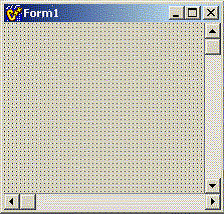
I’ve shown you how to draw only the required portion of a bitmap. Let’s now work through an example of how to scroll the bitmap. We’ll use the same setup as in the previous example, except the form in this case now contains two TScrollBars (named HorzSB and VertSB) as depicted in Figure A. (I’ve decided to use TScrollBar controls instead of the form’s built-in TControlScrollBars to demonstrate the scroll bar-related code and the ScrollWindowEx() function.) The TForm1 class declaration for this example is provided in Listing B.
Figure A
A form with two TScrollBar controls.
The first thing we need to do is set the proper ranges and page sizes for the scroll bars. Because the required range of each scroll bar depends only on the dimensions of the bitmap and the zooming factor, we can set these ranges immediately after loading the image, like so:
__fastcall TForm1::TForm1(
  TComponent* Owner) : TForm(Owner),
    Bitmap_(new Graphics::TBitmap()),
    zoom_(3.6)
{
  Bitmap_->LoadFromFile("my_bitmap.bmp");

  // set the scroll bars' ranges
  HorzSB->Max = zoom_ * Bitmap_->Width;
  VertSB->Max = zoom_ * Bitmap_->Height;
}
For this example, we’ll assume a fixed zooming factor of 3.6 (held in the private TForm1::zoom_ member.)
Whereas the ranges of the scroll bars define the total, "virtual" scrollable area (in our case, the dimensions of the zoomed image), the page sizes of the scroll bars define the area that’s visible at any given time. Thus, we’ll need to set the page size of each scroll bar from within the form’s OnResize event handler:
void __fastcall
  TForm1::FormResize(TObject *Sender)
{
  // set the page sizes
  HorzSB->PageSize = std::min(
    ClientWidth - VertSB->Width,
    HorzSB->Max);
  VertSB->PageSize = std::min(
    ClientHeight - HorzSB->Height,
    VertSB->Max);

  // clip the scrolling positions
  HorzSB->Position = std::min(
    HorzSB->Max - HorzSB->PageSize,
    HorzSB->Position);
  VertSB->Position = std::min(
    VertSB->Max - VertSB->PageSize,
    VertSB->Position);

  // redraw the bitmap
  Invalidate();
}
By specifying a page size for each scroll bar, Windows will adjust the size of the thumb tabs in proportion to the ratio between the visible area (page size) and the total scrollable area (range). Also, notice that I’ve limited the scrolling position of each scroll bar to prevent scrolling past the last "page."
Now that the scroll bars are set up, how do we actually scroll the bitmap? Well, the basic idea is to draw the bitmap at the new "location" defined by the Position of each scroll bar. Here’s the definition of the PaintBitmap() method to do that:
void TForm1::PaintBitmap(RECT& RUpdate)
{
  // grab the scroll bars' Positions
  const int sX = HorzSB->Position;
  const int sY = VertSB->Position;

  // ensure that the coordinates of
  // RUpdate are an integer multiple
  // of the zooming factor
  int N = 10; // because zoom_ = 3.6
  AdjustUpdateRect(
    RUpdate, zoom_, N, sX, sY);

  // destination rectangle
  const RECT RDst = RUpdate;

  // source rectangle
  const RECT RSrc = {
    0.5 + (RUpdate.left + sX) / zoom_,
    0.5 + (RUpdate.top + sY) / zoom_,
    0.5 + (RUpdate.right + sX) / zoom_,
    0.5 + (RUpdate.bottom + sY) / zoom_
  };

  StretchBlt(
    // destination DC
    hDstDC_,
    // destination coordinates
    RDst.left, RDst.top,
    RDst.right - RDst.left,
    RDst.bottom - RDst.top,
    // source DC
    Bitmap_->Canvas->Handle,
    // source coordinates
    RSrc.left, RSrc.top,
    RSrc.right - RSrc.left,
    RSrc.bottom - RSrc.top,
    // ROP3 code
    SRCCOPY);
}
This code is similar to that of the previous PaintBitmap() definition. The main difference here is that the Positions of the scroll bars (sX and sY) are taken into account when defining the source rectangle. Remember, the source rectangle specifies which chunk of the bitmap to draw to the destination rectangle. By offsetting this chunk based on the Positions of the scroll bars, this code will map a different portion of the bitmap to the destination rectangle, effectively "scrolling" the bitmap.
Notice that when defining the source rectangle, we add sX and sY to the coordinates of the update rectangle prior to dividing by zoom_. Because of this fact, it is not necessary to ensure that the coordinates of the update rectangle are integer multiples of zoom_, but rather to insure that the sums of these coordinates and the scroll bars’ Positions are integer multiples of zoom_. Accordingly, I’ve modified the AdjustUpdateRect() function to accept two additional parameters—sX and sY. Here’s how the AdjustUpdateRect() function is now defined:
void AdjustUpdateRect(RECT& RUpdate,
  float zoom, int N, int sX, int sY)
{
  long x1 = RUpdate.left + sX;
  long y1 = RUpdate.top + sY;
  long x2 = RUpdate.right + sX;
  long y2 = RUpdate.bottom + sY;

  DecCoord(x1, zoom, N);
  DecCoord(y1, zoom, N);
  IncCoord(x2, zoom, N);
  IncCoord(y2, zoom, N);

  RUpdate.left = x1 - sX;
  RUpdate.top = y1 - sY;
  RUpdate.right = x2 - sX;
  RUpdate.bottom = y2 - sY;
}
Again, this function serves only to ensure that the coordinates of the update rectangle, when offset by the scroll bar’s Positions, are all integer multiples of the zooming factor.
I’ve now shown you how to draw the bitmap at a new "location" based on the Position each scroll bar. All we need to do now is redraw the bitmap whenever the scroll bars are scrolled. One way to do this is as follows (using a shared OnScroll event handler for both scroll bars):
void __fastcall TForm1::HorzVertSBScroll(
  TObject *Sender, TScrollCode Code,
  int& ScrollPos)
{
  TScrollBar* SB =
    static_cast<TScrollBar*>(Sender);

  // clip the scrolling position
  ScrollPos = std::min(
    SB->Max - SB->PageSize,
    std::max(0, ScrollPos));

  // redraw the bitmap
  // (at the new position)
  InvalidateRect(
    WindowHandle, NULL, FALSE);
}
Here I’ve simply called the InvalidateRect() function to redraw the entire form (and thus the bitmap) upon a scroll. This approach works because our PaintBitmap() method takes into account the Position of each scroll bar. Unfortunately, this approach also obviates our efficient use of the update rectangle (because we’re redrawing the entire area of the form).
A better approach is to compute the amount by which the user scrolled, move the bitmap that’s already on the screen by that amount, and then redraw only the new "exposed" strip. Figure B illustrates this idea: the dotted rectangle in the top form denotes the area that needs to be moved to the left; the dotted rectangle in the bottom form denotes the "exposed" strip—only this area need be updated.
Figure B
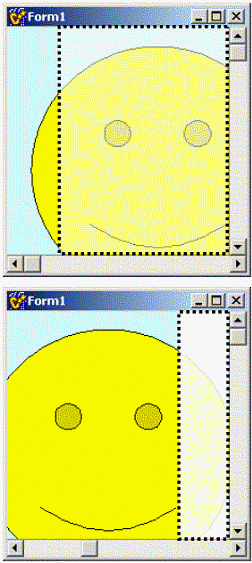
The form before (top) and after (bottom) a horizontal scroll operation.
How do we move the bitmap that’s already on the screen? Windows provides a function, called ScrollWindowEx(), to do just that. ScrollWindowEx() will offset a window’s currently displayed contents by a specified amount. Here’s what the function looks like:
int ScrollWindowEx(
  HWND hWnd,
  int dx,
  int dy,
  CONST RECT *prcScroll,
  CONST RECT *prcClip,
  HRGN hrgnUpdate,
  LPRECT prcUpdate,
  UINT flags);
The hWnd parameter specifies a handle to the window whose contents are to be scrolled. The dx and dy parameters specify by how much to scroll in the horizontal and vertical directions, respectively.
The prcScroll parameter specifies which area of the window to scroll. The prcClip parameter specifies which area of the window can be scrolled over. In other words, the area of the window that’s defined by prcScroll can be moved only within the area defined by prcClip. This allows you to protect a portion of the window (prcClip) from being obscured by the chunk that’s being moved (prcScroll). You can set both of these parameters to NULL if you want to scroll the window’s entire client area.
The hrgnUpdate and prcUpdate parameters will receive, respectively, the region and rectangle of the new "exposed" area (i.e., the area to be redrawn). The flags parameter specifies if the ScrollWindowEx() function should invalidate this "exposed" area (so that the window will receive a WM_PAINT message with PAINTSTRUCT::rcPaint set to prcUpdate).
Using the ScrollWindowEx() function, the OnScroll event handler can be redefined as follows:
void __fastcall TForm1::HorzVertSBScroll(
  TObject *Sender, TScrollCode Code,
  int& ScrollPos)
{
  TScrollBar* SB =
    static_cast<TScrollBar*>(Sender);

  // clip the scrolling position
  ScrollPos = std::min(
    SB->Max - SB->PageSize,
    std::max(0, ScrollPos));

  // comute the amount to scroll by
  const int delta =
    SB->Position - ScrollPos;
  if (delta != 0)
  {
    if (SB == HorzSB)
    {
      // compute the area to be moved
      RECT RScroll = ClientRect;
      if (delta > 0) // move chunk right
      {
        RScroll.right -= delta;
      }
      else // move chunk left
      {
        RScroll.left -= delta;
      }

      // scroll the bitmap horizontally
      ScrollWindowEx(
       WindowHandle, delta, 0, &RScroll,
       NULL, NULL, NULL, SW_INVALIDATE);
    }
    else // SB == VertSB
    {
      // compute the area to be moved
      RECT RScroll = ClientRect;
      if (delta > 0) // move chunk down
      {
        RScroll.bottom -= delta;
      }
      else // move chunk up
      {
        RScroll.top -= delta;
      }

      // scroll the bitmap vertically
      ScrollWindowEx(
       WindowHandle, 0, delta, &RScroll,
       NULL, NULL, NULL, SW_INVALIDATE);
    }
  }
}
By using the ScrollWindowEx() function instead of redrawing the entire bitmap at its new location, the PaintBitmap() function performs a small stretch instead of a large one. Namely, the bitmap that’s currently displayed on the screen is already in video memory, so there’s no need to re-stretch and redraw that portion. Instead, ScrollWindowEx() will simply shift that portion over, eliminating the costly stretching. All that is then needed is to redraw the "exposed" strip. Note that the PaintBitmap() method will be called automatically because SW_INVALIDATE is passed as the flags parameter to the ScrollWindowEx() function.
By drawing only the portion that’s needed, the example presented here is significantly faster than what you’d achieve by using a TImage and a TScrollBox. In fact, because the source rectangle (passed to the StretchBlt() function) gets smaller as the zooming factor gets larger, you’ll notice increased performance for higher zooms. (See also the article "Display-optimal DIB section bitmaps.")
There are a couple of caveats I should point out. First, I’ve neglected palette-related code throughout this article. If your application is running on a system with a palette-based display, you’ll need to add support for palettes (see the section "Color Palettes" in the Windows SDK help files).
Second, the StretchBlt() function is limited on Windows 9x-based systems. On Win9x you can zoom up to a maximum of approximately 1100% before the function will fail. For higher zooms, you’ll need to segment your bitmap into smaller bitmaps and then stretch and tile each bitmap segment.
Listing A: Declaration of the TForm1 class for the first example (w/o scroll bars)
#include <memory>
class TForm1 : public TForm
{
__published:

private:
  HDC hDstDC_;
  std::auto_ptr<Graphics::TBitmap> Bitmap_;
  MESSAGE void WMPaint(TMessage& Msg);
  void PaintBitmap(RECT& RPaint);

public:
  __fastcall TForm1(TComponent* Owner);

BEGIN_MESSAGE_MAP
  MESSAGE_HANDLER(WM_PAINT, TMessage, WMPaint)
END_MESSAGE_MAP(TForm)
};
Listing B: Declaration of the TForm1 class for the second example (with scroll bars)
#include <memory>
class TForm1 : public TForm
{
__published:
  TScrollBar *HorzSB;
  TScrollBar *VertSB;
  void __fastcall FormResize(TObject *Sender);
  void __fastcall HorzVertSBScroll(TObject *Sender,
    TScrollCode Code, int &ScrollPos);

private:
  HDC hDstDC_;
  float zoom_;
  std::auto_ptr<Graphics::TBitmap> Bitmap_;
  MESSAGE void WMPaint(TMessage& Msg);
  void PaintBitmap(RECT& RPaint);

public:
  __fastcall TForm1(TComponent* Owner);

BEGIN_MESSAGE_MAP
  MESSAGE_HANDLER(WM_PAINT, TMessage, WMPaint)
END_MESSAGE_MAP(TForm)
};