Borland’s VCL is key to the power of Delphi and C++Builder. It allows developers to use a vast and powerful set of software components without knowing very much about how they are implemented. Using components, useful applications can be built with very little work—the developer only needs to fill in the details once the building blocks are in place.
Using the VCL and other C++ classes works just fine as long as you stay within C++Builder. But suppose that you want to add extensibility and customization to your application, so that other programs can control it. Maybe you want to implement a "macro" language to automate certain tasks of the program. The best way to do this is to add Component Object Model (COM) interfaces to your program.
Most programmers today are familiar with COM under its latest incarnation—ActiveX. Actually, ActiveX is a very specific type of COM object that exposes interfaces that allow it to be easily integrated into development environments such as C++Builder, and can also be embedded and scripted in an HTML page. But you don’t need to create ActiveX components in order to expose your application objects to the outside world—a simple COM Automation interface will do.
If you’re not familiar with COM, it is the basic underlying technology behind most software components designed for Microsoft Windows. VCL components are very similar to COM components—they both have similar ways of exposing their properties and methods. An explanation of how COM works is much too involved to be covered in this article, but a good book on the subject is Inside COM by Dale Rogerson (Microsoft Press). Luckily, C++Builder provides excellent tools for developing COM components, so only a basic understanding of the details is required.
COM uses a client-server model. A COM server exposes interfaces that a client can use. The client never accesses the actual objects, only the objects’ interfaces. This differs from C++ objects, including VCL objects. When you use C++ objects, your code makes calls directly into the code of the object. But with COM, you retrieve an interface to an object, and then use the interface. The power of COM comes from the fact that the server objects are completely hidden from the client. They may be implemented in a different language—they may even be on a different machine. The interface handles all the details of communication between server and client. You can add these interfaces to your C++Builder projects so that your applications can be controlled from Visual Basic, MS Word, Delphi, and even VBScript or JavaScript.
COM allows a class to have multiple interfaces. This is similar to a C++ class that uses multiple inheritances. For example, suppose there is a C++ class C that is derived from both A and B. Class C inherits all of the properties and methods of classes A and B. COM doesn’t allow one class to inherit any code from another class, but it does allow two classes to implement the same interface. Since the client using the objects only knows about the interface, the actual object being used (the implementation) is transparent to the client. This is how COM provides polymorphism, one of the most important requirements of object-oriented development.
A COM interface is like an abstract base class in C++. All COM objects must implement one required interface, IUnknown. The primary purpose of the IUnknown interface is to expose other interfaces. IUnknown contains a method called QueryInterface() that can be used to "ask" an object if it has a particular interface. The next most important COM interface is IDispatch. The IDispatch interface exposes properties and methods. Its primary methods are GetIDsOfNames() and Invoke(). The GetIDsOfNames() method allows a client to see what properties and methods an interface has, without knowing anything at all about the interface. It’s like asking the interface, "Tell me what you can do". The Invoke() method is used to access the properties and methods of the interface. Each property or method has an ID number, which is used as one of the parameters to the Invoke() function. A component which implements the IDispatch interface is called an automation server. A COM client that accesses the server through its IDispatch interface is called an automation controller. Microsoft Word is an example of an automation server, and VBScript is an example of an automation controller.
Now that we’ve brushed the surface of COM and interfaces, we can proceed to the next topic—designing interfaces in C++Builder. As I mentioned before, COM only allows its clients to access the server’s interfaces, never the objects directly. This means that you don’t have to worry too much about implementing your application objects to work with COM. As long as you create classes that have the properties and methods you want to expose, you can add the interfaces later. COM doesn’t enforce or even specify how classes are implemented. For this reason, I usually create my application classes—the real code—outside of COM, and create COM interfaces to access them.
COM interfaces can be added to a .DLL or .EXE project. For .EXE projects, COM interfaces can be added to any existing C++Builder application. However, .DLL projects must be initially created as an "ActiveX Library" in order to contain COM interfaces (the .DLL doesn’t necessarily have to contain ActiveX objects, even though the project template is called "ActiveX Library").
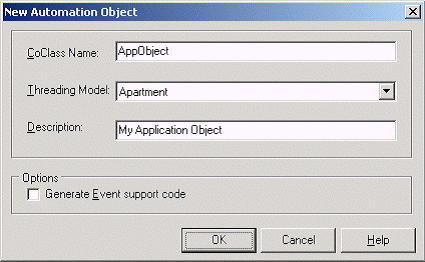
When you’re ready to add an interface, select File|New to add a new unit to your project, then select Automation Object from the ActiveX tab. The dialog box shown in Figure A will be displayed. The Automation Object template will create a COM class that implements the IDispatch interface.
Figure A
The New Automation Object dialog box is used to create a new COM object
The CoClass Name field is the name of the class that will be created. It will also be used to name the source file for the code, which the IDE will automatically add to your project. The Apartment threading model should be used unless you’re sure that the component will be thread-safe. After clicking OK, the IDE will display the Type Library Editor.
If you’ve never developed COM components before, the Type Library Editor might seem a little complex at first. But you should feel lucky—in the early days of COM development, creating new components and interfaces was an extremely tedious chore, and one that nobody misses! I could spend a lot of time discussing how to use the Type Library Editor, but instead I’ll refer you to the C++Builder documentation, which provides a good overview of all of its features.
In the example shown, I’ve created a COM class called AppObject and an interface for the class called IAppObject. A COM class isn’t much more than a container for interfaces—it’s the interfaces that are really important. The IAppObject interface has one property, Document, and two methods, Replace() and Save(). The AppObject component is part of an application called ServerApp.exe, which is a simple text file editor. It has the ability to load a text file, search and replace text, and save the text to a file. The application has its own objects that do the real work, and the COM interfaces provide wrappers so that any COM client can control the program.
I’ll briefly discuss how the interface properties and methods are defined in the Type Library Editor. Unlike C++, COM interface methods almost always return the same type, HRESULT. This return value is used by COM to indicate whether the method executed successfully. The "return value" that an automation controller receives is actually specified as a parameter. In the example shown, the Document property is implemented as two methods—a "get" method and a "set" method. The "get" method has the [out] modifier added to its Value parameter to indicate that this parameter is to be used as the "return value" of the method. The Replace() method takes two parameters but has no return value, and the Save() method takes no parameters and has no return value. Figure B shows the AppObject object in the Type Library Editor.
In Visual Basic and VBScript, COM interface methods that have no return value are treated as subroutines, and interface methods that have a return value are treated as functions.
Figure B
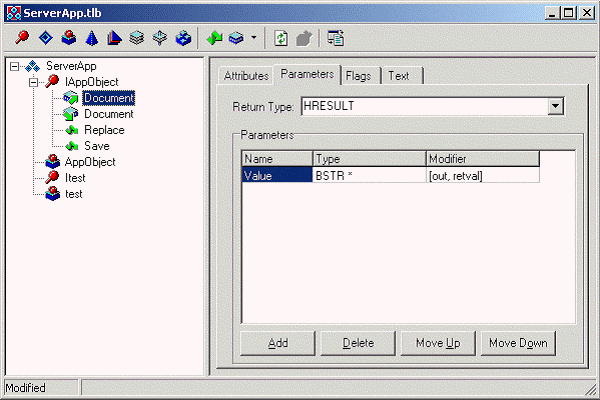
The Type Library Editor is used to add properties and methods to a COM object
Once you’ve designed all of the properties and methods for the interface, including all of their parameters and return values, click Refresh Implementation (the button with the two green arrows). I’ve always thought that this should be done automatically upon closing the Type Library Editor, but it isn’t. You should always click the refresh button before closing the editor.
After clicking the refresh button, you’ll see a bunch of files added to the project (in this case, ServerApp.bpr). Here is a list of the different files that are added, and what they are for:
File |
Purpose |
ServerApp.tlb |
This is the COM Type Library, a binary file that stores all of the details about the COM components. |
|
These files include the Microsoft ATL classes, which hide much of the complexity of developing COM components. |
AppObjectImpl.CPP |
This is the "implementation class" which will contain the application code or call other application objects. |
Chances are that you’ll not want to touch any of these files except for the implementation class source files. The implementation class is a C++ class that contains the "skeleton" of the interface. This class is written automatically by the IDE, and uses the ATL library to shield you from the drudgery of implementing all of the C++ code needed for creating COM interfaces. It has methods to access all properties and methods of the interface, but it doesn’t contain any useful code yet. It’s now up to you to write the code.
When adding code to the implementation class, be careful not to change the function names or parameter types of the pre-written methods. If you discover that you need to change a name or parameter type, close the .cpp and .h file, then invoke the Type Library Editor by double-clicking on the .tlb project file, and change it there. Then click the refresh button again, and the change will be made into the existing implementation file. If you do make changes to the function names or parameters without using the Type Library Editor, chances are it will lose its mind the next time you try to refresh.
Alas, you’re not completely constrained to the Type Library Editor when developing your implementation classes. You’re free to add additional functions and member variables, even a destructor (the IDE provides only a constructor by default). The Type Library Editor doesn’t affect additional functions that you add—it will ignore them when it refreshes its changes to your implementation class. Listing A shows the implementation class for IAppObject. The code for the entire ServerApp project can be downloaded from www.bridgespublishing.com.
You can see from the implementation class code that it serves as a wrapper for the main VCL application objects. It’s important to trap any exceptions that may occur in interface methods, because the automation controller using the interface will not necessarily be able to handle them. In most cases, it’s sufficient to pass the message text of the exception back to the client through the built-in Error() method. This will cause the automation controller to properly report the error condition. For example, VB Script will display a message box containing the exception message, the class and method that caused it, and the line number on which it occurred.
In the VCL environment, we have the luxury of using the versatile AnsiString class to pass strings back and forth between objects. Since COM is language (and theoretically, platform) independent, it must allocate and manage its own string objects. A BSTR is a pointer to a UNICODE character string that has a set length. This is the string datatype in COM. There is a host of API functions to manage these, such as SysAllocString(), SysFreeString(), SysReallocString(), and SysStringLen() (to name but a few). If you’re interested, you can refer to the Windows API for descriptions of how these work. Luckily, the VCL class WideString provides a simple alternative to the API.
In COM, whenever a string is passed back from a function, it must be allocated by the server and then freed by the client. Luckily for you the component developer, you don’t have to worry about what the client needs to do—just make sure that all return values you pass back as strings are newly allocated. The WideString::Copy() function does this for you. The easiest way to allocate a BSTR is to take a char* or AnsiString and convert it into a WideString, then call its Copy() function. This will allocate a new BSTR string that can be safely passed back to the client, which then has the responsibility of freeing it.
As an example, refer to the AppObjectImpl::get_Document() method. It takes a VCL AnsiString property and converts and copies it, then assigns it to the return value (the "out" parameter). The AppObjectImpl::get_Document() method takes a WideString input parameter and assigns it directly to a VCL AnsiString property. AnsiString and WideString can be assigned to each other, and will automatically convert.
Projects that contain COM components have an additional tab on the project options dialog. Here you can specify the threading model of the server, and the instancing option. With multiple use instancing (the default), all clients share the same copy of the server; if multiple processes are accessing the server’s components, only one copy of the server will load. With single use instancing, a separate instance of the server is created for each client. It’s usually best to use multiple use instancing.
COM keeps track of the location of components via the registry. Components in an .exe file created with C++Builder will automatically register themselves the first time the program is run. After the program has been run at least once, its components will be accessible to any automation controller.
Now we’re finally ready to run ServerApp.exe from a client. The following example shows a VBScript file that uses ServerApp to load all of the files in a directory and perform a search and replace on all of them.
TestServerApp.vbs‘ This script uses ServerApp.exe to
‘ process all files in a directory and
‘ append <BR> to each line.
Set fs = CreateObject(
"Scripting.FileSystemObject")
Set Editor = CreateObject(
"ServerApp.AppObject")
DocDir = "c:\articles\text\"
SearchStr = Chr(13) & Chr(10)
ReplaceStr = "<BR>" & SearchStr
Set FileDir = fs.GetFolder(DocDir)
For Each File in FileDir.Files
FileName = DocDir + File.Name
Editor.Document = FileName
Editor.Replace SearchStr, ReplaceStr
Editor.Save
NextThe ServerApp.exe program automatically loads when the ServerApp.AppObject object is created. Then the script controls it until the script is done with it. At that point, no more clients are referencing the server, so the program unloads.
Hopefully I’ve shed some light on the large topic of adding automation interfaces to your C++Builder programs. In Part 2 of this article, I’ll explore some other aspects of COM development, including some of the utility functions and classes that are useful in developing more advanced interfaces.
Listing A: AppObjectImpl.h
// APPOBJECTIMPL.H : Declaration of TAppObjectImpl
#ifndef AppObjectImplH
#define AppObjectImplH

#include "ServerApp_TLB.H"

//////////////////////////////////////////////////
// TAppObjectImpl Implements IAppObject,
//   default interface of AppObject
// ThreadingModel : Apartment
// Dual Interface : TRUE
// Event Support  : FALSE
// Default ProgID : ServerApp.AppObject
// Description    : ServerApp Application Object
//////////////////////////////////////////////////
class ATL_NO_VTABLE TAppObjectImpl :
public CComObjectRootEx<CComSingleThreadModel>,
public CComCoClass<
  TAppObjectImpl, &CLSID_AppObject>,
public IDispatchImpl<IAppObject, &IID_IAppObject,
  &LIBID_ServerApp>
{
public:
TAppObjectImpl()
{
}

// Data used when registering Object
DECLARE_THREADING_MODEL(otApartment);
DECLARE_PROGID("ServerApp.AppObject");
DECLARE_DESCRIPTION(
  "ServerApp Application Object");

// Function invoked to (un)register object
static HRESULT WINAPI
  UpdateRegistry(BOOL bRegister)
{
TTypedComServerRegistrarT<TAppObjectImpl>
regObj(GetObjectCLSID(),
  GetProgID(), GetDescription());
return regObj.UpdateRegistry(bRegister);
}


BEGIN_COM_MAP(TAppObjectImpl)
COM_INTERFACE_ENTRY(IAppObject)
COM_INTERFACE_ENTRY2(IDispatch, IAppObject)
END_COM_MAP()
// IAppObject
public:

STDMETHOD(get_Document(BSTR* Value));
STDMETHOD(set_Document(BSTR Value));
STDMETHOD(Replace(BSTR From, BSTR To));
STDMETHOD(Save());
};

#endif //AppObjectImplH
Listing A: AppObjectImpl.cpp
// APPOBJECTIMPL: Implementation of TappObjectImpl
// (CoClass: AppObject, Interface: IAppObject)
#include <vcl.h>
#pragma hdrstop

#include "APPOBJECTIMPL.H"
#include "ServerAppMain.h"

//////////////////////////////////////////////////
// TAppObjectImpl
STDMETHODIMP TAppObjectImpl::get_Document(
  BSTR* Value)
{
WideString wsDoc =ServerAppMainForm->DocumentName;
*Value = wsDoc.Copy();
return S_OK;
};


STDMETHODIMP TAppObjectImpl::set_Document(
  BSTR Value)
{
try
  {
ServerAppMainForm->OpenTextFile(Value);
  }
catch(Exception &e)
  {
return Error(e.Message.c_str(), IID_IAppObject);
  }
return S_OK;
};


STDMETHODIMP TAppObjectImpl::Replace(
  BSTR From, BSTR To)
{
try
  {
ServerAppMainForm->ReplaceText(From, To);
  }
catch(Exception &e)
  {
return Error(e.Message.c_str(), IID_IAppObject);
  }
return S_OK;
}

STDMETHODIMP TAppObjectImpl::Save()
{
try
  {
ServerAppMainForm->SaveText();
  }
catch(Exception &e)
  {
return Error(e.Message.c_str(), IID_IAppObject);
  }
return S_OK;
}