Web Services are hot, and just about everywhere. From Java to .NET, Web Services will be an important technology to reckon with. And C++Builder contains support for Web Services. With C++Builder 6 Professional we can import (consume) existing Web Services, and with C++Builder 6 Enterprise we can even make our own Web Services (the engines, as I’ll explain in a future article).
This article will explain how to consume existing Web Services using C++Builder 6 (Professional or Enterprise). In this article, I will use a Web Service that I wrote last year using Delphi 6 Enterprise, but in theory we could use any Web Service. In the next article, I will be creating a new Web Service using C++Builder 6; a process which is only slightly more complex than using one.
Delphi 6 and C++Builder 6 are only two of the Borland tools that can create and import Web Services. Others include Kylix 2 (running on Linux) and JBuilder 6. The upcoming C++ version of Kylix will most likely contain support for Web Services as well.
The main reason why I’ve decided to use C++Builder 6 to consume a Web Service written in Delphi 6, is to illustrate the cross-language nature of Web Services right from the start. In fact, with hardly any trouble you could consume Web Services written in Kylix on Linux or JBuilder (on Windows, Linux, Solaris or even the Mac).
The example Web Service that we will be using in this article is the Euro Converter Web Service, also known by its interface name IEuro. This Web Service should be available on the internet as http://www.eBob42.com/cgi-bin/Euro42.exe/wsdl (you can also use the Linux version at http://www.drbob42.co.uk/cgi-bin/Euro42/wsdl).
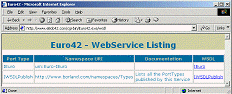
Using a browser such as Internet Explorer, we can view the WSDL (Web Services Description Language) of our web service, which shows no less than two SOAP objects in our web service application: IEuro and IWSDLPublish. The latter is a "present" from Borland, and will be included in any Web Service that you write using Delphi 6, C++Builder 6 or Kylix 2. The main purpose of this SOAP Object is to publish the WSDL definition for the other SOAP Objects inside the Web Service application. This is illustrated in the documentation section of Figure A.
Figure A
The WebService Listing of Euro42.exe
For the individual WSDL definition of the IEuro Web Service, we need to click on the IEuro link, or just specify http://www.eBob42.com/cgi-bin/Euro42.exe/wsdl/IEuro. Once you view the WSDL for IEuro, you should either save the URL (in the clipboard) or the WSDL contents itself (in a local file), because we’ll need them in a moment when we create an import unit with the C++ definition mapping for the IEuro Web Service.
Start C++Builder 6 Enterprise, and save the new default project (or create a new one). Save the main form in file CLIENTFORM.CPP and the project itself in EUROCLIENT.BPR. Before we can use the IEuro web service, we first need to create a C++ import unit (based on the WSDL definition as seen in Figure 1). This can be done using the WSDL Importer.
Click File | New | Other, and go to the WebServices tab of the Object Repository. Here, you’ll find four SOAP specific wizards as shown in Figure B. C++Builder 6 professional users will only find the WSDL Importer wizard, but can still work along with this article, because that’s the only wizard we’ll be using this time.
Figure B

The WebServices tab of the Object Repository
When you start the WSDL Importer, you’ll get a wizard as shown in Figure C. The wizard starts by asking the location of the WSDL (the Web Service Description Language). Note that this can either be a local file that you saved earlier, or a live URL to the web service on the website (http://www.eBob42.com/cgi-bin/Euro42.exe/wsdl/IEuro in this case). If you do not want to be connected to the internet while developing the EuroClient application, use the local file containing the WSDL.
Figure C
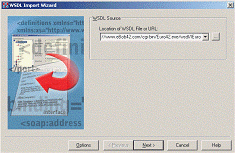
The WSDL Import Wizard
The Options button is available on this page and the next one, and will enable you to specify a number of Connection (through a Proxy) and Code Generation options that you may want to set. I personally use the default settings, but you may want to be familiar with the various options. The Import Options dialog box is shown in Figure D.
Figure D
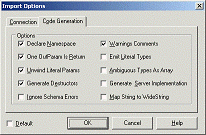
The WSDL Import Options dialog box
When you close down the Import Options dialog box and click Next, you get to the second (and last) page of the WSDL Import Wizard. In this page, you are presented with an overview of the WSDL components, including the interfaces (in this case only IEuro) and the methods that are available. The last page of the wizard is shown in Figure E.
Figure E
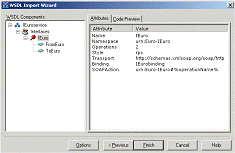
The WSDL Import Wizard preview page
For closer examination of the generated source code, just click on the Finish button. This will generate the new import unit for the WSDL file or location specified. The header file IEURO_.H contains as most important part the definition of the IEuro interface, derived from IInvokable, and containing the two abstract virtual methods FromEuro() and ToEuro().
The corresponding implementation inside file IEURO_.CPP contains a function called GetIEuro(). This function makes the usage of the generated IEuro interface inside the generated files very simple: we only need to call the GetIEuro() function (or in general any Get followed by the name of our interface) to get an interface back to the SOAP server that we want to use.
In our case, the call to GetIEuro() returns the IEuro interface—implemented by a component behind the scenes—ready to be used. Since the IEuro interface contains only two methods, we can simply select one, for example the FromEuro() method, which takes an AnsiString and double as argument and returns a double.
GetIEuro()
Now return to the ClientForm unit, and add the generated IEURO_.H header file to this unit (with File | Use Unit), so we can access the GetIEuro() to return the IEuro interface and its methods. Before doing that, let’s first finish the Euro Client Form. For this, we need two TEdit components (call them edtEuro and edtCurr, and clear their Text property), two TButtons (call them btnFromEuro and btnToEuro), a TRadioGroup (call it Currency and set the Columns property to 3, and the Items property to FIM, ITL, NLG, ESP, BEF, ATS, LUF, DEM, FRF, IEP, PTE, and GRO), and finally a TLabel with the Caption property set to the Euro character € to finish it off (see Figure G to see how the client form looks).
Obviously, the btnFromEuro button will be used to convert the value inside edtEuro to a value for edtCurr for the selected currency inside the RadioGroup. For the OnClick event handler of the btnFromEuro button, we first need to convert the contents of the edtEuro->Text property from a string to a floating point value (a double) and then use this as argument to the FromEuro() method from the IEuro interface. Finally we convert the result back from a floating point value (a double) to an AnsiString so we can put it inside the edtCurr->Text property. The current item text of the RadioGroup can be used as an AnsiString argument to the FromEuro() method. In code, this is all done as follows:
void __fastcall TForm1::
  btnFromEuroClick(TObject *Sender)
{
 edtCurr->Text = FloatToStr(
  GetIEuro()->FromEuro(
   Currency->Items[
    Currency->ItemIndex],
     StrToFloatDef(edtEuro->Text,0)));
}
Using this event handler, we can convert 100 Euro to 220.371 Dutch Guilders, as you can see in Figure F.
Figure F
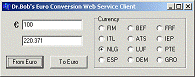
The Euro Web Service Client running
Calling the GetIEuro() function is really convenient to get a handle to the IEuro interface. But what exactly is happening behind the scenes? In order to explain that, we’ll write the manual code inside the OnClick event handler of the btnToEuro button so you can compare the two methods, and also learn what the GetIEuro() does.
In order to retrieve the IEuro interface "manually", we need a HTTPRIO component (from the WebServices tab of the component palette). We need to set three properties of this component, starting with the WSDLLocation property, which should get the value "http://www.eBob42.com/cgi-bin/Euro42.exe/wsdl/Ieuro". After we’ve set the WSDLLocation, we then need to select a possible value for the Service property. If the WSDLLocation property contains a valid value (and if the web service can be accessed), then the combo box for the Service property value will be opened and show a single choice, namely IEuroservice. If you don’t see anything in the combo box, then either the WSDLLocation contains a typo, or you cannot access the Web Service at this time. After you’ve set the Service property, you need to repeat the last step for the Port property, which should again only offer you a single choice, namely IEuroPort.
With these three properties set, the HTTPRIO component can act as a Remote Invokable Object over HTTP (hence its name), connecting your client form to the IEuro SOAP object inside the Euro42.exe Web Service application.
The OnClick event handler is now implemented as follows (note that we have to use QueryInterface to manually cast the HTTPRIO component to the interface of type _di_IEuro):
void __fastcall TForm1::
  btnToEuroClick(TObject *Sender)
{
  _di_IEuro service;
  HTTPRIO1->QueryInterface(service);
  if (service) {
    AnsiString S = Currency->Items->
      Strings[Currency->ItemIndex];
    edtEuro->Text = FloatToStr(
      service->ToEuro(S,StrToFloatDef(
        edtCurr->Text,0)));
  }
}
Apart from the fact that we now have to manually use a HTTPRIO component and extract the _di_IEuro interface from it, the remaining code is very similar to what we’ve written before. Figure G shows the Client form at design time again (this time with the HTTPRIO component on it as well).
Figure G
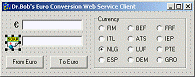
The Euro Web Service Client form at design time
If you’re interested, you can look inside the GetIEuro() function of file IEURO_.CPP, and notice that it does the same thing. Or does it? The argument useWSDL is set to false by default, meaning that it doesn’t do the same thing, but rather uses the URL property of the HTTPRIO component (instead of the WSDLLocation property).
The URL property can be used if and only if both the Web Service interface definition and the generated import file are registered using the same namespace (this is done using the InvRegistry()->RegisterInterface call using the so-called Invokable Registry). As the on-line help explains, this can be done in a number of ways, and will be at least be the case automatically if the server was written in Delphi, Kylix or C++Builder itself. In order to explicitly use the URL property with the HTTPRIO component, we have to clear the Port, Service and WSDLLocation properties, and set the URL property to http://www.eBob42.com/cgi-bin/Euro42.exe/soap/IEuro (note that we’re now using the path "soap" instead of "wsdl" as we did before so this isn’t a straight copy of the URL that we used to import the WSDL definition). Only a single property is used now—compared to three in the more general usage—and the actual C++ code can remain untouched.
Personally, I always use the WSDLLocation property in combination with Service and Port, because this is a more general approach, that will also be able to use the Web Service when the server and client interface are not defined using the same namespace. But at least you now know the difference, and can make your own choices depending on your own preferences and needs.
In this article, I’ve tried to explain how to consume Web Services with C++Builder 6. We’ve seen how to generate the import files based on a WSDL definition of the Web Service, and how to actually call the methods from the Web Service (using the generated GetInterface() function, or using the HTTPRIO component). For real-world Web Services written in different environments, you’ll find it useful to watch Borland’s progress in the area of interoperability of Web Services at http://soap-server.borland.com. The full source for this article’s example program can be downloaded from our Web site at www.bridgespublishing.com.
Next time, we’ll continue the coverage of Web Services when we build one using C++Builder 6 Enterprise so stay tuned.
Bob Swart (aka Dr.Bob - www.drbob42.com) is an author, trainer and consultant who just started his own one-man company called "eBob42" in Helmond, The Netherlands. Bob, who writes his own "Delphi Clinic" training material, has spoken at Delphi and Borland Developer Conferences since 1993.
Bob is co-author of the Revolutionary Guide to Delphi 2, Delphi 4 Unleashed, C++Builder 4 Unleashed, C++Builder 5 Developer’s Guide, Kylix Developer’s Guide, Delphi 6 Developer’s Guide and the upcoming C++Builder 6 Developer’s Guide.