C++Builder provides many powerful user-interface features, most of them obvious. However, some features are more subtle. One such feature is the code-editor interface for string lists.
Suppose you need to modify a string list that contains database parameters, SQL query statements, list box items, or similar information. Typically, you'll double-click the appropriate property in the Object Inspector to display the String List Editor. Unfortunately, this is a modal window, and you must save your changes explicitly before you can return to the code-editing window to make further changes to your source code.
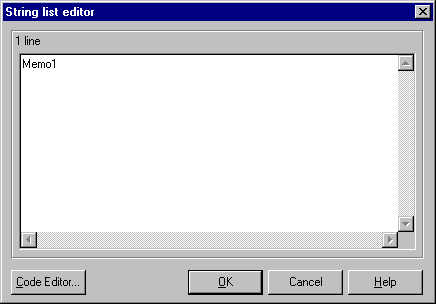
If you look closely at the String List Editor window, you'll notice a Code Editor... button at the bottom, as shown in Figure A. When you click this button, C++Builder will open a new page in the code-editing window and load the string list text into it, as shown in Figure B.
Figure A: Clicking the Code Editor... button in the String List Editor window...
Figure B: ...places the string list properties in the code-editing window.
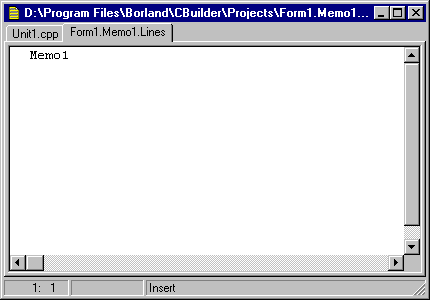
Unlike in the String List Editor, you don't have to save the text you enter for a string list explicitly via the code-editing window. As soon as you move to a different page in the code-editing window or start building your project, C++Builder will save your text into the appropriate property of the component that contains the text.
We think you'll find modifying string lists using the code-editing window to be much faster than using the String List Editor. Plus, if you display a string list in the code-editing window, you can choose New Edit Window from the code-editing window's pop-up menu to create the best of both worlds--a separate window for editing string lists.