
declaration for the window that will handle the message
for the message you want to handle
by Kent Reisdorph
At the operating system level, Windows is all about messages. Much of what happens in Windows is due to Windows dispatching one message or another. VCL provides events for the most often used Windows messages; you can easily handle a wide variety of Windows messages through these events. The OnKeyDown event provides the mechanism for responding to Windows WM_KEYDOWN messages, the OnMouseDown event lets you respond to WM_LBUTTONDOWN and WM_RBUTTONDOWN messages, and so on. Your C++Builder programs will handle most Windows messages through events.
However, VCL doesn't provide events for every possible Windows message--there are just too many of them. If you want to handle Windows messages that aren't encapsulated in VCL, if you want to implement user-defined messages, or if you need custom handling of Windows messages, then you'll have to roll up your sleeves and do a little more work. In this article, we'll explain how to handle messages in your applications when you need to work outside of the VCL event mechanism.
Let's briefly review how the Windows message system works. First of all, as you probably know, Windows is driven by messages. Windows sends messages to programs (to specific windows, actually) for many different reasons, perhaps to tell a window to perform certain tasks. For example, Windows might tell a window to repaint itself by sending a WM_PAINT message. You could think of this as a command message, since Windows expects the application to respond by carrying out a task.
Windows also sends messages to notify an application that particular events have occurred. Perhaps an event has occurred within a window that the application might like to know about (messages such as WM_SIZE and WM_MOVE), or maybe something has happened within Windows itself (WM_SYSCOLORCHANGE or WM_WININICHANGE, for example).
Since controls are windows, Windows sends notification messages when an event happens within a control. Examples include a text change in an edit control (EN_UPDATE) or a user's selection of a list box item (LBN_SELCHANGE). In all, there are hundreds of Windows messages. It's up to the application to respond to messages it deems pertinent to its operation.
A Windows message has two parameters--the WPARAM and the LPARAM--that contain information specific to the message being sent. The WPARAM (word parameter) is a 16-bit value in 16-bit Windows but is a 32-bit value in 32-bit Windows. The LPARAM (long parameter) is a 32-bit value in either 16- or 32-bit Windows.
Windows manipulates these two parameters to carry information about the particular message being sent. For example, the WM_SIZE message contains three pieces of information: the type of sizing that's occurring (minimizing, maximizing, or restoring), the window's new width, and the window's new height. In this case, the WPARAM contains the size type and the LPARAM contains the new width and height of the window. The LPARAM is packed to hold the width and height values--the first 16 bits (called the low-order word) contain the new width, and the last 16 bits (the high-order word) contain the new height.
Most Windows messages include information sent in this manner. It's up to the application to crack the message parameters and retrieve the information Windows is sending. In some cases, a great deal of information is involved--Windows sometimes passes a pointer to a structure as part of the LPARAM parameter.
Part of the job of a framework such as VCL is to shield you from the vagaries of handling messages at this level. For example, the OnKeyDown event that handles the WM_KEYDOWN message cracks the message parameters for you. The message handler that C++Builder generates for the OnKeyDown event looks like this:
      void __fastcall
      TForm1::FormKeyDown(
      TObject *Sender, WORD &Key,
      TShiftState Shift)
      {
      }
As you can see, you don't get the raw WPARAM
and LPARAM--the parameters are already cracked.
In this case, the WPARAM is in the form of a variable named Key, which tells you which key was pressed. The LPARAM (which is very complicated in the WM_KEYDOWN message) is in the form of a TShiftState object that tells you which, if any, of the [Shift], [Alt], and [Ctrl] keys were down when the key was pressed. The message-cracking that VCL does for you greatly simplifies the message- handling process in Windows programming.
Cracking the WPARAM and LPARAM values can be a pain. Fortunately, VCL provides message-cracking structures that have done most of the work for you. (You'll find these structures in the MESSAGES.HPP file, if you want to examine them.) You can use these structures when you create message-handling functions in your applications, as we'll discuss later.
The generic message structure, which could handle any message, looks something like this:
      struct TMessage
      {
        unsigned int Msg;
        long WParam;
        long LParam;
        long Result;
      };
(I say it "looks something like this" because the actual TMessage structure contains a union that muddies the waters--so, I simplified things a bit.) In this case, you pass the WPARAM and LPARAM as-is, and you don't crack the message parameters. If you use this message structure, then it's up to you to extract the individual message values from the WPARAM and LPARAM members of TMessage. You could use this particular structure for user-defined messages or for messages that pass no values. Most of the time, however, you'll use the structure specific to the message you're handling.
All of the message-cracking structures have two members in common: Msg and Result. The Msg member contains the number of the message sent. For example, the WM_ERASEBKGND message has a value of 20. So if a WM_ERASEBKGND message was received, then the value of the Msg member of the TMessage structure would be 20. Most of the time, it isn't necessary to examine the Msg member in your message-handling functions.
How you use the Result data member depends on the message being sent. For example, if you handle the WM_ERASEBKGND message in your application, then you should return true from your message handler for that message. If you don't handle the message, then you should return false. In C++Builder applications, you manage this process by setting the value of the Result data member at the end of your message handler for WM_ERASEBKGND. For some messages, you don't modify the Result data member at all. In other cases, the value of Result could be a numerical value--it depends entirely on the message being processed.
Aside from the Msg and Result data members, each message-handling structure will have a number of parameters. For example, the WM_ERASEBKGND message's message-handling structure, TWMEraseBkgnd, looks like this:
      struct TWMEraseBkgnd
      {
        unsigned int Msg;
        HDC DC;
        long Unused;
        long Result;
      };
This code defines the DC data member (the WPARAM for this message) as a handle to a device context (HDC); the LPARAM is unused. In this case, there isn't much message cracking to do.
Now, let's look at the message-cracking structure for the WM_SIZE message:
      struct TWMSize
      {
        unsigned int Msg;
        long SizeType;
        unsigned short Width;
        unsigned short Height;
        long Result;
      } ;
Here, the WPARAM is the size type (SizeType)
and the LPARAM is broken down into the Width and Height from having to break
down the WPARAM and LPARAM for every message you wish to handle. Later, we'll
demonstrate how you can use the message-cracking structures in your C++Builder
applications.
I won't go into much detail on handling VCL events because event-handling is a basic part of programming in C++Builder (you should be familiar with it by this time). Instead, I'll hit the high points.
As I said earlier, VCL provides events for many of the most commonly used Windows messages. This VCL feature allows you to attach an event-handling function to an event. When the event occurs, your function will be called automatically. In your event-handling function, you write code that performs tasks specific to that message. VCL makes handling the most common Windows messages so simple that it's easy to forget how tedious message handling can be in a traditional Windows program.
From time to time, you'll need to handle messages
for which VCL doesn't provide events. WM_ERASEBKGND and WM_SETCURSOR come
to mind as messages you might want to handle in your applications. To handle
messages outside the normal VCL event model, you'll have to do the
following:
|
Create a message-map table in the class declaration for the window that will handle the message
Add an entry to the message-map table | for the message you want to handle
Provide a message-handling function
| |
Let's examine these steps more closely.
In order for you to handle messages for which no VCL event exists--including user-defined messages--you'll need to create a message-map table. A typical message-map table looks like this:
      BEGIN_MESSAGE_MAP
        MESSAGE_HANDLER(MYMESSAGE, TMessage, OnMyMessage)
        MESSAGE_HANDLER(WM_ERASEBKGND, TWMEraseBkgnd, WmEraseBkgnd)
      END_MESSAGE_MAP(TForm)
If you're familiar with Borland's Object Windows
Library (OWL), then you might recognize this code as similar to OWL's response
table. However, elements in the C++Builder message-map table are rearranged
slightly.
Like the OWL response table, the C++Builder message map is made up of macros. The first macro, BEGIN_MESSAGE_MAP, marks the beginning of the message map; this macro takes no parameters. Next, you need a MESSAGE_HANDLER macro for each message you wish to handle. The MESSAGE_HANDLER macro identifies the name of the message in the first parameter, the name of the message structure in the second parameter, and the name of the message-handling function in the last parameter. Finally, the END_MESSAGE_MAP macro marks the end of the message-map table.
You place the message-map table in the header of the class that will handle the messages. The table goes in the public section of the class declaration--usually at the end. For example, if you handle the WM_ERASEBKGND message in your main form, then the declaration for the TForm1 class will look something like the code shown in Figure A.
Figure A: You can use a TForm1 class declaration like this one if you handle the WM_ERASEBKGND message in your main form.
      //---------------------------------------------

      #ifndef MyMainH
      #define MyMainH

      //---------------------------------------------

      #include
      <vcl\Classes.hpp>

      #include
      <vcl\Controls.hpp>

      #include
      <vcl\StdCtrls.hpp>

      #include
      <vcl\Forms.hpp>

      #include
      <vcl\ExtCtrls.hpp>

      //---------------------------------------------

      class TForm1 : public TForm
      {
        __published: // IDE-managed Components

        private: // User declarations

        //
        // Message handler declaration
        //

        void __fastcall WmEraseBkgnd(TWMEraseBkgnd &Message);
        public: // User declarations

        virtual __fastcall TForm1(TComponent* Owner);

        //
        // The message-map table.
        //

        BEGIN_MESSAGE_MAP
          MESSAGE_HANDLER(WM_ERASEBKGND,
          TWMEraseBkgnd, WmEraseBkgnd)
        END_MESSAGE_MAP(TForm)

      };

      //---------------------------------------------
      extern TForm1 *MainForm;

      //---------------------------------------------

      #endif
The message-map table goes in the class declaration because the message-map macros expand to an overridden Dispatch() function. The Dispatch() VCL function handles Windows messages and dispatches them to the appropriate event-handling function, if any. (If you'd like to study this topic more closely, you can find the message-map macros in SYSDEFS.H.) The Dispatch() function calls the appropriate message-handling function when it receives a message from Windows. If no message handler exists for a message, then the message passes on to the base class Dispatch() function for handling.
After you've created the message-map table, you need to add a table entry for each message you want to handle in your application. The actual entry is a MESSAGE_HANDLER macro. For the WM_ERASEBKND message, the entry will look like this:
MESSAGE_HANDLER(WM_ERASEBKGND, TWMEraseBkgnd, WmEraseBkgnd)
As I mentioned earlier, the message-map entry for the message you want to handle will contain the name of the message to handle, the name of the message structure corresponding to that message, and the name of the message-handling function. For user-defined messages, you can use the TMessage or TWMNoParams structure, or you can create your own message-handling structure.
Finally, to process a message, you need a message-handling function. This function must follow a particular signature: It has just one parameter, returns void, and uses the __fastcall modifier. The single parameter is a reference to a message structure.
Begin by declaring the message handler in the private section of the class that will be handling the message. For the WM_ERASEBKGND message, the declaration would look something like this:
      void __fastcall
      WmEraseBkgnd(

      TWMEraseBkgnd&
      Message);
The name of the function isn't important, but by convention, you'll want to give it the same name as the message you're handling.
Next, you'll need to provide the implementation of the message-handling function, which goes in the source unit of the form or class that's responding to the message. For example, the following WM_ERASEBKGND message handler draws a hatched pattern on the form's background:
      void __fastcall

      TForm1::WmEraseBkgnd(TWMEraseBkgnd&Message)
      {
        TCanvas* canvas = new TCanvas();
        canvas->Handle = Message.DC;
        canvas->Brush->Handle = CreateHatchBrush(HS_DIAGCROSS, clBlue);
        canvas->FillRect(ClientRect);
        Message.Result = true;
        delete canvas;
      }
This code first creates a TCanvas object and assigns the HDC passed in the message-handling structure to its Handle property. By doing so, the code lets you take a raw device context and manipulate it using the TCanvas properties and member functions. Next, the code creates a hatched brush and assigns it to the canvas's Brush property. After that, the code fills the client area rectangle with the current, hatched brush. You then set the Result member of the message structure to true to tell Windows that you handled the message and there's nothing more for Windows to do. Finally, you delete the TCanvas object so you don't leak memory. You'll need to follow this process to create a message-handling function for each message you expect to handle.
Frequently, when you're handling a Windows message, you want to perform some action but also receive the default Windows behavior for that message. For instance, you might want to force all characters in an edit control to be uppercase. Doing so would entail modifying the characters, then sending the message to Windows for handling. In that case, you'd modify the Key parameter of the message-handling structure, then call the base class's Dispatch() member function to pass the message to Windows, as follows:
      void __fastcall

      TForm1::OnKeyDown(TWMKeyDown&Message)
      {
        if (Message.CharCode > 96 && Message.CharCode < 123)
        Message.CharCode -= 32;
        TForm::Dispatch(&Message);
      }
Since Dispatch() requires a pointer to a TMessage structure, you need to take the address of the Message variable when you pass the structure to VCL (which in turn passes the message to Windows for further processing). Whether you call Dispatch() before or after you modify the message parameters depends, again, on the particular message you're handling.
You can also get default handling for a message by calling DefaultHandler(). In theory, calling Dispatch() should suffice, but I've found that in some situations, calling DefaultHandler() produced different results than calling Dispatch(). Whether the difference was due to oddities in my code or in VCL, I don't know--but you should be aware that there's more than one way to pass a message to Windows.
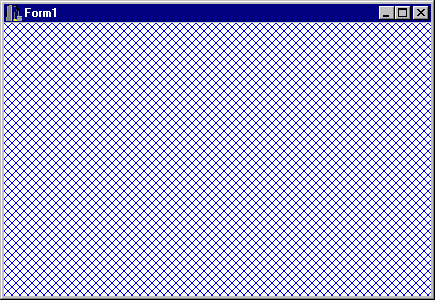
Listings A and B contain a program that uses custom message-handling to draw a hatched background on a form. The program works by catching the WM_ERASEBKGND message and painting the background in the WmEraseBkgnd message handler. Create a new project and substitute the code in these two listings for the code produced by C++Builder. When you run the program, the form will have a blue hatched background, as Figure B shows.
Listing A: MSGTEST.H
      #include
      <vcl\Forms.hpp>
//---------------------------------------------
class TForm1 : public TForm {
  __published: // IDE-managed components private:
// User declarations void __fastcall WmEraseBkgnd( TWMEraseBkgnd& Message);
  public: // User declarations
  virtual __fastcall TForm1( TComponent* Owner);

  BEGIN_MESSAGE_MAP
    MESSAGE_HANDLER( WM_ERASEBKGND, TWMEraseBkgnd, WmEraseBkgnd)
  END_MESSAGE_MAP(TForm)
};
//---------------------------------------------
extern TForm1 *Form1;
//---------------------------------------------
Listing B: MSGTEST.CPP
//--------------------------------------------------
#include <vcl\vcl.h>
#pragma hdrstop
#include "Unit1.h"
//--------------------------------------------------
#pragma resource "*.dfm"
TForm1 * Form1;
//--------------------------------------------------
__fastcall TForm1::TForm1( TComponent* Owner) : TForm(Owner) { }
//--------------------------------------------------
void __fastcall TForm1::WmEraseBkgnd(TWMEraseBkgnd& Message) {
Canvas* canvas = new TCanvas();
canvas->Handle = Message.DC;
canvas->Brush->Handle = CreateHatchBrush(HS_DIAGCROSS, clBlue);
canvas->FillRect(ClientRect);
Message.Result = true; delete canvas;
} //--------------------------------------------------
Figure B: Our program produces a blue hatched background on the form.
Conclusion
The built-in VCL events do a great job of allowing you to handle most Windows messages. However, the VCL events don't cover every Windows message. Using the information we've provided in this article, you now have the tools to handle any Windows message, regardless of whether VCL provides an event for it.
Kent Reisdorph is a editor of the C++Builder Developer's Journal as well as director of systems and services at TurboPower Software Company, and a member of TeamB, Borland's volunteer online support group. He's the author of Teach Yourself C++Builder in 21 Days and Teach Yourself C++Builder in 14 Days. You can contact Kent at editor@bridgespublishing.com.