In the August article "Get a Grep!" we discussed running the Grep utility from a command-line prompt. You may not know it, but many tricks are available to make your command-prompt windows more useable. In this article, we'll demonstrate some of those techniques.
Windows 95 doesn't inherently possess some of the command-line editing features that NT 4.0 offers--at least, not out of the box. However, the good news is that you can achieve the behavior described in this article by running the DOSKEY utility (provided with Windows 95) from the command line. You'll probably want to go ahead and place DOSKEY.COM in your Windows 95 AUTOEXEC.BAT file so it will load each time you start your computer.
E:\PROGRAM FILES\BORLAND\CBUILDER\SOURCE\VCLNow, let's say you run a Grep search of the VCL source files, view the results, and then change to some other directory. A short time later you need to go back to the VCL source directory. Aagghhh! You have to type that nasty path again! Or do you? Just press the up arrow key a few times and you'll find the command line you used to change the directory the first time. When the line appears, press [Enter] to re-execute that command.
As long as the command-prompt window remains open, it will maintain a list of the command lines you've entered. The [Page Up] key will take you to the first command entered in the current instance of this command- prompt window, and the [Page Down] key will take you to the last command entered.
Another feature of the NT 4.0 command prompt is a non-destructive backspace. Let's say you typed the long path we mentioned earlier and then realized that you mistyped Program Files. No problem--just press the left arrow key until the cursor is in the proper place, then correct your typing mistake. You can use both the right and left arrow keys to move along the command line.
You also have the ability to type in either insert or overtype mode. For some reason, the default is overtype mode. However, you can toggle between modes by pressing the [Insert] key. You can also use the [Home], [End], [Backspace], and [Delete] keys to edit your command lines. Another handy feature to keep in mind is that the [Esc] key will erase any command-line text.
You can even cut and paste in command-prompt boxes. Simply highlight text in the command-prompt box with the mouse, then right-click on the window's title bar to open the speed menu. Choose Edit | Copy to copy text to the Clipboard. Similarly, if you've copied text from another application (such as a C++Builder help file, perhaps), you can choose Edit | Paste from the command-prompt speed menu to paste the text into the command line.
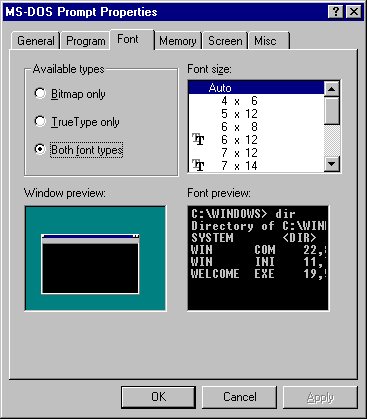
You accomplish these changes by editing the properties of the command-prompt window. In order to edit these properties, you must first find the shortcut for the window. For the command-prompt icon that appears on the Start menu, you'll find the shortcut in one of the subdirectories of the
\WINNT\PROFILES\XX\START MENU\PROGRAMSdirectory, where XX is your user name. If you're logged on as the administrator, then you'll need to look in the ADMINISTRATOR directory. Windows 95 users can locate the shortcut in
Figure A: You can customize many elements of your command-prompt window.
You can also right-click on the title bar of an open command-prompt window to open the Properties dialog box, but some of the tabs won't appear.
One of the most useful features of shortcuts is the Start In field on the Shortcut tab of the Command Prompt Properties dialog (in Windows 95, this is the Working field on the Program tab). You can enter different paths for the directories in which you want the various command-prompt windows to start.
You'll also find it very handy to assign a hot key to a shortcut. For instance, any time I press [Ctrl][Alt]v, my VCL source command-prompt window appears with the VCL source directory showing. I also created a shortcut for the WIN32.HLP file and assigned [Ctrl][Alt]w as its hot key--now Win32 API help is just a keystroke (or three) away.
Kent Reisdorph is a senior software engineer at TurboPower Software and a member of TeamB, Borland's volunteer online support group. He's the author of Teach Yourself C++Builder in 21 Days and Teach Yourself C++Builder in 14 Days. You can contact Kent at kentr@turbopower.com.