
If you write applications, then it probably won't be long before you write one that uses a status bar. The basic status bar sits at the bottom of the screen and displays hint text or status information. More sophisticated status bars show key states, cursor position, mouse coordinates, the current time, or other application-specific information. A good application makes proper use of a status bar when and where appropriate, and a status bar can spruce up an otherwise boring user interface. In this article, we'll show how you can add a little pizzazz to your status bars. You'll learn how to create multiple-panel status bars and how to add a clock to your status bar. As an added bonus, we'll show you how to put a progress bar on your status bar.
| A single panel or multiple panels
| Text displayed in panels
| Owner-drawing of panels
| A grab bar for easy form sizing | |
Figure A: The status bar automatically docks itself along the full width of the bottom of your form.
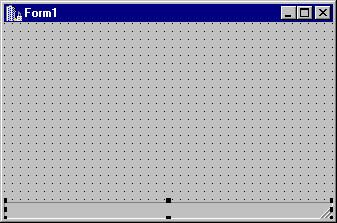
VCL makes some assumptions about your design, and in most cases the bottom of the form is exactly where you want your status bar to be. The status bar initially includes a single panel, and the sizing grip appears in the lower-right corner. You'll notice that if you size the form, the status bar also resizes--it always takes up the entire width of the form. These features are courtesy of the Align property, which is set to alBottom by default. The SizeGrip property determines whether the sizing grip appears in the lower-right corner of the status bar. This feature simply makes it easier to size the window on which the status bar resides--its presence doesn't give the user any added functionality, nor does its absence prevent the user from sizing the window. For more on status bar basics, see "Simple or Complex Status Bars?"
void __fastcall TForm1::MyOnHint( TObject* Sender)
{
  StatusBar->SimpleText = Application->Hint;
}
This code takes the text from the Hint property of the Application object and displays it in the
SimpleText property of the status bar--assuming, of course, that you have on the form a status bar
whose SimplePanel property is set to True. The application still won't display hint text at this point,
however, because VCL doesn't know to call your event handler. So, you need to hook your event
handler to the Application object's OnHint event--the event handler for the form's OnCreate event is
generally a good place to perform this step. Double-click on your form's background, and C++Builder
will create an event handler for the form's OnCreate event. Type the following line in the event handler:Application->OnHint = &MyOnHint;Now VCL will call your event handler any time the OnHint event occurs. Note that before you can see any hint text displayed in the status bar, you must include components that have their ShowHint property set to True and that have text in their Hint property. Further, the text you enter in the Hint property should be in two parts: the text that will appear in a pop-up window when the mouse cursor pauses over the component, and the text that your MyOnHint() function will display in the status bar. You separate the two parts using the pipe character ( | ). For example, let's say you have on your form a button that opens a file. You'll enter text like this for the button's Hint property:
|Opens a file for editingNotice that you still use the pipe to indicate that the text you've entered is for the long hint text. If you only want to use the short hint text, then you don't need the pipe.
VCL provides a function that makes getting the current time easy: The Time() function returns the current time based on the regional settings that are in effect on the user's machine. Once you have the time, you need to convert it to a string and format it so that it appears in a standard time format. Again, you don't have to do much work, because VCL provides the FormatString() function. Let's look at a simple example to see how these functions work. The following code snippet gets the current time, formats it in 12-hour format, and stores the result to a String object:
TDateTime currentTime = Time();
String format = "h:nn ampm";
String timeString = currentTime.FormatString(format);
You can then display the formatted string in a status bar panel. For instance, if the current time is 8:30 p.m., the displayed string will be
8:30 PMTo display the time in military (24-hour) time, including seconds, use the time-string format of hh:nn:ss. (For a complete description of time formatting options, see the C++Builder online help or the SYSUTILS.PAS source file.) You can condense the time formatting code a bit by combining the previous statements on a single line. In fact, you can display the time in the status bar panel and format it all in one fell swoop, as follows:
StatusBar->Panels->Items[2]->Text =
Time().FormatString("h:nn ampm    ");
This example assumes that the status bar panel used to display the time is the third panel (panel index
2). Now you know how to display the time, but we haven't talked about when to display the time.
You'll likely want to display the time when the application first appears. The main form's OnCreate
event is a good place for the initial time display. To continuously update the clock as time marches on
(and it always does), you'll need a Timer component. Typically you'll set the timer's Interval property
to 1000 so that the timer fires once per second (every 1000 milliseconds). Windows timers are
notoriously inaccurate, but they're good enough for the purpose of updating a clock on the status bar.
All you need to do is drop a Timer component on your form and then update the status bar in the
Timer's OnTimer event. By the way, the sizing grip can get in the way when you display text in the last
panel of the status bar, especially if you right-justify the time string. Be aware that you may need to pad
the end of the time string with a few blank spaces--otherwise, the sizing grip will cut off the end of the
time display.
Placing a basic progress bar on a status bar requires creating an instance of a TProgressBar component at runtime. The progress bar is parented to the status bar so that it appears on top of the status bar. Before you can create the progress bar at runtime, you need to declare a TProgressBar pointer in your main form's class declaration. To do so, switch to your main form's header file and type the following declaration in the private section:
TProgressBar* ProgressBar;
The TProgressBar class is contained in COMCTRLS.HPP
Normally, you'd have to add the include for this header file in the form's header. This step isn't necessary here, as long as you place the status bar on the form before you create the progress bar (a logical sequence of events). Since both classes are in the same header, C++Builder automatically adds the include for COMCTRLS.HPP. You can now write the code to create the progress bar. Once again, the OnCreate event handler for the form is a good place for this step. (You could also place the code in the form's constructor.) The code to create a typical progress bar on a form might look like this:ProgressBar = new TProgressBar(StatusBar); ProgressBar->Parent = StatusBar; ProgressBar->Left = 2; ProgressBar->Top = 4; ProgressBar->Height = 13; ProgressBar->Width = 200;Notice that we use the name of the status bar as both the owner of the progress bar (in the progress bar's constructor) and the parent (when we assign the Parent property). Doing so ensures that the progress bar belongs to the status bar and appears on top of it. When you create a component at runtime, remember to supply the values for any properties you need to modify. In some cases you'll want the default values, and in other cases you'll need to supply different values. In this case, we supply the size and position of the progress bar but let the other properties remain at their default values. Note that the Left and Top property values are relative to the upper-left corner of the status bar, not of the form. At this point, the progress bar is ready to use. You can assign a value to the Position property just as you would if the progress bar were on your form. You can use this same technique (creating a component at runtime) to place any type of component on your status bar.
ProgressBar->Visible = true;
// show progress
ProgressBar->Visible = false;
If you use this technique, remember to set the Visible property to False when you initially create the progress bar. If you've dedicated a panel to your progress bar, then you can leave the progress bar visible. Another problem involves aesthetics. The normal progress bar has a sunken 3-D appearance. While fine for most progress bars, this look might clutter up your status bar more than you like. For this reason, you might want to remove the progress bar's border. Your first thought will probably be to set the BorderStyle property to bsNone, as you would for other components--but the ProgressBar component doesn't have a BorderStyle property. To remove the border, you must drop back to the Windows API. The code looks like this:
long style = GetWindowLong(ProgressBar->Handle, GWL_EXSTYLE);
style &= ~WS_EX_STATICEDGE;
SetWindowLong(ProgressBar->Handle, GWL_EXSTYLE,style);
You first use GetWindowLong() to get the value that contains the extended styles for the component. You then remove the
WS_EX_STATICEDGEstyle (which gives the progress bar its 3-D look). Finally, you reset the extended style using SetWindowLong(). Voila! The border is removed.
//---------------------------------------------
#ifndef SBarMainH
#define SBarMainH
//---------------------------------------------
#include
#include
#include
#include
#include
#include
//---------------------------------------------
class TForm1 : public TForm
{
  __published:    // IDE-managed Components
    TStatusBar *StatusBar1;
    TButton *Button1;

    TTimer *Timer1;
    void __fastcall Button1Click(TObject *Sender);
    void __fastcall FormCreate(TObject *Sender);
    void __fastcall Timer1Timer(TObject *Sender);
  private:        // User declarations
    TProgressBar* ProgressBar;
    void __fastcall MyOnHint(TObject* Sender);
  public: // User declarations
    __fastcall TForm1(TComponent* Owner);
};

//--------------------------------------------
extern TForm1 *Form1;
//--------------------------------------------
#endif
Listing B: SBARMAIN.CPP
//---------------------------------------------
#include
#pragma hdrstop
#include "SBarMain.h"
//---------------------------------------------
#pragma resource "*.dfm"
TForm1 *Form1;
//---------------------------------------------
__fastcall TForm1::TForm1(TComponent* Owner)
: TForm(Owner)
{
}
//---------------------------------------------
void __fastcall TForm1::FormCreate(
TObject *Sender)
{
  // Assign hint event to Application's OnHint.
  Application->OnHint = &MyOnHint;
// Create progress bar, setting the status bar // as the parent and owner. ProgressBar = new TProgressBar(StatusBar1); ProgressBar->Parent = StatusBar1; ProgressBar->Left = 2; ProgressBar->Top = 4; ProgressBar->Height = 13; ProgressBar->Width = StatusBar1->Panels->Items[0]->Width - 4;
  // Hide progress bar.
  ProgressBar->Visible = false;
  // Change style to remove progress bar's
  // border. Must use API, since progress bar
  // doesn't have a Border property.
  // First get current extended style.
long style = GetWindowLong(ProgressBar->Handle, GWL_EXSTYLE);
  // Remove the WS_EX_STATICEDGE style.
  style &= ~WS_EX_STATICEDGE;
  // Set extended style again.
  SetWindowLong(ProgressBar->Handle, GWL_EXSTYLE, style);
  // Show time in last panel in 12-hour format.
  int lastPanel = StatusBar1->Panels->Count - 1;
  StatusBar1->Panels->Items[lastPanel]->Text =
  Time().FormatString("h:nn ampm    ");
}
//---------------------------------------------
void __fastcall TForm1::Button1Click(TObject *Sender)
{
// Show progress bar.
ProgressBar->Visible = true; // A loop to display progress bar.
for (short i=0;i<100;i++) {ProgressBar->Position = i;
// Slight delay so it doesn't go too fast.
Sleep(1);
}// Hide progress bar again. ProgressBar->Visible = false; StatusBar1->Panels->Items[0]->Text = "Done!"; } //---------------------------------------------
void __fastcall TForm1::Timer1Timer(TObject *Sender)
{
  // Display time on each OnTimer event.
  // First find last panel. Count property
  // is undocumented but is there nonetheless.
  int lastPanel = StatusBar1->Panels->Count - 1;
// Display current time using 12-hour format.
// Add a little space to end so size grip
// doesn't wipe out the end of the text.
StatusBar1->Panels->Items[lastPanel]->
Text = Time().FormatString("h:nn ampm ");
}
//---------------------------------------------void __fastcall TForm1::MyOnHint(TObject* Sender)
{
// Set status bar text to value of the
// TApplication::Hint property.
StatusBar1->Panels->
Items[0]->Text = Application->Hint;
} To run this program, place a
StatusBar component, a Button component, and a Timer component on a blank form. Next, modify the
status bar's Panels property and create three panels with widths of 250, 200, and 50. (The width of the
last panel is immaterial, since it will be automatically sized when the form is sized.) Next, enter the
code from Listings A and B that appears in color. When you run the program, the current time will
appear in the last panel of the status bar. Click the button, and a progress bar similar to the one shown
in Figure B will appear.
Figure B: Our application's status bar displays the current time and a progress bar.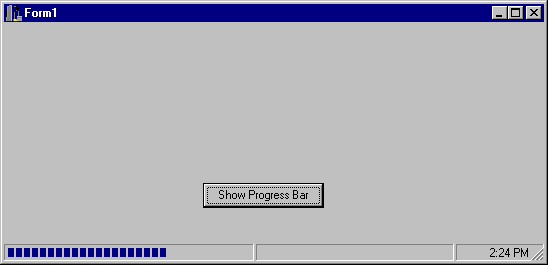 c
c
cKent Reisdorph is a editor of the C++Builder Developer's Journal as well as director of systems and services at TurboPower Software Company, and a member of TeamB, Borland's volunteer online support group. He's the author of Teach Yourself C++Builder in 21 Days and Teach Yourself C++Builder in 14 Days. You can contact Kent at editor@bridgespublishing.com.