In our September article "Sprucing Up Your Status Bars," we discussed the basics of status bars and showed you how to lend your status bars a bit of flash. This month we’ll continue that discussion by introducing you to owner-drawn status bar panels.
You can display 3-D text, icons, bitmaps, or other drawings in your owner-drawn status bar panels. These visual goodies not only make your status bars more appealing, they also can provide vital feedback to your users. We’ll begin by demonstrating how to set up a status bar for owner drawing. Then we’ll show you how to respond to the OnDrawPanel event and how to draw your status bar panel.
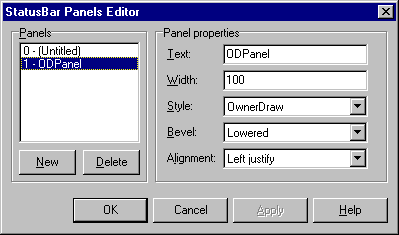
The panels editor lets you set up as many panels as you want. Your panels don’t have to have the Text property set, since you’ll probably refer to the panel by its index in your code. Leave the Style property set to Text for any panels you aren’t drawing yourself. Set the Style property to OwnerDraw for those panels you do wish to draw. For example, we edited a status bar containing two panels, one of which was set up for owner-drawing; our panels editor looked like the one shown in Figure A.
You can mix owner-drawn and regular panels in your status bars. Typically, you’ll reserve the first panel for normal hint text, as we discussed in last month’s article. Naturally, this panel shouldn’t be owner-drawn unless you want to incorporate some fancy presentation with your hint text. The remaining panels can be owner-drawn or regular panels, as you choose. Once you’ve created your panels and set the appropriate styles, you’re ready to draw.
Figure A: Use the StatusBar Panels Editor to tell VCL that you want to draw a status bar panel.
void __fastcall TForm1::StatusBar1DrawPanel(
  TStatusBar *StatusBar, TStatusPanel *Panel,
  const TRect &Rect)
{

}
This event handler gives you a pointer to the status bar (in case you have more than one), a pointer to the particular panel that needs drawing, and a TRect object that represents the size and position of the panel. These items contain all the information you need to draw the panel. Let’s take a look.
Let’s suppose you want to draw the text Working… in 3-D letters on a panel. The code will be as follows:
StatusBar->Canvas->Brush->Style = bsClear;
TRect temp = Rect;
temp.Top += 1;
temp.Left += 2;
StatusBar->Canvas->Font->Color = clWhite;
DrawText(StatusBar->Canvas->Handle,
  "Working...",
  -1, (RECT*)&temp, DT_SINGLELINE | DT_CENTER);
StatusBar->Canvas->Font->Color = clBlack;
DrawText(StatusBar->Canvas->Handle,
  "Working...",
  -1, (RECT*)&Rect, DT_SINGLELINE | DT_CENTER);
We used the API DrawText() function because it lets us draw the text centered on the panel. The code draws the text once in white (offset from center by a couple of pixels), then redraws it in black. Doing so gives the text a 3-D appearance. (Note that the brush style is set to bsClear so the bottom text shows through.) By the way, the cast
(RECT*)&Rectis necessary because DrawText() requires a Windows RECT structure. There’s really no restriction on the type of drawing you can do in a panel. You can display a bitmap, an icon, text, drawing objects--anything you want.
switch (Panel->Index) {
  case 1 : DrawPanel1(); break;
  case 2 : DrawPanel2(); break;
  case 3 : DrawPanel3();
}
You can also check against the Text property if you’ve set the text for the panels, but checking the panel index is definitely the most straightforward method.
Figure B: Our sample project displays three owner-drawn status
bar panels.
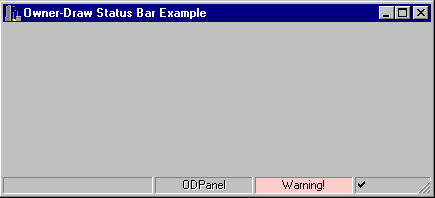
Listing A: OnDrawPanel event handler
void __fastcall
TForm1::StatusBar1DrawPanel(
  TStatusBar *StatusBar, TStatusPanel *Panel,
  const TRect &Rect)
{
  TCanvas& c = *StatusBar->Canvas;
  switch (Panel->Index) {
    case 1 : {
      c.Brush->Style = bsClear;
      TRect temp = Rect;
      temp.Top += 1;
      temp.Left += 1;
      c.Font->Color = clWhite;
      DrawText(c.Handle, Panel->Text.c_str(),
         -1, (RECT*)&temp,
         DT_SINGLELINE | DT_CENTER);
      c.Font->Color = clBlack;
      DrawText(c.Handle, Panel->Text.c_str(),
         -1, (RECT*)&Rect,
         DT_SINGLELINE | DT_CENTER);
      break;
    }
    case 2: {
      c.Brush->Color = clRed;
      c.FillRect(Rect);
      DrawText(c.Handle, "Warning!",
        -1, (RECT*)&Rect,
        DT_SINGLELINE | DT_CENTER);
      break;
    }
    case 3: {
      Graphics::TBitmap* bm =
         new Graphics::TBitmap;
      bm->Handle =
        LoadBitmap(NULL,
        MAKEINTRESOURCE(32760));
      c.Draw(Rect.Left, Rect.Top, bm);
      delete bm;
      break;
    }
  }
}
To try this code, create a new C++Builder application. Place a StatusBar component on the form and create four panels in the status bar. Double-click on the value column next to the OnDrawPanel event in the Object Inspector and enter the code from Listing A. (You can also download our sample files as part of oct97.zip from www.cobb.com/cpb.) Try different drawing methods to get a feel for what you can accomplish with owner-drawn status bars.