In the September 1997 issue of C++Builder Developer's Journal, part 1 of this series looked at the basic elements of component building in C++ Builder. In part 2, we built a small example component. This month, we'll demonstrate how to add some polish to your component--finishing touches like writing a help file to document the component, creating custom property and component editors to make it easier to use, and adding an icon to set the component apart from others. This article is, in essence, three articles in one; so feel free to jump to the section(s) of interest to you.
Let's start with the most important task to perform once the component is working: writing a help file.
Basically, you'll use your favorite word processor to prepare the text of your help file. But instead of chapters containing pages, you structure your help file as books containing topics. At the very least, your help file must contain a general overview and a topic for each new property and event your component publishes. Each topic can be as long or as short as you like--there are no physical page constraints. You can easily embed text, images, and simple tables. Don't expect to be able to do too much fancy formatting--the help compiler will choke on some of the more sophisticated features of the major word processors. Stick to simple tables, avoid all but the standard fonts, and try to use 16- or 256-color Windows bitmap (BMP) files. Another trap to avoid is the "keep (paragraph) with next" feature that's used for most headings in a normal document. HCW uses it to mark non-scrolling regions that are allowed only once at the top of a topic--so, don't use your favorite style sheet for your help file topics! Mark the end of each topic using a hard page break ([Ctrl][Enter] in Microsoft Word). HCW requires specific information about each topic in order to produce the final help file. You must title the main topics, provide key words and phrases for the index, and assign Topic IDs to allow for hypertext jumps. If you want the reader to be able to browse through your topics, you must also assign a browse sequence to tell HCW the order of the topics. You pass all this information to HCW by embedding it in footnotes. When you find a footnote marker in a book--like this*--you know that at the bottom of the page will appear a note with an asterisk in front of it. HCW reads your topics in much the same way. If it finds a footnote that uses a dollar sign--like this$--it takes the corresponding footnote text to be the title of the current topic. Let's look at the other footnotes you'll need for each topic, along with the characters that identify them.
K TDBShortList; ComboBox; Short ListWhen a user selects a keyword from the index, the titles of all the topics containing that keyword are listed. The user can then view a topic by clicking on a title.
+ 001This code is alphanumeric and is sorted as such--a very handy feature. You can start with browse sequence codes of 001, 002, 003, and so on; then, if you need to add topics later, you can give them codes of 001-01 and 001-02, rather than renumbering all the pages.
#--topic IDsEach topic must have a unique number, like the following:
# 1001You can use topic IDs in hypertext jumps. Mark your hypertext using the double-underline attribute, then add the topic ID you want to jump to (don't allow any space between the hypertext and the topic ID), as follows:
..the ListDefaults1001 property..This example shows the topic ID in color for emphasis, but you should mark the topic ID with the Hidden attribute to indicate to the help compiler that it's a target and not regular text. After you've compiled your help file, the hypertext will appear in green with a single underline:
..the ListDefaults property..When you click on it, the help engine will jump to the specified topic.
For a component, the A-footnote must be formatted as the name of the component followed by _Object, a semicolon, and the name of the component again, as follows:
A TDBShortList_Object;TDBShortListProperties and events are formatted in much the same way. Here are the A-footnotes for the ListDefaults property and the OnAddNew event of
TDBShortList:

A TDBShortList_ListDefaults; ListDefaults_Property;
 ListDefaults

A TDBShortList_OnAddNew; OnAddNew_Event; OnAddNew
The next step is to make your project file. Start by running HCW.EXE, which resides in the CBuilder\Help\Tools directory. (It helps to put a shortcut to this program into your Start Menu.)
Microsoft's Help Workshop is very easy to use. If you've used previous versions of Microsoft's HC, you'll be impressed with the GUI interface and the new features. In fact, it's so simple to use that you don't really need any instructions here. However, it's worth mentioning that HCW has a nasty bug that causes it to crash if you don't define a main window for your project. So, start by clicking on the Windows... button and adding a window called main. Make a Contents file and a Project file, then compile everything to produce your help file.
After compiling your project, you'll have a working TDBShortList.HLP file. Integrating it with the C++Builder IDE is easy. The documented procedure is to use the OpenHelp tool, but that didn't work on my system--my OpenHelp.INI file was corrupt. An alternate technique that's guaranteed to work is to copy your help and contents files (TDBShortList.HLP/CNT) to the CBuilder\Help directory; then, add the following two lines to your BcbHelp.CFG file (in the same directory):
:INDEX TDBShortList=TDBShortList.hlp
:LINK TDBShortList.hlp
You must delete the Bcb.GID and FTS files to force WinHelp to make new ones. The next time you try to open Bcb.HLP, WinHelp will read BcbHelp.CFG. It will then create a Bcb.GID file that includes references to the topics in TDBShortList.HLP.
To test the keywords in your help topics, click on Bcb.HLP from the Explorer and type TDBShortList in the Index. You should find it and be able to jump to that topic directly. To test your A-Keywords, click on TDBShortList in the C++Builder component palette, then press [F1]. Doing so should give you the same results. Repeat this procedure for each property and event.
At the moment you drop your component on a form, the form editor scans an internal list of registered component editors for one that can be used with your component. The form editor instantiates (creates and initializes an instance of) this editor, which then repeats the same process--it scans a list of registered property editors and instantiates one for each property your component publishes. The TDefaultEditor and TPropertyEditor classes implement the behavior of a component and property editor, respectively. In both cases, you often can implement the customized functionality you want by deriving a new editor class that overrides only four simple methods! Then, you can register your new editor classes with the C++Builder IDE. To demonstrate how this process works, we're going to build two property editors. We'll use a TOpenDialog for the ListName property, to allow the programmer to browse for the list file. For the ListDefaults property, we'll make a new dialog box to act as a simple list editor. After that, we'll build a basic component editor. Let's get started.
void *p = __typeinfo(AnsiString);The compiler insists that you use a VCL-derived class. In practice, this problem forces all properties requiring a new editor to use a wrapper. Also, because a VCL-derived class must be instantiated using the new operator, the property itself must be a pointer to a wrapper class. As we mentioned, you must override four basic methods to implement most basic property editors. They are as follows:
TPropertyAttributes __fastcallGetAttributes(void);
AnsiString __fastcall GetValue(void);
void __fastcall SetValue(AnsiString v);
void __fastcall Edit(void);
GetAttributes() tells the Object Inspector about the characteristics of your property editor. There are a number of attributes you can use--to see a list, run a keyword search from the Help menu for GetAttributes.
The Object Inspector calls Edit() to activate your editor. GetValue() and SetValue() are simple functions to convert your property to and from text form for display in the Object Inspector. The only way your editor can actually get access to the value is through one of the methods provided by TPropertyEditor. Again, due to temporary restrictions in the 1.0 release of C++Builder, the primary method to use is GetOrdValue(). It was designed to return an integer value, but it can return a pointer as well. The pointer can then be cast into the desired type and dereferenced. Listing A shows the code for the ListName property and editor. It's a little kludgy, but it still works. I hope there will be a void * GetPtrValue() method in the 2.0 release--and no restrictions on the __typeinfo() function. Designer is also a member of the TPropertyEditor class. You must call the Modified() method of any property editor's Designer member after making changes to the value of the property. This is the only way to alert the Object Inspector to the fact that changes have taken place.
The RegisterPropertyEditor function, as you can see in Listing A, takes four parameters. The first is a pointer to the type information for the property to be edited. The last is a pointer to the editor class for the specified property. The remaining two are optional. If you specify a class and property name, the property editor will be used only for that class and property. Otherwise, it's used for all instances of the property type.
After you've added the required code to TDBShortList, an ellipsis will appear at the end of the ListName property. Clicking the ellipsis will open a TOpenDialog box. If the modal result of that box is true, the new ListName is copied to the property.
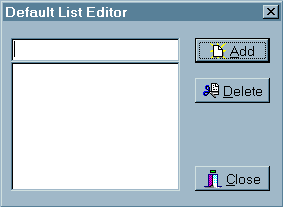
The ListDefaults property is a little more complicated. Choose File | New Form... from the main menu to create a blank form. Populate it with an edit field, a list box, and Add, Delete, and Close buttons. Then, write the code that adds the text from the edit field to the list box and that deletes the currently selected list-box item. Figure A shows my version of this form.
Figure A:We designed this CommaText List Editor form.
The code for most of the CommaText list editor is found in Listing B on the following page. You'll need to write the handlers for the Add and Delete buttons, but the code is typical for a dialog box. The twist is that it's easier to register the control if you copy the component header and code into the respective form files and use them as your new component files. You'll eventually want to use more dialog boxes and resources, at which point you'll be forced to use additional files. When that happens, use the link and resource pragmas to tell C++Builder about the files.
The only thing that's new in Listing B is the GetEditLimit() method of TPropertyEditor. By default, this method returns a maximum property length of 256 characters; you must override it if you need more.
As we mentioned earlier, the form editor instantiates a component editor at the moment you drop your component on the form. At that time, the form editor also asks the component editor how many tools it provides. Your component editor can actually offer many support tools to the programmer; they're listed at the top of the speed menu that appears when you right-click your component from the form editor. Each of these tools is called a verb in VCL-speak. Figure B on the next page shows the speed menu produced by the component editor code from Listing C on page 7.
Figure B:Our component editor generates this speed menu for TDBShortList.
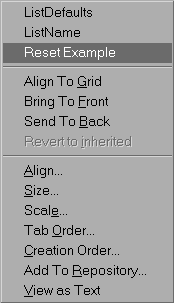
You must override the GetVerbCount() method of TDefaultEditor to return the number of verbs your editor offers. You must also override the GetVerb(i) method to return the strings used in the speed menu for each verb--the method is called once for each verb, where i is 0 for the first verb, 1 for the second, and so on. Finally, to run your verbs, you must override the ExecuteVerb() method.
If the programmer double-clicks on the component, the form editor calls ExecuteVerb(0)--the first verb. If a component editor is selected from the speed menu, ExecuteVerb(i) is called with i representing the verb to execute in the same order as returned by GetVerb(i). Again, the pointer to your component is passed in the constructor for your component editor. The constructor also gets a pointer to a class called TFormDesigner, which has another method called Modified(). As before, you must call that method if your component editor changes any properties. TDefaultEditor has an Edit() method that loops through the list of properties for a component. For each property, Edit() calls EditProperty(). As you can see from the end of Listing C, the first two verbs are handled by calling the property editors for ListDefaults and ListName. The second parameter to EditProperty() is a flag that tells Edit() to stop looping through the list of properties. The last parameter is a flag that can be used to destroy the property editor--you may want to avoid that one!
Creating the icon is very easy: Simply make a RES file containing an icon and give it the same name as your component. Let's work through the steps involved.
Start the Image Editor and create a new resource file by choosing File | New | Resource File. Then, select New Icon from the Resource menu. The dialog box that opens doesn't give you many choices--it specifically lacks the 24- by 24-bit Icon option that the Component Writer's Guide says you'll need. No problem; go for the closest thing--32 by 32 bits with 16 colors. It turns out that C++Builder will try to fit whatever you give it, so this option will work. Click OK, and you'll have an icon named Icon1.
Right-click on the icon and select Rename from the speed menu, then assign the icon the same name as your component. Be sure to use all uppercase: TDBSHORTLIST, for example. Next, right-click on the icon and select the Edit option to edit your new icon.
Personally, I'm no artist. Even if I was, 32 by 32 bits isn't much space to work with. I put together an icon based on a Notepad document, as shown in Figure C--it's not fancy, but it will do.
Figure C:We created this icon for TDBShortList.
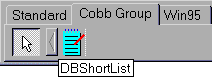
Finally, save the resource file by using the name of the component. Place TDBShortList.RES in the same directory as the other component files, then rebuild the component palette by choosing Component | Rebuild. Your custom icon will now appear in place of the default icon.
// VCL wrapper class for an AnsiString
class TText : public TPersistent
{ public:
__fastcall TText() : TPersistent() {};
__fastcall ~TText() {};
PROP_PUBLISHED(AnsiString,Text,nodefault);
}
.
.
// from class TDBShortList, change ListName to:
PROP_PUBLISHED(TText*,ListName,nodefault);
.
.
class TTextProperty : public TPropertyEditor
{ public:
virtual AnsiString __fastcall
GetValue(void) { return
((TText*)GetOrdValue())->Text; };
virtual void __fastcall
SetValue(AnsiString v) {
((TText*)GetOrdValue())->Text = v; };
virtual TPropertyAttributes __fastcall
GetAttributes(void)
{ return (TPropertyAttributes() <<
paDialog << paRevertable); };
TTextProperty() : TPersistent() {};
};
.
.
class TFileNameProperty : public TTextProperty
{ public:
virtual void __fastcall Edit(void);
TFileNameProperty() : TTextProperty() {};
};
.
.
// in the register() function:
RegisterPropertyEditor(
__typeinfo(TText),
__classid(TDBShortList),"ListName",
__classid(TFileNamesProperty) );
.
.
// in the constructor for TDBShortList:
ListName = new TText;
//in the destructor for TDBShortList: delete ListName;
.
.
#include "dir.h"
void __fastcall TFileNameProperty::Edit(void)
{
TOpenDialog *o=new TOpenDialog(Application);
o->FileName = GetValue();
o->DefaultExt = "*.lst";
o->Filter = "List Files (*.lst)|*.lst"
"|All Files (*.*)|*.*";
o->FilterIndex = 1;
o->Title = "List File Name";
char buf[MAXPATH+1];
o->InitialDir = getcwd( buf, sizeof(buf) );
if ( o->Execute() == true )
{ SetValue( o->FileName );
Designer->Modified();
};
delete o;
}
Listing B: The CommaText property editor
// max chars in ListDefaults string
#define MAXLISTDEFAULTSTEXT 4096
.
.
class TCommaTextProperty : public TTextProperty
{
public:
virtual int __fastcall GetEditLimit(void)
{ return MAXLISTDEFAULTSTEXT; };
virtual void __fastcall Edit(void);
TCommaTextProperty() : TTextProperty() {};
};
class TCommaTextForm : public TForm
{
__published: // IDE-managed Components
TListBox *ListBox;
TBitBtn *BClose;
TBitBtn *BAdd;
TBitBtn *BDelete;
TEdit *Item;
void __fastcall BAddClick(TObject *Sender);
void __fastcall BDeleteClick(TObject *Sender);
private:// User declarations
AnsiString Get(void)
{ return ListBox->Items->CommaText; };
void Set(AnsiString v)
{ ListBox->Items->CommaText = v; };
public:// User declarations
__fastcall TCommaTextForm(TComponent* Owner) :
TForm(Owner) { };
__property AnsiString CommaText = {
read=Get, write=Set };
};
.
.
// in the register() function:
RegisterPropertyEditor( __typeinfo(TText),
__classid(TDBShortList),
"ListDefaults",
__classid(TCommaTextProperty)
);
.
.
// in the constructor for TDBShortList:
ListDefaults = new TText;
// in the detructor for TDBShortList: delete ListDefaults;
.
.
void __fastcall TCommaTextProperty::Edit(void)
{
TCommaTextForm *f= new TCommaTextForm(Application);
f->CommaText = GetValue();
f->ShowModal();
if ( GetValue() != f->CommaText )
{ if (f->CommaText.Length() > MAXLISTDEFAULTSTEXT)
{ MessageBox( 0, ("The limit is " +
AnsiString(MAXLISTDEFAULTSTEXT) +
" characters. The text will be truncated.")
.c_str(), "Sorry - too much text",
MB_ICONEXCLAMATION );
f->CommaText.SetLength(MAXLISTDEFAULTSTEXT);
};
SetValue( f->CommaText );
Designer->Modified();
};
delete f;
}
Listing C: The TDBShortList component editor
class TDBShorListEditor : public TDefaultEditor
{
private:
TDBShortList *Component;
TFormDesigner *Designer;
int index;
public:
virtual void __fastcall EditProperty(
TPropertyEditor *pe,
bool &con, bool &fre );
void Reset(void); // demos use of comp ptr
virtual int __fastcall GetVerbCount(void)
{ return 3; };
virtual AnsiString __fastcall GetVerb(int i)
{ const char *verb[] = { "ListDefaults",
"ListName", "Reset Example" };
return verb[i]; };
virtual void __fastcall ExecuteVerb(int i)
{ if ( i < 2 ) { index = i; Edit(); }
else Reset(); };
void Modified(void)
{ if ( Designer ) Designer->Modified(); };
__fastcall virtual ~TDBShorListEditor(void) {};
__fastcall virtual DBShorListEditor(
TComponent* c, TFormDesigner* d) :
TDefaultEditor(c, d)
{Component= (TDBShortList *)c; Designer = d;};
};
.
.
RegisterComponentEditor(__classid(TDBShortList),
__classid(TDBShorListEditor));
.
.
void TDBShorListEditor::Reset( void )
{
if ( !Component || !Designer ) // be careful
return;
if ( MessageBox( 0,
"Reset the component to the example defaults?",
"Are You Sure?", MB_YESNO ) != IDYES )
return; // customer said no... so quit
Component->ListDefaults->Text = "Red, Yellow, Blue";
Component->ListName->Text = "color.txt";
Modified();
}
void __fastcall TDBShorListEditor::EditProperty(
TPropertyEditor *pe, bool &con, bool &fre )
{
if ( !strcmpi( pe->GetName().c_str(),
!index ? "ListDefaults" : "ListName" ) )
{ pe->Edit();
con = false;
};
}