Click on image to view full size.
Back in the days of Windows 3.x, using configuration files (a.k.a. INI files) was the prescribed method of storing your application-specific data. An application might use an INI file to store data pertaining to the last window size and position, user options, a list of files last accessed by the user, or any other configuration data.
In 32-bit Windows, however, using configuration files is out. Now, we store application data in the Windows Registry Database (called the Registry for short). The Registry existed in 16-bit Windows, but it wasn't widely used by application developers--it was used primarily by Windows itself. There's nothing stopping you from using configuration files in 32-bit Windows programs. However, the Registry is the approved way of storing application data, and you should learn how to use it.
This article will show you how to access the Registry by introducing you to the TRegistry class. We'll explain how to create a Registry key, how to write information to that key, and how to retrieve the information.
The Registry is arranged in a hierarchy that resembles a disk drive's directories and sub- directories. The top-level nodes are called keys and the dependent nodes are called subkeys. For the most part, we tend to call all entries keys and not get hung up on terminology. The Registry has four main keys, as described in Table A. Of these keys, the only one you'll usually be concerned with is HKEY_CURRENT_USER. You'll use this root key to store your application's configuration data.
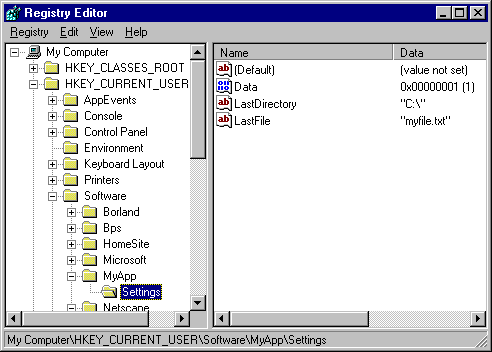
The Registry is simply a binary database. As such, it can only be manipulated through code or via the Windows Registry Editor utility, Regedit, which you can run from the Windows Start menu. Regedit displays the Registry hierarchy in Explorer-like fashion, with the list of keys on the left and the key data on the right, as shown in Figure A. Regedit lets you search the Registry, view Registry information, and modify the Registry; obviously, you shouldn't modify Registry keys unless you know what you're doing.
Figure A:Regedit shows the Registry's key hierarchy and data.
Click on image to view full size.
 | The application's last size and position
| The application's state (normal, maximized, or minimized)
| The last size and position of child windows
| The last file opened
| The path of the last file opened
| A list of most recently used files
| User preferences
| File locations
| Application-specific items
| |
I'll point out here that a quality application will use the Registry to make the user's life easier. For example, if I open a file in an application, then I expect the File Open dialog box to return to that same directory the next time I open a file. I also want to see a list of most recently used files on the file menu. And, I expect my preferences to remain the same between application instances. The Registry can simplify saving and retrieving this type of data.
| Binary data (user-defined)
| Boolean (bool)
| Currency (Currency class)
| Date (TDateTime class)
| DateTime (TDateTime class)
| Float (float or double)
| Integer (int)
| String (AnsiString class)
| Time (TDateTime class)
| |
Though these data types are available, you may opt to store many of your configuration values as strings--even your integer data. If you look at the Registry entries for C++Builder, you'll see that integer and Boolean values are stored as strings. It's up to you which method you use.
TRegistry provides methods to read and write each of the data types we've mentioned. The method to read string data is called ReadString, the method to write string data is called WriteString, the methods to read and write integer values are called ReadInteger and WriteInteger, and so on.
#include <vcl\Registry.hpp>Once you've done so, you can create a key:
TRegistry* reg = new TRegistry;
reg->OpenKey("Software\\MyApp\\Settings", true);
delete reg;
There are several items to note in this code sample. First, you create an instance of TRegistry, which is a runtime-only class (we use the words component and class interchangeably when talking about VCL objects). Once you have a TRegistry object, you can use the OpenKey method to create and open a key at the same time. You specify true for OpenKey's final parameter, to tell VCL to create the key if it doesn't yet exist.You can see in the code that the name of the key is Settings, but where in the Registry hierarchy is the key created? The answer lies in TRegistry's Root, which is set to HKEY_CURRENT_USER by default. Usually you won't need to change the Root property, but you may need to do so if you must access data in other keys (refer to Table A ). In our example, the Settings key will be created in HKEY_CURRENT_USER\Software\MyApp. This fact brings up yet another point in Registry usage: Tradition has it that the Software key is the root key for application-specific data. You should create a key under Software that has your application's name (or your company name, if you prefer). Under that key, you can create subkeys for the specific types of data you need to store. If you fire up Regedit and look at the Software key, you'll probably see several applications listed. For instance, the root key for C++Builder data is HKEY_CURRENT_USER\Software\Borland\C++Builder\1.0. Follow this pattern for storing data in the Registry, and your users will thank you should they ever have to manually edit the Registry. We should point out that TRegistry has a method called CreateKey. While CreateKey does indeed create a key, it has a peculiar quirk--the key is created but not opened. As a result, you must call OpenKey after calling CreateKey. Since OpenKey can both create and open a key, it makes more sense to use OpenKey to begin with rather than CreateKey.
Finally, note that we don't call CloseKey to close the Registry key--the TRegistry destructor closes the key for us. We could call CloseKey explicitly, but it's not necessary. CloseKey is primarily for those times when you have to close one Registry key in order to open another.
TRegistry* reg = new TRegistry;
reg->OpenKey("Software\\MyApp\\Settings", true);
// write some data
reg->WriteString("LastFile", "myfile.txt");
reg->WriteString("LastDirectory", "C:\\");
reg->WriteInteger("Data", 1);
delete reg;
creates a key and three data items under that key. In Figure A, the Registry Editor displays the key and data created by this code.As you can see, the Settings key has three data items called Data, LastDirectory, and LastFile. You might notice that this is not the order in which we added the data items--Regedit automatically sorts the data items so you can easily find a particular data item when editing the Registry. Reading from the Registry is a trivial task. Let's say, for example, that you wanted to retrieve the last file used. Here's how you'd do so:
TRegistry* reg = new TRegistry;
reg->OpenKey("Software\\MyApp\\Settings", true);
String FileName = reg->ReadString("LastFile");
delete reg;
By the way, the primary Registry keys are always open, so accessing the Registry is very quick. Using the Registry is almost certainly faster than using configuration files.
The DeleteKey method deletes a key, all subkeys under that key, and all data items. Be sure that you clean up after yourself when using the Registry--there's nothing worse than a Registry cluttered with entries from programs that are long gone. Be diligent in deleting keys that your program no longer uses. The better commercial installation programs include an uninstall option that will perform this task for you. If you're creating temporary keys through code, then be sure to delete them when you're done with them.
VCL provides two other classes for storing configuration data. The TIniFile class stores data in a configuration file. While you certainly may use INI files in your applications, doing so isn't recommended. For this reason, you probably won't use TIniFile in your C++Builder applications.
Another VCL class, TRegIniFile, eases the transition from using INI files to using the Registry. For example, let's say you had an existing application that used TIniFile extensively. You could switch to TRegIniFile, and your configuration data would be stored in the Registry rather than in an INI file. The use of TRegIniFile will probably be limited in C++Builder since you're unlikely to have legacy C++Builder applications that use TIniFile.
Table A: Main Registry keys
| Key | Description |
| HKEY_CLASSES_ROOT | Contains OLE and Windows shell information |
| HKEY_CURRENT_USER | Contains various information about the current user's setup; can be application-specific data or Windows data |
| HKEY_LOCAL_MACHINE | Generally contains hardware information about the system; may contain other data as well |
| HKEY_USERS | Contains default user setup information and information common to all users on the system |