Rarely do you see a Windows program that doesn't include a menu bar. For that reason, your users have definite expectations when it comes to the menus you create. They'll assume the menus are organized in typical Microsoft manner. They'll also anticipate that these menus are accessible by standard mouse and keystroke controls. There's no reason your programs can't meet those expectations. Borland had the foresight to include a Menu Designer utility with C++Builder. With it, you can prepare main and popup menus while organizing and assigning accessibility to their items. The utility also comes with menu templates and allows you to prepare and save your own templates. In addition to these features, the tool works with the Object Inspector, making it easy to attach code to any of the menu items.
In this article, we'll show you how to get the most from Menu Designer. Along the way, we'll discuss the typical expectations of users and some details about the TMainMenu and TPopupMenu components. We'll finish with an example that walks you through the Menu Designer.
Another standard concerns how users access menu items. There are three access methods: mouse navigation, accelerator keys, and shortcuts. We're all familiar with using the mouse, so let's focus on the other two methods. Accelerator keys, or just plain accelerators, consist of an underlined letter in the menu item's caption, i.e., Print Preview.
You define an accelerator by placing an ampersand (&) symbol in the Caption property of the menu item. More specifically, you put it front of the key letter, i.e., Print Pre&view. Now, the user selects the menu item by pressing [Alt] plus its accelerator letter, i.e., [Alt] V. Because they're arranged in a hierarchy, like menus, the user may have to use multiple accelerators to select the desired item.
Shortcuts save even more time because they don't require the user to follow the menu hierarchy. Instead, you assign a series of unique keystrokes to a menu item. When the user types the keystroke series, your program invokes the event handler of that menu item. You define a shortcut by selecting it from the menu item's ShortCut property dropdown list.
Accelerators and shortcuts aren't without their flaws. Straying from the accepted standards will confuse and irritate users. Also, be warned that C++Builder doesn't protect you from assigning duplicate accelerators and shortcuts. It's up to you to police your own assignments. In case you're wondering, it's OK to assign the same accelerator to two or more menu items. However, the items must be in separate menu hierarchies, i.e., File|Close and Edit|Copy.
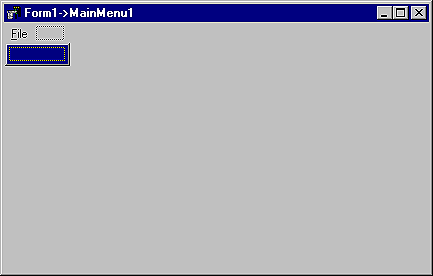
Figure A: Menu Designer is ready to add the first item in your submenu.
To add the next sub-item, simply enter &New... into its Caption. Following each sub-item you add, Menu Designer will add a new item. For this example, add these remaining sub-items: &Open..., &Save, Save &As..., &Close, and E&xit. Your completed design is a typical Windows File menu.
Figure B: You'll use the Speed Menu to customize your menu design.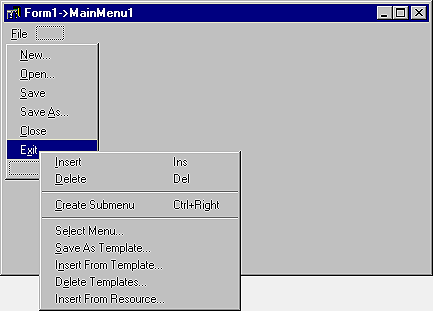
Select Insert from the Speed Menu to add a blank item to your design. To make it a separator bar, place a single dash in its Caption property. Note: With only one exception, inserted items are always added above the currently highlighted menu choice. In the case of menu choices on the menu bar, i.e., File, inserted items appear to the left of the currently highlighted menu choice.
The Speed Menu makes removing menu items just as easy as adding them. Highlight the Save As... item and invoke the Speed Menu. Select the Delete option and remove Save As... from the menu.
You can also use the Speed Menu to insert submenus. Submenus are choices that belong to a single menu item. An example is C++Builder's File|Reopen menu. To create your own submenu, highlight and right-click the New... menu item. Select Create Submenu from the Speed Menu. You'll notice two changes to New....
The first change is the addition of a submenu marker to the right of the New... menu item. The other change is the blank menu item attached to New.... Change its Caption property to &Project. Finally, add a second item, &Application, to the submenu. Your design should resemble Figure C.
Figure C: C++Builder automatically adds the submenu marker to your menu design.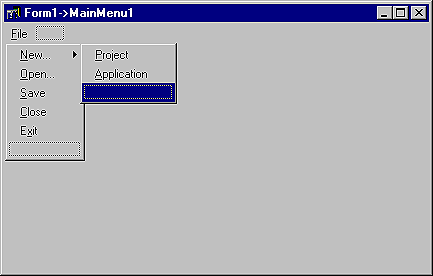
Now you should see the Insert Template dialog box. It presents a variety of standard menus, as shown in Figure D. Go ahead and select the Edit Menu template to add the Edit menu to your menu structure. Once a template is added to your design, it's as easy to customize as any menu you build yourself.
Figure D: C++Builder provides a repository of default and custom menu templates.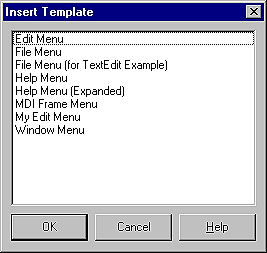
If the predefined menus aren't suitable, you can create and save your own. In your Edit menu, highlight Links, then right-click and select Delete from the Speed Menu. For more convenience, you don't even have to call the Speed Menu. Select the separator bar above the Object item and Object itself and press the [Delete] key.
Let's save your custom Edit menu as a template. Highlight the Edit item, then invoke the Speed Menu. Select Save As Template... to open the Save Template dialog box. Enter a brief description of your menu (My Edit Menu) in the Template Description edit box. Click OK to save your template and exit the dialog.
C++Builder displays the description only in the Save Template, Insert Template (Figure D), and Delete Template dialog boxes. It's not associated with the Name or Caption property for the menu. When you save a menu as a template, C++Builder doesn't save its Name, since every menu must have a unique name within the scope of its owner (the form). However, when you insert the menu as a template into a new form by using the Menu Designer, C++Builder then generates new names for it and all its items.
You might save many templates over the course of several projects, then find yourself using only a few with the best designs. You can remove the ones you don't want by using the Delete Templates item of the Speed Menu. In the Delete Templates dialog box, highlight the templates you don't want and click OK.
C++Builder also imports menus built with other applications, so long as they are in the standard Windows resource (.RC) file format. You can add these menus directly to your C++Builder project with the Speed Menu. In the Menu Designer, highlight the blank menu item where you want the imported menu to appear. Right-click to invoke the Speed Menu and select the Insert From Resource option. When the Insert Menu From Resource dialog box appears, select the resource file you want to import. Use imported menus to take advantage of your previous work.
void __fastcall TForm1::Open1Click(TObject *Sender)
{
  OpenDialog1->Execute();
}
Let's test your menu design and code. Press [F9] to compile and run the example. Clicking the File|Open choice invokes the Open dialog box. Of course, nothing happens when you click any of the other menu items.
Please note that C++Builder doesn't save your event handlers when you save a menu as a template. It wouldn't be appropriate because your menu item may need different logic in other applications. What you can do is associate menu items in the template with existing event handlers in the form.