Perhaps you're working with an application that performs a lot of file manipulation. Your application may have to copy files, move files, delete files, or rename files. Many programmers--even some very experienced programmers--don't know that the Windows API has functions for all of these operations. Programmers coming from DOS or even from 16-bit Windows may overlook these functions because they've become accustomed to doing things "the hard way." In this article, we'll show you how to use the basic file manipulation functions in the Win32 API. We'll even explain how to copy and move files complete with animation and full prompting.
CopyFile("src.fil", "dest.fil", true);
You can copy files to the same drive, to another drive, or even to another
machine on a network. The third parameter indicates what Windows should do if
the file already exists in the target location. When this parameter is true,
then Windows doesn't overwrite the existing file; it reports an error instead.
When this parameter is false, then Windows will overwrite the existing file. You can attain more control over copy operations by using CopyFileEx rather than CopyFile. Among other things, CopyFileEx allows you to use a callback function that's called periodically during the copy operation. You could use this callback function to display the progress of the copy operation. Unfortunately, CopyFileEx is available only in the Windows NT API.
DeleteFile("somefile.txt");
DeleteFile deletes a single file only--wild cards aren't allowed. Under Windows
95, DeleteFile will delete a file even if it's currently in use, so take care
when deleting files under Windows 95.
MoveFile("source.fil", "destination.fil");
You can also rename a file using MoveFile, as shown in this example:
MoveFile("MyFile.dat", "MyFile.old");
MoveFile also has an extended version called MoveFileEx that provides more
control over file move operations.
Before you can use SHFileOperation, you must include the SHELLAPI.H header file. Let's first look at the function declaration for SHFileOperation, then we'll discuss how to use this function. Here's the declaration:
int SHFileOperation(LPSHFILEOPSTRUCT lpFileOp);This function takes a pointer to a SHFILEOPSTRUCT and returns an integer that indicates success or failure. As you might guess, the real work is in filling out the SHFILEOPSTRUCT structure. Table A lists the members of this structure and a description of each.
Table A: Members of SHFILEOPSTRUCT
| Data Member | Description |
| HWND hwnd | The window handle of the parent window. |
| UINT wFunc | The function to perform (FO_MOVE, FO_COPY, FO_DELETE, or FO_RENAME). |
| char* pFrom | The source file or directory. |
| char* pTo | The destination file or directory. |
| WORD fFlags | Flags that control how the file operation will be carried out. |
| BOOL fAnyOperationsAborted | After SHFileOperation returns, this member will be true if the user cancelled any aspect of the operation. |
| void* hNameMappingsa | Used to specify name mappings. |
| char* lpszProgressTitle | The title of the progress dialog, used only if flags include FOF_SIMPLEPROGRESS. |
The hwnd and wFunc parameters are self-explanatory. However, the pFrom field requires some explanation. You use this field to specify the files to copy, rename, move, or delete. Unlike the CopyFile function, wild cards are allowed. In addition, you can specify a file list. The situation becomes confusing at this point because each file in the file list must be separated by a terminating null character and the last file in the list must be followed by a double terminating null.
To make matters worse, the pFrom field must always end in a double terminating null even when specifying just one file or a file mask (such as *.*). The AnsiString class, used so much by VCL, doesn't lend itself well to this kind of arrangement. It's better to use good old character arrays when specifying filenames or file masks. Frequently, however, you'll take the filename from an AnsiString property, such as TEdit's Text property, or TOpenDialog's FileName property.
Your best bet, then, is to create a character array, fill it with zeros (thus solving the double terminating null problem), and copy the contents of the AnsiString to the character array. Look at this example:
// Create a char array and fill it with zeros.
char src[MAX_PATH];
memset(src, 0, sizeof(src));
// Create a SHFILOPSTRUCT and zero it, too.
SHFILEOPSTRUCT fos;
memset(&fos, 0, sizeof(fos));
// Copy from an AnsiString to the char array.
strcpy(src, OpenDialog->FileName.c_str());
// Assign to the pFrom field of SHFILEOPSTRUCT.
fos.pFrom = src;
Although this technique may seem like a lot of trouble, it is necessary nevertheless. This same scenario applies to the pTo field as well. Once you know how to handle the pFrom and pTo fields, the rest of the process is relatively easy.
Another field that requires some explanation is the fFlags field. Table B lists the primary values that you can use for the fFlags field. You can use these either singly or in combination. These flags provide a great deal of control over how SHFileOperation carries out its tasks.
Table B: Primary flags for the fFlags field
| Flag | Description |
| FOF_ALLOWUNDO | Sends deleted files to the recycle bin, as well as allowing other undo information. |
| FOF_FILESONLY | Performs file operations only on files if a wild card is specified (*.*, for example). |
| FOF_MULTIDESTFILES | Stipulates that the pTo field contains a list of files rather than a directory where all files should be placed. |
| FOF_NOCONFIRMATION | Performs the operation without asking for confirmation (same as the user pressing Yes To All button). |
| FOF_NOCONFIRMMKDIR | If a directory must be created, it will be created without prompting the user. |
| FOF_RENAMEONCOLLISION | Creates a new filename (Copy of TEMP.TXT for example) if the file being copied, moved, or renamed already exists. |
| FOF_SILENT | Performs the operation without displaying a status dialog. |
| FOF_SIMPLEPROGRESS | Shows a simple progress box but doesn't display the filename. |
The fAnyOperationsAborted field of the SHFILEOPSTRUCT is a pointer to a Boolean variable that will contain true if the user cancelled any operation or false otherwise. You can check this field after SHFileOperation finishes to see whether the user cancelled any part of the file operation.
The hNameMappings field is beyond the scope of this article, so we won't cover it here. You can set this parameter to 0 when calling SHFileOperation. You use the lpszProgressTitle field to specify a string where the filename would normally appear. This flag applies only if the fFlags field includes FOF_SIMPLEPROGRESS.
Right about now you're probably ready for an example. Let's assume you wanted to copy all of the files in the current directory to a directory on the current drive called BACKUP. Let's further assume that you want to allow undo and that you don't want to be prompted if the destination directory doesn't exist. In that case, the code would look like this:
// Create the source and destination buffers
// and fill them with zeros.
char src[MAX_PATH];
char dst[MAX_PATH];
memset(src, 0, sizeof(src));
memset(dst, 0, sizeof(dst));
// Create the SHFILEOPSTRUCT and zero it.
SHFILEOPSTRUCT fos;
memset(&fos, 0, sizeof(fos));
// Set hwnd to the Handle property to make the
// application the owner of the progress dialog.
fos.hwnd = Handle;
// Specify a copy operation.
fos.wFunc = FO_COPY;
// Set the from and to parameters.
strcpy(src, "*.*");
fos.pFrom = src;
strcpy(dst, "\\backup");
fos.pTo = dst;
// Set the flags.
fos.fFlags = FOF_ALLOWUNDO | FOF_NOCONFIRMMKDIR;
// Do it.
SHFileOperation(&fos);
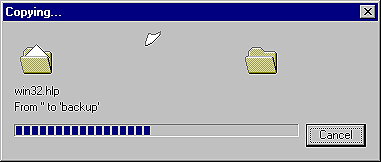
Figure A shows the progress dialog that's displayed when this code executes. Keep in mind that if the copy operation is very short, the progress dialog won't be displayed. That's one reason I use WIN32.HLP when testing these things--it's 12MB, so you can really see what's going on!
Figure A: This progress dialog displays when the SHFileOperation executes.
As long as you've set the FOF_ALLOWUNDO flag, you can go to Windows Explorer and choose File | Undo from the main menu to undo the last operation. If the last operation was a delete (FO_DELETE), then the deleted files will be in the Windows Recycle Bin as well. Speaking of deleting files, let's do one more example. Here's how you could delete all of the files in a directory called BACKUP. We'll skip the preliminary code and just show you the pertinent parts:
fos.wFunc = FO_DELETE;
strcpy(src, "\\backup\\*.*");
fos.pFrom = src;
fos.fFlags = FOF_ALLOWUNDO;
SHFileOperation(&fos);
Figure B shows the dialog that's displayed when this code executes. If we'd set the FOF_NOCONFIRMATION flag, then this dialog wouldn't have displayed, and all files would've been deleted without user intervention.
Figure B: The delete files confirmation dialog double checks your decision to delete
files.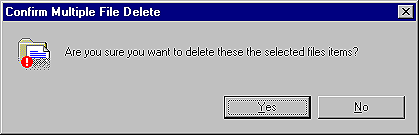
Windows also shows a confirmation dialog when copying files if a file exists in the target location and neither the FOF_NOCONFIRMATION nor the FOF_RENAMEONCOLLISION flags are set. The confirmation is the usual Do You Want To Replace This File dialog, as shown in Figure C.
Figure C: The file overwrite confirmation dialog offers you another chance to change
your mind.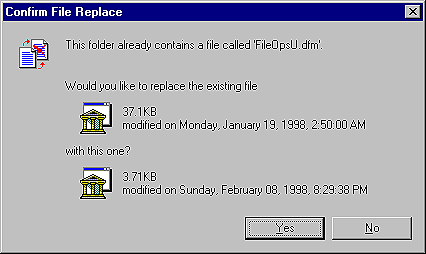
SHFileOperation is a very useful function. It can easily handle all of your file copy, move, delete, and rename operations. As an added bonus, it gives your applications a polished, professional look.