June 1998
Using Panel components to simplify resizing
If you've used C++Builder for any significant project, you've probably noticed
the Align property of many visual components. However, you may not have
realized how useful this property can be.
For many applications, you'll want to create on a form some static regions that
maintain relative position as the user resizes the form. It's common for
beginning C++Builder programmers to perform resizing tasks using the
OnResize event, moving or resizing individual controls as needed.
However, you can use Panel components to simplify this process and eliminate
much of the tedious resizing logic. In this article, we'll show how you can use
a Panel component's Align property to handle many of these tasks--with
little or no code.
Edge alignment vs. client alignment
If you examine the possible values for the Align property, you'll find
alBottom, alClient, alLeft, alNone (the default value), alRight, and alTop. As
you could guess, alNone specifies no automatic alignment; the Panel component's
size and position will be a result of changes you make.
The remaining values fall into two categories: edge and client alignment
values. The alClient property value specifies that C++Builder should resize and
position the control so that it covers the entire client region of the parent
window.
In contrast, the alBottom, alLeft, alRight, and alTop values specify an edge of
the client region that the control will adhere to. For example, if you specify
a value of alTop for a control's Align property, the control will
maintain the design-time height, but C++Builder will adjust the control's width
to match the form's client area width.
Panels as owners
A Panel component is one on which you can place other components. Any
components that you place on a panel will then recognize the panel as their
owner. The panel is responsible for initializing and destroying the components
it owns.
In addition, the position of the components on the panel will be relative to
the upper-right corner of the panel itself. For instance, if you place a Panel
component on a form and place a Button component on the panel, moving the panel
will also move the button.
If you combine the characteristics of Panel components with the setting of the
Align property to various values, you'll notice that you can use these
features in tandem. However, C++Builder specifies the following default order
of evaluation for alignment options:
 | alBottom and alTop
| alLeft and alRight
| alClient
| | |
This code means that if you place two Panel components on a form and set one's
Align property to alTop and the other's to alLeft, the one set for alTop
will always appear above the alLeft one--no matter which one you place first!
Panel delivery
Now let's create an example that demonstrates how you can use Panel components
to manage the placement of components on complex forms. To begin, create a
blank-form project and place two Panel components on it.
Set the Align property of the first panel to alLeft and its Width
property to 100. Set the Align property of the second panel to alClient.
Next, place a third Panel component on the second, and set its Align
property to alTop and its Height property to 50. Finally, place a Memo
component below the third panel (but on the second), and set its Align
property to alClient.
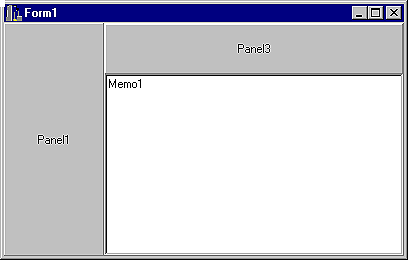
Now, build and run the application. When the main form appears, you'll notice
that resizing the form doesn't affect the location of the Memo component's
upper-right corner, as shown in Figures A and B.
Figure A: You can use Panel components...
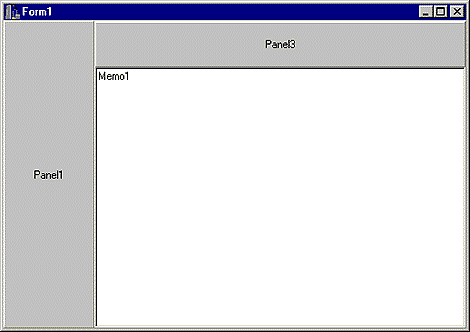
Figure B: ...to control the position of other components relative to each other.
Problems with MDI forms
For Single Document Interface (SDI) applications, the above technique works
well. However, there are limits to how you can use this technique for a
Multiple Document Interface (MDI) application. Specifically, if you cover the
main form entirely with Panel components, you won't be able to see the MDI
child forms because the position of the child forms is relative to the main
form area that's not covered by Panel components.
Conclusion
You may not always be able to use code in an OnResize event handler to
correctly modify component positions and size. However, by using combinations
of Panel components and Align property settings, you can greatly
simplify the task of sizing and positioning many form elements.