If you have used the VCL object, TBitmap, you know that you can use it to display bitmaps where one color is transparent. If you have ever looked at the source code for TBitmap, you find it takes quite a few lines of code to accomplish this. If you have tried to draw semi-transparent images in early versions of 32-bit Windows, you probably found it incredibly difficult.
There are two Windows API functions, TransparentBlt() and AlphaBlend(), that you can use to draw transparent images. The TransparentBlt() function will draw bitmaps with a single transparent color, just like the TBitmap. However, you can do this using only a few lines of code.
The AlphaBlend() function will draw images where every pixel in the image can have a different level of transparency—from totally opaque to completely transparent.
These two functions may sound too good to be true. Well, they are true if you’re using Windows 98 or greater or Windows 2000 or greater. Unfortunately, they will not work with Windows 95 or Windows NT 4.
The online help included with C++Builder does not include help for TransparentBlt() or AlphaBlend(). You can, however, find help for these two functions on the Microsoft Web site at http://msdn.microsoft.com. Do a search on the function names.
In this article, I’ll show you how to use these two functions, and since we’ll need a way to see the transparency effects for testing, I’m also going to show you a neat little function for drawing checkerboard patterns.
I’ve written a demonstration program that lets you to see everything in action. You can download this program from the Bridges Publishing Web site.
The DrawCheckerboard() function from this article’s example program draws a checkerboard pattern. Here is the declaration for DrawCheckerboard():
void DrawCheckerboard(
  TCanvas *canvas,
  int boardWidth, int boardHeight,
  TColor color1 = clBlack,
  TColor color2 = clWhite,
  int checkerWidth = 8,
  int checkerHeight = 8);
Listing A shows a snippet of source code from the demo program that shows how it uses the DrawCheckerboard() function. This pattern is used in the demo program as a background for the transparent images it draws.
The checkerboard pattern is drawn onto a TCanvas, the first argument to the function. The next two arguments are the height and width of the checkerboard. The rest of the arguments to DrawCheckerboard() have default values that produce a black-and-white checkerboard pattern where each square in the pattern has dimensions of 8 x 8 pixels. You can vary the colors of the alternating squares using the color1 and color2 arguments and the size of the squares using the checkerWidth checkerHeight arguments.
Actually, using the word squares is a little misleading. The pattern can consist of squares, rectangles, stripes or a solid color. For example, calling DrawCheckerboard() with checkerWidth = 16 and checkerHeight = 4, will produce a pattern of rectangles. Calling the function with checkerWidth = 0, will produce horizontal stripes. Calling the function with checkerHeight = 0, will produce vertical stripes. And, if both checkerWidth and checkerHeight are equal to zero, DrawCheckerboard() will draw a solid background using color1.
In the demo program, I draw the checkerboard pattern onto a TBitmap object. The program allows you to change the colors and sizes of the squares and the transparency and visibility of the TBitmap. By setting the Transparent property of the TBitmap object to true, the color used in the top-left square will become transparent throughout the entire bitmap. This is a function of the TBitmap object, not DrawCheckerboard().
Now, let’s take a look at the TransparentBlt() function. Figure A shows the demo program with an image displayed by this function.
Figure A
Image displayed with TransparentBlt() function.
The image consists of horizontal red and white stripes. The TransparentBlt() function has been told to draw the color red transparently. Here is the declaration for TransparentBlt():
BOOL TransparentBlt(
  // handle to destination DC
  HDC hdcDest,
  // x-coord of destination
  // upper-left corner
  int nXOriginDest,
  // y-coord of destination
  // upper-left corner
  int nYOriginDest,
  // width of destination rectangle
  int nWidthDest,
  // height of destination rectangle
  int hHeightDest,
  // handle to source DC
  HDC hdcSrc,
  // x-coord of source
  // upper-left corner
  int nXOriginSrc,
  // y-coord of source
  // upper-left corner
  int nYOriginSrc,
  // width of source rectangle
  int nWidthSrc,
  // height of source rectangle
  int nHeightSrc,
  // color to make transparent
  UINT crTransparent
);
This function works just like the StretchBlt() function, except the last argument to this function is the color that should be drawn transparently. In the demo program, I use a TPaintBox object to draw the example bitmaps. I do the drawing in a function I assign to the OnPaint event of the TPaintBox. This function is shown in Listing B.
I’ve created a simple bitmap image in the demo program that consists of red and white horizontal stripes. The handle to the image is transHandle. The demo program allows you to tell TransparentBlt() which of the two colors, red or white, should be made transparent.
The AlphaBlend() function is a little more complicated than TransparentBlt(), but it is very powerful. Figure B shows the demo program with an image displayed using this function.
Figure B
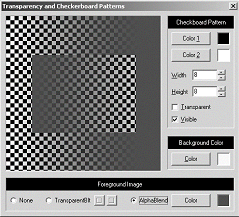
Image displayed with AlphaBlend() function.
Here is the declaration for AlphaBlend():
BOOL AlphaBlend(
  // handle to destination DC
  HDC hdcDest,
  // x-coord of upper-left corner
  int nXOriginDest,
  // y-coord of upper-left corner
  int nYOriginDest,
  // destination width
  int nWidthDest,
  // destination height
  int nHeightDest,
  // handle to source DC
  HDC hdcSrc,
  // x-coord of upper-left corner
  int nXOriginSrc,
  // y-coord of upper-left corner
  int nYOriginSrc,
  // source width
  int nWidthSrc,
  // source height
  int nHeightSrc,
  // alpha-blending function
  BLENDFUNCTION blendFunction
);
This function uses a 32-bit image consisting of four 8-bit channels for red, green, blue and alpha. The alpha channel value is the amount of transparency. A value of 0 is totally transparent and a value of 255 is totally opaque. Values in between are semi-transparent.
The Windows API declares the structure, RGBQUAD, which will hold this 32-bit value. The rgbReserved member of RGBQUAD holds the alpha channel value.
I want to be clear about how powerful this function is. Every pixel in the image can have one of over 16-million colors and 256 different levels of transparency. This means, unlike TransparentBlt(), that you can have the same color of red that is transparent in some parts of the image and opaque or semi-transparent in other parts.
So, how do we use AlphaBlend()? The actual function call is very similar to the standard StretchBlt() function; but we’ll have to do some preparatory work before calling it.
First, we have to create an image using pixels in the RGBQUAD format. Listing C is the function I use in the demo program to create such an image. I used a Windows DIBSECTION to make things easy. I just drew two squares, one inside the other, consisting of one color, but varying the transparency across each of the squares horizontally and in opposite directions. The demo program will allow you to select the color to use.
There is one tricky part to creating an image to pass to AlphaBlend(). The red, green and blue channels of each pixel must be pre-multiplied by a factor equal to the alpha channel value divided by 255. This requirement is a limitation of the BLENDFUNCTION structure used as the last argument when calling AlphaBlend(). I’ll talk more about BLENDFUNCTION shortly.
Let’s take a look at how to do the pre-multiplication. Every pixel in the image must have the pre-multiplication performed on it. Remember, each pixel is represented by an RGBQUAD structure; here’s some example code to perform the pre-multiplication:
RGBQUAD oldPixel, newPixel;

newPixel.rgbBlue = (oldPixel.rgbBlue *
  oldPixel.rgbReserved) / 255;
newPixel.rgbGreen = (oldPixel.rgbGreen *
  oldPixel.rgbReserved) / 255;
newPixel.rgbRed = (oldPixel.rgbRed *
  oldPixel.rgbReserved) / 255;
newPixel.rgbReserved =
  oldPixel.rgbReserved;
The last argument to the AlphaBlend() function is a BLENDFUNCTION structure. This structure tells AlphaBlend() how to blend the source and destination bitmaps. You should look at the Microsoft Web site for a complete description of how BLENDFUNCTION works.
Using TransparentBlt() and AlphaBlend() makes drawing transparent images in Windows relatively easy. Remember that you can’t use these functions with all versions of 32-bit Windows.
Depending on your alpha value, I may see you later.
Listing A: The DrawCheckerboard() function.
void TMainForm::DrawCheckerboard(
  TCanvas *canvas,
  int boardWidth, int boardHeight,
  TColor color1, TColor color2,
  int checkerWidth, int checkerHeight)
{
  TColor startColor = color1;
  for (int row = 0; row < boardHeight;row++) {
    if (height != 0 && row % height == 0) {
      startColor = startColor == color1
        ? color2 : color1;
    }

    TColor color = startColor;
    for (int col = 0; col < boardWidth;col++) {
      if (width != 0 && col % width == 0) {
        color = color == color1
          ? color2 : color1;
      }

      canvas->Pixels[col][row] = color;
    }
  }
}
Listing B: Function assigned to the OnPaint event of TPaintBox.
void __fastcall TMainForm::PaintBoxPaint(
 TObject *Sender)
{
  int cx = BkgdPanel->ClientWidth;
  int cy = BkgdPanel->ClientHeight;

  HDC hDC = CreateCompatibleDC(
    PaintBox->Canvas->Handle);
  if (hDC == 0)
    throw Exception("Whoops!");

  if (TransRadio->Checked) {
    if (SelectObject(hDC, transHandle) == 0)
      throw Exception("Whoops!");

    TransparentBlt(PaintBox->Canvas->Handle,
      0, 0, cx, cy, hDC, 0, 0, cx, cy, transColor);
  }
  else {
    if (SelectObject(hDC, alphaHandle) == 0)
      throw Exception("Whoops!");

    BLENDFUNCTION blend =
      {AC_SRC_OVER, 0, 255, AC_SRC_ALPHA};
    AlphaBlend(PaintBox->Canvas->Handle,
      0, 0, cx, cy, hDC, 0, 0, cx, cy, blend);
  }

  if (hDC) DeleteDC(hDC);
}
Listing C: Creating a bitmap for the AlphaBlend() function.
void TMainForm::CreateAlphaImage()
{
  int cx = BkgdPanel->ClientWidth;
  int cy = BkgdPanel->ClientHeight;

  if (alphaHandle)
    DeleteObject(alphaHandle);
  alphaHandle =
    GetDIBSection(cx, cy, &alphaImage);

  RGBQUAD of, nf;
  of.rgbBlue = (alphaColor & 0x00FF0000) >> 16;
  of.rgbGreen = (alphaColor & 0x0000FF00) >> 8;
  of.rgbRed = (alphaColor & 0x000000FF);
  of.rgbReserved = 0;

  for (int r = 0; r < cy; r++) {
    for (int c = 0; c < cx; c++) {
      int x = min(c, 255);
      nf.rgbBlue = (of.rgbBlue * x) / 255;
      nf.rgbGreen = (of.rgbGreen * x) / 255;
      nf.rgbRed = (of.rgbRed * x) / 255;
      nf.rgbReserved = x;
      alphaImage[r * cx + c] = nf;
    }
  }

  for (int r = 75; r < cy - 75; r++) {
    for (int c = 50; c < cx - 50; c++) {
      int x = min(cx - c, 255);
      nf.rgbBlue = (of.rgbBlue * x) / 255;
      nf.rgbGreen = (of.rgbGreen * x) / 255;
      nf.rgbRed = (of.rgbRed * x) / 255;
      nf.rgbReserved = x;
      alphaImage[r * cx + c] = nf;
    }
  }
}