Last month we introduced you to ActiveForms. In this article we will discuss the steps necessary to deploy ActiveForms on a Web page.
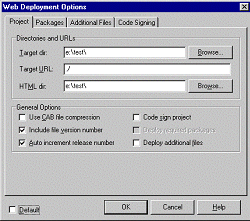
Once you have built an ActiveForm, you may want to deploy it for use on a Web page. To begin, choose Project|Web Deployment Options from the C++Builder main menu to display the Web Deployment Options dialog. This dialog allows you to control the way in which your ActiveForm is deployed.
You must specify both the target directory for the ActiveForm and the HTML directory for the accompanying HTML file. I always put the ActiveForm in the same directory as the HTML file so the project is easy to maintain. Given that, the first and third edit boxes both contain the same value. For local testing you can enter a directory on your hard drive, such as c:\test. The Target URL field must contain the relative or absolute URL used by the HTML file to refer to the ActiveX control. You can enter either a full URL here such as http://www.drbob42.com/ActiveX/ or a relative path such as ./. (Using a relative path is convenient for local testing.) Figure A shows the Web Deployment Options dialog for the ActiveForm test project.
Figure A
The Web Deployment Options dialog allows you to set the output directories and target URL for your ActiveForm.
Remember last month when we included version information for the ActiveForm? Make sure the Include file version number and Auto increment release number options are checked. This ensures that the release number part of the version information is increased every time a new version of the ActiveForm is deployed.
Keep in mind that we built the ActiveForm using neither runtime packages nor the dynamic RTL. As a result, we don't have to deploy any additional files. However, the stand-alone ActiveForm will be almost 1 MB in size. Of course, when specifying runtime packages and/or the use of the dynamic RTL, the ActiveForm will be much smaller. However, you will need to deploy the required packages, BC3245MT.DLL, and BORLNDMM.DLL (assuming C++Builder 4.0).
After closing the Web Deployment Options dialog, select Project|Web Deploy to deploy your ActiveForm. The Deploying Project dialog box will appear while the ActiveForm is deployed. If you are writing to a local file, the dialog might only be displayed for a second or so. After the dialog disappears, the ActiveForm and HTML files will have been written to the specified directories.
Whether or not you are using packages, you can always shrink down the file size of the ActiveForm by selecting the Use CAB file compression option. CAB compression was developed by Microsoft and can often compress files to 50% (or less) of their original size. The deployment process itself will take somewhat longer, but the result will be a faster download of the ActiveForm.
When using ActiveForms on web pages, you must have Internet Explorer version 3 or higher. (Netscape browsers require a third-party plug-in by NCompass, and require some manual conversions of the generated HTML file.) To view the ActiveForm on a Web page, start Internet Explorer and enter the local web page where you deployed your ActiveForm (file:///C:/test/ActiveF.htm, for example). If Internet Explorer is your default browser you can just navigate to your deployment directory and double-click on ACTIVEF.HTM. Figure B shows the ActiveForm hosted in a Web page.
Figure B
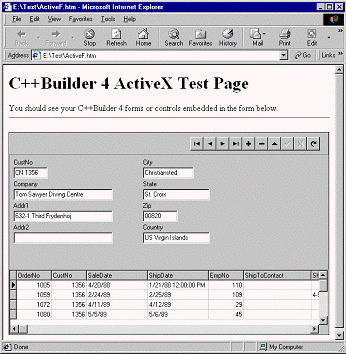
Once deployed, the ActiveForm can be viewed on a Web page in Internet Explorer.
Last month, when we built the ActiveForm, we set the Active property of both tables to true. As a result, the ActiveForm shows live data as soon as it is loaded in the browser.
There are still a few bits and pieces regarding ActiveForm deployment that you should be aware of. ActiveX controls are not confined to the web browser, but are, in effect, regular Win32 applications running on the user’s machine. As such, they have all the power and abilities of a regular application including network permissions, access rights, and so on. In this regard ActiveX controls are like a Trojan horse, invited by you to run on your machine.
The only sure way to solve this potential security risk is to instruct Internet Explorer to never show any ActiveX content. However, that will render our ActiveForm useless. Fortunately, there's a compromise, called code signing. Code signing options are specified on the Code Signing tab of the Web Deployment Options dialog. Any ActiveX control can be code signed by the author, resulting in a control that can be verified for authenticity by any user. The author of the control obtains a special credentials file and key that he can use to add his digital signature to the ActiveX control. While this doesn't guarantee a well-behaved ActiveX control, at least you can be sure you "know" the author. Combined with the ability to tell Internet Explorer to show only ActiveX controls that are code signed, you can ignore all non-signed (and potential dangerous) ActiveX controls.
Apart from security issues, there's another problem that makes ActiveForms rather unsuitable for an open Internet environment (as opposed to a closed intranet environment), and that is code size. As I said earlier, an ActiveForm built without the dynamic RTL and runtime packages will be almost 1 MB in size. If you were to build the ActiveForm using the dynamic RTL and runtime packages you would see that it's only a small OCX file. However, when the ActiveForm is built this way, you must deploy DLLs and packages totaling nearly 3.5 MB in size.
In the end, it's a matter of initial size (and many small updates) vs. total size (and almost no updates).
A final problem is the fact that the ActiveForm—with or without packages—is a so-called "fat client." This is partially because the ActiveForm uses the Borland Database Engine (BDE). As a result, the BDE must be installed on the client machine. BDE installation is not something that you can expect the average Internet user to handle. Worse, the BCDEMOS alias that the ActiveForm uses (including the CUSTOMER.DB and ORDERS.DB tables) must also be available on the local client machine. Of course, this is just a sample ActiveForm, but generally speaking an ActiveForm client set up like this, will require the BDE on each client machine. Plus, the only way to make sure every client is sharing tables (in the case of multi-user access) is by making sure that the database alias actually points to a shared resource such as a database server on a local network. Again, this is not something you might trust to the average Internet user, although it’s actually quite common in an intranet environment.
At my company, we have a local network where the network fileserver is also the database server. In a case like this you could place the CUSTOMER.DB and ORDERS.DB files on the shared server. Then every ActiveForm client could use and share those same tables. In my particular case, I can pretty much guarantee not only that every machine runs Internet Explorer 3 or higher, but also that every client machine has the BDE installed.
Clearly an ActiveForm that does not require the BDE would be easier to deploy. Next month, in Part III of this series, you will see how to turn the fat client ActiveForm into a thin client using Borland’s MIDAS technology.