Experienced Windows users know that Windows employs file associations to associate a particular file extension with an application. When you double-click a file with an association in Windows Explorer, Windows will execute the application associated with that file extension and will load the file.
This article will explain how to create a file association for your applications. It will also show how to load the associated file when the Windows shell executes your application.
Before going on, I want to take a moment to explain the example program for this article. The application is a simple text editor whose main form contains only a main menu, a rich edit component, a file open dialog, and a file save dialog. The program registers a file extension of ZZY (a ZZY file is nothing more than a text file). I chose this extension in the hopes that it would not conflict with other registered extensions. The Tools menu contains two menu items for creating and removing a file association. After creating the file association, you may have to restart Windows before the proper icon will show next to a ZZY file in Explorer.
The program also contains code to load a file when an associated file is double-clicked in Windows Explorer, and to print a file if the user chooses Print from the Explorer context menu.
The example program is not particularly friendly in that it will not prompt you to save a file before loading a new file. The example is also unfriendly in that it doesn’t check to see whether the ZZY file association exists before creating the association. I wanted to keep the example simple and, as such, didn’t add features that would be found in a real-world application.
One final point about the example program is that it contains some code not discussed in this article. This is because the example is also the example program for the article, "Single-instance applications." The remainder of the code is discussed in that article.
When you double-click on a file in Windows explorer, the Windows shell looks up the extension of the file in the registry to see if the extension is registered. If the extension is not registered, Windows displays the Open With dialog box, allowing the user to choose an application to associate with the file type. If the extension is registered, Windows calls the ShellExecute() function with a command of "open." It also passes the name of the file that was double-clicked as a command line parameter. (I discussed ShellExecute() in the March, 1999 issue, so I won’t go over the specifics again here.)
Associations go further than simply opening a file, though. If you right-click on a text file (.TXT) in Explorer you will see two items at the top of the context menu. The first is named Open. Choosing this menu item is the same as double-clicking the file in Explorer. When you choose Open, NOTEPAD.EXE will be started with the selected file loaded (assuming a default Windows installation). The second menu item is called Print. Clicking this menu item will cause the file to be printed without displaying Notepad at all.
Other file types display even more items on Explorer’s context menu. If you right-click on a Microsoft PowerPoint file, for example, you will see context menu items named Open, New, Print, and Show. The items shown on the context menu for a particular file type are obtained from the registry.
There are at least two ways to create a file association in Windows. One way is to right-click a file in Windows Explorer and choose Open with… from the context menu. When you do, Windows will display the Open With dialog. Naturally, this method requires user intervention. When you deploy your application you probably don’t want to force your users to set up a file association manually.
A better way to create an association is by making various registry entries from your application. A good installation program will make the registry entries for you, but there are times when you need more control over the process.
Registering a file association requires creating two separate registry keys. Both keys are created in the HKEY_CLASSES_ROOT section of the registry.
The first key is the name of the file extension, preceded by a dot. As I said earlier, the example program for this article registers a file extension of ZZY. Given that, I created a key with the following path:
HKEY_CLASSES_ROOT\.zzyIn a production application, you should check the registry to be sure a key does not exist before you attempt to create a new key. If the key already exists, your application will need to either prompt the user to replace the file association, or be prepared to use a different file extension altogether.
The value of this key is linked to the second key you will create. In fact, it is the name of the second key. For the example program, I gave this key a value of "Test App File." This value can be anything you choose, but, as with the first key, you must be sure the key does not already exist in the registry.
The second key has the same name as the default value for the first key. In my case, I created a new key as follows:
HKEY_CLASSES_ROOT\Test App FileThis key must have at least one subkey. Windows uses this subkey when it executes the application. The entire key is structured as follows:
HKEY_CLASSES_ROOT
  Test App File
    shell
      open
        command
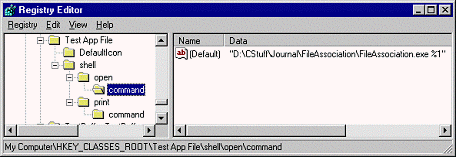
The string given to the command key is the full path and file name of the application followed by %1 (see Figure A). For example:
C:\MyApp\MyApp.exe %1When Windows launches the application, it replaces the %1 symbol with the path and file name of the file that was double-clicked in Windows explorer. This value is passed to your application as a command line parameter. I will show you how to access command line parameters later in the article.
There are other subkeys that you can create under the file association key. One such key is the DefaultIcon key. This key is used to specify the icon that the Windows shell will display next to files of the registered types. This key is not required if you only have one file type registered and if that file type should use the application icon. Here’s how the value of the DefaultIcon key looks for an association that specifies the default application icon:
C:\MyApp\MyApp.exe,0This specifies that the first icon found in the application’s EXE file should be used as the file association’s display icon. If your application has more than one file type, you can specify other icons by changing the icon index that follows the comma. For example, C++Builder has icons for a project file, a form file, a source file, and so on. If you look in the registry under HKEY_CLASSES_ROOT\BCBProject\DefaultIcon you will see that the icon for a project file is icon index 4 (for C++Builder 4, at least).
If you want to allow users to print a document you can add a print subkey in addition to the open subkey. The value of the print subkey is similar to that of the open subkey, with one exception:
C:\MyApp\MyApp.exe /p %1Notice that this value has a command line switch of /p inserted between the application name and the %1 symbol. Your application can watch for the /p switch and take appropriate action when the switch is detected.
You can add as many subkeys as you like for a particular file type. The name of each subkey will appear on the Explorer context menu. You only need to add a command line switch for each command type so that your application can identify the context menu item that was selected. If you provide a default value for the subkey, Windows will use that text for the context menu item text. If you do not supply a default value, Windows will use the key name itself for the menu item. Figure A shows the Windows registry Editor displaying the keys created by the example application.
Figure A
The example program creates a key called "Test App File" to implement file associations.
The code used to create these registry keys is basic TRegistry code so I won’t explain it here. Instead, I’ll refer you to the CreateFileAssociation1Click() method in Listing A.
Once you have the file association registered, you must write code in your application to handle the file name Windows passes to your program. This part is relatively easy. Let’s say, for example, that you have written a simple text editor and that you want to simply open the file that Windows passes to your program. In that case you can place code like this in your form’s OnCreate event handler (alternatively you can place this code in the OnShow event handler or in the form’s constructor):
if (ParamCount() == 1)
  Memo->Lines->LoadFromFile(ParamStr(1));
The ParamCount() function returns the number of parameters passed to the application. The ParamStr() function returns a specific parameter by index. ParamStr(0) is always the path and file name to the application itself, so ParamStr(1) will return the first parameter passed by Windows.
If your application allows printing from Explorer or other special commands, then you will have to write code that looks for the command line switches and execute code based on the particular switch passed. The FormCreate() method in Listing A shows how to handle a command line switch for printing a text file.
The code for the example program’s main form is shown in Listing A. When reviewing the code, keep in mind that some of the code is discussed in the next article.
There is no magical Windows API call for creating file associations, but the job is handled easily enough with just a few lines of TRegistry code. Handling a shell launch of one of your application’s files only requires a few lines of code as well. Creating one or more file associations for your application adds a professional touch that today’s users expect.
Listing A: MainU.cpp
#include <vcl.h>
#pragma hdrstop

#include "MainU.h"

#pragma package(smart_init)
#pragma resource "*.dfm"
TForm1 *Form1;

__fastcall TForm1::TForm1(TComponent* Owner)
        : TForm(Owner)
{
}

void __fastcall TForm1::FormCreate(TObject *Sender)
{
  // If there are two params then they are the
  // /p switch followed by the file name.
  if (ParamCount() > 1) {
    // First param is the print command.
    if (ParamStr(1) == "/p") {
      Visible = false;
      // Load the file, print, and exit.
      RichEdit->Lines->LoadFromFile(ParamStr(2));
      Print1Click(0);
      Application->Terminate();
    }
  }
  // Not printing, just load the file.
  else if (ParamCount() == 1)
    RichEdit->Lines->LoadFromFile(ParamStr(1));
}

void __fastcall TForm1::Open1Click(TObject *Sender)
{
  if (OpenDialog->Execute())
    RichEdit->Lines->LoadFromFile(
      OpenDialog->FileName);
}

void __fastcall TForm1::Save1Click(TObject *Sender)
{
  if (SaveDialog->Execute())
    RichEdit->Lines->SaveToFile(
      SaveDialog->FileName);
}

void __fastcall TForm1::Print1Click(TObject *Sender)
{
  RichEdit->Print("Test App Document");
}

void __fastcall TForm1::Exit1Click(TObject *Sender)
{
  Close();
}

void __fastcall
TForm1::CreateFileAssociation1Click(TObject *Sender)
{
  // Create the registry keys.
  TRegistry* reg = new TRegistry;
  try {
    reg->RootKey = HKEY_CLASSES_ROOT;
    // Create the file extension key.
    reg->OpenKey(".zzy", true);
    reg->WriteString("", "Test App File");

    // Create the file association key and
    // its open, print, and DefaultIcon keys.
    reg->OpenKey("\\Test App File\\"
      "shell\\open\\command", true);
    reg->WriteString("", ParamStr(0) + " %1");
    reg->OpenKey("\\Test App File\\"
      "shell\\print\\command", true);
    reg->WriteString("", ParamStr(0) + " /p %1");
    reg->OpenKey(
      "\\Test App File\\DefaultIcon", true);
    reg->WriteString("", ParamStr(0) + ",0");

    MessageDlg("File association created!\r\n"
      "You may have to restart Windows to see "
      "the proper icon for a ZZY file.",
  }
  __finally {
    delete reg;
  }
}

void __fastcall
TForm1::RemoveFileAssociation1Click(TObject *Sender)
{
  // Delete the two registry keys.
  TRegistry* reg = new TRegistry;
  try {
    reg->RootKey = HKEY_CLASSES_ROOT;
    reg->DeleteKey(".zzy");
    reg->DeleteKey("Test App File");

    MessageDlg("File association removed!",
      mtInformation, TMsgDlgButtons() << mbOK, 0);
  }
  __finally {
    delete reg;
  }
}

void __fastcall
TForm1::WmCopyData(TWMCopyData& Message)
{
  String S = (char*)Message.CopyDataStruct->lpData;
  int pos = S.Pos("/p");
  if (pos) {
    // Printing. Create a temp TRichEdit
    // to do the printing.
    S = S.Delete(1, pos + 2);
    TRichEdit* re = new TRichEdit(this);
    re->Visible = false;
    re->Parent = this;
    re->Lines->LoadFromFile(S);
    re->Print("Test App Document");
    delete re;
    return;
  } else {
    // Not printing, just load the file.
    RichEdit->Lines->LoadFromFile(S);
    OpenDialog->FileName = S;
    SaveDialog->FileName = S;
  }
}