In the first two parts of this series you learned about ActiveForms and how to deploy your ActiveForms on a Web page. In the final part of this series we will show you how to build thin clients using Borland’s MIDAS technology.
By using components from the MIDAS tab of the component palette, you can turn the "fat" ActiveForm created last month into a thin client. You can then connect it to a middleware remote data module. The first step is to create the middleware database server, followed by the process of turning the fat ActiveForm into a thin client.
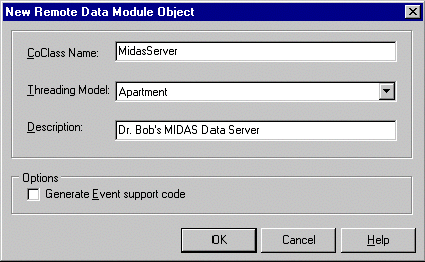
To begin, create a new application. The middleware application can use the default form. The contents of the main form are not important, as the form will only be used to show that the server is currently running. Next, add a Remote Data Module to the project by selecting its icon from the Multitier tab of the Object Repository. The Remote Data Module is based on DCOM, which is what you'll be using to make the connection. When you create a new Remote Data Module you will see the dialog displayed in Figure A.
Figure A
The New Remote Data Module dialog is used to set the data module’s properties.
The CoClass Name field is where you specify a name that you will use later when you connect the thin client to the database server. The option to include event support code is handy when you want to support events from the Remote Data Module sent to the thin client as notifications. We won’t be using events in this example so you can leave this option unchecked.
The Remote Data Module is just like a regular Data Module in that you can only add non-visual components to it (Tables, Queries, DataSources, and so on). We will put the TableCustomer and TableOrders components on the Remote Data Module using the same components as we did in Part I of this series. In case you did not receive those issues, Table A shows the components needed and their properties.
Table A: The components needed to build the server and their properties.
Component
Property
Value
TTable Name TableCustomer
DatabaseName BCDEMOS
TableName CUSTOMER.DB
TDataSource DataSet TableCustomer
TTable Name TableOrders
DatabaseName BCDEMOS
TableName ORDERS.DB
MasterSource DataSource1
TDataSource DataSet TableOrders
You need to specify the master-detail relationship at this time. To define a master-detail relationship, select the MasterFields property in the Object Inspector and click on the ellipsis button to bring up the Field Link Designer. In the Field Link Designer, select the CustNo index from the Available Indexes combo box. Then select the CustNo field in both the Detail Fields and Master Fields list boxes. Now you only need to click on the Add button to link the two tables in a master-detail relationship.
After you've set up the master-detail relationship, drop a TProvider component on the form from the Midas tab. Change the Name property to ProviderCustomer. You only need one TProvider because you will only export one table from the remote data module. If you export both the master and detail table from the remote data module, the clients could receive data that is out of sync (detail data that doesn't belong to the currently active master record at the client side, for example). Alternatively you could export both the master and the detail table, but the master-detail relationship at the client side means both tables are sent over the network. This is the case even if only a small portion of the detail table is needed. The best solution is to specify the master-detail relationship on the remote data module and export only the master table. This results in the detail records being included in a so-called nested table.
Set the Provider’s DataSet property to TableCustomer. Right-click the Provider and select Export ProviderCustomers from remote data module from the context menu.
Your remote data module and middleware database server is now ready. You only need to compile and run it. Every time you run the middleware application, it's GUID and (new) location is registered. This means that if you move the server on your machine, you only need to run the server it to reregister it.
Now go back to the ActiveForm project from Part I of this series. Remove the two TTable components from the Form, and replace them with two TClientDataSets and one TDCOMConnection component. Select the DCOMConnection component and double-click next to the ServerName property in the Object Inspector. This will display a dialog showing all DCOM (remote data module) servers currently available on your machine. The server you just created should be shown in this list.
Set the RemoteServer property of both ClientDataSets to the DCOMConnection component. Select the first ClientDataSet component (the one associated with the Customers table) and open up the list for the available providers. This list is populated from the server. When you request the list, the server is automatically executed and the special default form will appear. You can now select the Customer provider, which connects to the remote data module. Invoke the Fields Editor and add all fields to the ClientDataSet. Note the last field, TableOrders. This is the nested dataset and contains the detail records for the master-detail relationship. Now select the second ClientDataSet, connect its DataSetField to the ClientDataSet1->TableOrders nested table. Reconnect the DataSource components to the ClientDataSets, and set the Active properties to true to see live data
again as shown in Figure B.
Figure B
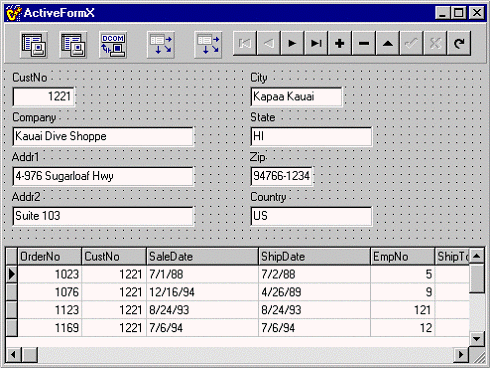
The modified ActiveForm obtains live data from the DCOMConnection at design time.
As a result of removing the TTable components and replacing them with TClientDataSets, the ActiveForm is now a thin client because the BDE is no longer needed. The database tables no longer need to be on the client machine. Instead, all clients now connect to a single middleware database server that is able to provide the data to multiple clients simultaneously. For bigger applications we would replace Paradox tables with an Oracle or SQL Server DBMS on the middle tier, and end up with a true N-tier application architecture.
Due to the security problems, package distribution/download issues and BDE deployment "fact of life", I can only recommend the use of ActiveForms in a controlled intranet environment. But in that particular case, they make an excellent choice for a thin client in an N-Tier distributed application.