C++Builder provides components for Windows’ common dialogs. These dialogs include TOpenDialog, TSaveDialog, TFontDialog, and so on. The actual dialogs for these components are not provided by the VCL, but rather are provided by Windows. The VCL common dialog components simply wrap the dialogs that already exist in Windows. This is probably common knowledge for most of you.
What may not be common knowledge, however, is that Windows provides a way of extending the common dialogs. By extending the common dialogs you can add additional controls to the common dialogs, thereby modifying their behavior to suit your needs.
In this article I will explain how to extend the Windows common dialogs. We’ll be looking into areas virtually unknown to many C++Builder programmers. Specifically, I will show you how to create a dialog resource and how to apply that resource to the common dialogs. I will also show you how to respond to messages sent to controls you place on a common dialog. The techniques explained in this article will show how to extend Windows’ file open dialog. The techniques presented, however, apply to all of the Windows common dialogs.
When you extend the common dialogs, you provide a dialog resource that contains the extra controls you want shown on the common dialog. The concept of a dialog resource is foreign to many C++Builder programmers because all windows in a traditional C++Builder application (including dialogs) are implemented as forms. When I speak of dialog resources I am not talking about C++Builder forms. Instead, I am talking about true Windows dialogs, created from a dialog resource. Before going on, I need to spend a little time explaining standard Windows API programming and how it pertains to this article.
In the old days a dialog box was created entirely in text. The dialog’s description was manually typed into a resource script file. A resource script file is simply a text file that, by tradition, has a filename extension of RC. Next, the resource script file was compiled into a binary resource file (RES file) using a resource compiler. The RES file was then linked to the application when the application was built. Here’s how a simple dialog resource looks for a dialog that contains just an OK button and a static text control (a label).
IDD_DIALOG1 DIALOG 0, 0, 240, 120
STYLE DS_MODALFRAME | WS_POPUP |
  WS_VISIBLE | WS_CAPTION |  WS_SYSMENU
CAPTION "Test Dialog"
FONT 8, "MS Sans Serif"
{
  CONTROL "OK",1,"BUTTON",
    BS_PUSHBUTTON | BS_CENTER |
    WS_CHILD | WS_VISIBLE | WS_TABSTOP,
    92, 96, 50, 14
  CONTROL "This is a test.",100,"static",
    SS_LEFT | WS_CHILD | WS_VISIBLE,
    88, 28, 56, 11
}
Notice that the header of the dialog resource describes the dialog’s style, its size, font, and so on. The styles are or’d together just as in C++ code. The body of the dialog resource (the text within the curly braces) describes each control on the dialog. Here again, the control’s caption, resource ID, class name, style, size, and position are described. A simple dialog resource is not terribly complex, but complexity increases as you add custom controls, ActiveX controls, etc.
To display a dialog contained as a resource, you must call a Windows API function such as DialogBox() (for modal dialogs) or CreateDialog() (for modeless dialogs). The programmer must provide a dialog procedure (DialogProc()) to handle messages sent to the dialog. Creating dialogs in this manner requires a great deal of time.
It wasn’t long before the major compiler vendors were providing resource editors for their compilers. A resource editor allows the programmer to design dialog boxes visually, much like the C++Builder form designer. While the use of a resource editor greatly reduced the time required to design dialogs, it is still a tedious process compared to creating forms in C++Builder.
In order to add controls to a common dialog, you must provide a dialog resource that contains additional controls that you want placed on the common dialog. The dialog resource you create should contain only the additional controls. Windows will merge the controls in your dialog resource with those on the common dialog. More accurately, Windows does the following:
· Expands the common dialog by the height and width of your dialog resource
· Creates your dialog resource as a child of the common dialog
· Executes the common dialog
At runtime, the new controls are placed below the existing controls on the common dialog.
In order for your dialog resource to merge with the common dialog it should have these styles:
WS_CHILDRequired because the new dialog is a child of the common dialog.
WS_CLIPSIBLINGSInsures that the new controls don’t overlay any of the existing controls.
DS_3DLOOKInsures that the new controls have a 3D look.
DS_CONTROLAllows the user to use the Tab key to navigate all controls on the dialog.
It’s important that the dialog does not have a border (the WS_BORDER style is not present). If the dialog has a border, the border will show on the common dialog when it is displayed. As long as the dialog does not have a border, it is seamlessly merged with the common dialog and the user sees what appears to be a single dialog.
Without question the easiest way to create the dialog resource template is with a dialog editor. Unfortunately C++Builder does not include a dialog editor. However, C++Builder ships with Borland C++ 5.02 so you can use the resource editor built into that product to create your dialog resources. C++Builder 4 also ships with Resource Workshop. (Resource Workshop is not installed by default so you will have to install it manually. Look in the WORKSHOP directory on the C++Builder CD.) If you use Resource Workshop to create your dialogs you may have to add the DS_3DLOOK style manually (the value of DS_3DLOOK is 0x0004) as Resource Workshop doesn’t include that style.
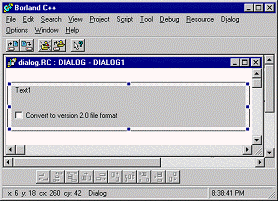
The dialog resource for this article’s example program has a resource name of DIALOG1. It contains two controls that will be merged with the standard open dialog’s controls. The first control is a static text control (a label). This control will be used to display explanatory text on the open dialog. The resource identifier for this control is 102 (an arbitrary number selected by the resource editor). The second control is a check box. This check box will be labeled, "Convert to version 2.0 file format." This assumes a fictitious program that is version 2.0. When this check box is checked the user program can update the file format from version 1.0 to the new 2.0 format. This control has a resource ID of 101.
The standard Windows file open dialog is 280 pixels wide (assuming the default Windows system font). I have made the dialog template 260 pixels wide to insure that it fits on the common dialog without expanding its size. If the dialog is wider than 260 pixels, the common dialog will be expanded to make room for the new dialog’s width. Figure A shows the dialog resource in a BC5 resource editor window.
Figure A
The dialog as it appears in the Borland C++ 5.02 resource editor.
Listing A shows the resource script file (DIALOGS.RC) produced by the resource editor.
Once you have created the resource script file, you can simply add it to your project. C++Builder will compile the resource file and will produce an output file called DIALOGS.RES. The output file is then bound to the executable during the link phase of the build.
A bit of work is needed to implement a custom common dialog in VCL. Here are the required tasks (assuming the dialog resource created earlier):
· Create a new class derived from TOpenDialog. This new class will have properties associated with the two new controls on the common dialog and a constructor that allows you to specify the dialog resource name.
· In the constructor, assign the resource name to TOpenDialog’s Template property.
· Provide an overridden WndProc() for the dialog in order to respond to messages pertinent to the additional controls.
The following sections detail each of these steps.
The first thing you need to do is create a new class derived from the common dialog you wish to extend. In this case we’ll be extending the file open dialog so the new class will be derived from TOpenDialog. It is necessary to derive a class from TOpenDialog because you need access to a property called Template. This property is declared in the protected section of TOpenDialog, so you must derive a new class in order to gain access to it. Template is a char* property used to specify the name of the dialog resource template that contains the controls that will be added to the dialog. All of the VCL classes representing the common dialogs have a Template property.
Here’s the declaration for the class, which I have named TMyOpenDialog:
class TMyOpenDialog : public TOpenDialog
{
  private:
    String FInstructions;
    bool FUpdate;
  protected:
    virtual void __fastcall WndProc(
      Messages::TMessage &Message);
  public:
    TMyOpenDialog(TComponent* AOwner,
      char* TemplateName);
    __property String Instructions = {
      read = FInstructions,
      write = FInstructions};
    __property bool Update = {
      read = FUpdate,
      write = FUpdate};
};
As you can see, this class only has two methods. The base class’s WndProc() method is overridden so that you can respond to message sent to the controls that you place on the file open dialog (I’ll discuss the WndProc() in a later section). The constructor takes the usual AOwner parameter as well as a new parameter called TemplateName. You will pass the name of the dialog template for this parameter (remember that the dialog’s resource name is DIALOG1).
TMyOpenDialog has two properties. The Instructions property will be used to specify the instructions to display on the open dialog. The code will set the text of the static text control in your dialog resource to the value of the Instructions property. The Update property is associated with the check box control contained in the dialog resource. You can examine the value of this property after the open dialog closes to see if the user checked the check box.
The TMyOpenDialog constructor sets the Template property to the value passed in the TemplateName parameter. It’s as simple as this:
TMyOpenDialog::TMyOpenDialog(
  TComponent* AOwner, char* TemplateName)
  : TOpenDialog(AOwner)
{
  if (strlen(TemplateName) != 0)
    Template = TemplateName;
  else
    Template = NULL;
}
Notice that I assign the value of the TemplateName parameter to the Template property only if a valid string was passed in. If an empty string was passed in, I set Template to NULL. This allows the dialog class to be used either as a custom file open dialog (if a resource name was passed in) or as a standard file open dialog (if an empty string was passed in).
When the Execute() method is called, VCL passes the template name on to Windows and sets up the proper flags so that Windows knows that a custom file open dialog is being used.
When you add controls to the common dialogs you must deal with those controls the old fashioned way—at the API level. Dealing with controls on this level requires knowledge of Windows messages and the Windows API.
When the file open dialog is invoked, Windows sends messages to the dialog at various times during the creation process. Windows also sends messages to the controls on the dialog, both at creation time and while the dialog is visible. You must intercept some of those messages in order to interact with the controls you have placed on the dialog. Take the static text control on the dialog for example. You need to set the text of this control prior to the dialog being shown. To do that you must intercept the WM_INITDIALOG message. When your WndProc() receives this message, you can set the control’s text using the SetWindowText() API function. Here’s how that code might look:
TMyOpenDialog::WndProc(TMessage& Message)
{
  if (Message.Msg == WM_INITDIALOG)
    SetWindowText(GetDlgItem(Handle,102),
      FInstructions.c_str());
  TOpenDialog::WndProc(Message);
}
The pertinent piece of code is the line following the if statement. The GetDlgItem() function returns the window handle of a control on a dialog. I pass the window handle of the parent dialog (the Handle property in this case) and the resource identifier of the control whose handle I am requesting. If you recall, the resource ID for the static text control on the dialog resource is 102. Once I have the static text control’s window handle I can call the API function SetWindowText() to set the label’s text. I could have sent the control a WM_SETTEXT message, but this method is easier both to implement and to understand. Notice that I am passing the value of the FInstruction field to SetWindowText() using the c_str() function. The static text control’s text is now set to the value of the Instructions property.
The check box’s text is already set so I don’t need to worry about setting the control’s text as I did for the static control. What I must do, however, is determine whether or not the check box is checked so I can update the value of the Update property. I respond to the WM_COMMAND message and examine the state of the check box at that time. First look at the full code for the WndProc() function:
void __fastcall
TMyOpenDialog::WndProc(TMessage& Message)
{
  switch (Message.Msg) {
    case WM_INITDIALOG : {
      SetWindowText(
        GetDlgItem(Handle,102),
        FInstructions.c_str());
      break;
    }
    case WM_COMMAND : {
      if (LOWORD(Message.WParam)==101 &&
         (HIWORD(Message.WParam) ==
           BN_CLICKED)) {
        FUpdate =
          IsDlgButtonChecked(Handle,101);
        Message.Result = 1;
      }
      break;
    }
  }
  TOpenDialog::WndProc(Message);
}
Notice that I have added a switch statement to handle the different Windows messages that I am interested in. In this particular case I don’t necessarily need a switch since I am only responding to two messages. The switch statement, however, allows me to easily add additional message handlers should the need arise.
Now turn your attention to the code for the WM_COMMAND message. This message is sent to a window procedure when some action takes place for a control. In the case of buttons (a check box is a form of button) the WM_COMMAND message will be sent when the button is clicked. The low order word of the WPARAM contains the resource ID of the control that generated the message and the high order word contains the message that was generated. Here I am checking the to see if the low order word contains the value 101 (the resource ID of the check box) and if the high order word contains the BN_CLICKED notification message. If both of those conditions are met, I know the check box is checked. The next line calls IsDlgButtonChecked() and assigns the return value to the FUpdate field. When the open dialog closes, the Update property will contain the check box’s checked state.
Writing a WndProc() is not terribly complicated if your open dialog contains simple controls. If your open dialog contains complex controls (such as a tree view or a list view) then additional code is required to interact with those controls. Certainly some knowledge of the Windows API is required in order to implement a WndProc() for your custom common dialogs. Don’t forget to call the base class WndProc() so that messages to the dialog flow normally.
At this point the hard work is done. Putting your customized file open dialog to work is relatively simple:
void __fastcall
TForm1::Button1Click(TObject *Sender)
{
  TMyOpenDialog* Dialog =
    new TMyOpenDialog(this, "DIALOG1");
  Dialog->Instructions="This is a test."
  if (Dialog->Execute()) {
    // Do something with FileName
    if (Dialog->Update)
      ShowMessage(
        "Updated to version 2.0.");
  }
  delete Dialog;
}
Here I simply create an instance of the TMyOpenDialog class, assign a text string to the Instruction property, and call the Execute() method (provided by the base class). When Execute() returns, I check the value of the Update property to determine whether or not the check box was checked.
Figure B shows the customized dialog at runtime. Note the instruction text and check box at the bottom of the dialog.
Figure B
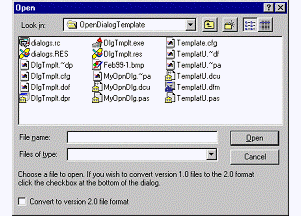
The customized file open dialog at runtime.
As I have said, new controls are automatically added below the common dialog’s existing controls. Windows does, however, provide a way of specifying where new controls are placed on the common dialog.
Windows defines a constant called stc32. This constant has a value of 0x045f. When a control with this ID exists on the dialog, any other controls on the dialog will be placed on the common dialog relative to that control. The second dialog resource in Listing A (the dialog resource name DIALOG2) shows a dialog resource that uses this control.
Note that I have used the value 0x045f for this control’s resource ID. I use the actual value 0x045f because the resource compiler has no knowledge of the stc32 constant. In your dialog editor, make this control hidden so that it is not displayed on the dialog at runtime.
You may be wondering how Windows uses this special control. Any of the controls that appear on your custom dialog resource above this special control will appear above the existing controls on the common dialog. Any controls that appear below this control will appear below the common dialog’s existing controls. Similarly, any controls placed to the right or left of the stc32 control will be placed on the common dialog to the right or left of the existing controls.
Figure C shows the design-time image of a dialog resource that uses this control. Note that although the stc32 control shows up at design time it is not visible at
runtime. Figure D shows the file open dialog as it appears at runtime when applying the custom controls.
Figure C
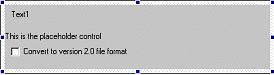
This dialog resource uses the special stc32control.
Figure D
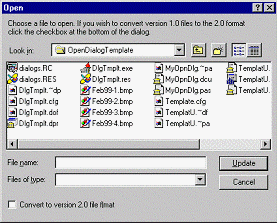
The new file open dialog at run time.
The stc32 control gives you additional flexibility when customizing Windows’ common dialogs. Some experimentation will likely be necessary to get controls to appear just as you want them.
The listings at the end of this article make up a complete program that illustrates the concepts discussed in this article. Listing A shows the resource script file containing two custom dialog resources. Listing B is the declaration of the TMyCustomDialog class. Listing C contains the example program’s main unit. The top portion of the listing shows the implementation of the TMyCustomDialog class’s constructor and WndProc() functions. The main form has three buttons that display the file open dialog, customized in three different ways. You can download the example program from the Bridges Publishing Web site at www.bridgespublishing.com.
Customizing the Windows common dialogs is something that, from the outside, appears difficult to accomplish. While not trivial, customizing the common dialogs is not so daunting once you know the basic requirements. While dealing with dialog resources is not something that most C++Builder programmers have experience with, it is not difficult once you have done it a time or two. A good resource editor is the key to editing dialog resources.
Listing A: DIALOGS.RC
DIALOG1 DIALOG 0, 0, 260, 42
STYLE DS_3DLOOK | DS_CONTROL | DS_CONTEXTHELP |  WS_CHILD | WS_VISIBLE | WS_CLIPSIBLINGS | WS_SYSMENU
CAPTION ""
FONT 8, "MS Sans Serif"
begin
 CONTROL "Convert to version 2.0 file format", 101, "button", BS_AUTOCHECKBOX | WS_CHILD | WS_VISIBLE | WS_TABSTOP, 4, 24, 120, 12
 CONTROL "Text1", 102, "static", SS_LEFT | WS_CHILD | WS_VISIBLE, 4, 0, 248, 20
end

DIALOG2 DIALOG 0, 0, 260, 58
STYLE DS_3DLOOK | DS_CONTROL | DS_CONTEXTHELP | WS_CHILD | WS_VISIBLE | WS_CLIPSIBLINGS | WS_SYSMENU
CAPTION ""
FONT 8, "MS Sans Serif"
begin
 CONTROL "Convert to version 2.0 file format", 101, "button", BS_AUTOCHECKBOX | WS_CHILD | WS_VISIBLE | WS_TABSTOP, 6, 36, 120, 12
 CONTROL "Text1", 102, "static", SS_LEFT | WS_CHILD | WS_VISIBLE, 6, 4, 254, 16
 CONTROL "This is the placeholder control", 0x045f, "static", SS_LEFT | WS_CHILD | NOT WS_VISIBLE, 0, 24, 260, 9
end
Listing B: The TMyOpenDialog declaration.
class TMyOpenDialog : public TOpenDialog {
  private:
    String FInstructions;
    bool FUpdate;
  protected:
    virtual void __fastcall
      WndProc(Messages::TMessage &Message);
  public:
    TMyOpenDialog(TComponent* AOwner,
      char* TemplateName);
    __property String Instructions = {
      read = FInstructions,
      write = FInstructions};
    __property bool Update = {
      read = FUpdate,
      write = FUpdate};
};
Listing C: MAINU.CPP
#include <vcl.h>
#pragma hdrstop

#include "MainU.h"

#pragma package(smart_init)
#pragma resource "*.dfm"
TForm1 *Form1;

TMyOpenDialog::TMyOpenDialog(TComponent* AOwner,
  char* TemplateName) : TOpenDialog(AOwner)
{
  // Pass on the dialog resource if one was
  // supplied. If not, set Template to nil
  // so the standard File Open dialog is shown.
  if (strlen(TemplateName) != 0)
    Template = TemplateName;
  else
    Template = NULL;
}

// The window procedure. We need to provide message
// handling for the extra controls on the form.
void __fastcall
TMyOpenDialog::WndProc(TMessage& Message)
{
  switch (Message.Msg) {
    case WM_INITDIALOG : {
      // Set the static label's text based on the
      // value of the Instructions property. The
      // resource ID for the static label is 102.
      SetWindowText(GetDlgItem
        (Handle, 102), FInstructions.c_str());
      break;
    }
    case WM_COMMAND : {
      // The check box was checked. Set the
      // Update property according to
      // the check box's checked state.
      if (LOWORD(Message.WParam) == 101 &&
         HIWORD(Message.WParam) == BN_CLICKED) {
        FUpdate =
          IsDlgButtonChecked(Handle, 101);
        Message.Result = 1;
      }
      break;
    }
  }
  TOpenDialog::WndProc(Message);
}

__fastcall TForm1::TForm1(TComponent* Owner)
  : TForm(Owner)
{
}

void __fastcall
TForm1::Button1Click(TObject *Sender)
{
  // Create an instance of the class using the
  // DIALOG1 dialog template. Assign text to
  // the Instructions property and Execute the
  // dialog.
  TMyOpenDialog* Dialog =
    new TMyOpenDialog(this, "DIALOG1");
  Dialog->Instructions = "Choose a file to "
    "open. If you wish to convert version "
    "1.0 files to the 2.0 format click the "
    "check box at the bottom of the dialog.";
  if (Dialog->Execute()) {
    Label1->Caption = Dialog->FileName;
    if (Dialog->Update) {
      Label2->Caption = "Checked";
      ShowMessage(
        "File updated to version 2.0 format.");
    }
    else
      Label2->Caption = "Not Checked";
  }
  delete Dialog;
}

void __fastcall
TForm1::Button2Click(TObject *Sender)
{
  // Create an instance of the class using the
  // DIALOG2 dialog template.
  TMyOpenDialog* Dialog =
    new TMyOpenDialog(this, "DIALOG2");
  Dialog->Instructions = "Choose a file to "
    "open. If you wish to convert version "
    "1.0 files to the 2.0 format click the "
    "check box at the bottom of the dialog.";
  if (Dialog->Execute()) {
    Label1->Caption = Dialog->FileName;
    if (Dialog->Update) {
      Label2->Caption = "Checked";
      ShowMessage(
        "File updated to version 2.0 format.");
    }
    else
      Label2->Caption = "Not Checked";
  }
  delete Dialog;
}

void __fastcall TForm1::Button3Click(TObject *Sender)
{
  OpenDialog1->Execute();
}

void __fastcall
TForm1::OpenDialog1Show(TObject *Sender)
{
  HWND hWndDlg =
    GetParent(OpenDialog1->Handle);
  HWND hWndBtn = GetDlgItem(hWndDlg, 1);
  SetWindowText(hWndBtn, "&Delete");

}